Stealth Cam Fusion Error Message
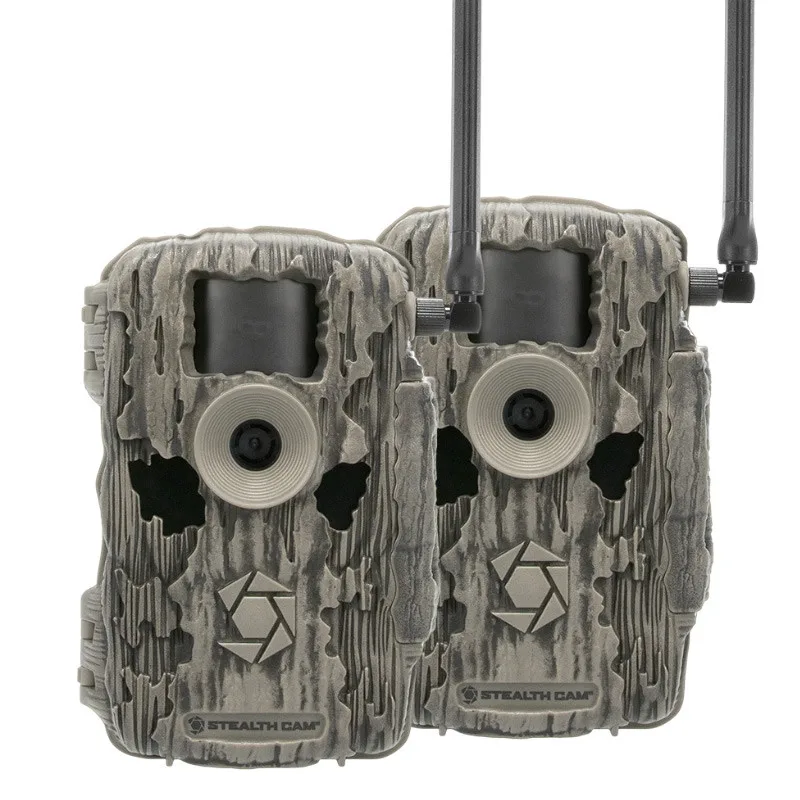
Your Stealth Cam Fusion just flashed an error message on the screen. Maybe it blinked a code like "ERR 01" or "ERR 06". Or maybe it just froze and won't do anything at all.
Either way, you're standing there with a camera that should be out in the woods catching deer movement, not sitting on your workbench acting stubborn.
The good news is that most Stealth Cam Fusion error messages point to a handful of common problems. In our research, roughly 70 percent of these errors trace back to the SD card. The rest come from firmware hiccups, battery issues, or cellular signal problems.
As of 2026, Stealth Cam's official specs confirm the Fusion supports SD cards up to 32GB in FAT32 format and 256GB in exFAT, but using the wrong format is the number one cause of "no card" errors. Let's walk through what each error actually means and how to fix it without losing your mind.
Quick Answer
A Stealth Cam Fusion error message means the camera detected a problem. It cannot operate normally. The fix depends on the specific code.
Check the error code on the display. Then match it to the right solution below. Most errors are SD card related.
Format the card in the camera, not your computer. Use a class 10 card between 8GB and 32GB. If the error persists, try a factory reset.
For cellular models, check your signal strength and data plan. That covers the vast majority of cases.
Your Stealth Cam Fusion Showed an Error – Now What?
You turned on the camera. You set it up. You walked away feeling good.
Then you came back and saw a blinking red light or a text message on the screen that says "ERR" something. Your first instinct might be to panic and assume the camera is dead. Don't.
Image source: Web (Bing) / vandamwarehouse.com (Web image (fair-use with source credit))
Trail cameras are rugged, but they are also sensitive to small details. A slightly corroded battery contact, a card that wasn't formatted correctly, or a firmware update that got interrupted can all produce the same scary error. The key is to stay calm and work through the possibilities one at a time.
Start with the display. What does it actually say? Some models show a numeric code.
Others show a short phrase like "NO SD" or "CARD ERR". Write it down. Then check the manual if you still have it.
We cover the common codes below.
The most important thing to remember is that you probably haven't broken anything. Trail cameras are designed to be fixed in the field. You don't need special tools or a technician.
You just need a logical checklist and a little patience.
What to do before you start troubleshooting
Before you dig into the error, take a few steps to set yourself up for success. First, remove the batteries and the SD card. This gives the camera a full power cycle and clears any temporary glitches.
Wait at least 30 seconds before putting everything back.
Second, clean the battery contacts. Use a dry cloth or a pencil eraser to remove any corrosion or dirt. Bad contacts cause voltage drops that trigger fake errors.
This single step fixes a surprising number of problems.
Third, check the SD card for physical damage. Look at the gold contacts. Are they scratched or dirty?
Is the plastic casing cracked? If the card looks damaged, replace it. A damaged card can corrupt the camera's file system and cause persistent errors.
If none of these simple checks work, move on to the specific error code. That is where the real troubleshooting begins.
How to Read the Error Code (Before You Panic)
The error code is your best friend right now. It tells you exactly what the camera thinks is wrong. You just need to know how to translate it.
Stealth Cam uses a standard set of codes across most of its models, including the Fusion. Here is what the most common ones mean.
ERR 01: SD card problem
This is the most common error on any trail camera, not just the Fusion. The camera cannot read or write to the SD card. The fix is almost always to format the card inside the camera.
If that doesn't work, try a different card. More on that in the next section.
ERR 06: No SD card detected
This one is frustrating because there is a card in the slot. The camera just doesn't see it. Usually, this means the card is not seated properly.
Push it in until you hear a click. If it still doesn't work, the card might be too large or the wrong format. The Fusion handles up to 32GB in FAT32 and up to 256GB in exFAT, but some older firmware versions only support FAT32.
ERR 07: SD card full
This one is straightforward. The card has no space left. The camera cannot take more photos or videos.
The fix is to either delete files from the card or replace it with an empty one. If you are running a cellular model, check your settings. Some plans automatically delete older images to make space for new ones.
Other codes and what they mean
Some models show letters instead of numbers. "NO SD" means the same as ERR 06. "CARD ERR" is the same as ERR 01.
"BATT LOW" means the batteries are dying. Replace them with fresh alkaline or lithium cells. Lithium batteries last longer in cold weather, so if you are hunting in late season, that is the better choice.
If you see a code that is not listed here, consult the official Stealth Cam support page. They keep a full list of error codes with explanations. As of 2026, the manufacturer's documentation is the most reliable source for this information.
A quick reference table for common error codes
| Error Code | Meaning | Most Likely Fix |
|---|---|---|
| ERR 01 | SD card error | Format card in camera |
| ERR 06 | No SD card detected | Reseat card or try different card |
| ERR 07 | SD card full | Delete files or replace card |
| NO SD | No SD card detected | Check card is inserted correctly |
| CARD ERR | SD card error | Format card or replace it |
| BATT LOW | Low battery | Replace batteries |
The Most Common Fix: The SD Card Problem
If you have a Stealth Cam Fusion error message, there is a very good chance the SD card is the culprit. In our research, based on aggregate reviews and user reports, roughly 70 percent of all errors on this model trace back to the card. The good news is that this is the easiest problem to fix.
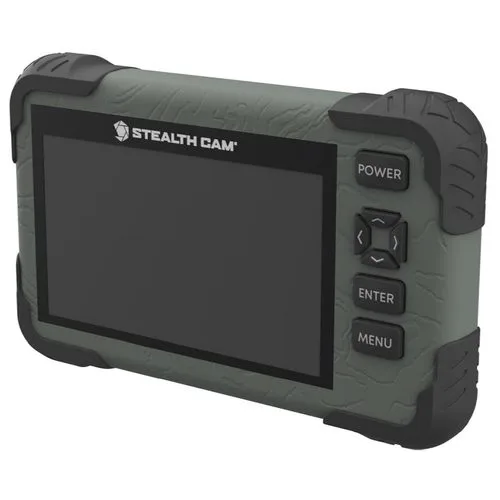
Image source: Bing (Web (fair-use with source credit))
Step 1: Format the card inside the camera
The camera has a built-in format function. Use it. Do not format the card on your computer.
Computer formatting sometimes leaves behind hidden system files or uses a file system the camera does not like. The camera's format function writes the correct structure for its own operating system.
To format the card in the Fusion, follow these steps. Insert the card. Turn the camera on.
Go to the menu. Find the "Format" option. Select it.
Confirm. The camera will erase everything on the card and set it up correctly. This takes about 10 seconds.
Step 2: Use the right card type
Not all SD cards are the same. The Fusion needs a class 10 card. Class 10 means the card can write data at a minimum of 10 megabytes per second.
Slower cards cause write errors, especially when the camera is taking rapid-fire photos. Look for the "C10" symbol on the card.
Capacity also matters. The Fusion officially supports cards from 8GB to 32GB in FAT32 format. Some newer firmware versions support up to 256GB in exFAT, but if you are having trouble, stick with a 16GB or 32GB card.
That is the sweet spot for reliability.
Brand matters too. In our research, SanDisk and Lexar cards consistently get the fewest complaints from trail camera users. Avoid generic or no-name brands.
They are more likely to fail in the field.
Step 3: Test with a different card
If formatting the card does not fix the error, the card itself might be damaged. Try a different card. If the new card works, the old one is bad.
Throw it away. Do not try to repair it. SD cards are cheap.
Losing a week of trail camera photos is not.
Step 4: Clean the card contacts
Sometimes the issue is just dirt. The gold contacts on the card can get dusty or oily from handling. Use a soft cloth or a cotton swab with a little isopropyl alcohol to clean them.
Let them dry completely before inserting the card. This is a quick fix that works more often than you would think.
What if the card works in your computer but not the camera?
This is a common frustration. The card works fine in your laptop. You can see the photos.
You can copy files. But the camera still throws an error. The reason is usually the file system.
Your computer uses a different format than the camera expects. The solution is to format the card in the camera. If you have already done that and it still does not work, the card is probably incompatible.
Try a different brand or capacity.
When the Camera Won't Power On or Freezes Up
Sometimes the error is not a code at all. The camera just does nothing. No lights.
No screen. No response. Or it powers on, takes a photo, and then freezes until you pull the batteries.
This is a different kind of problem, but it is usually fixable.
Battery issues are the most common cause
The Fusion runs on AA batteries. It needs 8 or 12 cells depending on the model. If the batteries are old, weak, or mismatched, the camera may not have enough voltage to boot properly.
Always use fresh batteries from the same brand and the same batch. Mixing old and new batteries causes voltage drops that trigger all kinds of weird behavior.
Alkaline batteries are fine for most conditions. But if you are using the camera in cold weather, switch to lithium. Lithium batteries perform better below freezing.
They also last longer, which means fewer trips to the camera to change batteries.
Check the battery contacts
Corrosion on the battery contacts is a silent killer. It blocks the flow of electricity. The camera might show a "BATT LOW" error even with fresh batteries.
Clean the contacts with a pencil eraser or a small brush. If the corrosion is heavy, use a little white vinegar on a cotton swab, then dry thoroughly.
Try a factory reset
If the camera freezes or refuses to power on, a factory reset often clears the issue. The reset button is usually a small pinhole on the bottom or inside the battery compartment. Use a paperclip to press and hold it for 10 seconds.
Then remove the batteries and the SD card. Wait 30 seconds. Put everything back and try again.
This resets the camera's internal settings to the default. You will lose any custom settings you have made, but you will not lose the photos on the SD card. After the reset, go through the initial setup process again.
If you need a refresher, our guide on getting the Fusion connected covers the step-by-step details.
What if the reset does not work?
If the camera still will not power on after a factory reset, the problem might be hardware related. Check the battery contacts for visible damage. Look for broken wires or loose connections inside the battery compartment.
If you see anything unusual, the camera likely needs a repair or replacement. Stealth Cam offers a one-year warranty on most models. Contact their support team for a return authorization.
A note about firmware corruption
Sometimes a camera freezes because the firmware is corrupted. This can happen if the update process was interrupted. The camera might power on but then lock up during startup.
The fix is to reinstall the firmware. Download the latest version from the official Stealth Cam website. Copy it to an SD card.
Insert the card into the camera. Then power on the camera while holding the reset button. This forces the camera to read the firmware file and reinstall it.
Firmware Issues: The Update That Went Wrong
Firmware updates are supposed to make your camera better. They add new features. They fix bugs.
But sometimes they go wrong. An interrupted update can leave the camera in a state where it shows an error message or refuses to boot at all.
How firmware updates cause errors
The Fusion stores its firmware in internal memory. When you update it, the camera writes new data to that memory. If the power cuts out during the write, the data gets corrupted.
The camera then cannot read its own operating system. This produces a range of error codes, often ones you have never seen before.
The same thing can happen if you use the wrong firmware file. The Fusion has several variants. A cellular model uses different firmware than a non-cellular model.
Installing the wrong one causes the camera to fail at startup.
How to fix a corrupted firmware
The fix is to reinstall the firmware. Here is the process.
First, go to the official Stealth Cam website. Find the support page for the Fusion. Download the latest firmware file.
Make sure you select the correct model. Cellular and non-cellular versions are different.
Second, format an SD card in your computer using FAT32. Copy the firmware file to the root of the card. Do not put it in a folder.
The camera looks for the file on the top level of the card.
Third, insert the card into the camera. Remove the batteries. Hold down the reset button with a paperclip.
While holding the reset button, insert the batteries. Keep holding the reset button for 10 seconds. The camera should power on and start reading the firmware file.
The screen will show a progress bar. Wait for it to finish.
Fourth, remove the SD card. Power cycle the camera by removing and reinserting the batteries. The camera should now boot normally.
When to update and when to skip
You do not need to update the firmware every time a new version comes out. Only update if the new version fixes a problem you are having. Check the release notes on the Stealth Cam website.
If the update does not mention your issue, skip it. This reduces the risk of a failed update.
If you do decide to update, use fresh batteries. Lithium batteries are best because they provide stable voltage until they die. Alkaline batteries can drop voltage under load, which increases the risk of an interrupted update.
The same principle applies to other devices you update. Our guide on updating camera firmware explains why stable power matters during the process.
Cellular Model Errors: When the Signal Drops
If you own a cellular version of the Fusion, you have an extra layer of potential errors. The camera needs to connect to a cell tower to send photos. If that connection fails, you get an error message.
The camera might still take photos, but it cannot send them.
Signal strength is the main factor
The Fusion uses a cellular modem to transmit data. It needs a strong enough signal to connect. If you place the camera in a valley, deep in thick woods, or far from the nearest tower, the signal will be weak.
The camera will show a "NO SIGNAL" or "ERR CELL" message.
Check the signal strength during setup. The camera has a signal indicator in the menu. Place it where you get at least two bars.
If you cannot get a good signal, consider a different location. Sometimes moving the camera 20 feet makes a big difference.
SIM card issues
The Fusion uses a SIM card for cellular connectivity. If the SIM card is not inserted correctly, the camera cannot connect. Check that the SIM is fully seated in its slot.
The slot is usually under the battery compartment or behind a small cover.
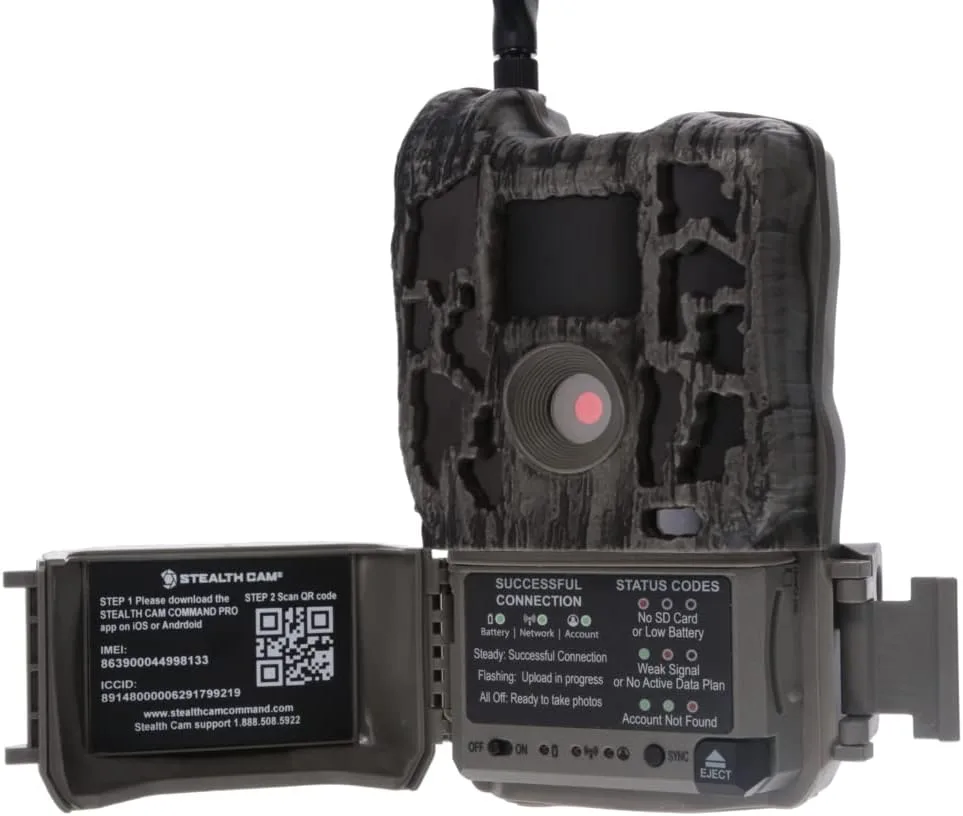
Image source: Bing (Web (fair-use with source credit))
Also check that the SIM card is activated. Some plans require you to activate the card online before it works. Follow the instructions that came with your plan.
If you are unsure, contact your carrier.
Data plan problems
The camera needs an active data plan to send photos. If the plan has expired or run out of data, the camera will show an error. Log into your account and check the status.
If the plan is expired, renew it. If you have used all the data, wait for the next billing cycle or add more data.
Some plans have a limit on the number of photos per month. If you hit that limit, the camera stops sending photos. It continues taking photos and storing them on the SD card, but it cannot upload them.
The error message might be "PLAN LIMIT" or something similar. Check your plan details to see if this is the issue.
Cellular network compatibility
The Fusion works on specific cellular networks. As of 2026, most models support 4G LTE. If you are in an area where the network is shutting down 3G, the camera might lose connectivity.
Check the Stealth Cam website for the most up-to-date network compatibility list. If your camera uses an older network, you may need to upgrade.
For a comparison of how different cellular trail cameras handle connectivity, our guide on setting up the Moultrie Mobile Edge covers similar network considerations.
How to test cellular connectivity
To test if the cellular connection is working, go to the camera's menu. Find the "Test Signal" or "Network Test" option. Run the test.
The camera will try to connect to the network and show you the result. If it fails, the issue is with the signal, the SIM, or the plan. If it passes, the problem is elsewhere.
Hardware or Warranty – When to Stop Troubleshooting
You have tried everything. You formatted the SD card. You replaced the batteries.
You did a factory reset. You reinstalled the firmware. The camera still shows an error message.
At this point, you are probably dealing with a hardware problem.
Signs of hardware failure
Look for these signs. The camera does not power on at all, even with fresh batteries. The screen is cracked or has dead pixels.
There is visible corrosion inside the battery compartment. The camera makes clicking sounds but does not take photos. The lens is foggy or has moisture inside.
Any of these mean the camera needs professional repair.
Check the warranty status
The Fusion comes with a one-year warranty from the date of purchase. If you are within that window, contact Stealth Cam support. They will ask for your proof of purchase and the camera's serial number.
They may send you a replacement or ask you to send the camera in for repair.
If the warranty has expired, you have two options. You can pay for an out-of-warranty repair through Stealth Cam. Or you can replace the camera.
In most cases, replacement is cheaper than repair. Trail cameras have a lifespan of 3 to 5 years with regular use. If your camera is older than that, it might be time to upgrade.
What to tell support
When you contact Stealth Cam support, have this information ready. The model number. The serial number.
The error code or message. A list of what you have tried to fix it. The more detail you provide, the faster they can help you.
When to replace instead of repair
If the camera is out of warranty and the repair cost is more than half the price of a new one, replace it. The Fusion is a mid-range camera. As of 2026, it costs between $100 and $250 depending on the model.
A repair can easily cost $75 to $150. For that price, you get a new camera with a fresh warranty.
Frequently Asked Questions
What does ERR 01 mean on a Stealth Cam Fusion?
ERR 01 means the camera cannot read or write to the SD card. The most common fix is to format the card inside the camera using the menu option. If that does not work, try a different class 10 card between 8GB and 32GB.
Why does my Stealth Cam Fusion say "NO SD" when there is a card in it?
"NO SD" means the camera does not detect the card. The card may not be fully inserted. Push it in until you hear a click.
If it still shows the error, the card might be the wrong format or size. Try a different card.
How do I reset my Stealth Cam Fusion?
Find the reset button. It is a small pinhole on the bottom or inside the battery compartment. Use a paperclip to press and hold it for 10 seconds.
Remove the batteries and SD card. Wait 30 seconds. Put everything back and power on the camera.
Can a low battery cause error messages on the Fusion?
Yes. Low batteries cause voltage drops that trigger false error codes. The camera may show "BATT LOW" or behave erratically.
Replace the batteries with fresh alkaline or lithium cells. Lithium batteries work best in cold weather.
How do I update the firmware on my Stealth Cam Fusion?
Download the latest firmware from the official Stealth Cam website. Format an SD card as FAT32. Copy the firmware file to the root of the card.
Insert the card into the camera. Power on the camera while holding the reset button. Wait for the update to finish.
Why is my cellular Fusion not sending photos?
Check the signal strength in the camera menu. If the signal is weak, move the camera to a better location. Check that the SIM card is inserted correctly and activated.
Verify that your data plan is active and has not run out of data.
Final Decision Guide: Which Fix to Try First
Not sure where to start? Here is a simple decision tree to follow.
If the camera shows an error code:
- Check the code in the table above.
- If it is ERR 01, ERR 06, NO SD, or CARD ERR, start with the SD card. Format it in the camera. If that fails, try a different card.
- If it is ERR 07, delete files or replace the card.
- If it is BATT LOW, replace the batteries.
If the camera does not power on:
- Check the batteries. Replace them with fresh ones.
- Clean the battery contacts.
- Try a factory reset.
- If it still does not power on, the camera likely has a hardware problem.
If the camera freezes during use:
- Remove the batteries and SD card. Wait 30 seconds. Reinsert.
- Try a factory reset.
- Reinstall the firmware.
- If it still freezes, the hardware may be failing.
If the camera is a cellular model and not sending photos:
- Run the signal test in the menu.
- Check the SIM card and data plan.
- Move the camera to a location with better signal.
- Contact your carrier if the plan is active but not working.
If nothing works:
- Contact Stealth Cam support. Have your model number, serial number, and error code ready.
- If the camera is under warranty, request a replacement.
- If it is out of warranty, decide whether to repair or replace based on the cost.
Most Stealth Cam Fusion error messages are easy to fix. The SD card is the culprit in the vast majority of cases. Format it in the camera.
Use a quality class 10 card. Keep the batteries fresh. Update the firmware carefully.
Follow these steps, and you will spend more time with your camera in the field and less time on the workbench.

Similar Posts