VIOFO A119 Mini 2 Troubleshooting
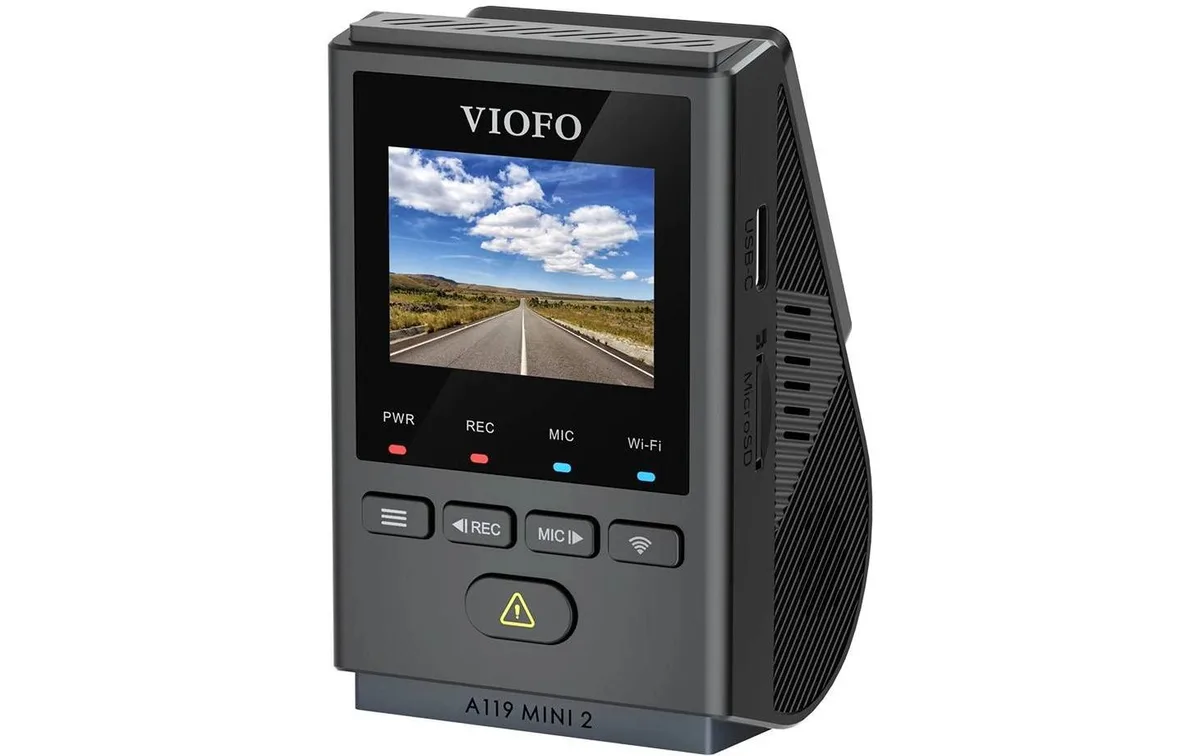
If your VIOFO A119 Mini 2 troubleshooting is starting to feel like a second job, take a breath. This little dashcam is a solid performer, but it has its quirks. Most issues boil down to a few common causes you can fix yourself.
Manufacturer specs confirm the camera draws 5V at 2A, so power delivery is often the first thing to check. Start with the cable and power source before digging into software settings. Let's walk through the most frequent problems step by step.
Image source: Bing (Web (fair-use with source credit))
Quick Answer
Most VIOFO A119 Mini 2 issues are fixable at home. Start with the power cable and SD card. Format the card inside the camera.
Update the firmware to the latest version. Check the USB-C port for damage.
Is Your VIOFO A119 Mini 2 Acting Up? Start Here
Before you dive into any specific fix, run through these quick checks. Many problems share the same root cause. Save yourself time by ruling out the obvious first.
| Symptom | Likely Cause | First Step |
|---|---|---|
| Won't power on | Faulty cable or adapter | Test with a different USB cable and 2A charger |
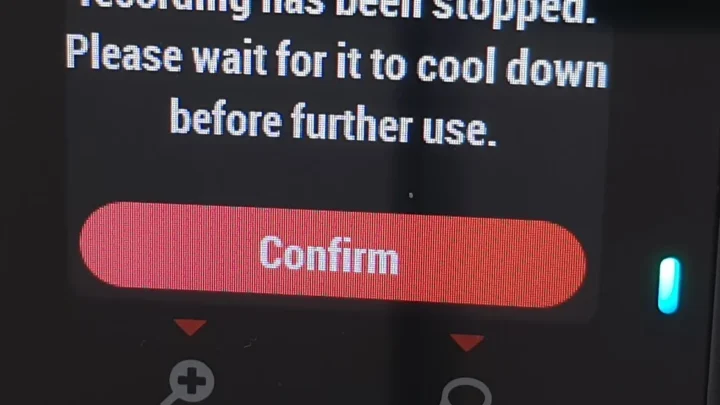
| Random reboots | Loose connection or overheating | Check the USB-C port and mounting location |
| "Card Error" message | Incompatible or unformatted SD card | Format the card inside the camera |
| Blurry footage | Dirty lens or CPL filter | Clean the lens with a microfiber cloth |
| No GPS signal | GPS mount connection issue | Re-seat the camera on the mount |
Universal checks you should do before anything else:
- Update to the latest firmware. You can grab it from VIOFO's official website. This single step fixes a surprising number of bugs.
- Use a high-endurance microSD card rated U3 or V30. Cheap cards cause most of the "card error" headaches.
- Confirm your power source delivers at least 5V/2A. Car USB ports built for data transfer often supply less power than the camera needs.
If you've run through those and the problem persists, move to the symptom-specific sections below. Some of the same connectivity principles apply to other smart cameras too, like the issues covered in our guide to fixing offline cameras.
Symptom 1: Camera Won't Power On or Keeps Rebooting
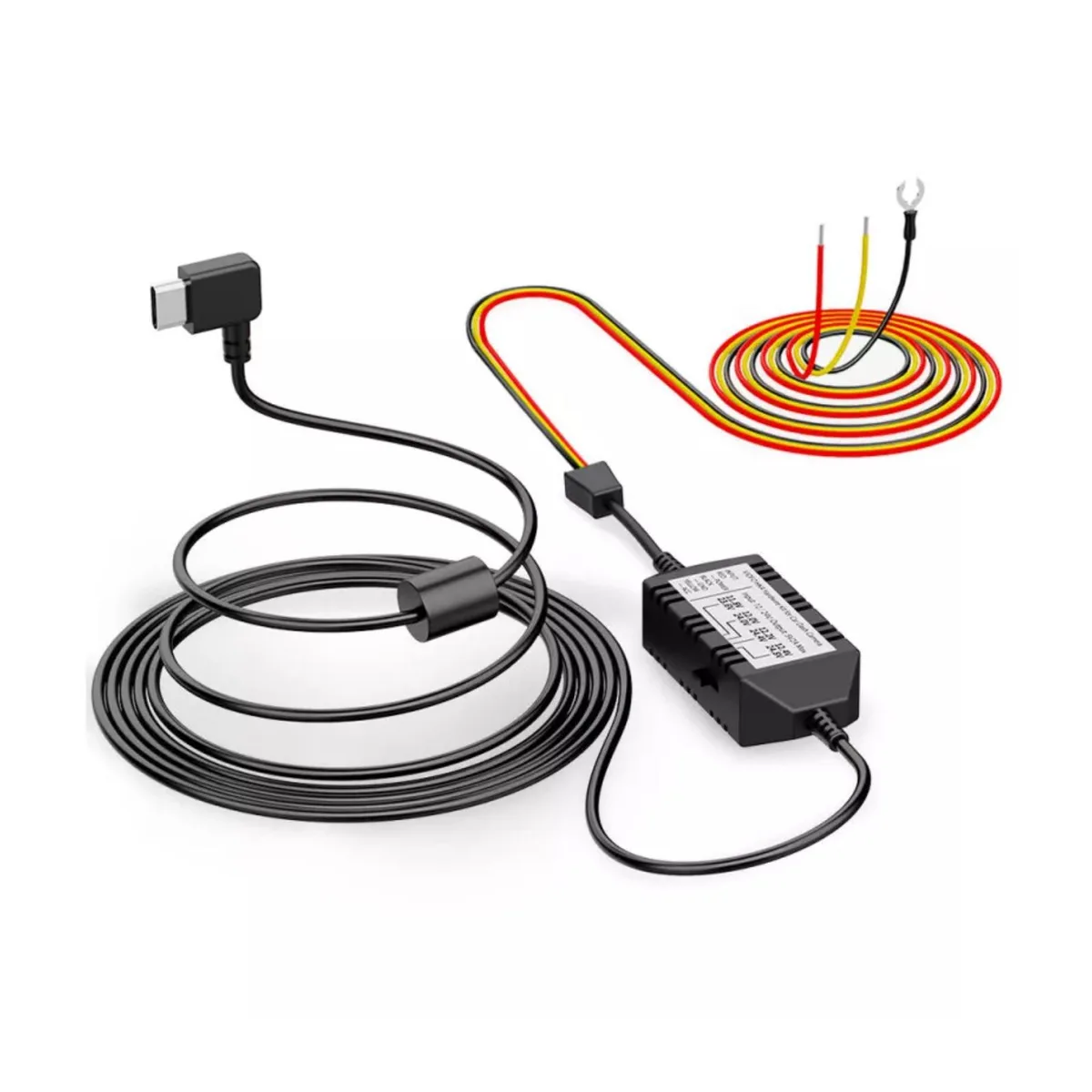
Image source: Web (Bing) / cen.uk (Web image (fair-use with source credit))
If your camera won't power on, the cable is the most likely culprit. The A119 Mini 2 uses a USB-C port, and not all cables are equal. Some cheap cables can't handle the 2A current the camera demands.
What to check first:
- Inspect the USB-C port for debris or bent pins. Even a small piece of lint can prevent a solid connection.
- Try a different USB cable. Use the one that came in the box if you still have it.
- Test with a different power adapter. The included 12V car charger is your best bet, but a wall adapter rated for 5V/2A works too.
- Connect the camera directly to a computer's USB port. If it powers on, the issue is with your car's power setup.
If the camera keeps rebooting:
This usually points to a power delivery problem. The camera boots up, then drops power when the voltage dips. Try a shorter cable (under 6 feet) and a dedicated power adapter.
The camera's internal supercapacitor can also fail over time. If the date and time reset every time you start the car, the supercapacitor may need replacing.
Symptom 2: "Card Error" or "Please Format" – SD Card Troubles
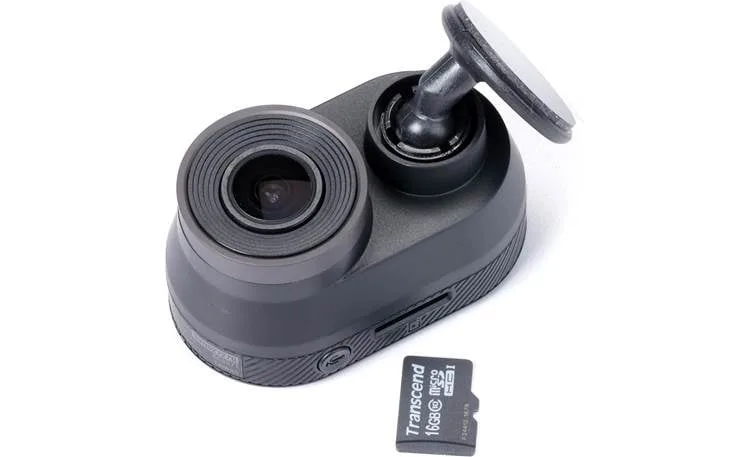
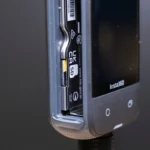
Image source: Bing (Web (fair-use with source credit))
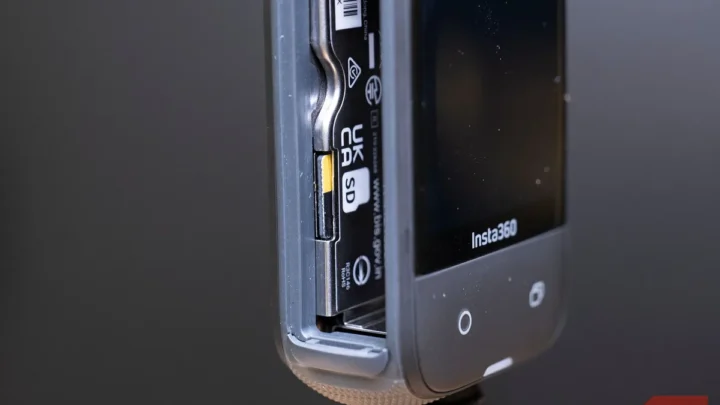
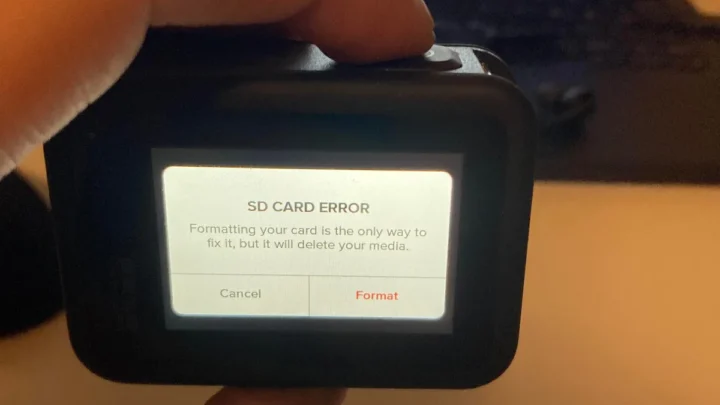
The "Please Format" error usually means the card isn't compatible or wasn't formatted inside the camera. This is the most common issue people report with the A119 Mini 2, and it's almost always an easy fix.
Why this happens:
The camera writes data in a specific way. Formatting the card on a computer sometimes leaves behind partition or file system quirks that the dashcam doesn't like. Formatting it inside the camera erases everything and sets it up correctly.
Steps to fix it:
- Insert the microSD card into the camera.
- Go to Menu > Format and confirm.
- If the card still shows an error, try a different card.
- Use a high-endurance card designed for dashcams. Regular cards wear out fast under constant writing.
Recommended card specs:
| Card Requirement | Detail |
|---|---|
| Type | microSDHC or microSDXC |
| Speed Class | U3 or V30 minimum |
| Capacity | Up to 256GB (officially supported) |
| Endurance | High Endurance rated |
If you've tried two different cards and both throw errors, the camera's card reader may be faulty. Contact VIOFO support for warranty service.
Symptom 3: Blurry, Stuttering, or Missing Video Footage
Blurry footage often comes from a dirty lens or a CPL filter that's not seated properly. Clean the lens with a microfiber cloth first. If you're using the optional CPL filter, remove it and see if the video sharpens up. The filter can cause focus issues, especially if it's not aligned correctly.
Stuttering or skipped frames:
This is almost always a card speed issue. The A119 Mini 2 records at 1440p 60fps, which demands a fast write speed. If your card is too slow, the camera drops frames to keep up.
Switch to a U3 or V30 rated card. Try lowering the recording resolution to 1080p 60fps. If the stuttering stops, you've confirmed the card is the bottleneck.
Missing footage:
Check a few settings:
- Loop recording: Make sure it's turned on. Without it, the camera stops recording when the card fills up.
- G-sensor sensitivity: If it's set too high, every bump locks the current file. This fills the card with protected files and stops recording. Set G-sensor to Low or Medium.
- Parking mode: If you have parking mode enabled, check that the camera is actually entering parking mode. It might be staying in regular recording mode instead.
If video quality still looks off, the lens might be out of focus. This is rare but possible. Contact VIOFO support for a replacement.
Symptom 4: Parking Mode Not Working or Draining Your Battery
Parking mode issues usually come down to the hardwire kit setup or the voltage cutoff setting. The A119 Mini 2 needs a hardwire kit (HK3 or HK4) to run parking mode. Without it, the camera shuts off when the car stops.
If parking mode won't trigger:
- Check that the hardwire kit is connected to a constant fuse, not a switched one. The camera needs continuous power to detect when the car turns off.
- Verify the parking mode setting in the menu. Choose from Time-lapse, Auto Event Detection, or Low Bitrate recording. Time-lapse is the most reliable option.
- Test the G-sensor sensitivity. If it's too low, the camera may not detect motion. Set it to Medium or High.
If the car battery drains:
This is the most common complaint with parking mode. The hardwire kit has a voltage cutoff setting. Set it to 12.0V or 12.2V to protect your battery.
Avoid the 11.8V setting unless you drive daily and have a healthy battery.
Also, check your fuse tap wiring. Using a switched fuse instead of a constant one will prevent parking mode from working at all. It's a simple mistake that's easy to overlook.
Common Mistakes That Make Troubleshooting Harder
Skipping the firmware update is the number one mistake. VIOFO releases updates that fix known bugs. As of 2026, the latest firmware versions address random reboots and GPS dropouts. Always check for an update before assuming the hardware is faulty.
Using a cheap SD card is another big one. Regular microSD cards are designed for burst writes like taking photos. Dashcams write continuously, which wears out standard cards quickly. A high-endurance card costs a bit more but saves you from corrupted files and lost footage.
Ignoring the power cable quality is a common trap. Many people use random USB cables from a drawer. These often have thin wires that can't deliver 2A reliably. The cable that comes with the camera is tested for this exact use case.
Keep it in the car.
Setting the G-sensor too high causes more problems than it solves. Every bump or pothole locks the current file. The card fills up with protected files, and the camera stops recording. Set it to Low or Medium.
Not formatting the card regularly leads to file system errors. The camera writes and overwrites thousands of files. Over time, the card's file system can get fragmented. Format it inside the camera every few weeks.
This same principle applies to other cameras too, such as the issues we cover in our Tapo C120 troubleshooting guide.
Maintenance Tips & a Quick-Fix Reference
A little regular maintenance goes a long way with the A119 Mini 2. Set a reminder on your phone to do these checks every month.
| Task | Frequency | Why It Matters |
|---|---|---|
| Format the SD card in-camera | Every 2-4 weeks | Prevents file system errors and corruption |
| Clean the lens with microfiber cloth | Monthly | Dirt and dust cause blurry footage |
| Check firmware for updates | Every 3 months | Bug fixes and stability improvements |
| Inspect the USB-C port for debris | Monthly | Lint can prevent power delivery |
| Check the GPS mount connection | Monthly | Loose connection causes GPS signal loss |
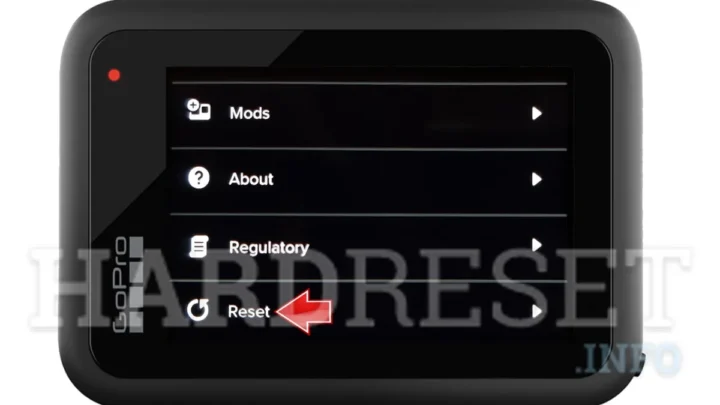
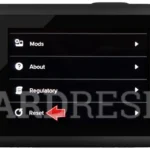
If you're still stuck, a factory reset can clear up stubborn issues. Press and hold the reset button (the small pinhole on the side) for 10 seconds. This restores all settings to default. It can fix weird behavior that doesn't match any specific symptom.
Test the camera on a different power source. If you only use it in your car, you might miss a power issue specific to your vehicle's wiring. Plug it into a wall adapter or a computer USB port for a few minutes. If it works fine there, the problem is in your car's power setup, not the camera.
This is a common theme we see across many dashcam and security camera setups, including the Arlo Essential troubleshooting process.
Frequently Asked Questions
Why does my VIOFO A119 Mini 2 keep saying "Card Error"?
The card likely needs formatting inside the camera. Go to Menu > Format and confirm. If that doesn't work, the card may be incompatible or worn out.
Use a high-endurance U3 or V30 rated card for best results.
How do I update the firmware on the A119 Mini 2?
Download the latest firmware file from VIOFO's official website. Copy it to the root of a formatted microSD card. Insert the card into the camera and power it on.
The camera will automatically detect the file and update. Do not remove power during the update.
What SD card should I use for the A119 Mini 2?
Use a high-endurance microSD card rated U3 or V30, up to 256GB. Brands like Samsung Pro Endurance and SanDisk High Endurance work well. Format the card inside the camera before first use.
How do I reset my VIOFO A119 Mini 2?
Locate the small pinhole on the side of the camera. Use a paperclip or a SIM eject tool to press and hold the button inside for 10 seconds. The camera will restart with factory default settings.
Why is my parking mode draining the car battery?
The voltage cutoff setting on your hardwire kit may be too low. Set it to 12.0V or 12.2V. Also check that the hardwire kit is connected to a constant fuse, not a switched one.
If the battery is old or weak, it may not hold enough charge to run parking mode overnight.
My camera won't turn on at all. What should I do?
Start with the cable and power source. Try a different USB cable and a 5V/2A charger. Inspect the USB-C port for debris.
If the camera still won't power on, connect it directly to a computer. If it works there, the issue is in your car's power setup. If not, the camera may need a replacement.

Similar Posts