Why Is Valve Steam Deck Oled Overheating: Fixes Guide
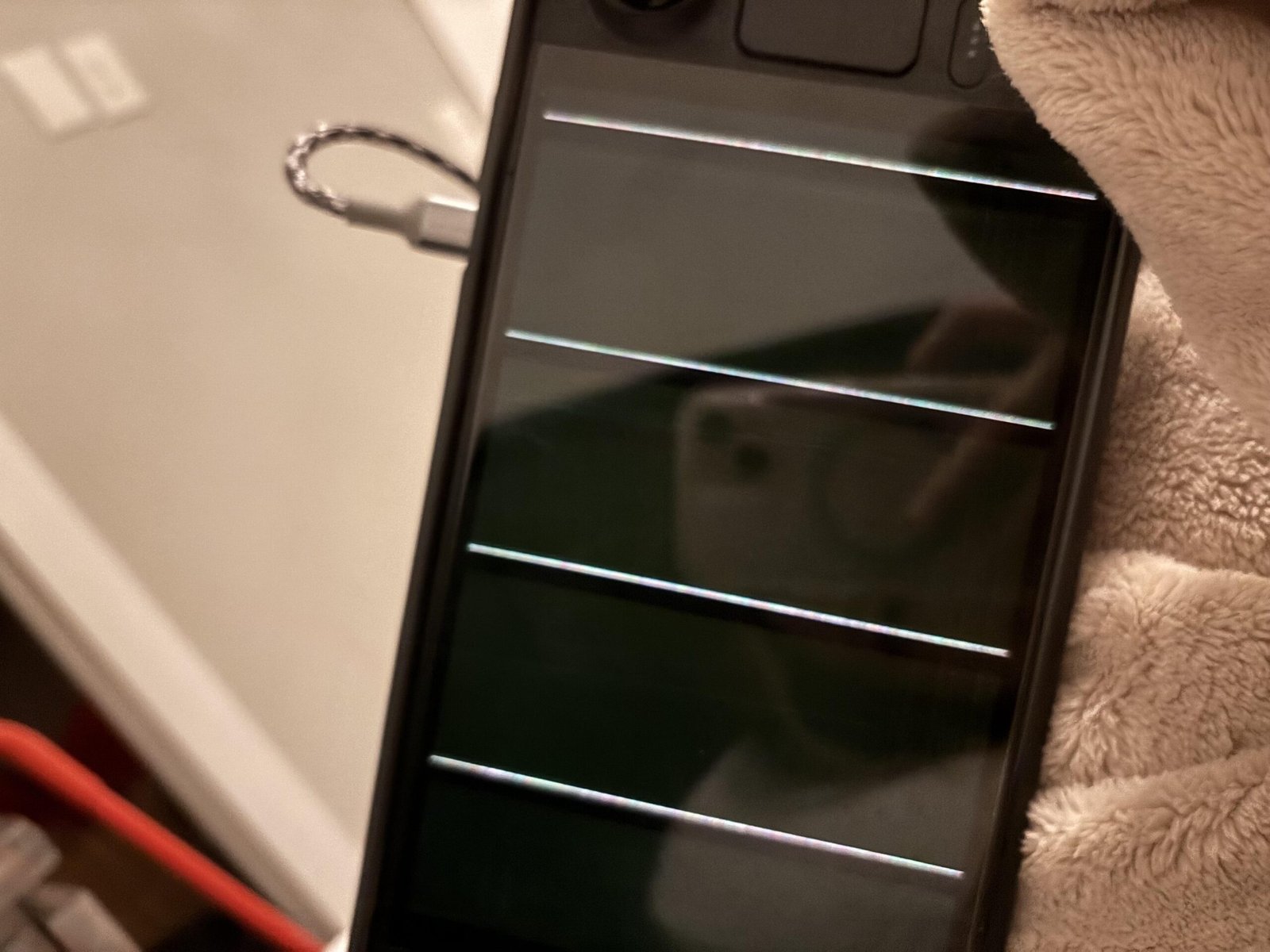
Valve Steam Deck OLED overheating usually comes from high game loads, poor airflow, dust buildup, or faulty settings.
If you have been asking why Valve Steam Deck OLED overheating happens, you are not alone. I have seen this problem come up most often when the system is pushed hard in demanding games, held in warm rooms, or blocked by small airflow mistakes that are easy to miss. The good news is that most causes are fixable, and once you understand what is going on, the Steam Deck OLED is much easier to keep cool and stable.

Why the Steam Deck OLED Gets Hot in the First Place
The Steam Deck OLED is a compact PC, and that matters a lot. It has a powerful chip, a bright display, fast memory, and a cooling system that has to fit inside a very small shell. That is a lot of heat packed into a device that rests in your hands.
Heat is normal during play. What matters is whether the device can move that heat away fast enough. When it cannot, the internal temperature rises, the fan works harder, and the system may throttle performance to protect itself.
A few basic things make overheating more likely:
- Long gaming sessions with heavy 3D games
- High screen brightness and refresh rate
- Warm rooms or direct sunlight
- Dust in vents or on the fan
- Blocked airflow from blankets, couches, or hands
- Aggressive performance settings
- A software bug or game that keeps the chip under constant load
The Steam Deck OLED is built to handle heat, but like any handheld PC, it has limits. Think of it like running a race in a thick coat. It can do it for a while, but the effort builds heat fast.

Common Reasons Why Valve Steam Deck OLED Overheating Happens
There is rarely just one cause. In my experience, the problem is usually a mix of software load, room temperature, and airflow. The OLED model can still run warm even though its display is more efficient than older panels, because the biggest heat source is the APU, not the screen.
Heavy game loads
Modern games can push the Steam Deck OLED close to its thermal limits. Open-world games, shader-heavy titles, and poorly optimized ports make the chip work harder than it should.
If you notice the fan roaring during one game but not another, the game itself may be the reason. Some titles keep the CPU and GPU near max use almost the whole time.
Poor ventilation
The Steam Deck needs room to breathe. If the rear vents are covered, or if you play on a soft surface, heat gets trapped fast.
This is one of the easiest mistakes to make. A pillow, blanket, or couch cushion can quietly turn the device into its own little oven.
Dust and grime
Even a thin layer of dust can reduce airflow over time. Dust does not just sit on the outside. It can clog vents and coat the fan blades too.
I have seen handhelds that looked clean at first glance but still ran hot because the vent mesh was packed with lint. A quick cleaning often makes a real difference.
High ambient temperature
If your room is already warm, the Steam Deck OLED has less room to dump heat. That is just physics. A cooling system works by moving heat into cooler air, so hot rooms make the job harder.
This is why the same game may feel fine in one room and too hot in another.
Wrong performance settings
Some users leave the Steam Deck on higher TDP-style load behavior, uncapped frame rates, or higher brightness than needed. That extra power use creates more heat with little benefit in some games.
A handheld does not always need maximum settings. In fact, a lower frame cap can make the system feel smoother and cooler at the same time.
Software bugs or bad game optimization
Sometimes the issue is not the hardware at all. A game may have a memory leak, shader issue, or CPU spike that keeps the system stressed longer than expected.
SteamOS updates and game patches can help, but until then, you may see more heat than normal.
What Temperatures Count as Too Hot?
The Steam Deck OLED is designed to run warm, and that alone does not mean it is failing. Under load, high temperatures are expected. What you want to watch for is repeated thermal throttling, loud fan spikes, performance drops, or shutdowns.
Signs that the device may be overheating include:
- Sudden frame rate drops
- Loud and constant fan noise
- Hot air that feels unusually strong
- The system warning you about temperature
- Random freezes or shutdowns
- The shell feeling too hot to hold comfortably
One useful rule is this: warm is normal, but unstable is not. If the Steam Deck OLED stays hot yet plays smoothly, it may be fine. If heat comes with lag or shutdowns, something needs attention.

How to Cool Down a Steam Deck OLED
The best fix depends on the cause. I usually start with the simple steps first, because they solve most cases and cost nothing.
1. Improve airflow
Keep the rear vents open. Do not play on thick blankets or soft cushions. If possible, rest the device on a hard, flat surface when docked or paused.
Even a small change in airflow can help. A handheld cooling system works best when it is not fighting the surface beneath it.
2. Lower graphics settings
Try reducing frame rate caps, shadow quality, or resolution scaling. Many games still look great on the Steam Deck OLED at modest settings.
A 30 FPS or 40 FPS cap often reduces heat more than people expect. It can also make battery life better.
3. Check room temperature
If you are gaming in a hot room, try a cooler space or use a fan nearby. You do not need an air conditioner, but cooler surrounding air helps the cooling system a lot.
I learned this the hard way during a summer session. The same game that felt fine in the evening became a heat problem in the afternoon.
4. Clean the vents
Use gentle compressed air on the vents from a safe distance. Do not force debris deeper into the device. If dust is heavy inside, a more careful internal cleaning by a qualified technician may be the safer option.
5. Restart and update
Restart the Steam Deck OLED if the fan suddenly acts odd or temperatures seem wrong. Then check for SteamOS updates and game updates.
A fresh reboot can clear background tasks that are quietly eating resources.
6. Watch background activity
Sometimes downloads, shader compilation, or updates raise temperatures even when you are not fully gaming. Check for active installs or background jobs in SteamOS.
This matters because the device may seem broken when it is really just busy.
7. Avoid charging and gaming in extreme heat
Charging adds extra warmth. Gaming while charging in a hot room can push the system closer to its limit.
That does not mean you should never charge and play. It just means the combination needs more care when the room is already warm.
When Overheating Might Point to a Hardware Problem
Most overheating issues are caused by use patterns, not a bad device. Still, there are cases where hardware is part of the story.
Possible hardware-related causes include:
- A failing fan
- Loose thermal contact inside the unit
- Damaged vents
- A battery issue creating extra heat
- Internal dust buildup that simple cleaning cannot fix
If the Steam Deck OLED gets hot very fast, sounds like the fan is scraping, or shuts down even in light games, that is more serious. In that case, warranty support or repair is the better route.
I always recommend not guessing too long here. If the same overheating behavior appears across different games and settings, hardware should be checked.

Best Habits to Prevent Valve Steam Deck OLED Overheating
Prevention is easier than recovery. The Steam Deck OLED usually stays in better shape when you treat it like the small PC it is, not just a console.
Try these habits:
- Keep vents clear during play
- Use a lower frame cap when possible
- Store and play in cool, dry places
- Clean the device regularly
- Avoid blocking the fan intake with your hands
- Leave space around the device when docked
- Update SteamOS and games often
Small habits stack up. Over time, they reduce heat, noise, and wear on the cooling system.
How the OLED Model Differs from the Original Steam Deck
The OLED version brings a better display, improved battery life, and refined hardware. It also has cooling-related changes that help overall efficiency, but it is still a handheld PC with thermal limits.
The OLED screen itself is not usually the main overheating source. The chip, game workload, airflow, and ambient heat matter more. So if you are wondering why Valve Steam Deck OLED overheating happens even on a newer model, the answer is usually the same basic physics that affects any compact device.
A better screen can help power use in some cases, but it does not erase the heat created by demanding games. That is why even newer handhelds need smart cooling habits.
FAQs
Why is my Valve Steam Deck OLED overheating while charging?
Charging adds heat, and gaming adds more. If you do both in a warm room, the system may run hotter than usual.
Is it normal for the Steam Deck OLED fan to be loud?
Yes, fan noise is normal during demanding games. If it becomes suddenly louder than usual or sounds rough, dust or a fan issue may be the cause.
Can overheating damage the Steam Deck OLED?
Yes, repeated extreme heat is never ideal. The device has protection features, but long-term heat can still affect battery life, performance, and parts wear.
Does lowering brightness help with overheating?
It can help a little, but not as much as lowering game load or improving airflow. Brightness uses power, so reducing it may slightly lower heat.
Should I use a cooling fan attachment?
It can help in some setups, especially in hot rooms or docked use. Still, the best fix is usually smart settings, clean vents, and good airflow first.
Conclusion
Valve Steam Deck OLED overheating is usually caused by heavy game loads, blocked airflow, dust, warm rooms, or settings that push the system too hard. The device is built to handle heat, but it works best when you give it breathing room and keep an eye on the basics.
The good news is that most cooling problems are easy to improve. Start with airflow, lower a few settings, clean the vents, and watch for signs that point to a deeper hardware issue. If you stay proactive, your Steam Deck OLED can run cooler, quieter, and more reliably for the long haul.
If this guide helped, try the tips on your own device, compare the results, and share what worked best for you.

Similar Posts
































