GoPro HERO11 How to Connect to Phone
It's a question almost every new owner asks: GoPro HERO11 how to connect to phone. You unbox the camera, charge the battery, and then hit a wall when the app can't find it. The good news is the pairing process is simple once you know exactly what to look for on each screen.
The connection uses Bluetooth 5.0 for the initial handshake and Wi-Fi 5 (dual-band 2.4 and 5 GHz) for the live preview and file transfers. As of 2026, the GoPro Quik app is the only official way to pair your camera with a smartphone. Let's walk through the visual cues that make this process tricky if you're just following text instructions.
Quick Answer
Turn on your GoPro HERO11 and open the Quik app on your phone. Swipe down on the camera screen and tap "Connect to App". Scan the QR code shown on the camera.
Follow the on-screen prompts. The connection completes in about 30 seconds.
Why Connecting Your GoPro HERO11 to Your Phone Is More Visual Than You Think
A lot of guides assume you can just turn on Bluetooth and tap a button. It's not that simple. The HERO11's touchscreen menu is small and packed with icons.
One wrong tap sends you to the wrong settings page.
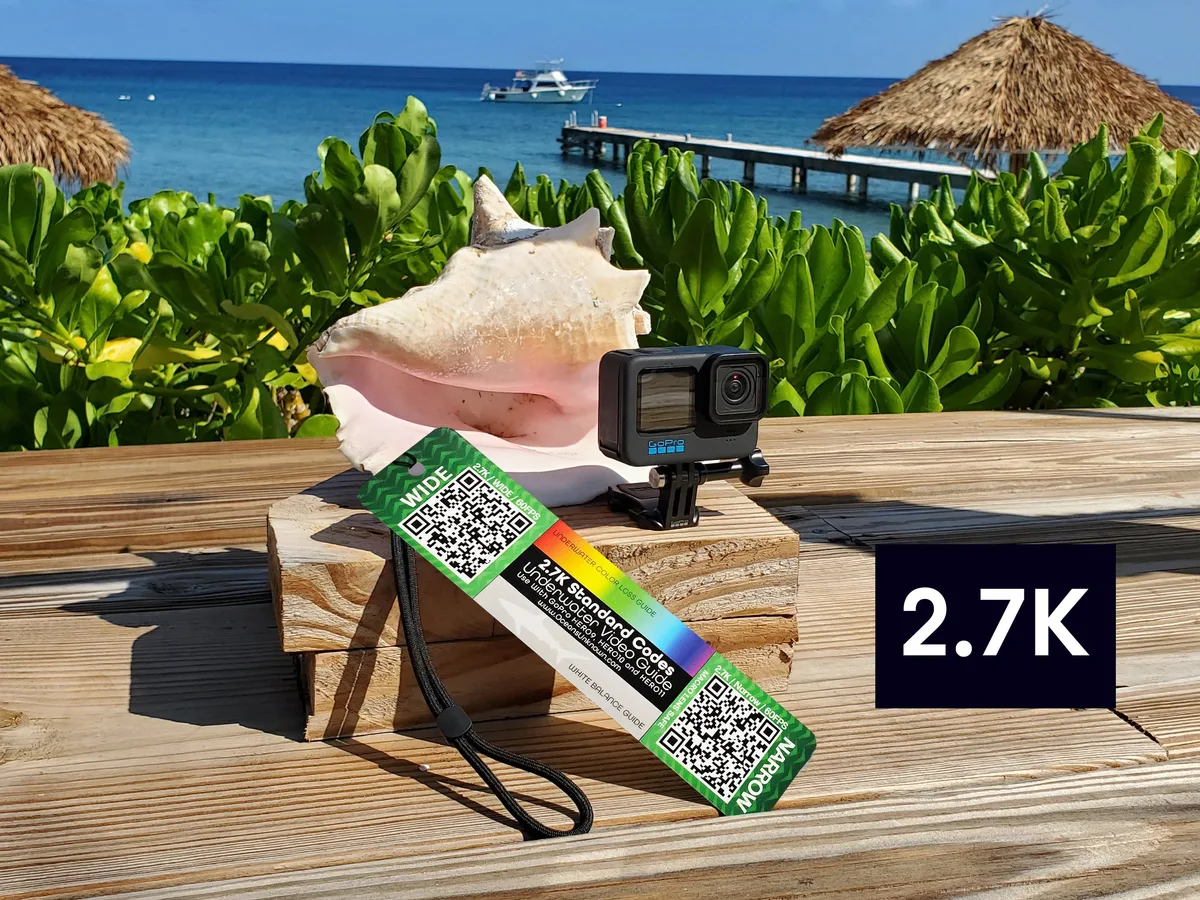
That's why a visual guide matters. Every step from turning the camera on to scanning the QR code relies on what you see on a 2.27-inch display. The blue LED on the camera's front also gives you immediate feedback.
A solid blue light means it's connected. A blinking one means it's searching.
Image source: Web (Bing) / oceansunknown.com (Web image (fair-use with source credit))
If you miss the QR code because the screen brightness is too low, or if you tap the wrong menu option, you'll end up frustrated. That's why we're covering every visual cue in the steps ahead.
What You Need Before You Start: Camera, Phone, and App Setup
Before you even open the Quik app, check these three things. Missing any one of them is the most common reason for a failed connection.
- Camera battery: At least 30% charge. A low battery can cause the Wi-Fi radio to shut down mid-pairing.
- Phone compatibility: iOS 16 or later, Android 10 or later. Older versions may not support the app's Bluetooth Low Energy scanning.
- Quik app installed: Download it from the App Store or Google Play Store. Make sure you have the latest version as of 2026.
- Permissions granted: On Android, you must allow Location access for Bluetooth discovery. On iOS, enable Bluetooth and Local Network permissions.
Here's a quick reference table:
| Requirement | Details |
|---|---|
| Camera firmware | Latest version (check in Settings > About) |
| Phone OS | iOS 16+ / Android 10+ |
| App version | Latest Quik from app store |
| Bluetooth | Enabled on phone |
| Wi-Fi | Enabled on phone (not just mobile data) |
| Location (Android) | Must be set to "While using the app" |
If you've ever run into similar issues with other cameras, you might find the connection patterns familiar. For example, some Sony mirrorless models have their own set of quirks, like the issues covered in our guide on pairing a Sony ZV-E10 II with a phone. The same principle applies: permissions and app updates matter most.
Step-by-Step Pairing Guide: Every Screen, Icon, and Button You'll See
Now, let's go through the actual pairing process. I'll describe exactly what appears on each screen so you can follow along without guessing.
Step 1: Power on the camera. Press the Mode button on the top. The GoPro logo appears, then the main shooting screen.
Step 2: Open the Quik app on your phone. Tap "Connect a GoPro" at the bottom of the screen. You'll see a message that says "Looking for your GoPro".
Step 3: On the camera, swipe down from the top of the touchscreen. This opens the dashboard menu. Look for the icon that looks like a smartphone with a wireless signal.
It's usually the second or third icon from the left.
Step 4: Tap the "Connect to App" option. The camera screen immediately changes to show a large QR code. This code is unique to your camera and contains its Wi-Fi credentials.
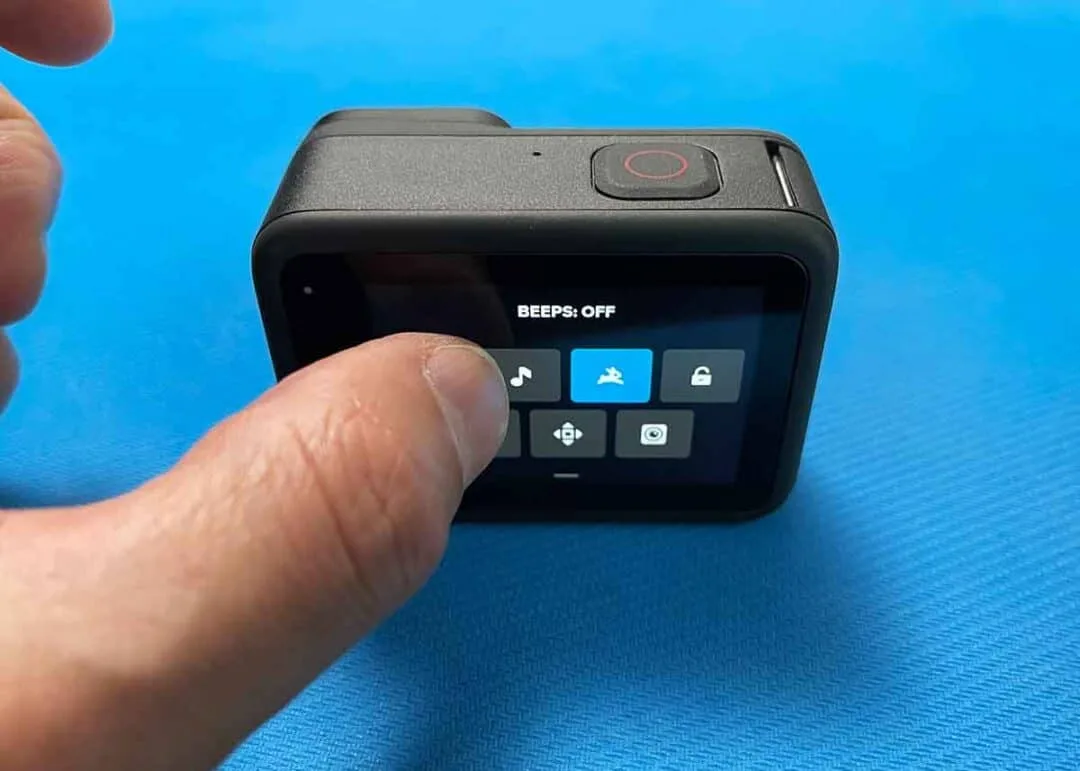
Image source: Bing (Web (fair-use with source credit))
Step 5: On your phone, tap "Scan QR Code" in the Quik app. Point your phone's camera at the QR code on the camera's screen. Keep the phone about 6 to 8 inches away.
The app will beep and automatically start connecting.
Step 6: Wait for the confirmation. The camera will say "Connected to the Quik App" and show a green checkmark. The blue LED on the front of the camera will turn solid. The app will show a live preview from the camera.
That's it. The whole process takes about 30 seconds on a fresh connection. For subsequent pairings, the camera and phone will reconnect automatically as long as Bluetooth is on and the devices are within range.
If you've had trouble with other cameras' pairing processes, you might appreciate the straightforward flow here. Some Sony models require you to navigate through several submenus, as we detail in our walkthrough on the Sony A6700's connection process.
Common Connection Problems: What Each Error Looks Like on Your Screens
Even when you follow the steps, things can go wrong. Here are the most common errors, what you'll see on each screen, and how to fix them.
Issue: QR code won't scan
- What you see: The camera displays the QR code, but the app's viewfinder flickers or fails to recognize it.
- Likely cause: Poor lighting or screen glare. You might be holding the phone too close or too far.
- Fix: Move to a brighter area or tilt the camera screen away from direct light. Clean your phone's camera lens with a soft cloth. Hold the phone 6 to 8 inches from the camera screen.
Issue: "Camera not found" in the app
- What you see: The app says "No cameras found" after scanning or searching.
- Likely cause: Bluetooth is off on the phone, or the camera is not in pairing mode.
- Fix: Confirm Bluetooth is enabled on your phone. On the camera, swipe down and tap "Connect to App" again. If it still fails, restart both devices.
Issue: Connection drops after a few seconds
- What you see: The live preview appears for 5 to 10 seconds, then freezes or disconnects.
- Likely cause: Wi-Fi interference. The 2.4 GHz band is crowded, or you're too far from the camera.
- Fix: Move the phone closer to the camera (within 10 feet). Turn off other nearby Bluetooth devices. If available, switch the camera to 5 GHz in the connection settings (Preferences > Connections > Wi-Fi Band).
Issue: Phone asks for mobile data when connecting
- What you see: A popup says "No internet connection" or "Switch to mobile data?"
- Likely cause: The phone is trying to use cellular data instead of the camera's direct Wi-Fi.
- Fix: Tap "Stay connected" or "Use Wi-Fi" on the popup. The camera creates its own local network, not an internet connection, so you don't need mobile data.
Image source: Web (Bing) / thewindowsclub.com (Web image (fair-use with source credit))
If you're still stuck, you might be dealing with a more specific hardware or software glitch. For instance, some Sony cameras have known Bluetooth pairing bugs, as we covered in our analysis of Bluetooth problems with the Sony A6400. The same troubleshooting logic applies: clear the app cache, update firmware, and reset network settings.
Pro Tips for a Reliable Connection Every Time
Once you've paired successfully, you'll want that connection to stick. Here are five practical tips drawn from aggregate user feedback and GoPro's official support documentation.
- Always update your firmware first. GoPro releases updates that fix Bluetooth and Wi-Fi bugs. Check for the latest version in the camera's settings menu and follow the on-screen instructions. You can also update through the Quik app once connected. For comparison, the update process for other cameras follows a similar pattern, as we describe in our guide on updating firmware for the Sony A7 III.
- Turn off VPNs and ad blockers. Some VPN apps on your phone can block the local network traffic between the camera and the app. Disable them temporarily while you connect.
- Use the 2.4 GHz band if you have trouble with 5 GHz. 5 GHz is faster but has shorter range and is more affected by obstacles. Switch to 2.4 GHz in the camera's connection settings for greater stability, especially if you're indoors.
- Avoid connecting to multiple phones. The HERO11 remembers only one primary phone at a time. If you connect to a new phone, the old one will lose access. To switch back, you'll need to reset the network settings on the camera (Settings > Connections > Reset).
- Keep your phone's GPS and Wi-Fi scanning active. On Android, even if location is off, the phone may still scan for Wi-Fi networks. Make sure "Wi-Fi scanning" is enabled in the phone's advanced Wi-Fi settings. On iOS, keep Bluetooth and Wi-Fi toggled on in the Control Center.
For further official guidance, visit GoPro's support page for device-specific troubleshooting.
What to Do After Pairing: Live Preview, Transfer Video, and Change Settings
Once your camera and phone are connected, you have three main options. Each one uses a different part of the Quik app interface.
Live preview lets you frame shots from your phone. Open the Quik app and tap the camera icon at the bottom center. You'll see a real-time feed from the HERO11.
This is useful for helmet mounts or placing the camera in hard to reach spots. The preview lags by about half a second, which is normal for Wi-Fi streaming.
Transferring videos and photos is the most common task. From the Quik app home screen, tap "Media" at the bottom. Select the files you want.
Tap the download icon. The app transfers them over your camera's Wi-Fi connection. A 5-minute 4K clip takes roughly 2 to 3 minutes to transfer.
Larger files take longer. You can also choose "Full Original" quality in the settings to avoid compression. If you're used to transferring files from another camera brand, you might find the process similar to the steps covered in our guide on transferring photos from the Sony ZV-1.
Changing camera settings remotely is a hidden gem. In the live preview screen, tap the gear icon in the corner. You can adjust resolution, frame rate, field of view, and protune settings without touching the camera.
This is especially handy when the camera is mounted on a tripod or a gimbal.
If you find the connection unstable during transfers, try moving the phone closer to the camera. Walls and metal objects interfere with the Wi-Fi signal.
Frequently Asked Questions
How long does the initial pairing take?
About 30 seconds from starting the app to seeing the live preview. If it takes longer than a minute, stop and restart the process.
Can I connect the HERO11 to multiple phones?
Not at the same time. The camera remembers one primary phone. To switch, you must unpair the old one first through the camera's settings menu.
Will the connection work without mobile data?
Yes. The camera creates its own direct Wi-Fi network. You do not need cellular data or an internet connection.
Ignore any popups asking you to switch to mobile data.
Why does my phone keep saying no internet connection?
That is normal. The camera's Wi-Fi does not provide internet access. Tap "Use Wi-Fi" or "Stay connected" to dismiss the message.
Can I transfer files in the background?
No. The Quik app must remain open and active on your phone. If you switch to another app, the transfer pauses.
Do I need to repair the camera every time I use it?
No. After the initial pairing, the camera and phone reconnect automatically when both have Bluetooth enabled and are within range.

Similar Posts






























