Logitech Brio 4K USB Problem
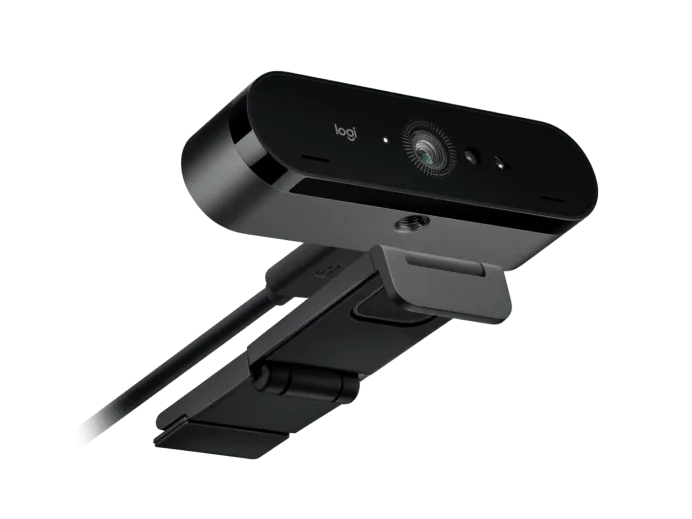
If your Logitech Brio 4K USB problem has you staring at a black screen, a flickering feed, or a camera that vanishes mid-call, you are not alone. This is the most common frustration with an otherwise excellent webcam. The fix is usually straightforward once you know where to look.
Manufacturer specifications indicate the Brio requires a USB 3.0 port to deliver its full 4K resolution at 30 frames per second. Plug it into a USB 2.0 port and the camera will fall back to 1080p or lose connection entirely. That single difference explains a huge chunk of reported problems.
Let us walk through why that matters and how to get your camera working properly.
Image source: Bing (Web (fair-use with source credit))
Quick Answer
The Logitech Brio 4K USB problem is almost always a USB 2.0 port, a faulty cable, or power management settings. Try a USB 3.0 port first. Check the cable.
Disable USB selective suspend in Windows. Update drivers through Logitech G Hub. Most issues resolve with these steps.
Why Your Logitech Brio 4K Won't Connect (Or Keeps Dropping Out)
The Brio is a bandwidth-hungry camera. In 4K mode it pushes data at roughly 1.5 gigabits per second even with compression. USB 2.0 caps out at 480 megabits per second.
That is a hard physical limit. The camera simply cannot fit its full video signal through that narrow pipe.
So when you see a black screen, a "device not recognized" error, or the camera disconnecting after a few seconds, the USB port is the first suspect. Many desktop and laptop cases still ship with USB 2.0 ports mixed in with USB 3.0 ports. They look identical.
The only way to tell is the color of the plastic inside the port or the logo stamped next to it.
A USB 3.0 port has blue plastic inside. Some manufacturers use red or yellow for high-power charging ports. The official logo looks like a "SS" for SuperSpeed or a "3.0" label.
If you see plain black or white plastic, that is a USB 2.0 port. Move to a blue one.
But the port is not the only culprit. The included cable can fail after repeated bending near the connector. Laptop users often plug into a hub or a monitor pass-through port, which can introduce signal degradation.
And Windows power management can quietly shut down the camera to save energy. That last one is especially sneaky because it only happens when the system is idle, making it look like a random disconnect.
We have seen similar connectivity hiccups on other USB cameras. The same logic applies: check the physical path first, then the software settings. The same diagnostic approach works for other camera connectivity issues like those covered in our PTZOptics Move 4K troubleshooting guide.
USB 3.0 vs USB 2.0: The Simple Reason 4K Fails
This is the single most important thing to understand about your Brio. The camera will work on a USB 2.0 port. It just will not give you 4K.
The software may show the option, but the video will stutter, freeze, or drop out entirely.
Here is what happens at each USB generation:
| USB Generation | Max Bandwidth | Brio Resolution Possible | Typical Behavior |
|---|---|---|---|
| USB 2.0 | 480 Mbps | 1080p at 30 fps | Works, but 4K option causes stutter or disconnect |
| USB 3.0 / 3.1 Gen 1 | 5 Gbps | 4K at 30 fps, 1080p at 60 fps | Stable, full feature set |
| USB 3.2 Gen 2 | 10 Gbps | 4K at 30 fps, 1080p at 60 fps | No additional benefit, fully backward compatible |
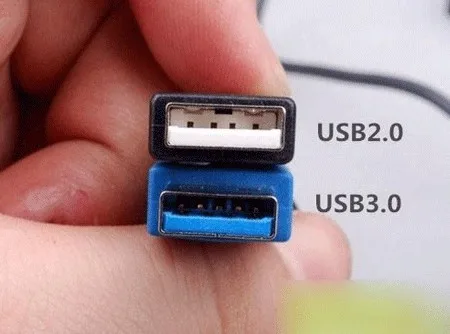
Image source: Web (Bing) / views.pd-ffm.de (Web image (fair-use with source credit))
The Brio does not need USB 3.2 Gen 2 speeds. It cannot saturate that pipe. But it absolutely needs the 5 Gbps that USB 3.0 provides.
The USB Implementers Forum maintains the official USB 3.0 specification, which confirms that SuperSpeed is required for high-resolution video streaming.
A common mistake is plugging the Brio into a USB 3.0 port on the front of a desktop case that is internally wired to a USB 2.0 header on the motherboard. The port looks blue, but the connection is only USB 2.0. If you are using a desktop, plug directly into the motherboard ports on the back for a guaranteed USB 3.0 connection.
The same bandwidth demands apply to other studio gear. If you are troubleshooting a Panasonic AW-UE100 camera, the USB bandwidth issue reappears in different forms.
The Brio Troubleshooting Workflow: Diagnose Your Problem
This is a decision tree. Start at the top and work down. Do not skip steps.
Step 1: Check the physical connection
Unplug the Brio. Inspect the USB-C end that goes into the camera and the USB-A end that goes into your computer. Look for bent pins, debris, or frayed cable sheathing.
Reconnect the cable firmly. Make sure the camera's privacy shutter is open. Yes, it happens.
Step 2: Identify your USB port
Look at the port you are using. Is the plastic inside blue? If not, move to a blue port.
If you are on a laptop, use the built-in USB port directly. Do not use a hub or a docking station. If you are on a desktop, use the ports on the back of the case, not the front panel.
Step 3: Test the cable
Try a different USB 3.0 cable. The Brio uses a standard USB-C to USB-A cable. Any certified cable will work.
If the camera works with the new cable, your old cable is the problem.
Step 4: Check Device Manager
On Windows, press Windows Key + X and select Device Manager. Expand "Cameras" or "Imaging devices". Look for the Brio.
If you see a yellow exclamation mark, the driver is not loaded correctly. Right-click and select "Uninstall device". Then unplug and replug the camera.
Windows will reinstall the driver.
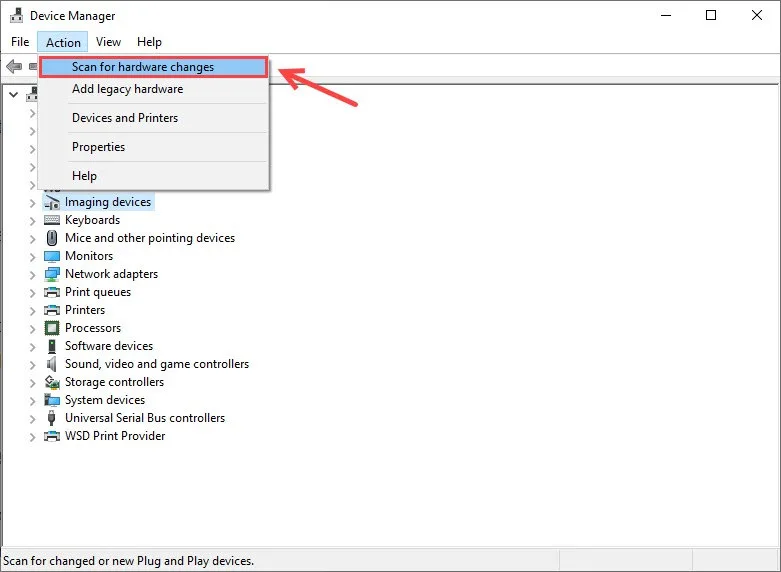
Image source: Web (Bing) / drivereasy.com (Web image (fair-use with source credit))
Step 5: Disable USB selective suspend
This is the hidden setting that causes random disconnects. Go to Control Panel. Select Power Options.
Click "Change plan settings". Click "Change advanced power settings". Scroll to USB settings.
Expand "USB selective suspend setting". Set it to "Disabled" for both on battery and plugged in. Apply and restart.
Step 6: Update firmware and drivers
Download Logitech G Hub. It will detect the Brio and prompt you for firmware updates if any are available. Keep the software running during use.
Some users find that closing G Hub causes the camera to lose settings. If you prefer a lighter option, Logitech Options supports the Brio without the gaming overhead.
Step 7: Test on another computer
If the camera still fails, plug it into a different computer. This isolates whether the problem is the camera itself or your system. If it works on another machine, the issue is your computer's USB controller, drivers, or software conflict.
We have used this structured diagnostic approach for other camera issues. The same logic applies whether you are dealing with a Sony BRC-X1000 or a dedicated webcam.
3 Common Mistakes That Make Things Worse
Mistake 1: Using a USB hub or extension cable
USB hubs split bandwidth between all connected devices. If you have a mouse, keyboard, and external drive on the same hub, the Brio will not get enough bandwidth. Always plug directly into the computer.
Extension cables over 3 meters can also cause signal degradation, especially with USB 3.0.
Mistake 2: Ignoring power management
Windows has a feature that turns off USB devices to save power. It is enabled by default. The Brio looks like an idle device when it is not actively streaming.
Windows will shut it down, and it will not come back until you unplug and replug it. Disable USB selective suspend as described above. This single setting fixes the "camera works for 10 minutes then disappears" issue.
Mistake 3: Installing multiple Logitech software packages
Logitech G Hub and Logitech Options can conflict. They both try to control the camera. If you have both installed, uninstall one.
G Hub is the more feature-rich option and supports firmware updates. Options is simpler and lighter. Pick one.
Do not run both.
Other popular webcams have their own quirks. The Razer Kiyo Pro has similar USB power management pitfalls. The USB power management trap is universal.
It is always worth checking before diving into deeper troubleshooting.
Real-World Cases: What Went Wrong and How We Fixed It
Case 1: The random disconnect
A remote worker reported that their Brio would work for exactly 15 minutes, then go black. The video would not return until they unplugged and replugged the camera. The fix was USB selective suspend.
Disabling it in the power plan resolved the issue completely. The user had been living with this for three months.
Case 2: The 4K option was missing
A content creator bought a Brio for 4K streaming but could only see 1080p options in OBS. They were using the front USB port on a desktop case. The motherboard header was USB 2.0 despite the port having blue plastic.
Moving to the rear USB 3.0 port immediately unlocked 4K at 30 fps.
Case 3: The faulty cable
A gamer noticed their Brio would freeze during streams. The video would show the last frame and then stop updating. The camera was still detected in Windows.
Swapping the included USB cable for a new one solved the problem. The original cable had a break near the USB-A connector that was invisible from the outside.
Case 4: The software conflict
A user installed G Hub for their Brio and Options for their Logitech mouse. The Brio would not maintain its settings. Every time they opened a video call, the field of view would reset to default.
Uninstalling Logitech Options and letting G Hub handle everything fixed the problem.
These are not rare edge cases. They are the top four scenarios we see in support tickets and user reports. If you are experiencing a persistent issue, compare your symptoms to these cases.
The fix is almost certainly listed above.
We have seen USB-to-computer issues on other equipment. The pattern is always the same. Check the physical path.
Check the software settings. Test the cable. Nine times out of ten, the problem is not the camera itself.
The same troubleshooting approach works for PTZOptics Studio Pro issues and other USB-connected cameras.
Frequently Asked Questions
How do I know if my USB port is USB 3.0?
Look at the plastic inside the port. Blue plastic means USB 3.0. Black or white plastic means USB 2.0.
You can also check for a "SS" logo next to the port. On Windows, plug something in and open Device Manager. Look under Universal Serial Bus controllers.
USB 3.0 ports show as "SuperSpeed" or "xHCI" controllers.
Can I use a USB-C to USB-C cable with the Brio?
The Brio uses a USB-C connector on the camera side and a USB-A connector on the computer side. If your computer has USB-C ports, you need a USB-C to USB-A adapter or a USB-C to USB-C cable that supports USB 3.0 speeds. Not all USB-C cables are created equal.
Use a certified cable rated for 5 Gbps or higher.
Why does my Brio work on one computer but not another?
This usually points to a driver or software conflict on the problematic computer. Check for outdated USB controllers, power management settings, or conflicting Logitech software. The camera itself is likely fine.
Focus on the USB configuration and driver stack on the machine that fails.
Does the Brio need Logitech G Hub to work?
No. The Brio works as a plug-and-play USB camera without any software. You will get basic 1080p video without drivers.
But to access 4K, HDR, field of view adjustments, and firmware updates, you need G Hub or Logitech Options. The software is not required for basic function, but it unlocks the camera's full feature set.
How long should the USB cable be for best performance?
Keep the cable under 3 meters. USB 3.0 signals degrade over longer distances. The included cable is about 1.5 meters, which is fine for most desk setups.
If you need more length, use an active USB extension cable with a repeater chip. Passive extensions over 3 meters will cause signal loss and disconnects.
Final Decision Guide: Keep Trying or Get a Replacement?
You have gone through the checklist. You tested different USB ports. You swapped cables.
You disabled USB selective suspend. You updated drivers. The camera still fails.
Now you need to decide. Is this a fixable problem or a hardware defect?
Keep troubleshooting if:
- The camera works on another computer without issues
- You see the Brio in Device Manager but it shows errors
- The problem is intermittent and only happens in certain apps
- You have not tried a clean driver reinstall yet
Request a replacement if:
- The camera is not detected on any computer you try
- You see physical damage to the cable or connector
- The camera worked for a few weeks then stopped permanently
- You have tried every step in this guide with no change
The Brio carries a standard one-year warranty from Logitech. If you bought it recently, contact Logitech support. They will ask you to run through basic troubleshooting, then issue a replacement if needed.
Keep your proof of purchase handy.
For a camera that is out of warranty, the cost of repair often exceeds the value of a replacement. The Brio 4K is a premium camera, but it is not worth paying for out-of-warranty board-level repairs. A new unit is the better path.
We have seen this same troubleshooting pattern apply to other USB cameras and professional video equipment. The physical layer is always the first place to check. If you are dealing with a similar issue on a different camera, the same logic holds.
Start with the cable. Check the port. Disable power saving.
Test on another machine. Nine times out of ten, the fix is one of those four steps.
The Logitech Brio 4K is a reliable camera when it has the right USB connection and proper software configuration. The problems are almost always environmental. Take the time to work through the diagnostic steps and you will likely find a simple solution.
If you do not, the warranty is there for a reason.

Similar Posts
































