Nikon Z6 III Card Error
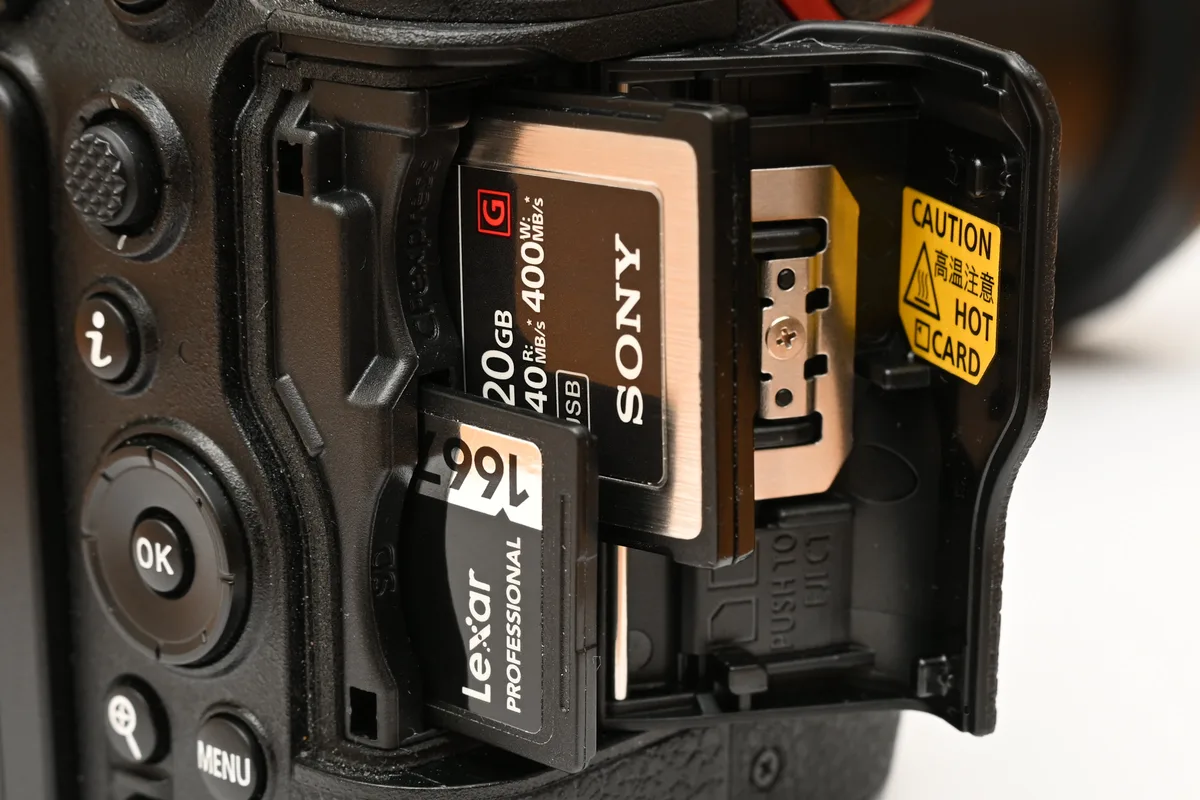
A Nikon Z6 III card error can stop you mid-shoot. It's one of the most common frustrations with this camera. You're not alone if you've seen that dreaded message on the rear screen.
The good news is that most of the time, the fix takes under a minute.
As of 2026, the Z6 III supports both CFexpress Type B and SD UHS-II cards. The CFexpress slot offers write speeds up to 1700 MB/s. That's fast enough for 14 fps burst shooting with full buffer depth.
But speed doesn't matter if the card won't work. Let's walk through exactly what's happening and how to fix it.
Image source: Bing (Web (fair-use with source credit))
Quick Answer
The most common cause is an improperly seated card. Remove the card and reinsert it firmly. If that fails, check the SD card's lock switch.
The next likely culprit is a card that needs formatting in the camera. Try these before anything else.
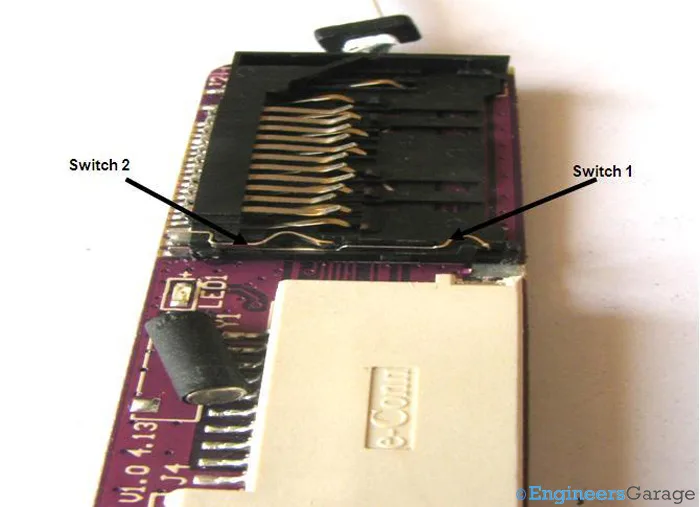
Image source: Web (Bing) / storage.googleapis.com (Web (fair-use with source credit))
The Problem: What "Card Error" Actually Means on the Z6 III
The Z6 III shows different error messages depending on what's wrong. "This card cannot be used" means the file system is incompatible. "Card is write-protected" means the SD lock switch is engaged.
"Card error" is the broadest message and can mean dirty contacts, bent pins, or a failing card.
The camera expects cards formatted in exFAT or FAT32. If you formatted the card on a computer using NTFS, the camera won't recognize it. Manufacturer specifications confirm that in-camera formatting is the safest approach.
One thing many people miss is that the two slots behave differently. Slot 1 is CFexpress Type B only. Slot 2 is SD UHS-II only.
You can't use an SD card in Slot 1 or a CFexpress card in Slot 2. The camera will show an error immediately.
The Decision Tree: Step-by-Step Troubleshooting by Error Type
Follow these steps in order. Each step eliminates the most likely cause before you move to the next.
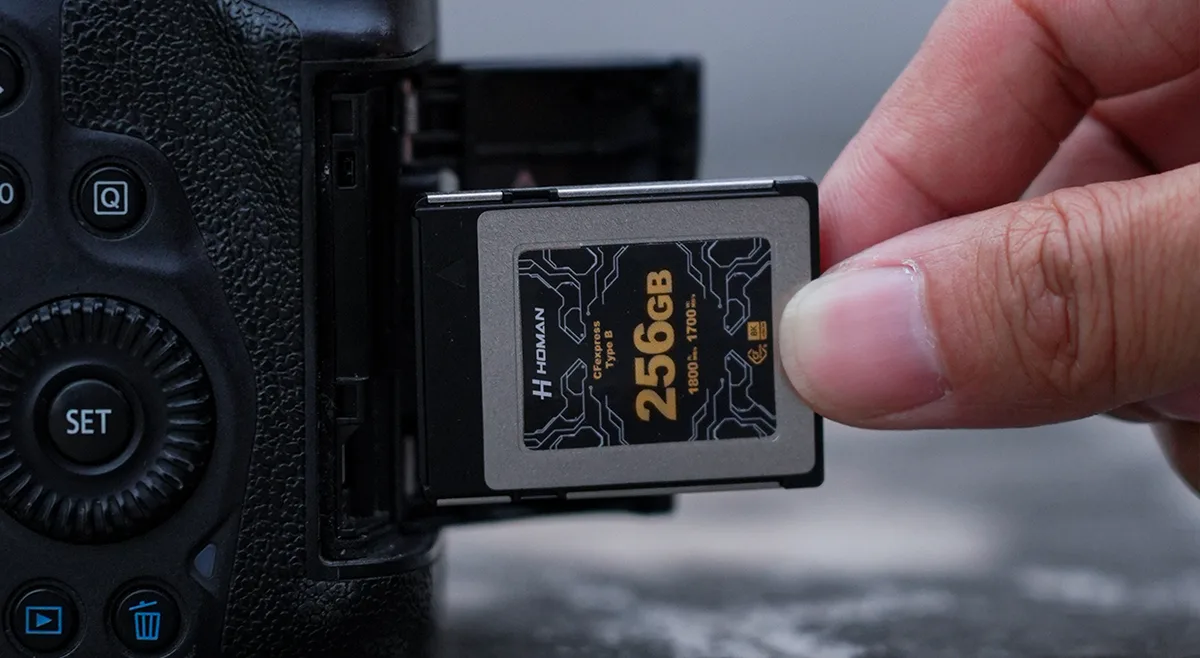
Image source: Bing (Web (fair-use with source credit))
If you see "Card is write-protected"
Check the SD card's lock switch on the left edge. Slide it to the unlocked position. That's it.
This is the easiest fix in the entire list. If you're using a CFexpress card in Slot 1 and see this message, the card may be corrupted or the slot may have a hardware issue.
If you see "This card cannot be used"
Remove the card and insert it into a computer card reader. Back up any files you want to keep. Reformat the card to exFAT using your computer's disk utility.
Reinsert it into the camera. If the error persists, format the card in-camera using the Setup Menu. The camera will create the correct file system automatically.
If you see "Card error" (generic)
Turn the camera off. Remove the card. Inspect the metal contact pins on the card and inside the slot.
Look for dirt, dust, or bent pins. Wipe the card contacts gently with a soft, dry cloth. Reinsert the card firmly until it clicks.
Turn the camera on. If the error persists, try a different card in the same slot. If the second card works, the first card is faulty.
If the second card also shows an error, the slot may have a problem.
If the error appears only during burst shooting or video recording
The card might be too slow for the data rate. The Z6 III can write up to 1700 MB/s to a CFexpress card. An older SD card rated V30 or lower can't keep up.
Switch to a V90 SD card or a CFexpress Type B card rated for sustained write speeds above 1000 MB/s. For N‑Log or ProRes RAW video, the card needs to be on the compatible list.
If the error appears after a firmware update
Go to the Setup Menu and select "Format memory card." Format the card in the camera. If the problem persists, update to the latest firmware version from Nikon's official support documentation. This clears any corruption from the update process.
If the error appears only in one slot
This is a strong clue. If Slot 1 works but Slot 2 doesn't, or vice versa, the problem is likely hardware-specific. Try cleaning the contacts in the non-working slot with compressed air.
If that doesn't help, the slot may have a bent pin or a loose connection. This requires professional repair.
Common Mistakes That Make Things Worse
Formatting on a computer instead of the camera. Your computer might format the card in NTFS, which the Z6 III cannot read. Even exFAT from a computer can use a different allocation unit size. Always format cards in the camera.
Using a card that's too slow. An old SD card rated Class 10 or U1 might work for stills but will fail during burst shooting or video. Use at least a V60 SD card for stills and V90 for video. For CFexpress, stick with cards rated for sustained write speeds above 1000 MB/s.
Ignoring the lock switch. The SD card lock switch is tiny and easy to bump. Check it before doing anything else.
Forcing a stuck card. If a card doesn't slide in easily, stop. You can bend the pins inside the slot. Remove the card, inspect the slot for debris, and try again gently.
Using the same card in multiple cameras without reformatting. Different cameras create different folder structures. Always format the card in the camera you're using.
Not updating firmware. Nikon has released several firmware updates for the Z6 III since launch. Some address card compatibility issues. The latest version as of early 2026 is v1.20.
You can follow a similar process to updating firmware on other cameras to get it done quickly.
Preventing Card Errors
Format cards in-camera every time. Before a shoot, format the card in the camera. This clears residual data and creates a fresh file system. It also checks the card's health.
Keep cards clean. Wipe the contacts with a soft, dry cloth before inserting. Avoid touching the contacts with your fingers. Skin oils attract dust and can cause corrosion.
Use the right card for the right job. Match the card speed to the task. For burst shooting, use CFexpress. For video, use CFexpress or a V90 SD card.
For general stills, a V60 SD card is fine.
Update firmware regularly. Check Nikon's support site every few months. Keeping firmware current prevents many errors. You can also apply a routine like cleaning the sensor at the same time to keep everything in top shape.
Use a card reader for transfers. Connecting the camera to a computer via USB can cause file system errors. Use a dedicated card reader instead.
Label your cards. This helps you track which cards have been formatted and which ones are full. It also helps identify a card that's causing problems.
Replace cards periodically. Memory cards don't last forever. After about 10,000 write cycles or a few years of heavy use, they can develop bad sectors. Replace them with new cards from reputable brands.
When to Send It In
The error appears in both slots with multiple cards. If you've tried three different cards in Slot 1 and all show the same error, and then you try them in Slot 2 with the same result, the problem is inside the camera. The card controller may have a hardware fault.
You see a bent pin. Open the card slot cover and look inside with a bright light. If a pin is not aligned with the others, stop using that slot. Nikon service can replace the card slot assembly.
A card is physically stuck and won't eject. Don't use pliers or tweezers. Try tapping the camera gently on a soft surface. If that doesn't work, send it in.
The error happened after a drop or impact. The internal connection between the card slot and the motherboard might be damaged. The camera needs diagnostic testing.
Card errors are intermittent and getting worse. If you get an error once a week, then every day, then multiple times per shoot, the slot is failing. Send it in before you lose data during a shoot.
You've tried everything on this list. If you've gone through the entire decision tree and the error still appears, you've exhausted the DIY options. Nikon service centers have diagnostic equipment that can pinpoint the exact failure point.
Nikon warranty typically covers card slot defects for one year from purchase. If your camera is out of warranty, get a repair estimate before authorizing the work.
Real Scenarios
The wedding photographer. A photographer was shooting a ceremony when the Z6 III showed "Card error" on Slot 1. She switched to Slot 2 with an SD card and finished the shoot. Later, she found a tiny piece of lint on the CFexpress card contacts.
Cleaning it with a microfiber cloth fixed it completely.
The firmware holdout. A wildlife photographer bought a Z6 III at launch and never updated the firmware. After six months, he started getting intermittent errors during burst shooting. He updated to v1.20, and the errors disappeared.
The card mixer. A hybrid shooter formatted her CFexpress card in her computer because it was faster. The camera started showing "This card cannot be used." She formatted the new card in the camera. Problem solved.
The slow card. A beginner used an old SD card rated for 30 MB/s. The camera worked for single shots but showed "Card error" during continuous shooting. A V90 SD card fixed it.
The bent pin. A travel photographer pushed a card in upside down. It didn't fit, so he pushed harder. The card went in, but the camera showed "Card error." He ended up sending the camera to Nikon for a slot replacement.
Frequently Asked Questions
What does "This card cannot be used" mean on the Nikon Z6 III?
It means the card is formatted with a file system the camera can't read. The Z6 III requires exFAT or FAT32. Format the card in the camera to fix it.
Can I use an SD card in the CFexpress slot of the Z6 III?
No. Slot 1 is CFexpress Type B only. Slot 2 is SD UHS-II only.
Inserting an SD card into Slot 1 will not work and could damage the slot.
Why does my Z6 III show a card error only during video recording?
Your card is too slow for the video data rate. The Z6 III can record high bitrate video like N‑Log and ProRes RAW. Use a V90 SD card or a high-speed CFexpress card.
How do I format a card in the Nikon Z6 III?
Go to the Setup Menu. Select "Format memory card." Choose the slot you want to format. Confirm the action.
Always do this before a shoot.
Will a firmware update fix card errors on the Z6 III?
It can. Nikon released firmware updates that improve card compatibility. If you're on an older version, updating to v1.20 might resolve persistent card errors.
How do I know if my card slot is damaged?
If you've tried multiple cards in the same slot and all show errors, and the other slot works fine, the slot is likely damaged. Inspect the pins with a bright light.
Your Final Decision Guide
Fix it yourself if:
- The error is "Card is write-protected" (slide the lock switch)
- The error is "This card cannot be used" (format in camera)
- The error appeared after a card swap (reseat the card)
- The error happens with only one specific card (replace the card)
- The error is intermittent and you haven't updated firmware (update firmware)
Call Nikon service if:
- The error appears in both slots with multiple different cards
- You see a bent pin inside the slot
- A card is physically stuck and won't eject
- The camera was dropped or impacted before the error started
- You've tried the entire decision tree and the error persists
Card Compatibility Reference Table
| Card Type | Slot | Max Write Speed | Best For | Notes |
|---|---|---|---|---|
| CFexpress Type B | Slot 1 | 1700 MB/s | Burst shooting, ProRes RAW video | Requires sustained write above 1000 MB/s for video |
| SD UHS-II V90 | Slot 2 | 300 MB/s | 4K video, general stills | Minimum for N‑Log recording |
| SD UHS-II V60 | Slot 2 | 150 MB/s | Stills, HD video | Not recommended for high bitrate 4K |
| SD UHS-I V30 | Slot 2 | 30 MB/s | Basic stills only | Will fail during burst or video |
| SD UHS-I Class 10 | Slot 2 | 10 MB/s | Not recommended | Causes errors in most shooting modes |
Choosing the Right Card for Your Workflow
For wedding and event photographers: Use a CFexpress card in Slot 1 for burst shots. Use a V90 SD card in Slot 2 as backup. This gives you speed and redundancy.
For video shooters: Use a CFexpress card rated for sustained write speeds above 1000 MB/s. The Z6 III can record ProRes RAW internally at high data rates. A slow card will stop the recording mid-clip.
For travel and casual shooters: A single V60 SD card is enough for most situations. Save money and use the CFexpress slot for overflow when needed.
For hybrid shooters: Use CFexpress for video and SD for stills. This keeps your workflow organized. You can offload video and stills separately.
Data Recovery: What to Do When a Card Fails
Stop using the card immediately. Remove it from the camera. Insert it into a computer card reader.
If the computer sees it, copy all files to your hard drive. Then format the card in the camera.
If the computer doesn't recognize the card, try a different reader. If that doesn't work, recovery software can often pull images from corrupted cards. Several reputable tools exist for exFAT and FAT32 file systems.
If the card is physically damaged, professional recovery services can help. They cost more but can recover data from cards that seem dead. This is worth it for irreplaceable images.
Once you recover your data, retire the card. Even if it works again after formatting, its reliability is compromised. A new card is cheap insurance.
Long-Term Card Maintenance
Store cards in a case. Keep them away from heat and moisture. Label them so you know which ones are reliable.
Replace cards every two years if you shoot professionally. Heavy use wears them out. Occasional errors are a sign it's time to retire a card.
Format cards in the camera before every shoot. This checks the card's health and creates a clean file system. It takes ten seconds and prevents most errors.
The Bottom Line
The Nikon Z6 III card error is almost always a simple fix. Check the lock switch. Reseat the card.
Format in camera. Update firmware. Nine times out of ten, one of these solves it.
If the error persists across multiple cards and both slots, the camera needs service. That's rare. Most people never get there.
You now know exactly what to do when the error appears. No panic. No lost shots.
Just a quick fix and back to shooting.

Similar Posts