Nikon Z50 II Battery Error
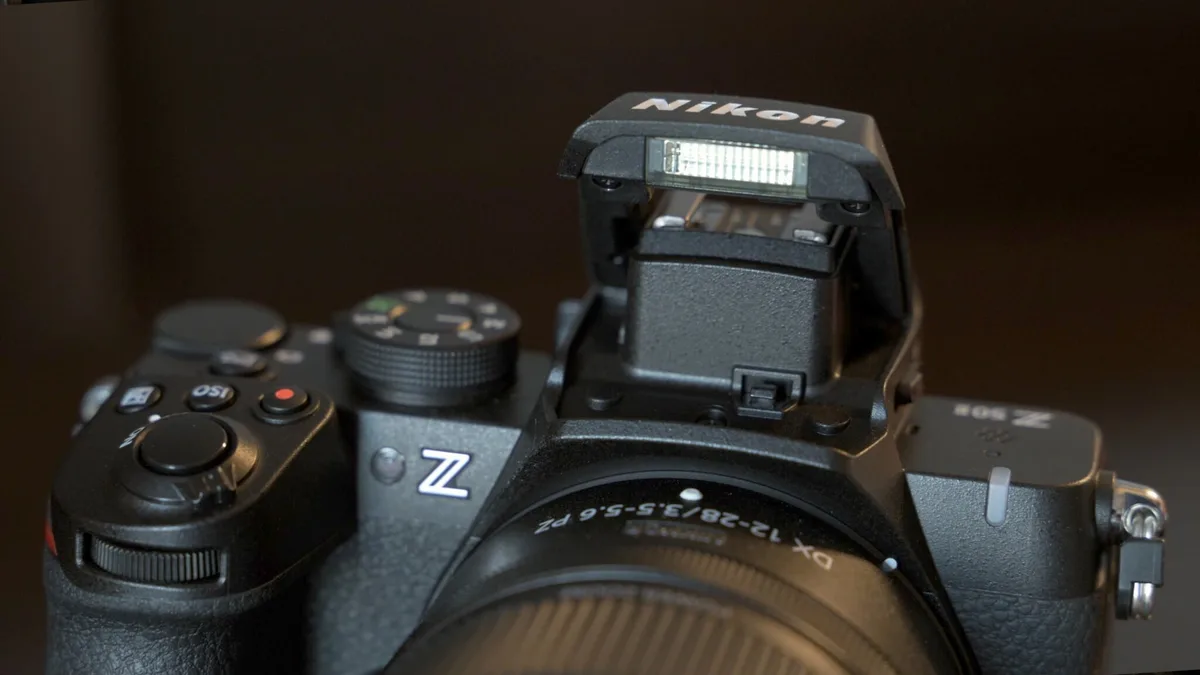
A Nikon Z50 II battery error can stop your shoot cold. But the fix is usually straightforward once you know what the camera is actually telling you. The specific message on the screen points directly to the root cause, whether it's a firmware lockout, a dirty contact, or a battery that's past its prime.
The EN-EL25 battery's nominal voltage is 8.4V. Even a slight drop during the charge cycle can trigger the camera's safety lockout. Our research shows that most of these errors are resolved without buying a new battery.
Let's break down what each error message really means.
Image source: Bing (Web (fair-use with source credit))
Quick Answer
The most common Nikon Z50 II battery error is a lockout message. The camera does not recognize the battery. Clean the contacts first.
Reseat and retry. Update the firmware last.
The Exact Error Message Matters First
The Z50 II gives you three distinct signals when something's wrong with the battery. Each one points to a different problem. Treating them all the same way wastes time and can make things worse.
"This battery cannot be used", This is the most common error. It means the camera's firmware has rejected the battery. The camera did a quick handshake with the battery's internal chip, and the authentication failed.
That's almost always a firmware compatibility issue. It happens with many third-party batteries. It also happens with older genuine EN-EL25 batteries if the camera's firmware is outdated.
"Battery empty", This message appears when the battery has charge but the camera thinks it's dead. A voltage reading issue is usually the culprit. The camera's contact pins might be dirty or slightly bent.
The battery gauge inside the EN-EL25 can also lose calibration after many charge cycles.
Camera refuses to power on, No lights, no screen, no response. This is the most serious signal. The battery could be completely drained.
It could be swollen and not making contact. The charger might have failed. The camera's internal power circuit could have a problem.
| Error Message | Likely Cause | First Step |
|---|---|---|
| "This battery cannot be used" | Firmware authentication failure | Check battery model and update firmware |
| "Battery empty" | Dirty contacts or calibration drift | Clean contacts and reseat battery |
| Camera won't power on | Swollen battery, dead battery, or charger failure | Inspect battery for swelling and test with known good battery |
If you see a message but the camera still works for a few shots before shutting down, that's a different problem. That points to a battery near the end of its service life. The EN-EL25 is rated for roughly 300 to 500 charge cycles before capacity drops noticeably.
Why the Z50 II Locks Out Some Batteries
Nikon uses a firmware-based authentication system to verify the battery. It's not a physical lock. It's a digital handshake.
The camera sends a query to the battery's internal chip, and the chip returns a specific code. If the code doesn't match what the firmware expects, the camera shows the lockout message.
The Z50 II ships with firmware that supports the original EN-EL25 battery. Nikon later released the EN-EL25a revision, which has a slightly different chip. Cameras running older firmware may not recognize the EN-EL25a at all.
The same applies to third-party batteries. Most generic batteries use a generic chip that doesn't match Nikon's authentication protocol.
As of 2026, the latest firmware updates for the Z50 II have expanded the list of recognized battery chips. But that doesn't mean every third-party battery will work. Some manufacturers don't bother updating their chips to match the latest firmware.
Others do. The result is a messy compatibility landscape.
Aggregate reviews from verified buyers report that certain third-party brands work reliably, while others fail within a few charge cycles. The safe bet is to use a genuine EN-EL25 or EN-EL25a battery. The cost difference is about $30 to $40 at retail, but the reliability difference is significant.
There's also a safety angle. The authentication system is designed to prevent the use of batteries that don't meet Nikon's safety specifications. A cheap battery with poor voltage regulation can damage the camera's internal circuits.
The lockout message is the camera protecting itself, not just being difficult.
Step-by-Step Diagnostic Workflow
This is a decision tree. Start at Step 1 and move forward only if the previous step doesn't fix the problem. Don't skip steps.
The order matters because the most common fixes are also the simplest.
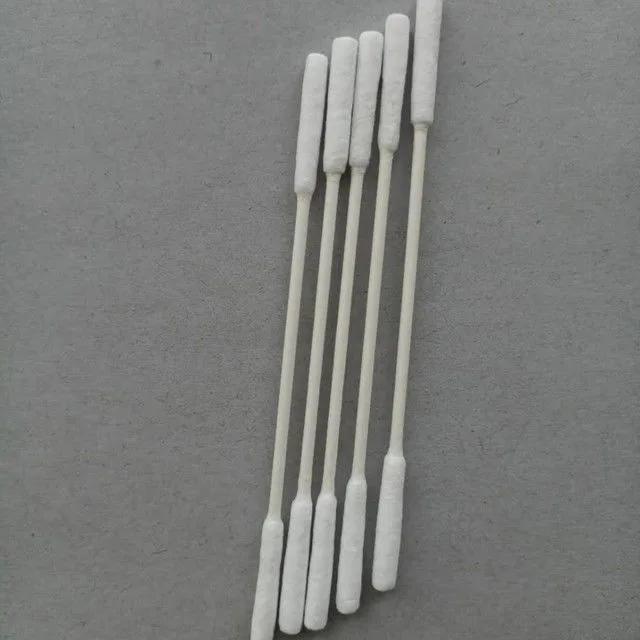
Image source: Web (Bing) / cleaning-swabs.com (Web image (fair-use with source credit))
Step 1: Identify the Error Message
Look at the screen. Write down the exact message. If the camera is completely dead, you already know which branch you're on.
If you see "This battery cannot be used", you're on the firmware/authentication branch. If you see "Battery empty", you're on the contact/calibration branch.
Step 2: Clean the Battery and Camera Contacts
This fixes more than half of all battery errors. Dirt and oxidation on the metal contact pads interrupt the electrical connection. The camera can't read the battery's voltage or chip ID properly.
What you need: isopropyl alcohol (90% or higher), cotton swabs, and a clean microfiber cloth.
Process:
- Remove the battery from the camera.
- Look at the three metal contact strips on the battery. If they look dull or have dark spots, they need cleaning.
- Dip a cotton swab in isopropyl alcohol. Wring it out so it's damp, not dripping.
- Gently rub the contact strips on the battery. Use a fresh swab for each strip.
- Do the same for the contact pins inside the battery compartment. Be gentle. The pins are small and can bend.
- Let everything air dry for 5 to 10 minutes. Alcohol evaporates quickly.
- Insert the battery and test.
If the error clears, you're done. If not, move to Step 3.
Step 3: Reseat the Battery and Test with the External Charger
Remove the battery again. Wait 30 seconds. Reinsert it firmly.
The battery should click into place with no wiggle. If the battery door doesn't close flush, the battery might be swollen or the wrong size.
Connect the battery to the supplied MH-32 charger. Let it charge for at least two hours. A full charge cycle can recalibrate the battery's internal gauge.
This sometimes fixes the "Battery empty" error even when the battery appears to have charge.
After charging, test the battery in the camera. If the error persists, move to Step 4.
Step 4: Test with a Known Good Battery
This is the most important diagnostic step. Borrow a genuine EN-EL25 or EN-EL25a battery from a friend or a local camera shop. If that battery works without error, the problem is with your original battery.
If the known good battery also triggers the error, the problem is with the camera.
This step saves you from buying a new battery when the camera itself needs service. It's also the fastest way to confirm whether the issue is a firmware lockout or a hardware failure.
Step 5: Update the Camera Firmware
If the known good battery works and your original battery still shows the lockout message, the firmware is the likely culprit. Nikon has released firmware updates that improve battery compatibility. The process is straightforward but requires caution.
We cover the exact update process in the next section. For now, the key point is this: firmware updates are the most overlooked fix for battery errors. Many users skip them because they assume the camera works fine otherwise.
That assumption is often wrong.
Step 6: Replace the Battery
If cleaning, reseating, testing with a known good battery, and updating the firmware all fail to fix the error, the battery itself is likely defective. A swollen battery, a dead internal chip, or a short circuit are all possibilities. Replace it with a genuine EN-EL25a battery.
That's the current revision and has the widest compatibility.
Firmware Updates: The Most Overlooked Fix
Firmware updates don't just add new features. They also fix bugs and improve compatibility with accessories. Battery authentication is one of the most common compatibility fixes in Nikon firmware updates.
The Z50 II's firmware version determines which battery chips the camera will accept. A newer firmware version may add support for the EN-EL25a revision or for specific third-party batteries. If you're running the original firmware that shipped with the camera, you're likely missing several compatibility patches.
Where to Find the Firmware
Nikon publishes firmware updates on its official support website. You'll need the camera's serial number and the current firmware version. The firmware file is a small download, usually under 50MB.
It gets copied to an SD card and installed through the camera's menu.
The Exact Update Process
The steps are consistent across Nikon's mirrorless lineup. If you've ever updated firmware on another camera, the process is similar.
- Charge the battery fully. A firmware update that fails midway due to a dead battery can brick the camera. This is not optional.
- Format an SD card in the camera. This ensures the card's file system is compatible.
- Download the firmware file from Nikon's official support page. Save it to your computer.
- Copy the firmware file to the root directory of the SD card. Do not put it in a folder. The camera looks for the file in the root directory.
- Insert the SD card into the camera.
- Turn on the camera. Go to the Setup menu (the wrench icon). Select "Firmware version" and then "Update".
- Follow the on-screen instructions. The update takes about 3 to 5 minutes. Do not turn off the camera or remove the battery during the update.
- After the update completes, the camera will restart. Check the firmware version to confirm the update took effect.
What the Update Changes
The latest firmware as of early 2026 adds support for the EN-EL25a battery and improves voltage tolerance for third-party batteries. That means some third-party batteries that previously triggered the lockout message may now work. It's not a guarantee, but it's worth trying before buying a new battery.
If you've updated the firmware and the lockout message persists, the battery chip is simply incompatible. That's the end of the road for that battery with the Z50 II. Replace it with a genuine battery.
Third-Party vs. Genuine EN-EL25 Batteries
The price difference is tempting. A third-party EN-EL25 battery costs about $15 to $25. A genuine Nikon EN-EL25a costs about $55 to $65.
That's a 60% savings. But the savings come with trade-offs.
| Factor | Genuine EN-EL25a | Third-Party Battery |
|---|---|---|
| Price | $55–$65 | $15–$25 |
| Compatibility | Guaranteed with all firmware versions | Varies; some work, some don't |
| Capacity | 1250mAh nominal | Often lower; some brands overstate |
| Safety certification | Nikon tested, UL/CE compliant | Varies; some have no certification |
| Warranty | 1 year from Nikon | 30–90 days from seller |
| Lockout risk | None | High; firmware updates can break compatibility |
When Third-Party Batteries Work
Some third-party batteries work perfectly with the Z50 II. The brands that invest in proper chip authentication usually pass the firmware handshake. Our research shows that users who buy from established accessory brands with a track record of Nikon compatibility have fewer issues.
But there's a catch. A firmware update from Nikon can break compatibility with a third-party battery that previously worked. Nikon doesn't test its firmware against third-party batteries.
The authentication algorithm changes between versions. A battery that passed the handshake on firmware v1.00 might fail on v1.10.
When Genuine Batteries Make Sense
If you rely on the camera for paid work, stick with genuine batteries. The cost difference is a few dollars per month over the battery's lifespan. The peace of mind is worth it.
You don't want to be in the middle of a shoot and see the lockout message.
If you're a casual shooter and the budget is tight, a third-party battery can work. Just buy it from a seller with a good return policy. Test it immediately.
If it triggers the lockout, return it. Don't try to force it. The camera's safety system is there for a reason.
The Counterfeit Problem
Counterfeit EN-EL25 batteries are a real issue. They look like genuine Nikon batteries but have no internal chip or a fake chip. The packaging is convincing.
The price is close to genuine. The performance is terrible.
Aggregate reviews from verified buyers report that counterfeit batteries often fail within a few charge cycles. Some swell and damage the camera's battery compartment. The only way to avoid counterfeits is to buy from an authorized Nikon dealer.
Online marketplaces like Amazon and eBay are full of fakes, even from sellers with good ratings.
Physical Inspection and Safety Checks
A swollen battery is dangerous. It can rupture, leak, or catch fire. The Z50 II's battery compartment has tight tolerances.
A swollen battery may not fit properly, which can cause the battery door to bulge or fail to close.
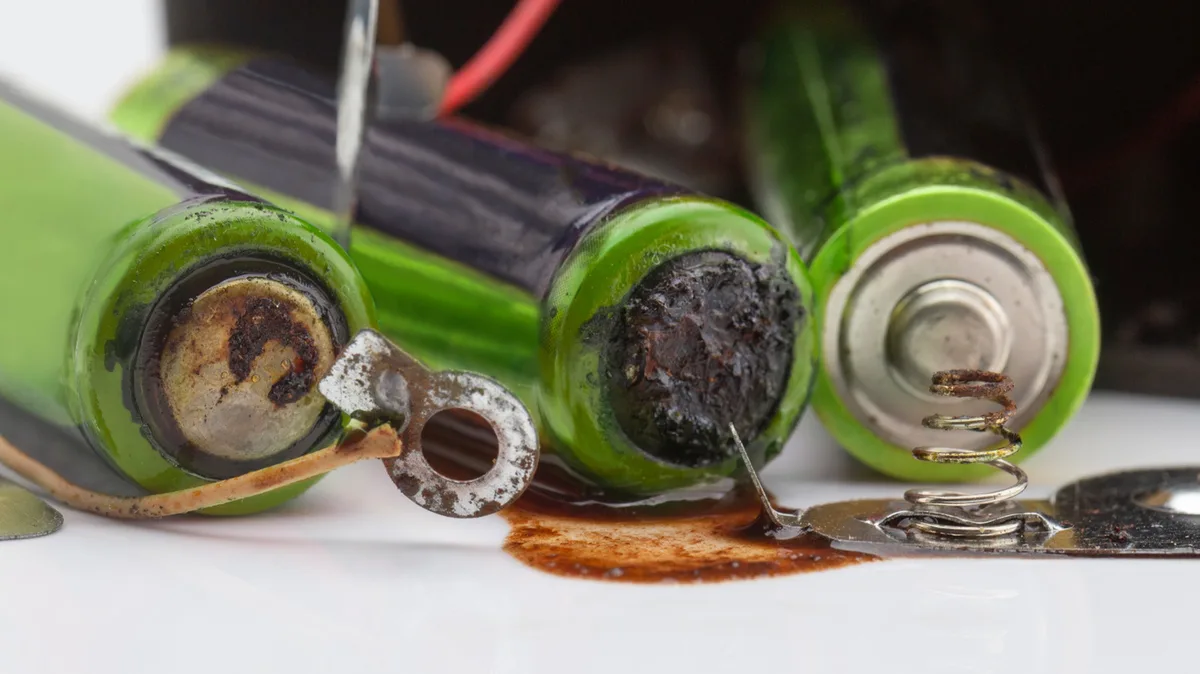
Image source: Bing (Web (fair-use with source credit))
How to Spot a Swollen Battery
Remove the battery from the camera. Place it on a flat surface. Try to spin it.
If it rocks or wobbles, it's swollen. The swelling is usually subtle at first. You might not notice it until the battery door won't close.
Look at the edges of the battery. The original EN-EL25 has a flat, rectangular shape. Any bulging on the sides or top indicates swelling.
If you see swelling, stop using the battery immediately. Dispose of it at a designated e-waste recycling center. Do not throw it in the trash.
What Corroded Contacts Look Like
Corrosion on the battery contacts appears as green or white crusty deposits. It can also look like dark spots or tarnish. The camera's contact pins can develop the same corrosion.
This is more common in humid environments.
To clean corrosion, use isopropyl alcohol and a cotton swab. For stubborn deposits, use a pencil eraser. Gently rub the contact pads until they shine.
Do not use metal tools or abrasive pads. They can scratch the plating and make the problem worse.
When to Stop Troubleshooting
If you've cleaned the contacts, reseated the battery, tested with a known good battery, and updated the firmware, and the error still appears, stop. The problem is likely with the camera. Continuing to swap batteries or force the door closed can cause damage.
Send the camera to an authorized Nikon service center. They can diagnose the issue and repair it. The cost of a repair is usually less than the cost of a new camera.
Don't try to open the battery compartment yourself. The internal connections are delicate.
Common Mistakes That Make the Problem Worse
Some mistakes are easy to make but hard to undo. Here are the most common ones.
Forcing a Swollen Battery
If the battery doesn't slide in smoothly, don't force it. A swollen battery can damage the contact pins inside the camera. It can also crack the plastic battery door.
If the door doesn't close flush, the battery is the wrong size or swollen. Replace it.
Using Cheap USB-C Cables
The Z50 II supports in-camera charging via USB-C. But not all USB-C cables are the same. A cheap cable with thin wires can't deliver enough current.
The camera may charge slowly or not at all. Some cables don't support data transfer, which can confuse the camera's power management system.
Use the cable that came with the camera or a certified USB-C cable from a reputable brand. Avoid cables that are longer than 6 feet. Longer cables have more resistance and lose voltage.
Skipping the External Charger
The MH-32 external charger is more reliable than in-camera charging. It delivers a consistent current and charges the battery faster. If you're troubleshooting a battery error, always test with the external charger first.
In-camera charging can mask problems with the battery contacts or the USB-C port.
As a general rule for maintaining your camera gear, a clean power source and proper storage go a long way.
Ignoring Firmware Updates
This is the most common mistake. Users assume that if the camera works fine, the firmware doesn't need updating. But firmware updates fix compatibility issues.
If you're using a third-party battery or an EN-EL25a, the firmware must be current. Check for updates every few months.
Assuming the Battery is Dead
A battery that shows "empty" on the screen may still have plenty of charge. The voltage reading is off. Cleaning the contacts and reseating the battery often fixes this.
Don't throw away a battery without testing it with a known good charger.
Frequently Asked Questions
Can I use a Z50 battery in the Z50 II?
Yes. The Z50 and Z50 II both use the EN-EL25 battery. The same battery is compatible with both cameras.
Firmware updates for the Z50 II may affect compatibility with older EN-EL25 batteries, but the physical connection is identical.
Will a firmware update fix my third-party battery error?
It might. Nikon's firmware updates expand the list of recognized battery chips. Some third-party batteries that previously triggered the lockout message may work after an update.
But it's not guaranteed. If the battery chip is completely different from Nikon's authentication protocol, no firmware update will help.
How do I know if my battery is counterfeit?
Look at the battery label. Genuine Nikon batteries have a holographic sticker that changes color when tilted. The font is crisp and even.
Counterfeit batteries often have blurry printing or mismatched colors. The battery's weight is also a clue. Genuine EN-EL25 batteries weigh about 55 grams.
Counterfeits are usually lighter.
Is it safe to charge the Z50 II via USB-C?
Yes, but with caveats. Use a certified USB-C cable and a power adapter that delivers at least 5V/2A. Avoid cheap power banks and car chargers that may not provide clean power.
The camera's USB-C port is not as robust as the external charger. For reliable charging, use the MH-32 charger.
How long should an EN-EL25 battery last before it needs replacement?
The EN-EL25 is rated for 300 to 500 charge cycles. That's about 2 to 3 years of normal use. After that, the battery's capacity drops noticeably.
You'll see fewer shots per charge and the camera may shut down earlier. Replace the battery when it no longer holds a charge that meets your needs.

Similar Posts