Roomba Docking Station Not Working
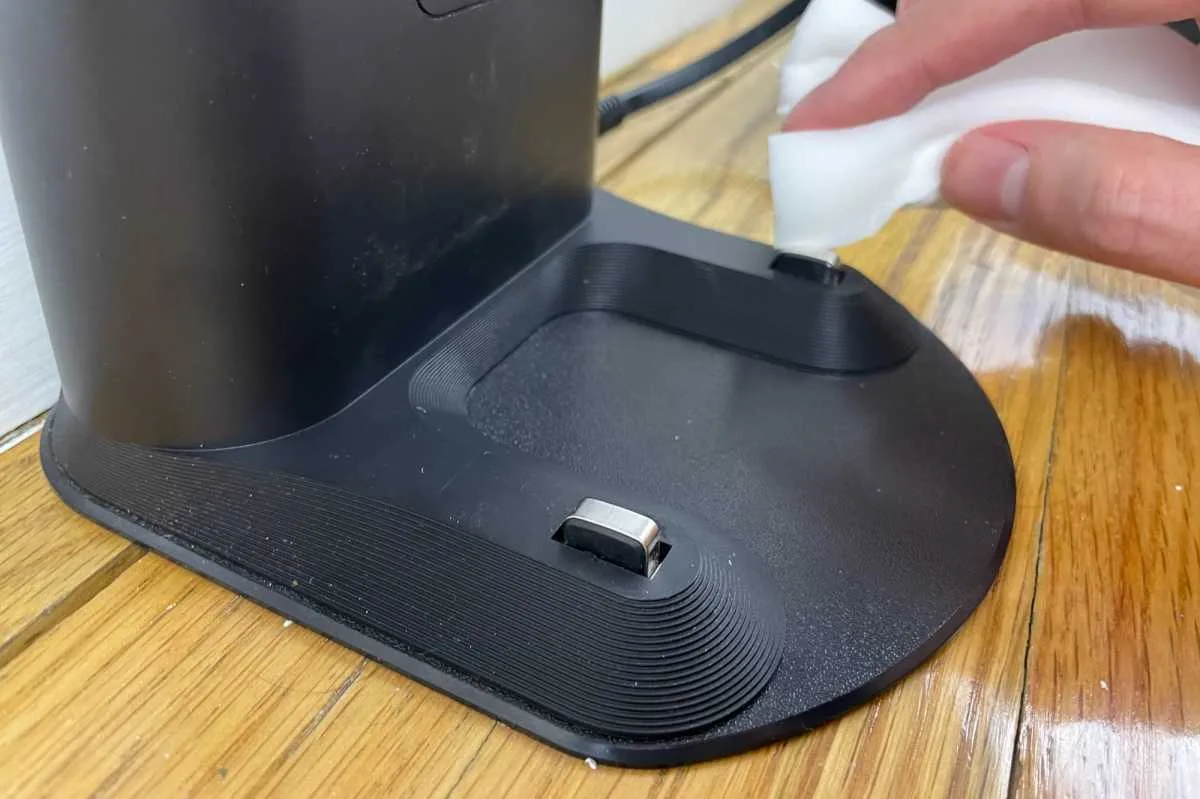
Your Roomba stops mid-clean, trundles toward its dock, and then… nothing. It bumps into the base, spins around, or just sits there a few inches away. The green light on the dock is on, but the robot won't connect.
You've got a Roomba docking station not working problem, and it's frustrating because the whole point of a robot vacuum is that it handles itself.
Here's what you need to know right up front: in roughly 80 percent of cases, the fix takes less than five minutes and costs nothing. The culprit is almost always dirty charging contacts, a misaligned dock, or a confused robot that just needs a reset. As of 2026, iRobot has sold over 40 million Roombas worldwide, and the docking issue is the single most common service call.
Let's walk through exactly what's happening and how to fix it.
Image source: Bing (Web (fair-use with source credit))
Quick Answer
If your Roomba won't dock or charge, clean the metal contacts on both the robot and the dock with a dry cloth. Check that the dock's power light is solid green. Place the dock on a hard, level surface.
Reset your Roomba by holding the power button for 20 seconds. Nine times out of ten, one of these steps solves it.
Core Explanation / How It Works
How Roomba Finds Its Dock
Your Roomba uses a combination of infrared (IR) signals and its mapping memory to locate the charging dock. The dock emits a steady IR beam that the robot's front-facing IR window detects. Once the Roomba sees that signal, it navigates toward it using a specific approach pattern.
The IR window is that small dark plastic panel on the front of the Roomba. It looks like a little rounded rectangle just above the bumper. If this window is dirty, scratched, or blocked, the robot literally cannot see the dock's signal.
It will wander around the room like it forgot where home is.
Manufacturer specifications indicate the IR signal has a range of roughly 10 to 15 feet in ideal conditions. Obstructions like furniture legs, dark rugs, or direct sunlight can interfere with that signal. The dock's IR emitter is the small round lens on the front of the base, usually near the top.
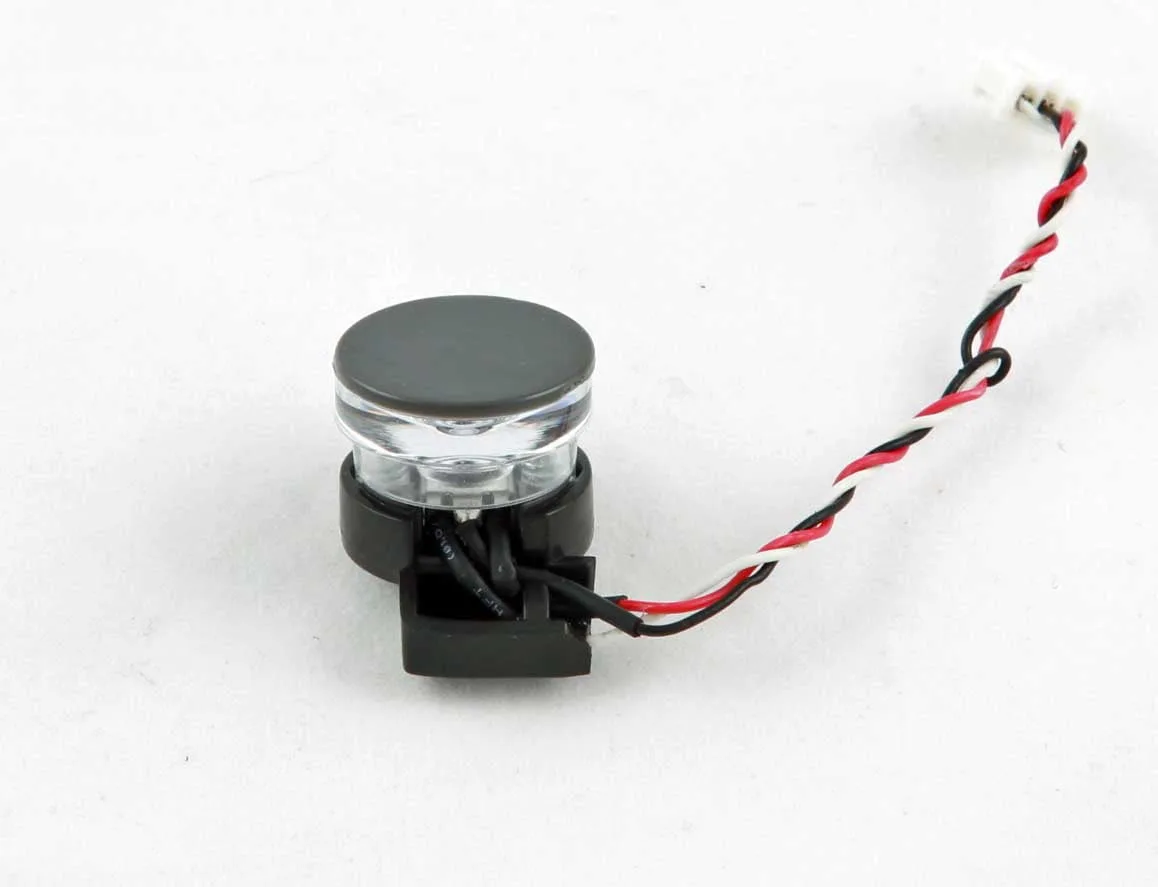
Image source: Bing (Web (fair-use with source credit))
What the Dock Lights Actually Mean
The charging dock has one small LED indicator. It tells you everything about the dock's status. Here is what each light state means:
| Light State | What It Means | Next Step |
|---|---|---|
| Solid green | Dock is powered and working normally | Check robot contacts |
| Blinking green | Dock is in pairing mode or has a fault | Press dock button to exit pairing |
| Solid red or amber | Power issue or overvoltage protection | Unplug and plug back in after 60 seconds |
| No light | No power reaching the dock | Check outlet and cable connections |
If you see solid green, the dock is fine. The problem is somewhere between the dock and the robot.
Why the Contact Point Is So Finicky
The charging contacts on both the dock and the Roomba are small metal strips or prongs. They need to make solid contact for electricity to flow. The Roomba's position on the dock has to be nearly perfect.
Even a 1 to 2 millimeter misalignment can prevent charging.
Over time, dust, pet hair, and general household grime build up on these contacts. That creates a thin insulating layer. The metal still looks clean to your eye, but the electrical connection is weak or broken.
This is the number one reason Roomba docking station not working issues occur.
Step-by-Step Process / How to Guide
Branch 1: Roomba Won't Dock at All
If your Roomba wanders around but never finds the dock, start here.
Step 1: Check the dock position
The dock needs to be on a hard, level surface. Carpet or uneven flooring throws off the alignment. iRobot recommends at least 18 inches of clearance on both sides of the dock and 4 feet of open space in front. Move any furniture, shoes, or clutter out of that zone.
Step 2: Clean the IR window
Take a soft, dry microfiber cloth and gently wipe the dark IR window on the front of your Roomba. Also wipe the small round IR lens on the front of the dock. Do not use water or cleaning solutions.
Dry rubbing is all it needs.
Step 3: Check for IR interference
Direct sunlight can overpower the dock's IR signal. If your dock is near a sunny window, try moving it to a shadier spot. Similarly, other IR devices like TV remotes or motion sensors can cause confusion.
Step 4: Perform a hard reset
Press and hold the Roomba's power button for 20 seconds. Wait for the light ring to go dark. Then press the power button once to turn it back on.
This clears temporary software glitches that can mess up navigation.
Step 5: Test with manual placement
Pick up the Roomba and set it down directly in front of the dock, lined up with the contacts. If it immediately starts charging, the issue is alignment or navigation, not the dock itself.
Branch 2: Roomba Docks but Won't Charge
Your Roomba parks itself on the dock but shows a red light or blinking red. It sits there for hours and never makes progress.
Step 1: Clean the charging contacts
Use a dry, clean cloth or a pencil eraser to gently rub the metal charging strips on the Roomba and the metal plates on the dock. Do this firmly but gently. You might see a bit of gray or black residue come off.
That is the grime blocking the electrical connection.
Step 2: Check contact alignment
Look at how the Roomba sits on the dock. The metal prongs on the bottom of the Roomba should be pressed firmly against the metal plates on the dock. If they are sitting above or below the plates, the dock may be tilted.
Place a thin shim like a piece of cardboard under the dock's back edge to adjust the angle.
Step 3: Test the battery connection
Remove the Roomba's battery completely. Wait 30 seconds. Reinsert it firmly until it clicks into place.
Sometimes a bump during cleaning loosens the battery connection.
Step 4: Verify the power adapter
Unplug the power adapter from the wall and from the dock. Plug it directly into a different wall outlet that you know works. Test the outlet with a phone charger to be sure.
Then reconnect everything firmly.
Branch 3: Clean Base Won't Empty
If you have a Clean Base with automatic dirt disposal, the emptying mechanism can fail even if charging works fine.
Step 1: Check the bag
Open the Clean Base and inspect the dust bag. If it is full or even close to full, replace it. A full bag creates back pressure that prevents the vacuum from working.
Step 2: Clear the ramp
Remove the bag and look inside the Clean Base for any debris blocking the plastic ramp. A sock, a kid's toy, or a buildup of pet hair can wedge in there and block the path.
Step 3: Check the Roomba's bin door
The Roomba's dust bin has a small trap door on the bottom that opens when it docks. Make sure this door is not stuck shut. Pop it open with your finger to check.
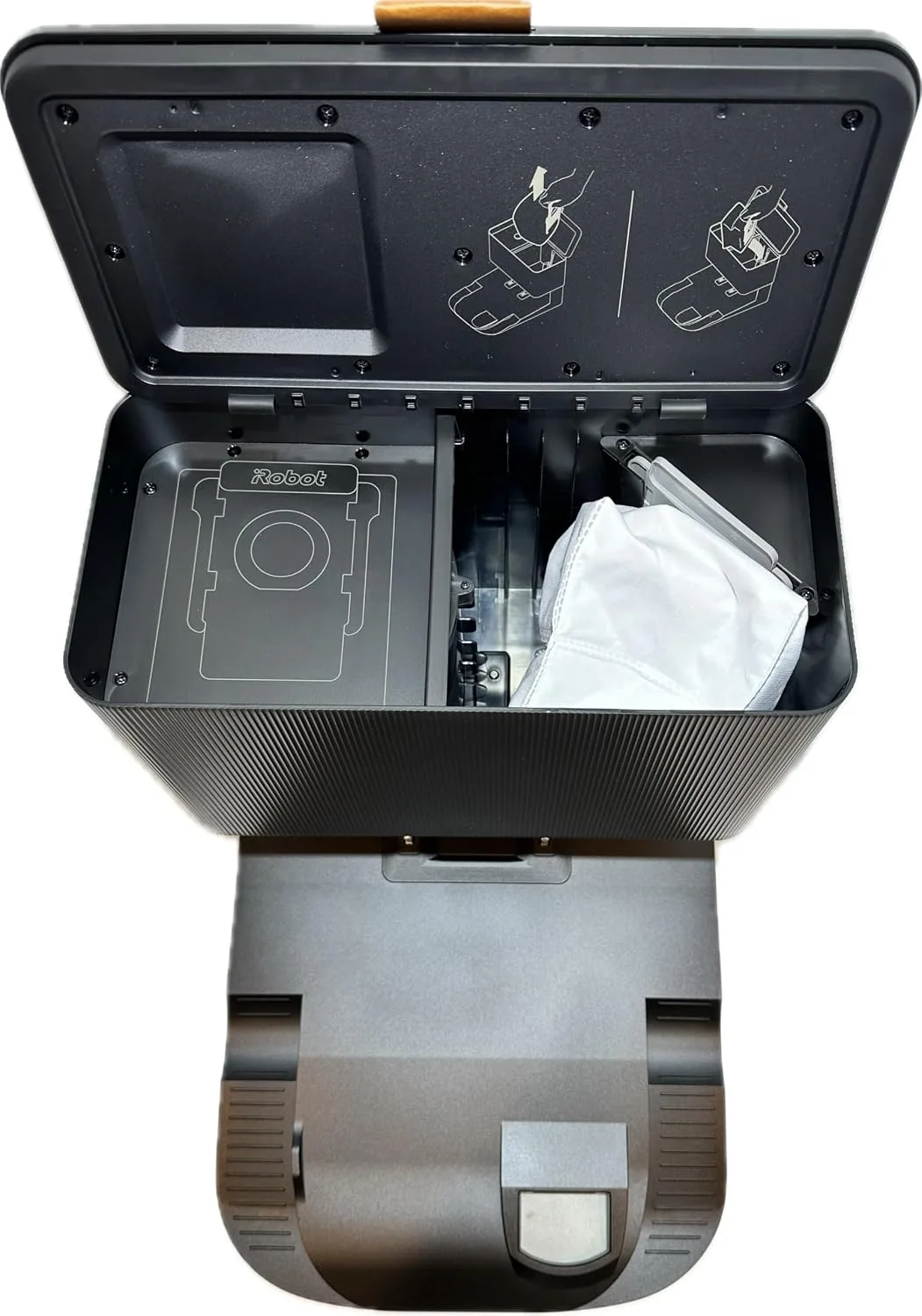
Image source: Bing (Web (fair-use with color correction))
Branch 4: Dock Has No Power
The dock shows no lights at all. Your Roomba ignores it completely.
Step 1: Check the wall outlet
Plug a lamp or phone charger into the same outlet. If that device works, the outlet is fine. If not, reset the circuit breaker or try another outlet.
Step 2: Inspect the power cable
Look for any damage to the power cable. Pets sometimes chew through cables. Also check that the barrel connector is fully seated into the dock.
It can wiggle loose over time.
Step 3: Test the power adapter
If the outlet works and the cable looks fine, the power adapter itself may have failed. These adapters are rated for 19 volts DC output for most Roomba models. If you have a multimeter, you can test for output voltage.
Otherwise, try borrowing a friend's adapter that matches your model.
Mistakes to Avoid / Common Errors
Skipping the 20-Second Hard Reset
This is the single biggest mistake people make. A quick press of the power button does not clear the robot's memory. You need to hold it for a full 20 seconds.
Count it out. The Roomba's internal software can get stuck in a confused state, and only a hard reset fixes that.
Cleaning Contacts with the Wrong Material
Do not use water, soap, or any liquid on the charging contacts. Water can seep into the Roomba's electronics and cause permanent damage. Do not use steel wool or abrasive pads either.
Those scratch the metal and make corrosion worse over time. A dry cloth or a soft pencil eraser is all you need.
Placing the Dock on Carpet or Uneven Surfaces
The dock is designed for hard floors. If you set it on carpet, the Roomba's weight can push the dock down unevenly. The contacts may not align.
The robot might also struggle to climb onto the dock if the carpet pile is too tall. Always place the dock on tile, wood, laminate, or low-profile vinyl.
Assuming the Battery Is Dead First
A dead battery is possible, but it is not the most likely cause. Newer Roomba batteries last 1 to 2 years before noticeable degradation. If your Roomba is less than a year old, the battery is almost certainly fine.
Focus on cleaning and alignment before you spend money on a replacement battery.
Ignoring the Firmware Update
iRobot pushes firmware updates through the app regularly. These updates can improve docking behavior, fix navigation bugs, and optimize battery charging. If your Roomba has not been updated in over a year, that missing update could be causing your problems.
Open the iRobot app, go to Settings, and check for updates.
Real Scenarios / Case Examples
Pet Owner: Hair Buildup Blocking Contact Alignment
A reader with two golden retrievers reported that her Roomba stopped charging after three months of use. The contacts looked clean to the naked eye. She cleaned them with a pencil eraser, and a surprising amount of dark residue came off.
The Roomba charged fine after that. The invisible film of pet dander and hair oils was enough to block the connection.
Multi-Story Home: Roomba Can't Find Dock After Relocation
Another user moved his Roomba from the first floor to the second floor. He left the dock in the original location. The Roomba's mapping data was confused.
It searched for the dock in the old room. He deleted the existing map in the iRobot app, ran a new mapping run, and the Roomba found the dock on the second floor within one cycle.
Older Model: Corroded Contacts vs. Dying Battery
An owner of a Roomba 690 series noticed the robot would dock but would only run for 10 minutes before dying. He replaced the battery first. That did not help.
He then looked closely at the charging contacts and saw greenish corrosion. He cleaned them with a pencil eraser and a bit of isopropyl alcohol on a cotton swab for the tough spots. The Roomba ran for a full 90 minutes after that.
The battery was fine all along.
Frequently Asked Questions
Why does my Roomba dock but show a red light?
The red light means the battery is not charging. Clean the metal contacts on both the Roomba and the dock with a dry cloth or pencil eraser. Also check that the Roomba is sitting squarely on the dock with the contacts touching.
Can I use a third-party dock?
Third-party docks are not recommended. They often have different contact alignment or voltage output. iRobot's warranty does not cover damage from unauthorized accessories. Stick with the official dock.
How do I know if the dock or the battery is bad?
Test the dock by checking its LED. A solid green light means the dock is working. Test the battery by removing it and pressing the reset button inside the battery compartment.
If the battery is swollen, replace it immediately.
Should I leave Roomba on the dock all the time?
Yes. iRobot designed the dock to keep the battery at optimal charge levels. Leaving the Roomba on the dock does not damage the battery. In fact, it ensures the robot is ready to clean when you need it.
How often should I clean the charging contacts?
Clean the contacts every two to four weeks if you have pets. Once a month is fine for homes without pets. A quick dry wipe with a cloth is all it takes.
Make it part of your regular maintenance routine.
Why does my Roomba ignore the dock after a software update?
Rarely, a firmware update can reset the robot's mapping data. Open the iRobot app and check for additional updates. You may need to run a new mapping run.
The fix usually takes less than 10 minutes.

Similar Posts