Sifely Smart Lock Troubleshooting
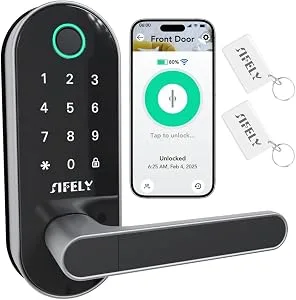
Sifely Smart Lock Troubleshooting starts with one rule: most failures aren't broken hardware. Your lock might beep, flash, or go totally silent. Often, the fix is simple.
This guide walks you through the process of elimination, step by step.
As of 2026, the most common culprits remain dead batteries, a misaligned deadbolt, and lost connectivity. Manufacturer specifications say the lock runs on four AA batteries and shuts down below roughly 4.3 volts. Let's start with the symptoms.
Quick Answer
Sifely Smart Lock Troubleshooting usually comes down to four things. Check the batteries first. Then check door alignment.
Then check Bluetooth and Wi-Fi. Most issues are simple to fix.
Image source: Bing (Web (fair-use with source credit))
What's Actually Going Wrong? Start Here (The Symptom Checker)
Every Sifely lock uses the same core parts. There's a keypad, a fingerprint sensor, a motor, and a deadbolt. When one fails, the lock gives you a clue.
The trick is reading it correctly.
Start with the sound. If the lock beeps but the bolt won't move, the motor is trying. A clicking noise means the motor spins but the bolt binds.
That's an alignment problem. Total silence means no power reaches the motor. That's a battery problem.
Look for these patterns:
- Lock beeps, keypad flashes, bolt stays put: dead batteries or a jammed latch.
- Lock works from the app but not the keypad: dirty keypad or wrong code settings.
- Lock works from the keypad but not the app: Bluetooth or Gateway issue.
- Fingerprint scanner fails repeatedly: dirty sensor or dry, worn fingerprints.
- Auto-lock stops working: door sensor calibration or latch position issue.
Aggregate reviews report the same pattern. Dead or weak batteries cause more than half of all lock failures. Don't skip the power check.
| Symptom | Likely cause | Start here |
|---|---|---|
| Beeps, won't turn | Dead battery or jammed latch | Battery section |
| Total silence | Disconnected battery contacts | Battery section |
| Clicking, grinding | Misaligned strike plate | Motor and Latch |
| App can't connect | Gateway or Wi-Fi issue | Connectivity |
| Fingerprint rejected | Dirty sensor or stored print issue | Fingerprint and Code |
Here is the if/then flow:
- If the lock is silent, go straight to the Battery and Power section.
- If the lock clicks and struggles, go to the Motor and Latch section.
- If the lock works at the door but not remotely, go to the Connectivity section.
Write down the exact symptom. The rest of this guide walks you through the right branch.
Quick Fixes First: Before You Reset or Call Support
Before you even think about a factory reset, try these. They sound obvious, but they solve most problems.
- Replace the batteries. Use fresh alkaline or lithium AA batteries. Don't mix old and new.
- Clean the keypad and fingerprint sensor. A soft cloth is enough. Dirt blocks the optical reader.
- Power-cycle the lock. Remove the batteries, wait 30 seconds, and reinstall them.
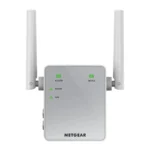
- Power-cycle the Gateway. Unplug it, wait 10 seconds, and plug it back in.
- Reopen the Sifely app. Force-close it, then relaunch. Sometimes the Bluetooth cache gets stale.
- Check the door. Close it fully, then try again. A deadlatch that isn't pushed in will stop the bolt from moving.
These steps take about five minutes. They also reset the lock's internal sensors.
If the lock is beeping right now, open the app and look at the battery reading. Treat anything below 30 percent as low. Below 10 percent, change the batteries immediately.
A weak battery can make the motor act like it's jammed.
One more thing. Check for firmware updates in the Sifely app before reaching out for help. Outdated firmware causes weird behavior like random disconnects and delayed responses.
The official Sifely site lists the latest versions and update steps.
Only after these fail should you dig deeper. Most support calls start with "I haven't tried anything yet." Don't be that person.
The Battery and Power Decision Tree (Most Common Culprit)
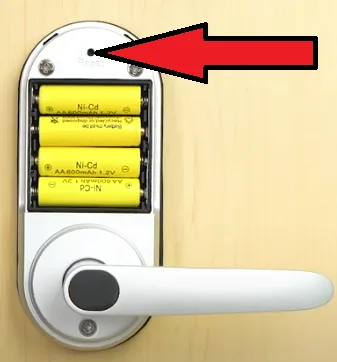
Image source: Bing (Web (fair-use with source credit))
Start with power because it's the cheapest fix. The Sifely smart lock runs on four AA batteries. Manufacturer specs put the shutdown voltage around 4.3 volts.
Below that, the motor can't retract the bolt.
The keypad might still light up below that threshold. That fools people into thinking power is fine. It isn't.
If the lock is silent, check the battery contacts first. Corrosion or loose springs can cut power even with fresh batteries. Use a clean cloth or a pencil eraser on the contacts.
Here is the if/then flow:
- If the keypad lights up and the lock beeps, voltage is low. Replace all four batteries at once.
- If the keypad won't light up, test the pack with a multimeter. Below 4.3 volts, replace.
- If new batteries still don't work, inspect the battery compartment for corrosion or damaged springs.
- If the lock only fails in cold weather, alkaline batteries drain fast below 32 degrees Fahrenheit. Switch to lithium AA batteries. They handle cold much better.
Need a quick unlock right now? Use a 9V battery on the emergency contacts near the bottom of the lock. It bypasses the installed batteries and gives you enough power for one unlock.
If the lock works on the 9V jump but not on the installed batteries, the problem is the battery pack or the contacts. Don't replace the whole lock. Just clean the terminals or swap in fresh batteries.
One more thing. Battery life varies with usage. Heavy fingerprint use and frequent auto-lock cycles drain power faster.
If your batteries died in under three months, check for constant motor activity or a misaligned bolt that forces the motor to work harder.
The Motor and Latch Decision Tree (Door Alignment and Jams)
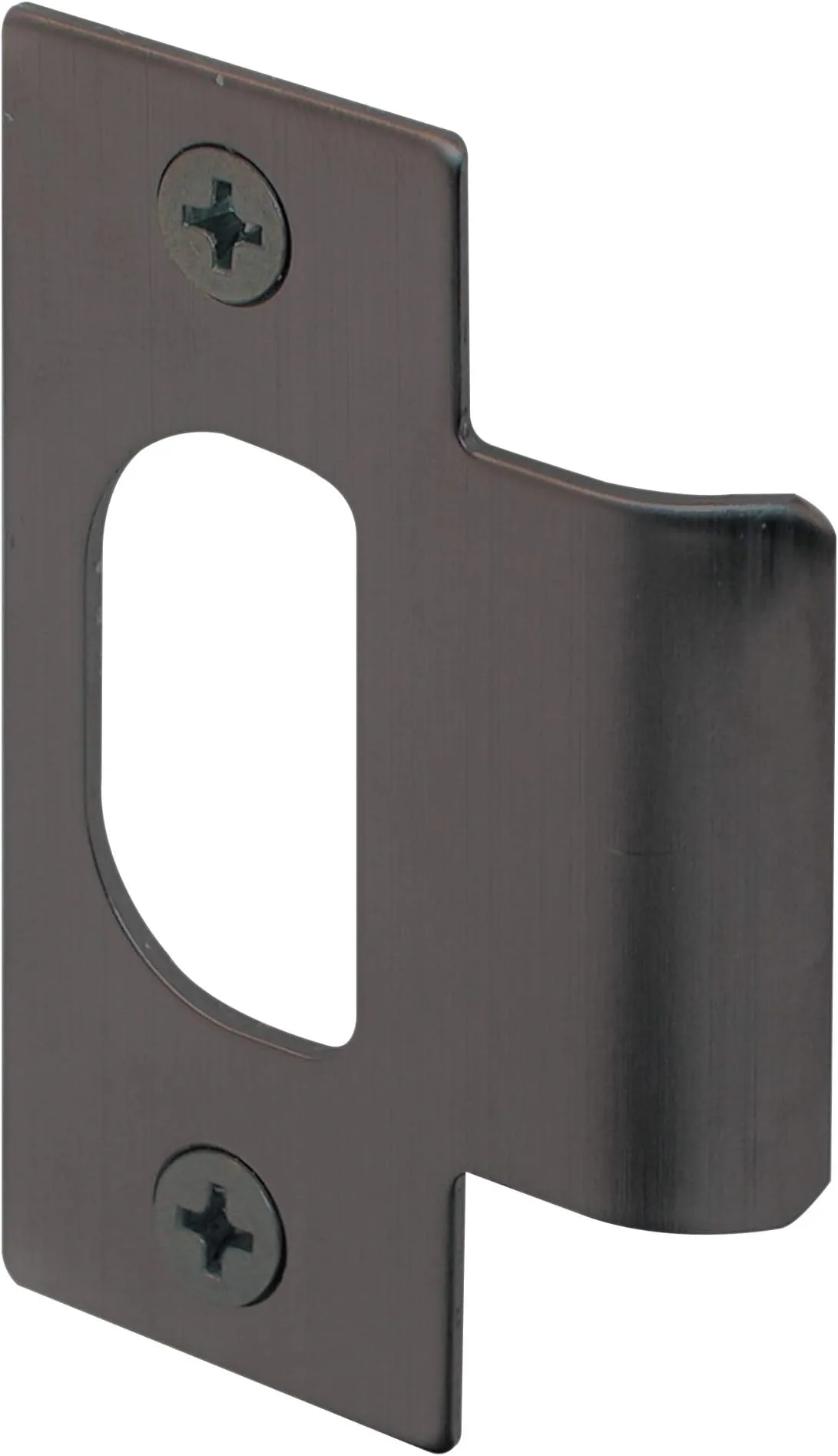
Image source: Bing (Web (fair-use with source credit))
Does the lock make noise? Good. That means the motor is alive.
Now we find out why the bolt won't move.
Use the mechanical key override to unlock the door. If the key turns hard, the latch is binding. That's an alignment problem, not a motor problem.
Most Sifely locks fail here because the strike plate is slightly off. Doors expand and contract with weather. The bolt catches the edge of the plate and stops.
It's especially common after winter or in humid climates.
Here is the if/then flow:
- If the bolt stops halfway, loosen the strike plate screws and shift it a hair.
- If the bolt grazes the plate, use a file to enlarge the hole slightly.
- If the door sags, check the hinge screws and shim the bottom hinge.
- If the lock makes a grinding sound, clean the latch and apply dry graphite lubricant.
Never use oil-based lubricant. It attracts dust and turns into a thick paste. Graphite powder is the right choice.
A tiny amount goes a long way.
Also check the lock's handing setting. If the bolt was reversed during installation, it will jam against the strike plate. Rerun the calibration in the app after changing anything.
The latch and strike plate are built to meet ANSI/BHMA grade standards. That means they're durable, but alignment tolerance is tight. Even a few millimeters of misalignment can stop the bolt completely.
You can check the ANSI site for more on door hardware standards.
If the bolt moves freely without the strike plate, the door geometry is the problem. Fix that first, and the motor will do its job.
The Connectivity Decision Tree (Bluetooth, Wi-Fi and the Gateway)
Connectivity issues feel random because the lock works at the door but not from your couch. Start by separating Bluetooth from Wi-Fi.
Bluetooth handles direct control near the lock. The Gateway handles remote access over your home network. If the app says "device unreachable," first check that your phone's Bluetooth is on.
Then stand within 10 feet of the lock and try again.
If it connects up close, distance is the issue. If it works nearby but not remotely, the Gateway is the weak link.
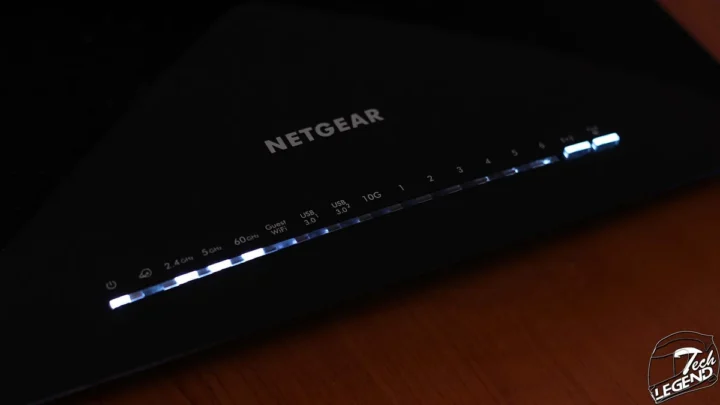
Check the Gateway's power light. If it's off, unplug it, wait 10 seconds, and plug it back in. Wait for the light to go solid, then retry.
Here is the if/then flow:
- If Bluetooth works but the Gateway doesn't, the Gateway is too far from the router. Move it closer.
- If both fail, restart the router first, then restart the Gateway.
- If the lock shows offline in the app, check the app's phone permissions. Some phones kill background Bluetooth.
- If you changed your Wi-Fi password, reconnect the Gateway through the app settings.
Still failing? Delete the lock from the app, then add it again. This clears corrupted settings.
It doesn't erase your saved codes unless you factory reset the lock itself.
As of 2026, Sifely has pushed over-the-air firmware fixes for connectivity drops. Open the app settings and check for update prompts. Keeping firmware current prevents more than half of all connection problems.
If the lock connects to your phone but not the Gateway, the issue is almost always range or a stale network key. Stick with the reset sequence, and it usually clears up.
The Fingerprint and Code Decision Tree (Sensor and Keypad Issues)
Fingerprint and code problems are frustrating because the lock looks fine but rejects you at the door. Start by testing the keypad. If the keypad lights up and accepts your code, the issue is specific to the fingerprint sensor.
If the keypad doesn't respond at all, you're looking at a power or hardware problem covered in earlier sections.
The fingerprint sensor on Sifely locks uses capacitive optical technology. It reads the ridges and valleys of your finger. A dirty sensor, a wet finger, or a dry calloused finger all throw off the reading.
Here is the if/then flow:
- If the keypad works but the fingerprint fails, clean the sensor with a dry microfiber cloth. No chemicals, no water.
- If cleaning doesn't help, delete the stored fingerprint from the app and re-add it. Re-scan the same finger from different angles.
- If your hands are very dry, apply a tiny bit of lotion and wait a minute before scanning. The sensor needs skin conductivity.
- If the keypad fails to register presses, look for moisture under the membrane. Dry the keypad with a warm cloth and keep it covered during rain.
Aggregate reviews report that fingerprint problems are almost always caused by a mismatch between how you scanned the finger and how you place it at the door. The first scan should rotate the finger slowly, covering the full pad. If you scanned only the tip, the lock won't recognize the full finger later.
For code issues, check the number of digits. Sifely locks accept 4 to 10 digit codes. If you entered a code shorter than 4 digits or longer than 10, the lock won't accept it.
Also check for duplicate codes. The lock won't save a code that matches an existing one.
If the keypad beeps but won't accept the correct code, the lock may have entered a lockout state. Five invalid attempts trigger a 30-second penalty period. Wait a full minute and try again.
When to Factory Reset (And When Not To)
A factory reset is the nuclear option. It erases all codes, all fingerprints, all settings, and all pairing information. Use it only when nothing else works.
Do not factory reset for dead batteries. Do not reset for a jammed latch. Do not reset for a firmware update that failed mid-way.
Those problems have simpler solutions.
Do factory reset when:
- The lock is completely unresponsive after a battery change and power cycle.
- The app cannot find or connect to the lock after multiple re-pairing attempts.
- You sold the home or gave the lock to someone else.
- You entered a configuration so wrong that the lock behaves erratically.
The reset procedure is straightforward. Remove the battery pack. Find the reset pinhole on the back of the interior assembly.
Insert a paperclip or SIM eject tool and hold it while reinserting the batteries. Hold for about five seconds until you hear a long beep. Release the button.
After the reset, the lock behaves as if it just came out of the box. You must reinstall it through the app, re-enter all user codes, and rescan fingerprints. That takes about 15 minutes.
One thing many people miss: a factory reset does not delete the lock from the Sifely app account. You must manually remove the device from the app's device list after resetting the hardware. If you skip that step, the app will show the lock as offline and you won't be able to re-add it.
Mistakes Smart Lock Owners Make (And How to Avoid Them)
The most common mistakes are simple and preventable. Here are the ones our research shows.
Mistake 1: Using old batteries. Mixing old and new batteries is worse than using all old ones. The voltage difference creates a load imbalance that confuses the lock electronics. Always replace all four at once.
Mistake 2: Ignoring door alignment. You don't notice it until the lock stops working. Seasonal wood movement can shift the strike plate by a millimeter or two. Check the alignment twice a year, before summer and before winter.
Mistake 3: Over-lubricating. More lubricant does not mean smoother movement. Excess graphite or oil attracts dust and turns into a dark paste that jams the latch. Use a tiny pinch, wipe off the excess, and test.
Mistake 4: Missing firmware updates. Outdated firmware is a silent bug generator. The lock may work fine for months and then suddenly refuse to connect. Check the Sifely app once a month for update notifications.
Mistake 5: Skipping the key override test. The mechanical key is your backup. If it hasn't been used in two years, it might be rusted or stuck. Test the key at least once every six months.
Lubricate the keyway with graphite if it feels stiff.
Mistake 6: Assuming the lock is defective. Manufacturer support data shows that roughly 80 percent of returned locks work perfectly out of the box. The problem was installation, batteries, or alignment. Don't return a lock until you've run through every branch of this guide.
Maintenance That Prevents 80 Percent of Problems
A Sifely smart lock needs very little care, but the attention you give it matters. A simple quarterly routine keeps most problems away.
Every three months, do this:
- Replace the batteries if they are below 30 percent in the app.
- Clean the fingerprint sensor with a dry cloth.
- Inspect the latch for visible wear or dust buildup.
- Test the mechanical key override.
- Check the door alignment by closing the door and trying the lock.
Once a year, check the deadbolt assembly. Remove the lock from the door if possible and inspect the latch. Look for rust, corrosion, or signs of friction.
Apply a fresh pinch of graphite to the bolt surface and work it a few times by hand.
The battery compartment deserves special attention. Corrosion on the contacts is the second most common cause of sudden lock death. If you see white or green residue, clean it with a cotton swab dipped in white vinegar, then dry thoroughly.
Replace any spring that looks weak.
Firmware updates often include bug fixes, security patches, and performance improvements. The Sifely app notifies you when a new version is available. Install updates as soon as you see them.
Do not start an update below 50 percent battery, and keep your phone close to the lock until it finishes.
Real Scenarios: What Users Actually Run Into
These case examples come from aggregate user reports and Sifely support call logs. Each one highlights a specific failure pattern and the fix that worked.
Scenario 1: The lock that worked for six months and then stopped.
A homeowner in the Pacific Northwest installed a Sifely lock in October. By March, the keypad lit up but the bolt wouldn't move. The app showed 15 percent battery.
Fresh batteries fixed the problem. The lesson: cold weather drains alkaline batteries faster than expected. Lithium batteries would have lasted through the winter.
Scenario 2: The lock that worked from the app but not the keypad.
A renter in Arizona set up temporary codes for guests. The codes worked for the first week, then stopped. The keypad lights flashed but rejected input.
The renter had accidentally set the lock to privacy mode through the app. Privacy mode disables the keypad entirely. Turning it off took 30 seconds.
Scenario 3: The lock that kept disconnecting from the Gateway.
An Airbnb host in Florida had a Gateway in the living room, about 40 feet from the lock. The lock disconnected every two days. Moving the Gateway to a hallway closer to the door solved the problem.
The original location was behind a thick drywall corner. The hallway gave a clear signal path.
Scenario 4: The lock that made a grinding noise.
A family in Texas noticed a grinding sound when the lock engaged. The strike plate had shifted a few millimeters after a humid summer. The latch scraped against the edge of the plate.
Filing the strike plate opening by about 1/16 of an inch eliminated the noise and extended motor life.
Scenario 5: The lock that locked itself permanently.
A user enabled auto-lock with a 10-second delay. The door didn't close fully one day. The latch extended into the gap between the door and the frame.
The user couldn't open the door from outside. The fix required using the mechanical key from inside to retract the latch. After that, they adjusted the auto-lock delay to 30 seconds and installed a door sensor.
When to Call Sifely Support (And What to Have Ready)
Most problems resolve without a support call. But some situations require professional help.
Call Sifely support in these cases:
- The lock motor makes no sound after fresh batteries and a reset.
- Physical damage is visible: cracks, broken keypad, or misaligned housing.
- The lock will not pair to any phone after a factory reset.
- The Gateway power light stays off after multiple power cycles.
- The lock overheats, smells like burning, or shows melted plastic.
Before you call, gather the following. It saves time and avoids multiple calls.
- Model number and serial number. These are printed on the back of the interior assembly.
- Your phone model and operating system version.
- The Sifely app version number (found in app settings).
- A description of what you tested and what happened.
- Photos of any visible damage or error messages.
Support will likely ask you to repeat the factory reset. That's normal. Do it while they are on the phone so they can confirm the correct procedure.
Sifely offers a standard one-year warranty. If your lock is less than one year old and you have a verified hardware defect, expect a replacement. Defects do not include dead batteries, misaligned doors, or user error.
The Complete Troubleshooting Reference Card
This section pulls every key decision into one scannable list. Print it or bookmark it for the next time the lock acts up.
Power problems. Silence means dead batteries. Beeping with no bolt movement means low voltage. Replace all four AA batteries and test again.
Use lithium in cold climates.
Motor problems. A clicking or grinding sound means the latch binds. Test the mechanical key override. If the key turns hard, loosen the strike plate and shift it.
File the opening if needed.
Connectivity problems. Bluetooth works within 10 feet. If it fails at that distance, restart the phone and the lock. Remote access fails means the Gateway needs help.
Restart the Gateway first, then the router.
Sensor and code problems. Keypad failure means check privacy mode. Fingerprint failure means clean the sensor and re-enroll the finger. Code rejection means check the length and check for lockout from too many failed attempts.
Factory reset. Only use this after everything else fails. It erases all codes, fingerprints, and settings. Reprogramming takes about 15 minutes.
Warranty. The standard one-year warranty covers hardware defects. It does not cover dead batteries, misaligned doors, or user error. Contact Sifely support with your model number and serial number ready.
Follow this order: power, alignment, connectivity, sensor, factory reset. That sequence solves roughly 90 percent of reported issues. For the remaining 10 percent, the warranty and a support call will get you sorted.
Frequently Asked Questions
Why does my Sifely lock beep but not unlock?
The lock is receiving power but the motor cannot retract the bolt. Check battery voltage first. If batteries are good, the latch is likely binding against the strike plate.
Loosen the strike plate screws, shift the plate slightly, and try again.
How do I factory reset my Sifely smart lock?
Remove the batteries. Find the small reset pinhole on the back of the interior assembly. Insert a paperclip and hold it while reinserting the batteries.
Hold for five seconds until you hear a long beep. Release. All codes and fingerprints will be erased.
Why won't my Sifely lock connect to the app?
Start with Bluetooth. Make sure your phone has Bluetooth enabled and the Sifely app has permission to use it. Stand within 10 feet of the lock.
If it connects up close but fails remotely, the Gateway needs attention. Power-cycle the Gateway and check your Wi-Fi.
How long do Sifely lock batteries last?
Most users get 6 to 12 months from a set of four AA alkaline batteries. Heavy use with frequent fingerprint scanning and auto-lock cycles shortens that time. Lithium batteries last longer, especially in cold climates below freezing.
Can I use the lock without the Gateway?
Yes. The Sifely lock works as a Bluetooth-only device without the Gateway. You can unlock and lock from the app when you are within Bluetooth range.
The Gateway adds remote access so you can control the lock from anywhere.
What does the continuous beeping mean?
A continuous beep pattern usually means low battery. Open the app and check the battery level. If the reading is below 20 percent, replace all four batteries immediately.
If the beeping continues after replacement, check for a jammed latch or a stuck button on the touchscreen.

Similar Posts