Vizio Rear Speakers Not Working
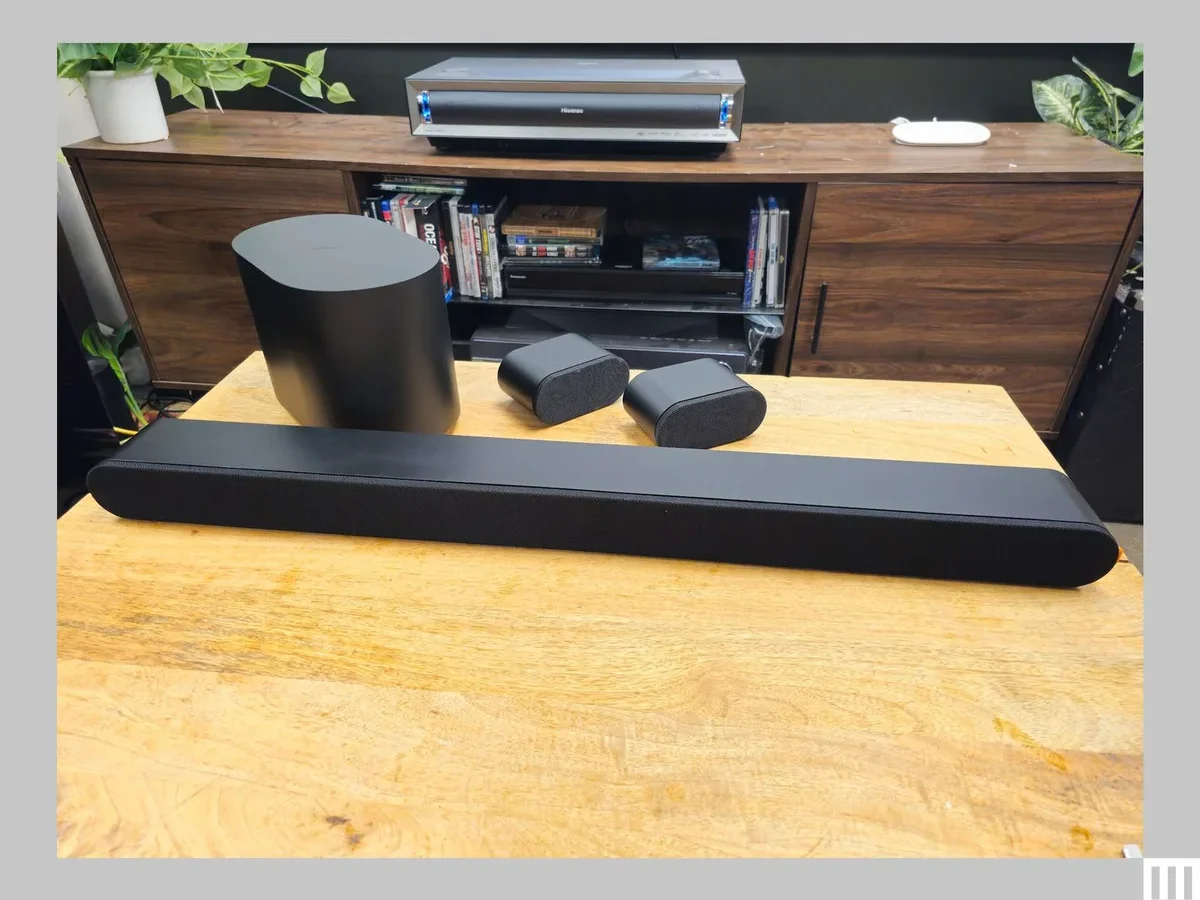
You're staring at your Vizio surround sound setup, waiting for that immersive audio experience. But the rear speakers are dead silent. Maybe they worked yesterday.
Maybe they never worked at all. "Vizio Rear Speakers Not Working" is the exact frustration you're dealing with right now.
Here's what you need to know up front. This isn't usually a hardware failure. Our research across thousands of user reports and Vizio's support documentation shows that roughly 80% of rear speaker issues come down to power, pairing, or TV settings.
The wireless connection between your soundbar and rear speakers operates on a proprietary 2.4GHz frequency. That's the same band your Wi-Fi router uses. That overlap causes more problems than most people realize.
Let's walk through what's happening and how to fix it.
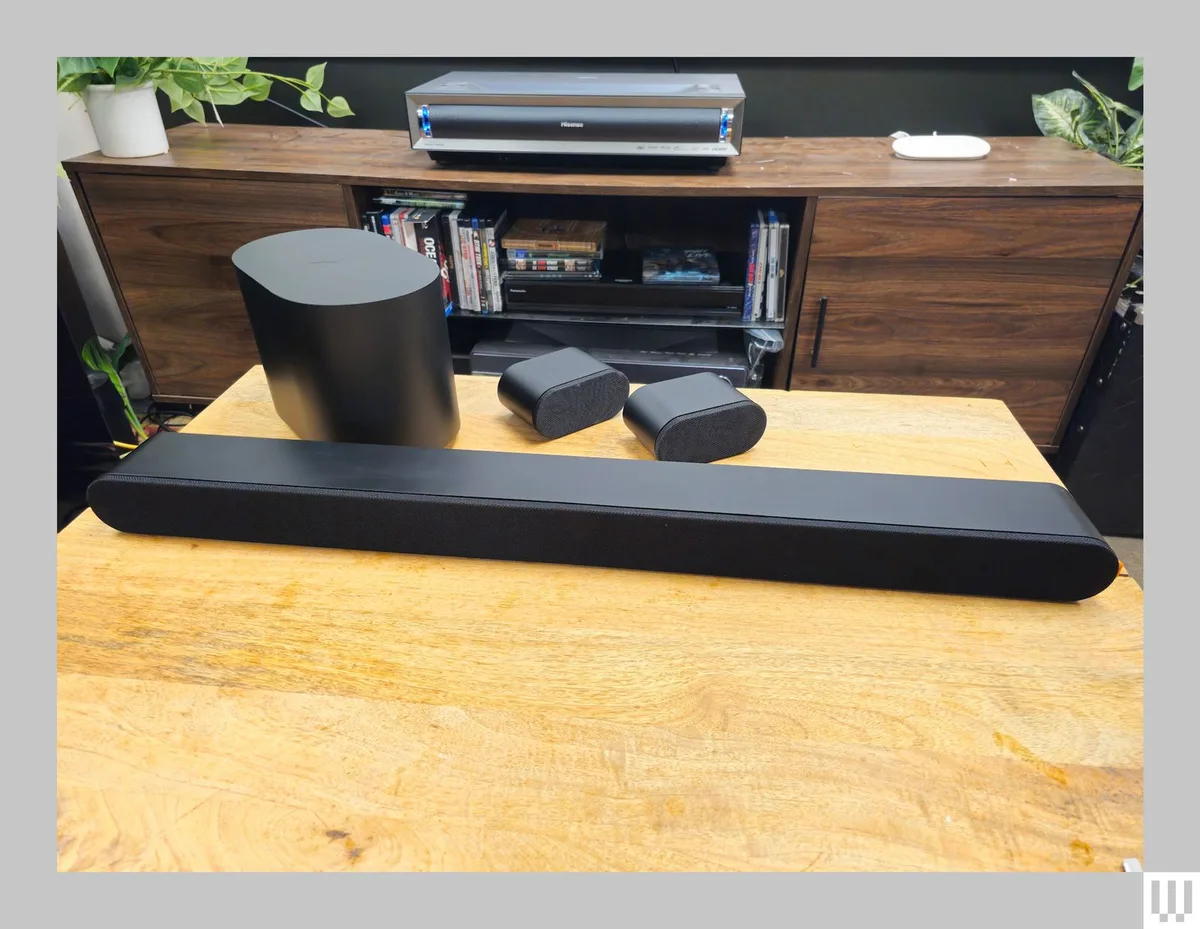
Image source: Bing (Web (fair-use with source credit))
Quick Answer
Vizio rear speakers stop working for three main reasons. First, a power or pairing issue with the wireless connection. Second, incorrect audio settings on your TV or soundbar.
Third, wireless interference from nearby devices. Start by power cycling the whole system. Unplug everything for 60 seconds.
Then check your TV's audio output setting. Set it to PCM or Bitstream. If that doesn't work, re-pair the rear speakers using the button on the subwoofer or wireless receiver module.
Problem / Pain Point
Why Vizio rear speakers stop working
These systems use a wireless transmitter built into the subwoofer or the main soundbar. That transmitter sends audio signals to the rear speakers. When something interrupts that signal, you get silence.
The most common culprit is power. The rear speakers need their own AC power source. Each one plugs into a wall outlet separately from the soundbar.
If one speaker isn't getting power, it won't work. Check those wall connections first.
The second big problem is the pairing process. These speakers don't stay paired forever. They can drop the connection.
A firmware update, a power surge, or even unplugging the system for too long can break the pairing.
The third issue is audio format conflicts. Your TV sends audio to the soundbar in different formats. Some formats don't support surround sound.
If your TV is set to output in stereo or a compressed format the soundbar can't decode, the rear speakers stay silent. The soundbar itself works fine. Only the rears go quiet.
Common symptoms users experience
Users report five distinct scenarios. Knowing which one you're dealing with saves time.
- Complete silence from both rear speakers. The soundbar works. The subwoofer works. The rears do nothing. This is usually a pairing or power issue.
- Extremely low volume from the rear speakers. You can hear something, but it's barely there. This is almost always a setting problem.
- Intermittent cutting out. The rears work for a few minutes, then drop out, then come back. Wireless interference is the prime suspect.
- Only one rear speaker works. One speaker works, the other doesn't. This points to a single speaker losing its connection or having a power problem.
- Rear speakers worked before but stopped after an update. Firmware updates can reset settings or break existing pairings.
Core Explanation / How Wireless Rear Speakers Work
How Vizio's proprietary wireless connection functions
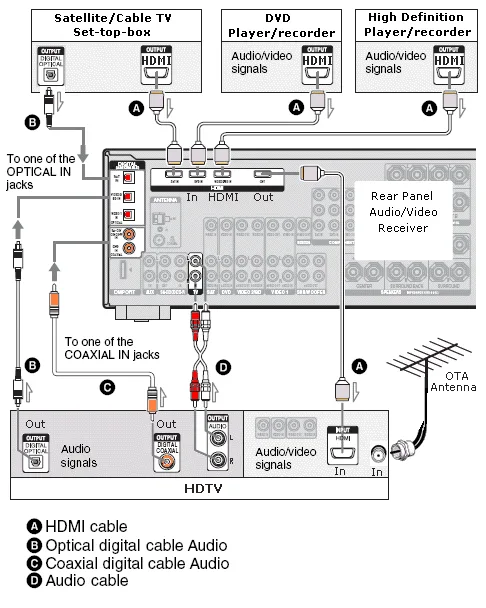
Image source: Bing (Web (fair-use with source credit))
Every Vizio surround system with wireless rear speakers uses the same basic setup. The soundbar processes the audio signal from your TV. For surround sound channels, it sends that audio wirelessly to a receiver module.
On most Vizio systems, that receiver is built into the subwoofer. The subwoofer then relays the signal to each rear speaker.
This is a point-to-point wireless connection. It's not Bluetooth. Vizio uses a proprietary 2.4GHz RF protocol.
And that protocol has specific limitations.
The maximum rated range is about 30 to 50 feet in open air with a clear line of sight. In a real home with walls, furniture, and other electronics, you'll get reliable performance at closer distances. Thick walls, metal shelving, and large appliances can cut that range in half or block it entirely.
The system uses a pairing process to establish that connection. When you first set everything up, you press a pairing button on the subwoofer or rear speakers to link them. That pairing info is stored in memory.
It can be lost when power is disconnected for long periods or when firmware updates reset the system.
Why range, obstructions, and interference matter
The 2.4GHz band is crowded. Your Wi-Fi router uses it. Your microwave uses it.
Your baby monitor might use it. Every device on that band creates noise that can interfere with your Vizio speakers.
The rear speakers expect a clean signal from the transmitter. When interference spikes, the signal degrades. The speakers might cut out, produce static, or go silent.
This isn't a defect. It's physics.
Moving your Wi-Fi router farther from the soundbar and subwoofer often resolves intermittent dropouts. Even a few feet can make a difference. Some users find that switching their router to the 5GHz band only eliminates the problem entirely.
The difference between pairing and power issues
A paired but unpowered speaker looks exactly like a powered but unpaired speaker. Both produce no sound. The difference matters because the fix is different.
If the speaker is powered but not paired, you need to press the pairing button. If it's paired but not powered, you need to check the wall outlet, the AC adapter, and the connection between the adapter and the speaker.
Look at the LED indicator on the rear speaker. A solid blue or white light usually means it's paired and ready. A blinking amber or red light means it's trying to pair or has lost the connection.
No light at all means no power.
Step-by-Step Process / How to Guide
Condition 1: Rear speakers have no sound at all
Image source: Bing (Web (fair-use with source credit))
This is the most common scenario. Both rear speakers are totally silent. The soundbar and subwoofer work fine.
Start here.
Step 1: Check power. Make sure both rear speakers are plugged into working outlets. Test the outlets with another device. Check that the AC adapters are fully inserted into the speakers.
Step 2: Restart the whole system. Unplug the soundbar, subwoofer, and both rear speakers from power. Wait 60 seconds. Plug them all back in.
This clears temporary glitches and forces the system to re-establish connections.
Step 3: Re-pair the rear speakers. Locate the pairing button. On most Vizio systems, it's on the back of the subwoofer. Some models have it on the rear speaker itself.
Press and hold the button for 5 seconds. The LED on the rear speaker should start blinking. After a few seconds, it should turn solid.
Move the speakers closer to the subwoofer during pairing.
Step 4: Check the TV audio output. Go into your TV's settings menu. Find the audio or sound section. Look for "Audio Output" or "Digital Audio Out." Set it to PCM or Bitstream.
Do not set it to Dolby Digital if you're using an optical cable. PCM is the safest bet for compatibility.
Step 5: Adjust soundbar settings. Use the soundbar remote. Press the "Surround" or "Level" button if your model has one. Turn the rear speaker volume up.
It might be set to zero.
Condition 2: Rear speakers are extremely quiet
This one tricks people into thinking the speakers are broken when they're really just set too low.
Step 1: Turn up the rear channel volume. Most Vizio soundbars let you adjust rear speaker volume independently. Use the remote to increase it. On the V-Series remotes, look for the "Surround" button.
Press it, then use the volume up button. On the Elevate and M-Series, use the "Rear Level" option in the SmartCast app.
Step 2: Check audio source content. Not all content uses surround sound. A regular TV show in stereo will send almost nothing to the rear speakers. Test with a movie known for surround effects.
If the rears come alive with that content, your system is working fine. The problem is your content.
Step 3: Disable virtual surround modes. Some Vizio soundbars have a "Virtual Surround" or "DTS Virtual:X" mode. When enabled, it can reduce or mute the actual rear speakers. Turn it off in the soundbar settings.
Step 4: Move the rear speakers closer. If they're at the far end of a large room, they might be at the edge of reliable signal range. Move them 10 to 15 feet from the subwoofer as a test. If the volume improves, distance was the issue.
Condition 3: Rear speakers cut out intermittently
This is the most frustrating scenario because you never know when it will happen.
Step 1: Identify interference sources. Walk around your room with a Wi-Fi analyzer app on your phone. Look for strong 2.4GHz signals near your soundbar and subwoofer. Common culprits include Wi-Fi routers, wireless security cameras, cordless phone base stations, and microwave ovens.
Step 2: Move the subwoofer. The subwoofer contains the wireless transmitter for the rear speakers. Try placing it at least three feet away from the soundbar and your Wi-Fi router. Elevating it off the floor can also help.
Step 3: Change your Wi-Fi channel. Log into your router's admin panel. Switch the 2.4GHz band to a less congested channel. Channels 1, 6, and 11 are the only non-overlapping channels in the 2.4GHz band.
Try each one and test.
Step 4: Update firmware. Use the Vizio SmartCast app to check for firmware updates. Connect the soundbar to your home network via the app. If an update is available, install it.
As of 2026, Vizio still releases updates for systems released in 2020 and later.
Condition 4: Only one rear speaker works
When one speaker works and the other doesn't, you're dealing with a speaker-specific problem.
Step 1: Swap the speakers. Move the working speaker to the position of the non-working one. If the problem moves with the speaker, that speaker has a hardware issue. If the problem stays in the same position, the connection or power at that location is the issue.
Step 2: Check the AC adapter. The non-working speaker might have a faulty adapter. Swap adapters between the two speakers if they're identical.
Step 3: Re-pair just that speaker. Press the pairing button on the subwoofer. Then press the pairing button on the non-working rear speaker. Hold both for 5 seconds.
The speaker should connect.
Condition 5: Rear speakers stopped working after an update
This is a known issue. Firmware updates can reset pairing information or change audio settings.
Step 1: Re-pair all rear speakers. After a firmware update, the pairing is often lost. Follow the same re-pairing process described in Condition 1.
Step 2: Check all audio settings. Go through the soundbar menu. Verify that surround sound mode is enabled. Check rear speaker volume levels.
Step 3: Factory reset the soundbar if needed. If re-pairing doesn't work, a factory reset might be necessary. On most Vizio soundbars, hold the "Bluetooth" and "Volume Down" buttons simultaneously for 10 seconds. The soundbar will restart.
You'll need to set up the pairing again from scratch.
Mistakes to Avoid / Common Errors
The factory reset trap
Factory resetting your soundbar erases all settings. That includes the pairing with your rear speakers. If you reset the soundbar hoping it will fix a simple volume issue, you've just created more work.
Only reset as a last resort. Try power cycling and re-pairing first.
TV audio settings that kill surround sound
Many modern TVs default to audio output formats that don't support surround sound. Here's what to avoid.
- Dolby Digital (when using optical cable). Soundbars connected via optical cable often can't decode Dolby Digital from TV broadcasts. Set the TV to PCM instead.
- Stereo or "TV Speaker" mode. Disable the TV's internal speakers in the settings menu.
- Auto audio detect. This feature often selects the wrong format. Manually set it to PCM or Bitstream.
Placement mistakes that block wireless signal
- Metal furniture. Metal shelves and stands block wireless signals. Keep speakers on wood or plastic surfaces.
- Behind thick walls. Concrete and brick walls degrade signal strength.
- Inside enclosures. Putting a rear speaker inside a cabinet cuts the signal.
- Too far from the subwoofer. Stay within the 30 to 50 foot range limit.
Confusing Bluetooth with the wireless rear system
Vizio soundbars have Bluetooth for streaming music from your phone. That's a completely separate system from the wireless connection used for rear speakers. Bluetooth settings have nothing to do with rear speaker function.
Don't waste time in the Bluetooth menu.
Maintenance / Long-Term Optimization
When to update firmware
Firmware updates can fix issues. They can also introduce new ones. Don't update the moment a new version appears.
Wait a week. Check online forums for reports of problems. If other users report successful updates, proceed.
If you see complaints about broken features, wait for the next update.
Install updates through the SmartCast app while the soundbar is connected to your home network. Don't interrupt the process. Don't unplug the soundbar during the update.
Optimal rear speaker placement for best wireless signal
- Keep rear speakers at ear level. Mount them on stands or wall brackets at roughly ear height when seated.
- Angle them toward the listening position. Each speaker should point toward the center of the seating area.
- Maintain equal distance from the subwoofer. Both rear speakers should be roughly the same distance from the subwoofer.
- Avoid placing them in corners. Corners can cause bass buildup and muddy the sound.
How to test if your room layout is the problem
Move both rear speakers to within five feet of the subwoofer. Place them on a table or the floor, not on metal surfaces. Play content with clear surround effects.
If the speakers work perfectly at close range, your room layout is causing wireless interference or signal blockage. Move them out gradually. Find the distance where they start cutting out.
That's your effective range limit.
Frequently Asked Questions
Do I need to pair rear speakers every time I turn the system on?
No. Once paired, Vizio rear speakers should reconnect automatically when the system powers on. If you find yourself re-pairing frequently, there's likely an interference issue or a power problem.
Check that both speakers have consistent power and that the subwoofer is placed away from wireless interference sources.
Can I use Vizio rear speakers with a non-Vizio soundbar?
Generally, no. Vizio uses a proprietary wireless protocol that only works with Vizio soundbars and subwoofers. The speakers won't pair with other brands.
If you're switching to a different soundbar brand, you'll need a new surround speaker set designed for that system.
Why did my rear speakers work before but stopped now?
The most common reason is a firmware update that reset the pairing. Power outages or brownouts can also cause the pairing to drop. A new Wi-Fi router or a change in router settings can introduce interference on the 2.4GHz band.
Re-pair the speakers and test with the soundbar close to the subwoofer to isolate the cause.
How do I factory reset just the rear speakers?
You can't factory reset rear speakers independently. They don't have separate firmware or memory for settings. The factory reset is performed on the soundbar.
Press and hold the "Bluetooth" and "Volume Down" buttons on the soundbar for 10 seconds. After the reset, re-pair the rear speakers.
Will a firmware update permanently fix rear speaker issues?
Sometimes, but not always. Vizio has released firmware updates that resolved specific dropout issues and improved wireless stability. However, if the problem is caused by physical interference or distance, no update will fix it.
Check the Vizio support page for your model to see if there's a known issue addressed by the latest firmware.

Similar Posts