Why Is Gopro Hero13 Black Freezing: Fix It Fast

GoPro HERO13 Black freezing usually comes from overheating, bad memory cards, low battery, or firmware glitches.
If your GoPro HERO13 Black is locking up, you are not alone. I have seen this happen when a camera is pushed hard in hot weather, with the wrong card, or after a shaky firmware update. The good news is that most freezing issues are fixable with a few smart checks, and this guide will walk you through the real causes, practical fixes, and simple ways to keep your camera stable.
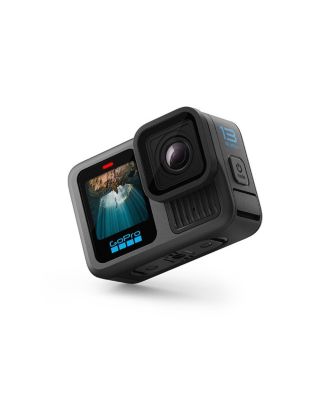
Why GoPro HERO13 Black Freezing Happens
A frozen GoPro HERO13 Black usually means the camera’s system is getting interrupted. That interruption can come from heat, storage errors, power problems, or software bugs. In plain terms, the camera is trying to do too much at once, or it is not getting the clean support it needs.
From my experience, freezing is often a symptom rather than the main problem. The camera may look fine on the outside, but inside it may be dealing with a card it does not like, a battery that cannot keep up, or a setting combo that is too demanding. Once you know which layer is failing, the fix gets much easier.
The Most Common Reasons Your GoPro HERO13 Black Freezes
1. Overheating during recording
One of the biggest causes of GoPro HERO13 Black freezing is heat. High-resolution video, high frame rates, long clips, and warm weather can push the camera too far. When the internal temperature rises, the camera may lag, stop responding, or freeze to protect itself.
This is especially common if you record in 5.3K, use stabilization, and leave the camera in direct sun. I have seen cameras run fine indoors, then freeze outside after only a short shooting session. Heat can feel sneaky because the camera may work perfectly for a while before it suddenly locks up.
2. MicroSD card problems
A bad or slow microSD card is a very common reason a GoPro HERO13 Black freezes. GoPro cameras are picky about card speed, file system health, and card condition. If the card is too slow, corrupted, or fake, the camera may hang when saving video or browsing files.
This is one place where people often waste time. They assume the camera is broken, when the real issue is a weak card that cannot keep up with write speeds. In many cases, swapping the card solves the freezing right away.
3. Low or unstable battery power
Battery issues can also make the GoPro HERO13 Black freeze. If the battery is old, damaged, not seated well, or too cold, the camera may lose stable power. A weak power supply can make the system act stuck even when the screen is still on.
I have also seen freezing happen when using third-party batteries or power accessories that do not deliver steady performance. GoPro cameras tend to behave best with batteries and chargers that are known to work well with the model. Power problems can look like software trouble, but they often start with the battery.
4. Firmware glitches
Software bugs can cause a GoPro HERO13 Black to freeze too. Firmware controls the camera’s core behavior, and when it has a bug, the camera may freeze during startup, recording, or menu navigation. This is more likely after a recent update or after using a feature in a new way.
Firmware problems are frustrating because they can seem random. One day the camera works fine, and the next day it locks up for no clear reason. Still, updates often fix these bugs, so staying current matters a lot.
5. Too many settings pushed at once
The GoPro HERO13 Black is powerful, but it can still freeze if you stack too many demanding settings together. Things like high resolution, high frame rate, HyperSmooth, Wi-Fi, voice control, and long recording sessions can all add strain. When the workload gets heavy, the camera may become sluggish or stop responding.
A lot of users want the best quality and the longest battery life at the same time. That tradeoff is not always possible. Think of it like asking a small engine to pull a heavy load uphill all day. It can do a lot, but not forever without stress.

Signs Your GoPro HERO13 Black Is Freezing
A freeze does not always look dramatic. Sometimes the screen just stops reacting. Other times the camera is still powered on, but buttons do nothing, recording stalls, or the display shows a stuck image.
Common signs include:
- The touchscreen stops responding
- Buttons do not change modes or settings
- The camera gets stuck while saving a clip
- The screen locks on the GoPro logo
- The camera freezes after inserting the card
- Live view lags or becomes unresponsive
- The camera shuts down and won’t restart normally
If the freeze happens in the same situation again and again, that is a useful clue. The pattern usually points to the real cause, like heat, card trouble, or a bad setting.
How to Fix GoPro HERO13 Black Freezing
1. Restart the camera the right way
Start simple. Power the camera off, remove the battery for a few seconds, then put it back in and restart it. This clears temporary memory issues and can unstick a camera that only froze once.
If the screen is fully stuck, hold the power button long enough to force a shutdown. I have fixed many frozen cameras with this basic reset before touching anything deeper. It sounds simple, but it often works.
2. Check and replace the microSD card
Use a card that matches GoPro’s speed and format needs. If the card is old, full, damaged, or not on the recommended list, replace it with a known good one. Also make sure the card is formatted in the camera after backup, not just on a computer.
Good card habits matter more than many people think. If a camera freezes often while saving video, the card should be one of the first things you test. A fast, reliable card can make the whole camera feel smoother.
3. Update the firmware
Check whether the GoPro HERO13 Black is running the latest firmware. Updates often include bug fixes, better stability, and performance improvements. If your freezing started after an update, reinstalling or refreshing the firmware may help.
A clean firmware update can solve strange issues that feel hardware-related. I always recommend updating before assuming the camera needs repair. Software bugs are far more common than people expect.
4. Let the camera cool down
If heat is the problem, stop recording and move the camera into shade or a cooler place. Remove it from any enclosure or mount that traps heat. Give it time to cool before starting another long clip.
You can also reduce heat by lowering demanding settings. Try shorter clips, lower resolution, or reduced frame rate if your shot does not need the highest settings. Small changes can make a big difference in stability.
5. Reduce demanding settings
If freezing happens during heavy use, simplify your setup. Turn off features you do not need for the shot. Lowering the camera workload often improves reliability right away.
Try these changes:
- Lower resolution from 5.3K to 4K if possible
- Reduce frame rate
- Turn off Wi-Fi when not needed
- Limit voice control if it is not required
- Use shorter recording sessions
- Avoid stacking too many features at once
This is one of the best lessons I learned early on: the highest setting is not always the best setting. Stable footage is usually better than perfect specs with random freezes.
6. Clean the battery and card contacts
Dust, moisture, or grime can interfere with contact points. Remove the battery and card, inspect them carefully, and clean gently if needed. Make sure everything clicks in place firmly.
A tiny contact issue can mimic a major failure. If the camera freezes only when bumped, moved, or powered on, loose or dirty contact points may be part of the story. It is a small check, but it can save a lot of guesswork.
7. Reset the camera settings
If the problem keeps coming back, reset the camera settings to default. This can remove a bad setting combination that is triggering freezes. After the reset, test the camera before restoring custom options one by one.
This step helps when the camera freezes after changing a lot of settings. I usually tell people to add custom settings back slowly. That way, if the freeze returns, you know exactly which setting caused it.
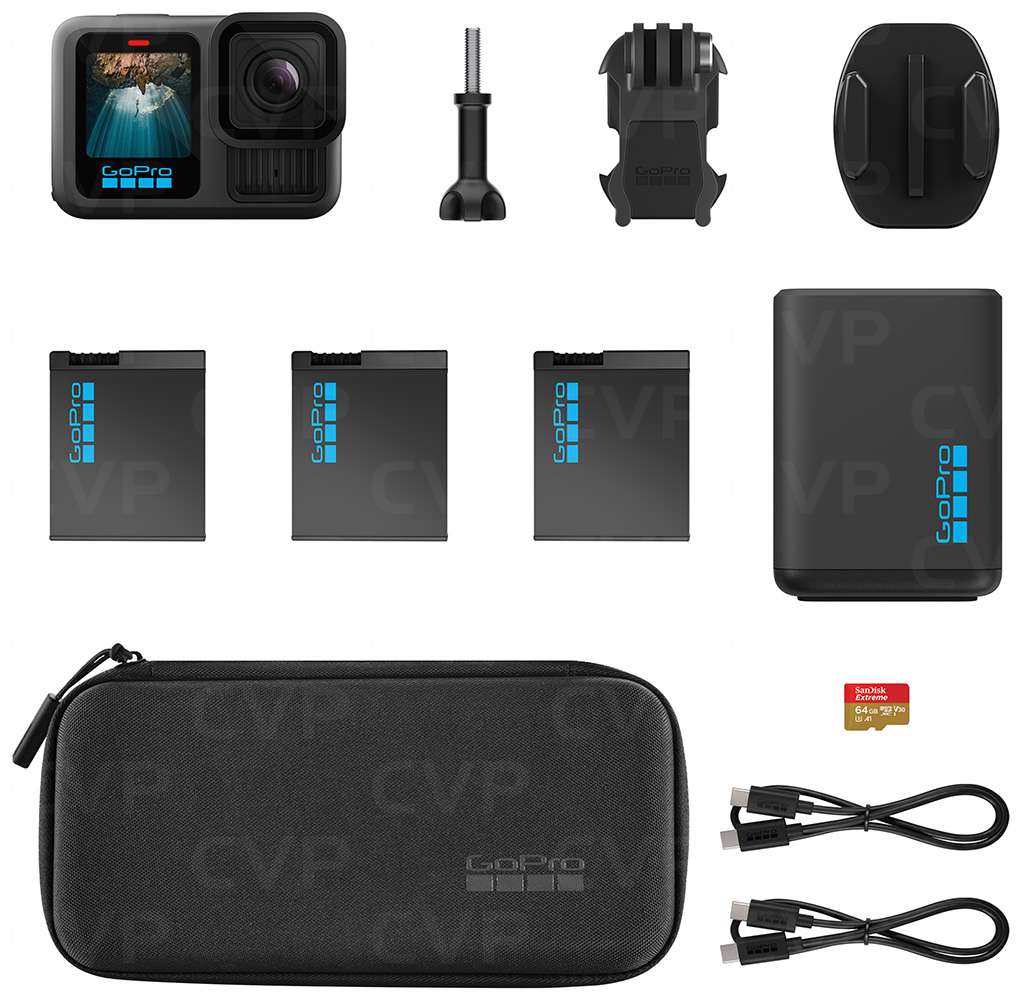
How to Prevent GoPro HERO13 Black Freezing
Prevention is much easier than troubleshooting. A few smart habits can keep your GoPro HERO13 Black running more smoothly over time. These habits also reduce stress on the battery, card, and processor.
Here is what helps most:
- Use a high-quality, recommended microSD card
- Format the card in the camera before important shoots
- Keep firmware updated
- Avoid long recordings in direct sun
- Use a fully charged, healthy battery
- Turn off unused wireless features
- Test new settings before a big shoot
- Let the camera cool between long sessions
I always suggest doing a quick test run before a trip or event. That small step can save a whole day of missed footage. It is like checking your tire pressure before a road trip. Not exciting, but very worth it.
When Freezing Means a Bigger Problem
Sometimes the GoPro HERO13 Black freezing issue is not caused by a simple setting or card. If the camera freezes even after updates, card changes, battery swaps, and resets, there may be a deeper hardware problem. That could involve internal memory, power circuitry, or a damaged component.
Warning signs of a bigger issue include:
- Freezing happens with multiple cards
- The camera freezes even after a factory reset
- It freezes during startup every time
- The device overheats very quickly
- Buttons and touchscreen fail often, even when cool
At that point, contacting support or a repair specialist makes sense. If the camera is under warranty, do not keep forcing it through repeated freezes. That can make a small issue worse.
Practical Troubleshooting Order That Saves Time
If you want the fastest path to a solution, I suggest this order. It follows the way I usually troubleshoot action cameras in real use.
- Restart the camera
- Swap the battery
- Test a different microSD card
- Update the firmware
- Reduce heat and simplify settings
- Reset camera settings
- Check for hardware service needs
This order works because it starts with the easiest fixes and moves toward deeper ones. Many people jump straight to factory resets, but that is not always necessary. A step-by-step check is cleaner and often faster.
Frequently Asked Questions of Why Is GoPro HERO13 Black Freezing?
Why does my GoPro HERO13 Black freeze during recording?
This usually happens because of heat, card speed, or heavy settings. High resolution, long clips, and a weak microSD card can overwhelm the camera and cause it to lock up.
Can a bad microSD card make the GoPro HERO13 Black freeze?
Yes, absolutely. A slow, damaged, or fake card can cause freezes when the camera tries to save video or read files. Testing with a recommended card is one of the best first steps.
Does firmware affect GoPro HERO13 Black freezing?
Yes, firmware can play a big role. Bugs in the software can cause random freezes, and updates often fix those issues. If freezing started after an update, reinstalling or refreshing the firmware may help.
Why does my GoPro HERO13 Black freeze when it gets hot?
Heat can push the camera past its comfort range. When that happens, the system may slow down, stop responding, or freeze to protect itself from damage.
Should I factory reset my GoPro HERO13 Black if it keeps freezing?
A factory reset can help if a bad setting is causing the issue. It is best used after you have already checked the battery, card, and firmware, since those are more common causes.
Conclusion
The reason your GoPro HERO13 Black freezes is usually tied to heat, storage, power, or firmware. Once you work through those areas, most freezing problems become much easier to solve. In many cases, the fix is as simple as using a better card, cooling the camera down, or updating the software.
The key is to troubleshoot in a calm, step-by-step way. Start with the basics, test one change at a time, and pay attention to when the freezing happens. If you want better results, choose stable settings over extreme ones and keep your camera maintained before every big shoot.
If this guide helped, save it for your next troubleshooting session, check your current camera setup, and leave a comment with the freezing pattern you are seeing.

Similar Posts