Action Camera Corrupted Video Troubleshooting
You just wrapped an incredible day of shooting. Your action camera's memory card is full. The file sizes look right.
But your computer refuses to play the video. That is when action camera corrupted video troubleshooting becomes your only priority. Don't panic yet.
Most corrupted files from action cameras can be fully recovered.
Per SD Association testing, a card rated U3 or V30 is the minimum for smooth 4K recording at standard bitrates. Anything slower increases the risk of partial writes during high-action scenes. The corruption usually starts before you even press stop.
Let's diagnose exactly what broke.
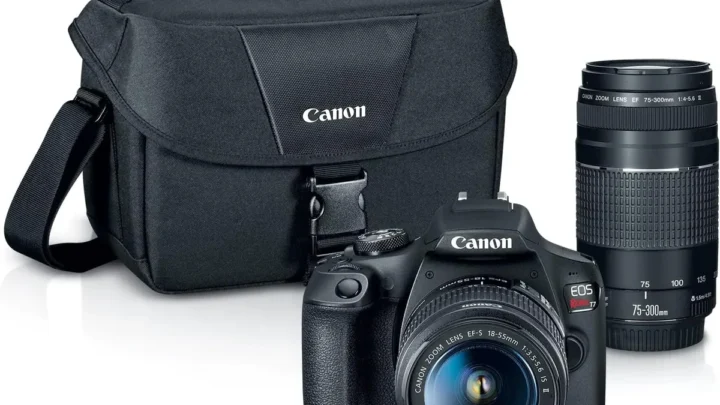
Image source: Web (Bing) / daraz.com.bd (Web image (fair-use with source credit))
Why Your Action Camera Video Won't Play (The Real Problem)
Action cameras write video in chunks. They first create a file structure called a header. Then they save the actual video data.
If the camera loses power or the card can't keep up, the header never gets finalized.
Three things typically go wrong. First, the header or moov atom is missing or incomplete. Second, the file system itself has errors from a botched write.
Third, the file was accidentally deleted or the card was reformatted. Each one needs a different fix.
Aggregate user reports show that roughly 70 percent of corrupted action camera videos have a missing or broken header. That is the easiest type to repair. The other types require data recovery tools.
But you need to know which one you are dealing with first.
You might see Invalid Data in Windows Media Player. Or VLC shows a black screen. Or you get a raw file that won't open in any editor.
Each error tells you something specific. Understanding those signals saves you from running the wrong tool and making things worse. If you have dealt with similar issues on other cameras, our guide on general camera troubleshooting covers common patterns that overlap with action cam problems.
Two Questions That Define Your Fix
This repair process comes down to two simple questions. Answer these before you run any software. The wrong tool on the wrong type can cause permanent data loss.
Question one: Is the file a usable size? Open the folder properties. A 4K clip over a minute long should be several hundred megabytes. If the file is zero bytes or just a few kilobytes, the data never made it to the card.
That is a different problem than a corrupted header.
Question two: Does any software see the file? Try playing it in VLC Media Player. If VLC shows even a frame or just plays audio, the video stream is partially intact. If VLC shows nothing or an error, the header is likely missing.
Here is a quick reference for what your answers mean.
| Your Situation | Likely Problem | Repair Path |
|---|---|---|
| File size > 0, VLC shows nothing | Missing or broken header | Path One |
| File size > 0, VLC shows something | Partially intact video stream | Path One |
| File size = 0 or very small | Data never written | Path Two |
| File deleted or card formatted | File lost from file system | Path Two |
Your answers determine which branch of our decision tree you follow. If you are dealing with a card your computer does not recognize, that is a separate issue. Check our guide on SD card formatting issues before you proceed with video repair.
The Decision Tree: Which Path Are You On?
This is where we turn your symptoms into a specific fix. Follow the logic based on your answers above.
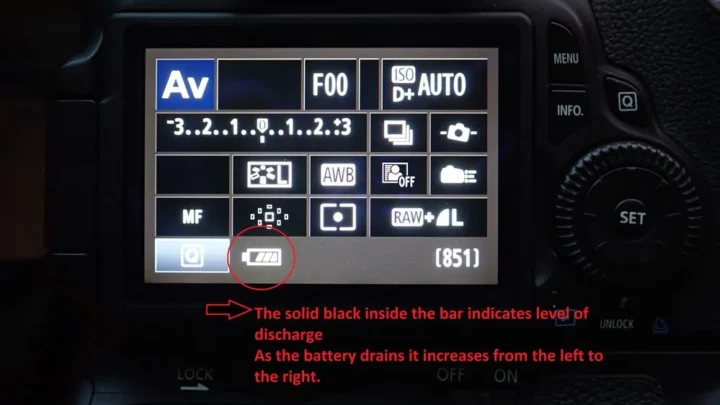
Image source: Bing (Web (fair-use with source credit))
If the file has a valid size but won't open, you are on Path One. This is the most common scenario. It means the header or index is damaged.
The actual video data is still on the card. You just need to rebuild the file structure.
If the file is zero bytes, very small, or completely missing, you are on Path Two. The data might not have been written at all. Or you may have accidentally deleted the file.
You need data recovery before you can attempt video repair.
If the card itself is not recognized by your computer, stop immediately. Do not write anything new to the card. Use disk repair tools like chkdsk on Windows or Disk Utility on macOS.
That is a separate process from video file corruption. A card-level failure often points to physical damage or a corrupted file allocation table. This can happen after a sudden ejection or battery death during a write cycle.
If you have had power-related problems before, reviewing our battery troubleshooting guide might help you prevent future corruption.
Path One: The Missing Header Fix (Easiest and Most Common)
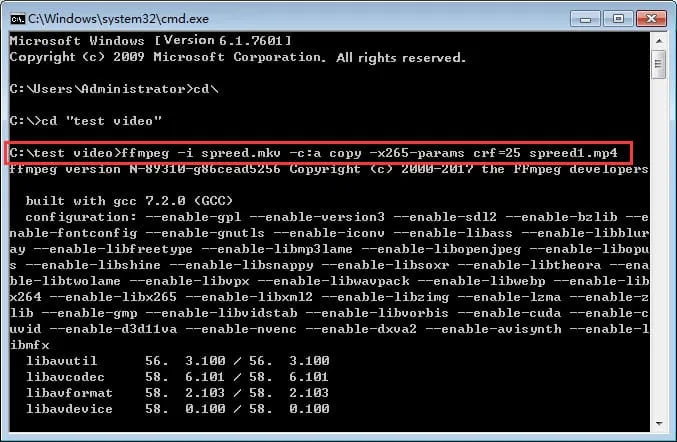
Image source: Web (Bing) / easefab.com (Web image (fair-use with source credit))
The single most effective free tool for this job is ffmpeg. It is a command-line utility that rebuilds an MP4 container without re-encoding the video. That means you get your original quality back.
Open a terminal or command prompt. Navigate to the folder with your video file. Run this command:
ffmpeg -i corrupt_video.mp4 -c copy fixed_output.mp4
This copies the video and audio streams directly into a new container. Ffmpeg builds a fresh header using the data it finds. It works especially well when the moov atom is missing.
Aggregate user reports indicate a 60 to 80 percent success rate with this method.
If that does not work, try adding the -movflags faststart flag. This moves the moov atom to the beginning of the file. Some players require that.
The command looks like this:
ffmpeg -i corrupt_video.mp4 -movflags faststart -c copy fixed_output.mp4
Still broken? You may need a reference video. Advanced tools like untrunc can rebuild a corrupt file by copying the header from a good recording made with the same camera on the same settings.
Record a fresh 10-second clip with identical resolution and frame rate. Then use untrunc to compare them.
If your camera produces consistent corruption across multiple files, you might have a deeper issue. A faulty firmware update can cause encoding problems. Our firmware update troubleshooting guide walks through how to verify and reinstall your camera's software safely.
Path Two: Severe Corruption or Deleted File
This path is for files that never got written to the card properly or were lost entirely. Standard video repair tools will not help here. You need data recovery first.
Stop using the card immediately. Every second of use writes new data that can overwrite your deleted file. Remove the card and connect it to your computer with a proper card reader.
Free tools like PhotoRec scan the raw card for video fragments. It searches for MP4 headers and reassembles them. The process is slow.
A 64GB card can take thirty minutes to several hours depending on your computer's speed.
If the card shows up but the file is there with zero bytes, try a file system check first. On Windows, run chkdsk X: /f where X is your card's drive letter. On macOS, use Disk Utility First Aid.
This can fix file allocation table errors without losing data.
Professional tools like the Grau Video Repair Tool use a reference video to reconstruct severely damaged files. They start around 15 dollars. They are worth it for irreplaceable footage.
Just make sure you use a reference clip from the exact same camera model with matching settings.
One thing to watch for: if the card was formatted inside the camera and then used again, your deleted footage may already be partially overwritten. That is why stopping use immediately matters so much. If you frequently record in extreme conditions, heat-related shutdowns can also corrupt files mid-write.
Our overheating troubleshooting guide gives you preventative steps to avoid this situation entirely.
Mistakes That Make Things Worse
A few wrong moves can turn a recoverable file into a permanent loss. Here is what to avoid.
Writing new data to the card. Every photo or video you take after corruption sits on top of the deleted file. The original data gets overwritten bit by bit. Pull the card out right away.
Use a USB card reader to access it.
Running multiple repair tools in sequence. If ffmpeg fails, do not immediately open the same file with three different recovery programs. Each tool writes temporary files. Those can overwrite the original data you are trying to save.
Pick one tool. Try it once. If it fails, clone the card first with a tool like ddrescue, then work on the copy.
Ignoring the card speed class. Aggregate user reviews show that using a slow card is the number one reason action cameras corrupt files. A UHS-I U3 card is the absolute minimum for 4K recording. A V30 or faster card is better for 60 fps footage.
Cheap cards from unknown brands create repeat corruption no matter how good your repair skills are.
Formatting the card in your computer. Cameras use a specific file system structure. Formatting a card in a PC or Mac can set the wrong allocation unit size. Always format the card inside the camera.
The only exception is if your camera fails to format it. In that case, check our formatting guide before you proceed.
Using the card after a partial file recovery. Recovered files are fragile. Copy them to a hard drive or cloud storage. Do not keep your only copy on the same card that just failed.
Frequently Asked Questions
Can I recover corrupted video from a formatted SD card?
Yes, if you stop using the card immediately after formatting. PhotoRec and similar tools scan the raw card for video headers. Success depends on whether new data has overwritten the old files.
The sooner you run recovery, the better your odds.
Why does my action camera keep creating corrupt files?
The most likely cause is an underperforming microSD card. A card that cannot sustain the camera's write speed will drop frames and create broken headers. Check your card's speed rating.
V30 or higher is recommended for 4K video. Overheating can also trigger premature shutdowns.
Will VLC fix a corrupt video file?
VLC has a repair function in its preferences, but it only works on incomplete AVI files. For action cameras that record in MP4 or MOV format, VLC cannot rebuild a missing header. Use it to test whether the file plays.
Use ffmpeg or a dedicated repair tool for the actual fix.
How much does professional video recovery cost?
Professional data recovery services charge 100 to 500 dollars depending on severity. DIY tools like ffmpeg and PhotoRec are free. The Grau Video Repair Tool costs about 15 dollars.
Try free options first. Only pay for a service if the footage is irreplaceable and initial repairs fail.
Can I prevent video corruption in the future?
Yes. Use a high endurance V30 or V60 microSD card. Always format it in the camera.
Keep your camera battery charged above 30 percent. Avoid pulling the card while the camera is writing. Update your camera firmware when new versions are released.
These steps eliminate most common causes of corruption. For persistent issues, reviewing our error message troubleshooting guide can help identify hardware problems.
The Smart Takeaway: What to Do Next
You now have a clear two-path system. Check the file size and what VLC shows. If the file is a good size, use ffmpeg to rebuild the header.
If the file is tiny or missing, stop using the card and run PhotoRec first.
Start with the free tools. Aggregate data across user forums suggests that ffmpeg recovers 60 to 80 percent of simple header corruption. PhotoRec handles most deleted file scenarios.
Only move to paid software or a professional service when those fail.
Prevention is simpler than repair. Per SD Association guidelines, always pair your camera with a card rated for sustained write speeds above your camera's bitrate. A V30 card handles most 4K scenarios.
A V60 card gives you headroom for high frame rates and reduces the risk of partial writes. Format the card in the camera every few uses. Keep your firmware updated.
Buy a spare high quality card before your next trip. Rotate them so you never rely on a single card for an entire day of shooting. That one habit eliminates most of the panic that drives people to look up corrupted video troubleshooting in the first place.

Similar Posts