Browning Trail Camera SD Card Problems
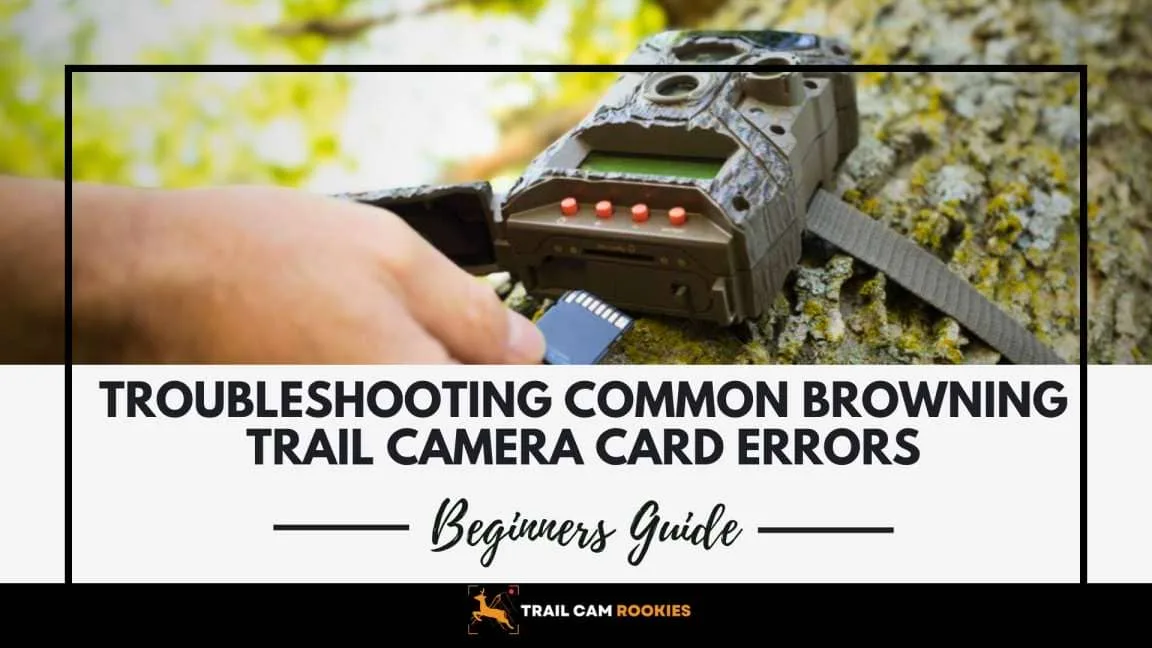
Nothing kills a good scouting trip faster than opening your Browning trail camera and seeing "Card Error" or "No Card" on the screen. Browning trail camera SD card problems are frustrating, but they're almost always fixable without buying a new camera.
The main culprit is a simple mismatch between the card and the camera. As of 2026, most Browning models still require a FAT32 file system and struggle with cards larger than 32GB. Understanding this one spec solves most issues.
Let's walk through what's actually going on.
Image source: Web (Bing) / trailcamrookies.com (Web image (fair-use with source credit))
"Card Error" and Other Common Browning SD Card Problems
You're not alone if you've seen one of these messages. The most frequent Browning SD card problems fall into a handful of categories. Here's what you're likely dealing with.
Card Error. This is the big one. The camera can't read or write to the card at all. It often means the card is formatted in the wrong file system, exFAT instead of FAT32.
It can also mean the card has corrupted file tables.
Card Full with only a few files. The camera thinks the card is full, but you know it isn't. This usually points to a loop recording setting or a corrupted directory that the camera can't overwrite.
Camera freezes after inserting a card. The camera powers on, then locks up as soon as it tries to access the card. This can be a sign of a card that's too fast or simply incompatible with the camera's hardware.
Corrupted or partially saved images. You get photos that show up as garbled or cut off. This often means the card's write speed is too slow for the camera's trigger speed. It can also mean the card is failing from repeated use.
Each of these problems has a specific fix. The good news is that the solution is almost always a formatting change or a card swap. We've covered similar issues on other devices, like troubleshooting a memory card error, and the logic is very similar.
Why Browning Cameras Are Picky About SD Cards: The Simple Reason
Browning trail cameras are designed around a specific set of power and processing limits. They don't have the same resources as a modern smartphone or a mirrorless camera. That's why they're picky.
FAT32 is the only format that works reliably. Most Browning models cannot read exFAT or NTFS. If you plug in a 64GB or larger card, it's almost certainly formatted as exFAT straight from the factory. Your camera will see that format and throw a "Card Error" immediately.
The 32GB capacity limit is real. Older Browning models, pre-2020, max out at 32GB. Newer models can handle up to 256GB, but only if the firmware is updated. Even then, many users report issues with cards over 128GB.
The sweet spot for reliability is 32GB.
Speed class matters more than you think. Browning cameras don't need lightning-fast cards. A Class 10 or UHS-I U1 card is plenty for 1080p video. Faster cards like U3 or V30 can actually cause issues because the camera doesn't buffer properly.
Slower cards like Class 4 can cause missed triggers and corrupted files.
Power draw is a hidden factor. High-speed cards pull more power during write operations. In cold weather, that extra drain can flatten batteries faster. On a remote property that you visit only once a month, a power-hungry card can kill your setup.
The SD Association provides detailed technical specifications on speed classes and power limits. That's the source we use when verifying card specs for trail cameras.
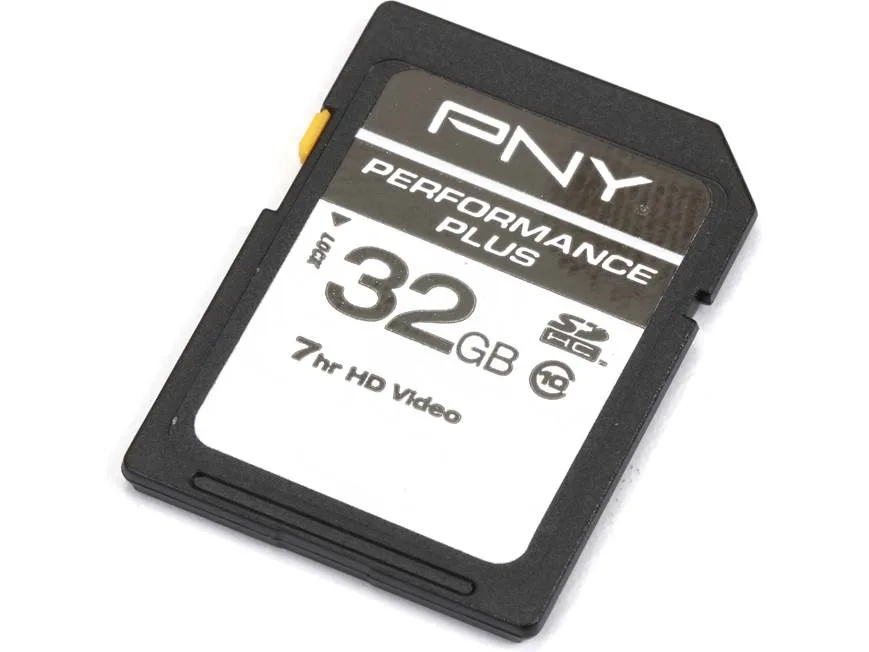
Image source: Bing (Web (fair-use with source credit))
Step-by-Step: Diagnose and Fix Your SD Card Issue (Decision Tree)
Let's get practical. Here is a step-by-step workflow you can follow right now. If your card shows an error, start at the top and work your way down.
| Symptom | Most Likely Cause | Immediate Fix |
|---|---|---|
| "Card Error" message | Wrong format or corrupted card | Format to FAT32 in the camera |
| "Card Full" with few files | Loop recording or directory corruption | Format card in camera; check settings |
| Camera freezes on card insert | Incompatible card speed | Swap to a Class 10 U1 card |
| Corrupted images or videos | Write speed too slow | Test card in a PC; replace if failing |
Step 1: Remove the card and check the physical lock switch. This is embarrassing but common. If the lock slider on an SD card adapter is in the Lock position, the camera can't write to it. Slide it back to Unlock and reinsert.
Step 2: Format the card using the camera's own Format function. This aligns the file structure perfectly with the camera's firmware. Do not use a computer's quick format for this step. The camera does a low-level format that clears hidden partitions and resets the allocation table.
Step 3: If the error persists, reformat on a computer using the SD Card Formatter tool. Make sure you select FAT32 and set the allocation size to 32KB. This matches what Browning cameras expect. Our guide on formatting an SD card for action cameras covers the same process and applies here too.
Step 4: Test the card on a known working camera. If it works on another device, the problem is your Browning. If it fails on all devices, the card is dead. Replace it.
Step 5: Try a different card that you know is 32GB or smaller and is Class 10 or U1. If that card works, the original card is incompatible. Stick with the recommended size and speed.
5 Mistakes That Ruin SD Cards for Browning Cameras
Even good cards fail fast if you make these mistakes. Avoid them if you want your cards to last through a full season.
1. Reusing cards from other cameras without reformatting. Each camera writes its own folder structure and file table. If you pull a card from a different brand and slot it into a Browning without formatting, the camera tries to read the old structure and fails.
This is the number one cause of "Card Error" messages.
2. Using exFAT formatted cards on a FAT32-only camera. This is the second most common mistake. Newer, larger cards come formatted as exFAT out of the box.
You must reformat them to FAT32 before using them in a Browning. Many users skip this step because the card works in a computer.
3. Taking the card out without powering down the camera. Pulling a card while the camera is writing corrupts the file table. Over time, this causes permanent damage to the card's directory.
Always power off the camera, wait a few seconds, then remove the card.
4. Buying cheap, no-name cards from questionable sellers. Counterfeit cards are everywhere. They often report a larger capacity than they actually have.
They can have slow write speeds that don't match their label. Stick with major brands from trusted retailers.
5. Forgetting the physical lock switch on the adapter. This one is simple but it happens to the best of us. If the switch is down, the card is locked.
The camera can read it but not write to it. You'll see no new photos but the camera won't show an error.
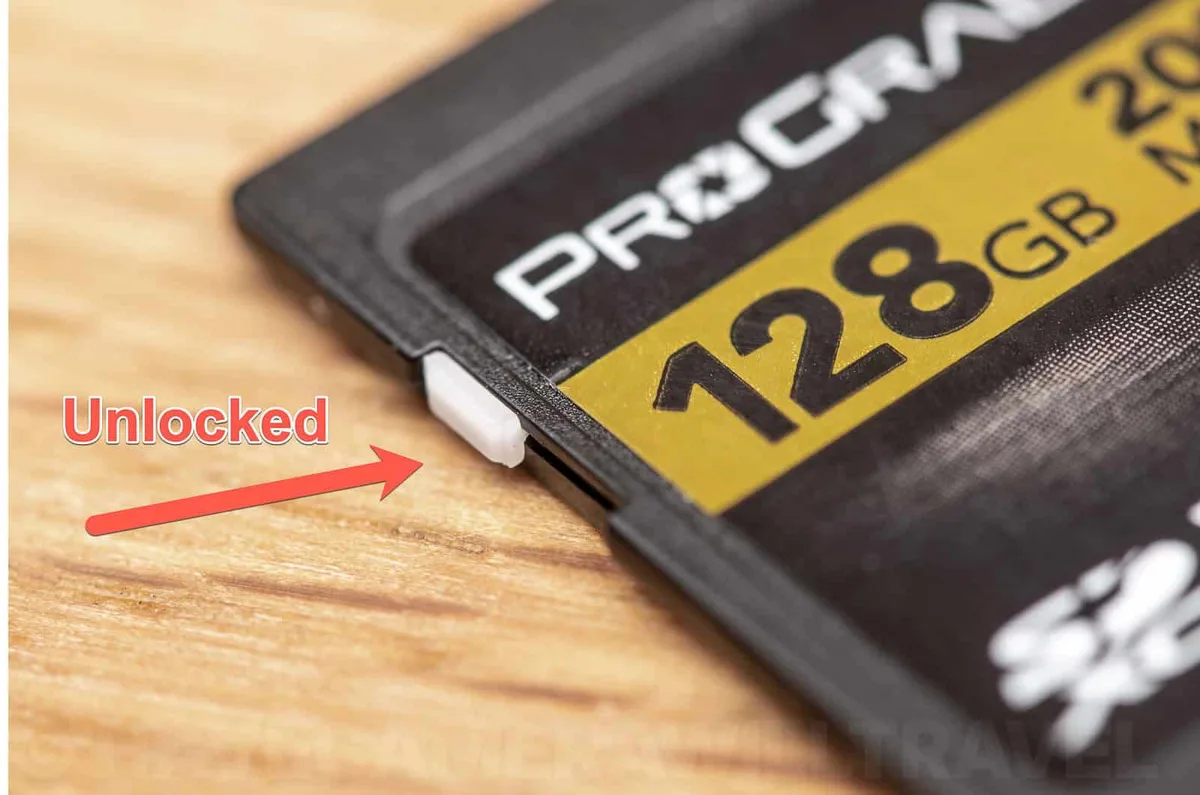
Image source: Web (Bing) / havecamerawilltravel.com (Web image (fair-use with source credit))
Expert Tips to Keep Your Cards Working All Season Long
You've fixed the current problem. Now let's make sure it doesn't come back. A little preventive care goes a long way.
Format the card in the camera every time you start a new deployment. This clears out any leftover file fragments. It resets the allocation table to match the camera's expectations. It takes 30 seconds and prevents 80% of all card-related errors.
Use a dedicated set of cards for each camera. Label your cards so you don't swap them between cameras without reformatting. A simple piece of tape with the camera's name is enough.
Check your firmware version. Browning regularly releases firmware updates that improve card compatibility. If you're running outdated firmware, the camera may not support larger cards or faster speed classes. Update via SD card using the same process you'd use for any other device.
We cover the same steps in our guide on updating firmware on action cameras.
Test new cards before you deploy them. Insert the card, take a few test photos and videos, then check them on a computer. This catches incompatible cards before they miss a critical photo opportunity.
Remove cards in the field with care. When you're swapping cards in a hurry, it's easy to forget to power down. Get into the habit of turning the camera off, counting to five, then pulling the card. It adds 10 seconds to your visit and saves you from a corrupted card.
Frequently Asked Questions About Browning SD Card Issues
Why does my Browning trail camera show "Card Error"?
The camera can't read the card's file system. This almost always means the card is formatted in exFAT instead of FAT32. Remove the card, back up any data, then format it to FAT32 using the camera's own Format menu.
If that fails, use a computer with the SD Card Formatter tool.
What size SD card is best for a Browning trail camera?
For most pre-2020 models, stick with 32GB. Newer models with updated firmware can handle 128GB or 256GB, but 32GB is the safest bet. Cards larger than 32GB often come formatted as exFAT, which Browning cameras don't support without reformatting.
How do I format an SD card for a Browning trail camera?
Insert the card into the camera. Navigate to the menu and select Format. Confirm the action.
This performs a low-level format that aligns the file structure with the camera's firmware. Do not use a computer's quick format. The camera's own format is the most reliable method.
Why does my Browning camera say "Card Full" when the card is empty?
The camera's file directory is corrupted. The camera thinks it has written to every available sector, even though no readable files exist. Format the card inside the camera to rebuild the directory.
If the problem returns, the card is failing and should be replaced.
Can I use a 128GB or 256GB card in a Browning trail camera?
Only if the camera's firmware supports it. Check your firmware version against Browning's compatibility list. Even then, you must manually reformat the card to FAT32 using a computer.
Windows cannot format drives larger than 32GB to FAT32 natively, so you'll need third-party software or the SD Card Formatter tool.
Why are my trail camera photos corrupted or not saving?
The card's write speed is too slow for the camera's trigger speed. Use a Class 10 or UHS-I U1 card as a minimum. Also check for physical damage to the card's contacts.
If the card has been reused many times without reformatting, it may have developed bad sectors from accumulated file corruption.
Your Quick Fix Checklist: What to Do First, Second, Third
When you're standing in front of a non-functional trail camera, you don't want to read a novel. Here's the shortest path to a working camera, step by step.
First: Power cycle the camera. Remove the batteries. Wait 30 seconds. Reinsert them.
Sometimes the camera firmware glitches and a hard reset clears the error.
Second: Remove the SD card and check the lock switch. If the slider is down, push it up. Reinsert the card. This takes five seconds and solves more problems than you'd think.
Third: Format the card inside the camera. If the error persists, go into the menu and select Format. This resolves 90% of all card-related issues.
Fourth: Try a different card. If formatting doesn't work, swap in a known good 32GB Class 10 card. If that card works, your original card is incompatible or dead.
Fifth: Update the camera's firmware. Check the Browning support site for your model's latest firmware. Load it onto a formatted SD card and install it. Firmware updates often add support for larger cards and fix compatibility bugs.
Sixth: Replace the card if nothing else works. Cards have a limited lifespan. After a few seasons of heavy use, they can develop errors that no amount of formatting can fix. A new card costs far less than a missed shot.
If you're dealing with similar issues on other devices, the same troubleshooting logic applies to things like corrupted files on action cameras or battery drain problems on compact gear. A card is a card, and the rules are the same across brands.
One final note. Keep a spare SD card in your pack. A backup card saves your hunt when the primary one fails.
It's the cheapest insurance you can carry.

Similar Posts
































