Canon EOS R10 Troubleshooting
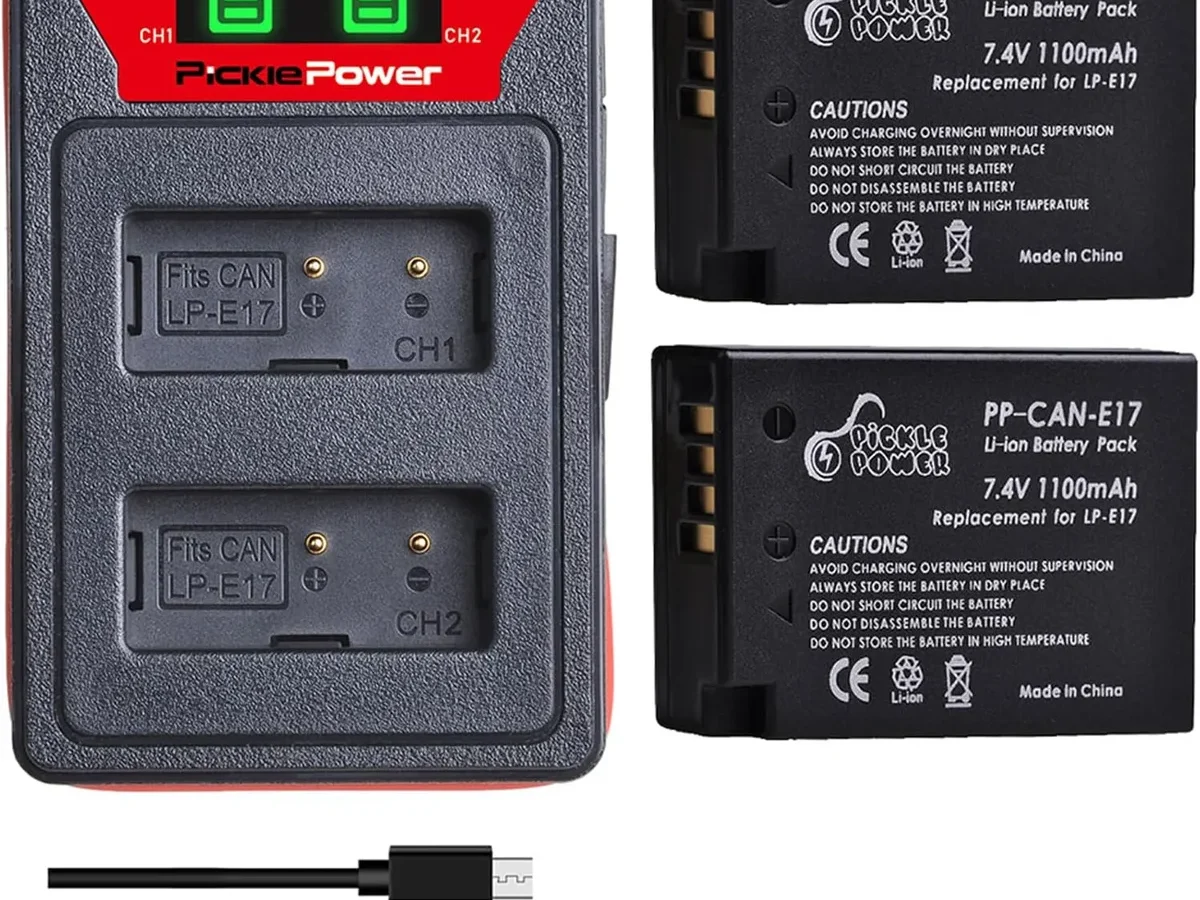
If your Canon EOS R10 is acting up, you are probably wondering whether it is a quick fix or something that needs a service center. Canon EOS R10 troubleshooting covers a few repeatable patterns: power issues, lens communication errors, card problems, and software glitches.
Manufacturer specifications indicate the R10 runs on the DIGIC X processor with a 24.2MP APS-C sensor. That combination is generally reliable. But the electronic first-curtain shutter and the RF mount contacts are common sources of misunderstanding.
Let us walk through the most frequent problems and how to isolate them.
Quick Answer
Canon EOS R10 troubleshooting usually comes down to three areas. Check the battery first. Clean the lens and card contacts second.
Reset the camera settings third. Most issues are not hardware failures. They are dirty contacts, a depleted battery, or a software hang.
Quick Diagnosis: Is Your R10 Having a Power, Lens, or Card Problem?
Before you dive into any deep fix, you need to identify which category your problem falls into. The R10 is a modular camera. Power, lens communication, and card read or write are separate systems.
Each has its own set of symptoms and solutions.
Here is a quick reference table to help you self-diagnose.
| Symptom | Likely Root Cause | First Action |
|---|---|---|
| Screen stays black, no LED | Battery charge or contacts | Charge battery, clean contacts |
| Lens error on screen | Dirty mount contacts or loose lens | Remove and reseat lens, clean contacts |
| Cannot record or card error | SD card speed or corruption | Format card in camera |
| Shutter will not fire | Buffer full or focus not locked | Wait for buffer, check focus mode |
| Banding in electronic shutter | Flicker mismatch with lighting | Switch to mechanical shutter |
| Overheating in 4K video | Long clip or high ambient temp | Stop recording, let camera cool |
If your screen and LEDs are dead, you are in the power track. If you get a lens error message, you are in the communication track. If the camera powers on but refuses to shoot or record, you are in the card or buffer track.
Won't Power On? Check These Three Things First
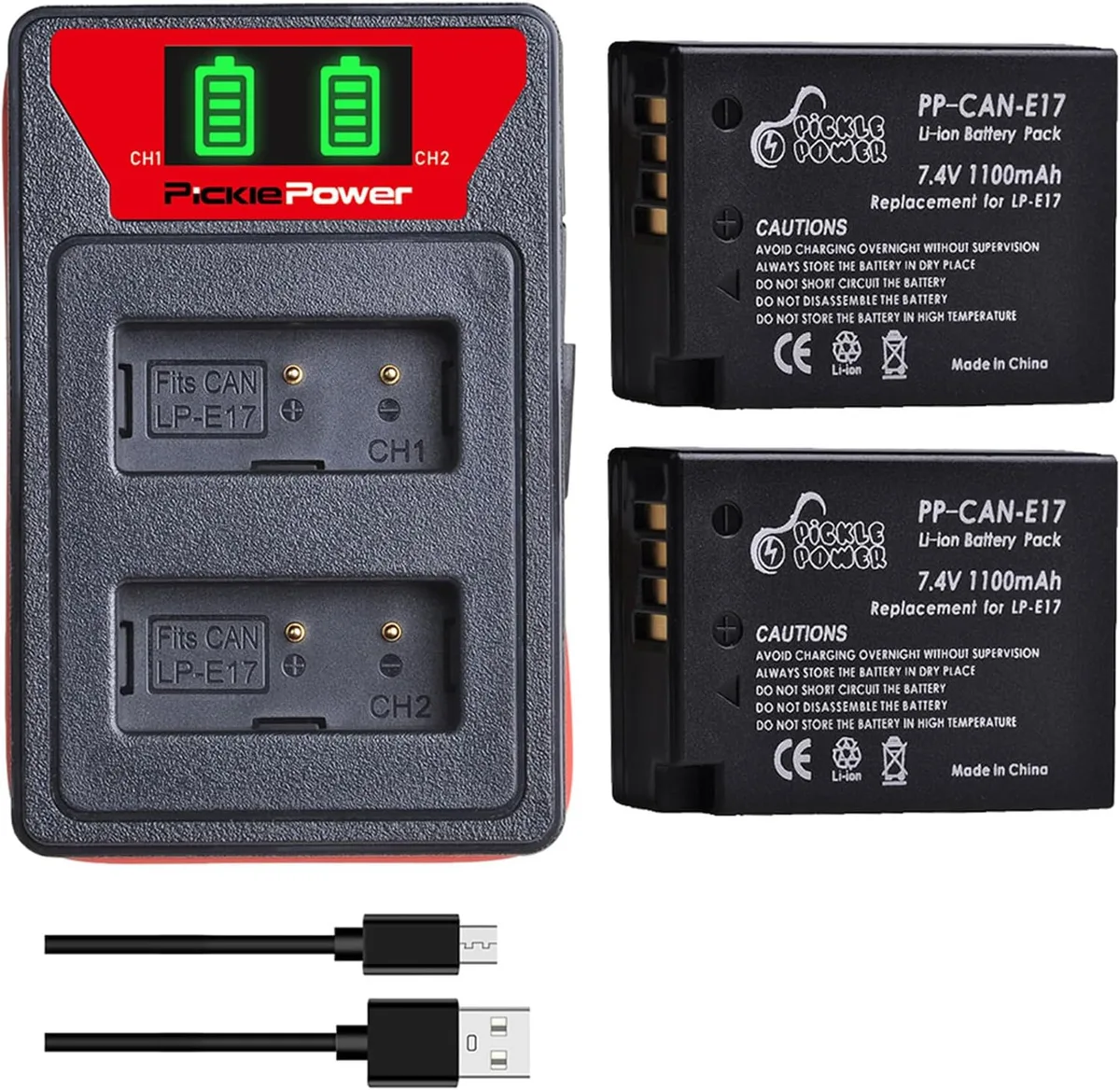
Image source: Web (Bing) / amazon.co.uk (Web image (fair-use with source credit))
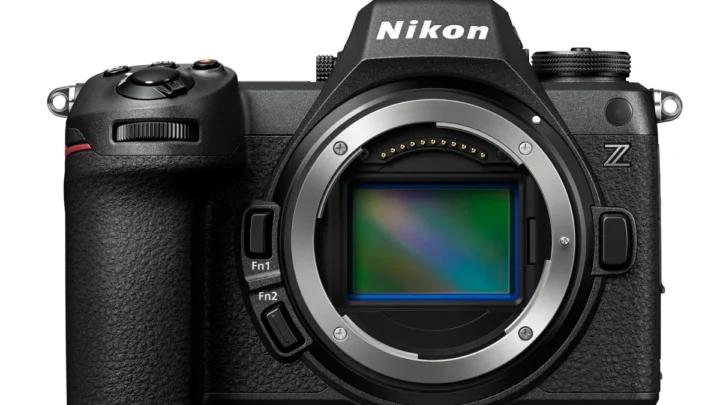
A dead camera is the most frustrating problem. It is also the most likely to have a simple fix.
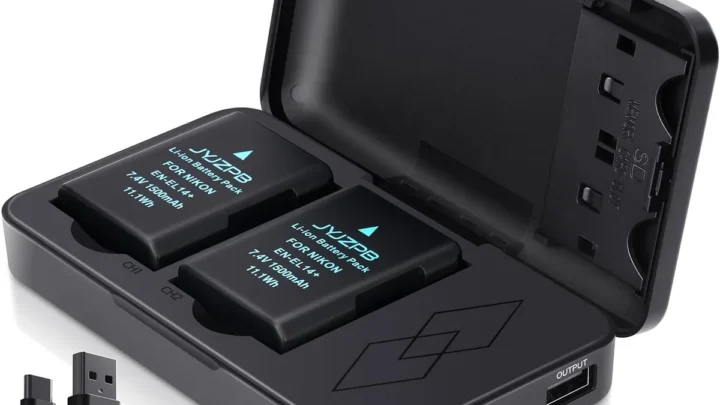
Step one: charge the battery. The LP-E17 battery has about 430 shots per charge under CIPA testing conditions. That number drops in cold weather or with heavy Wi-Fi use. Put the battery in the official charger and wait at least two hours.
A blinking amber light on the charger means it is charging. A steady green light means full.
Step two: clean the battery and camera contacts. Corrosion or dust on the metal contacts inside the battery compartment can block power. Use a dry microfiber cloth. Gently wipe the three gold strips on the battery.
Then wipe the three pins inside the camera body. This fixes a surprising number of dead cameras. The same principle applies to other power-related issues in compact cameras.
Step three: try a known-good battery. If you have access to another LP-E17 battery, swap it in. If the camera powers on, your original battery has likely reached the end of its cycle life. Canon rates these for about 300 to 500 charge cycles before noticeable capacity loss.
If none of these work, the issue could be the internal power board. That needs a Canon service center.
Lens Not Attached or Autofocus Hunting? Fixing Communication Errors
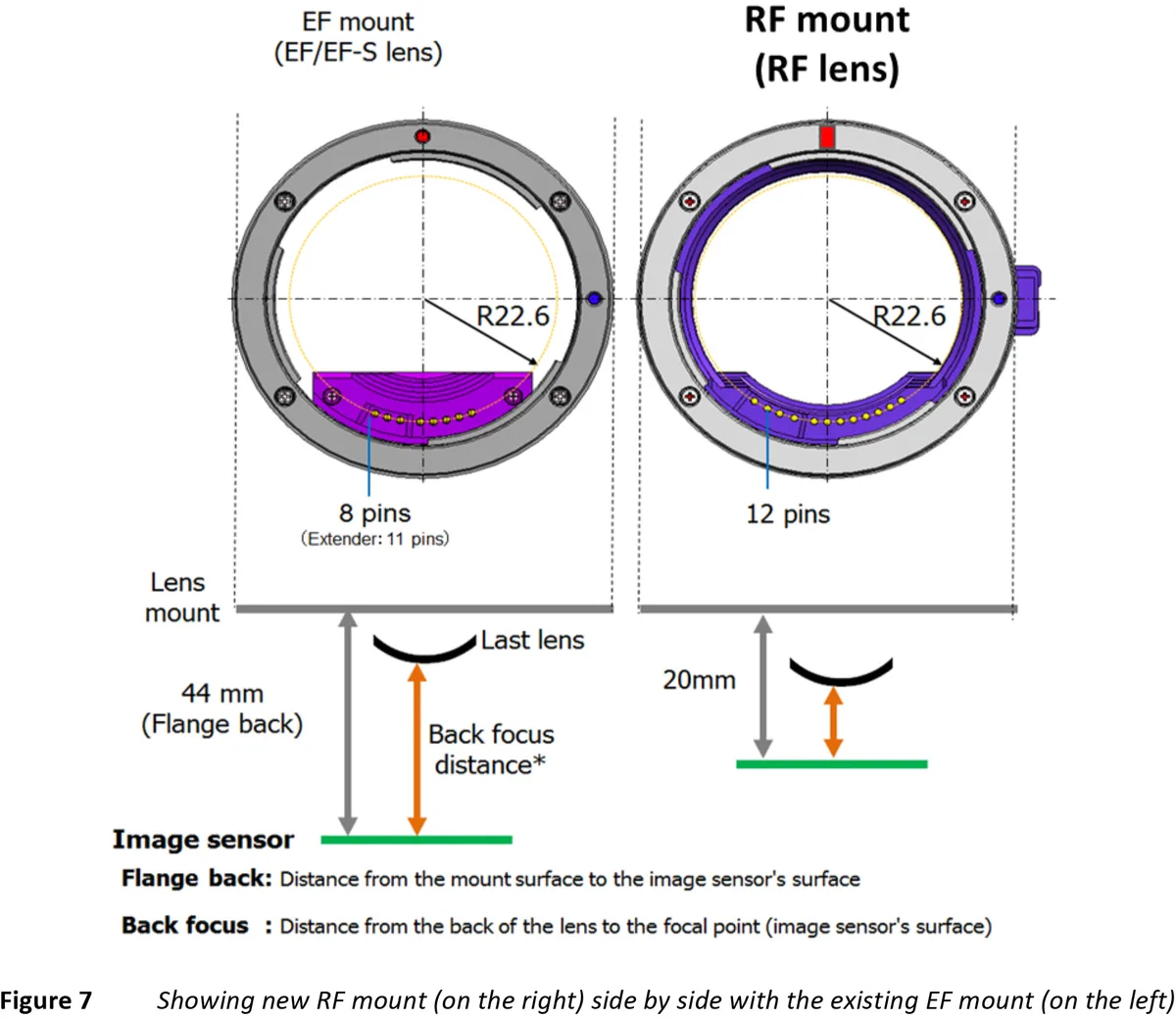
Image source: Bing (Web (fair-use with source credit))
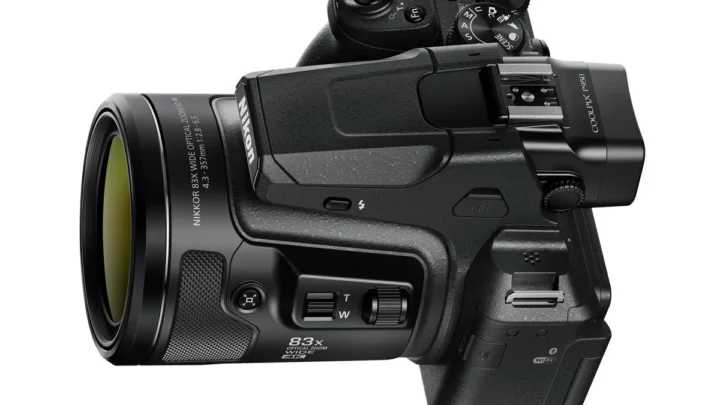
The R10 uses the RF mount with eight electronic contact pins. These pins carry power, focus, aperture, and image stabilization signals. When they get dirty or misaligned, the camera shows Lens not attached securely or the autofocus starts hunting erratically.
Clean the lens contacts first. Remove the lens. Look at the gold pins on the back of the lens barrel and the pins inside the camera mount. Use a clean microfiber cloth.
Gently wipe each pin in one direction. Do not use alcohol or any solvent. Dry cloth only.
Check the lens locking mechanism. The R10 has a red dot alignment mark. Line it up with the dot on the lens. Twist clockwise until you hear a click.
If the lens is even slightly loose, the pins lose contact.
Test with a different lens. If cleaning does not help, try a different RF or RF-S lens. If the error disappears, the original lens has a problem. If the error persists, the camera mount may have a bent pin or internal damage.
Before concluding there is hardware damage, check the general troubleshooting process for camera communication errors.
Aggregate user feedback indicates that third-party lenses using the RF mount can sometimes have slightly shorter pin protrusion. That can cause intermittent communication loss. If you use a third-party lens and see this pattern, contact the lens manufacturer for compatibility notes.
Shutter Won't Fire, Card Errors, or Cannot Record – What to Do
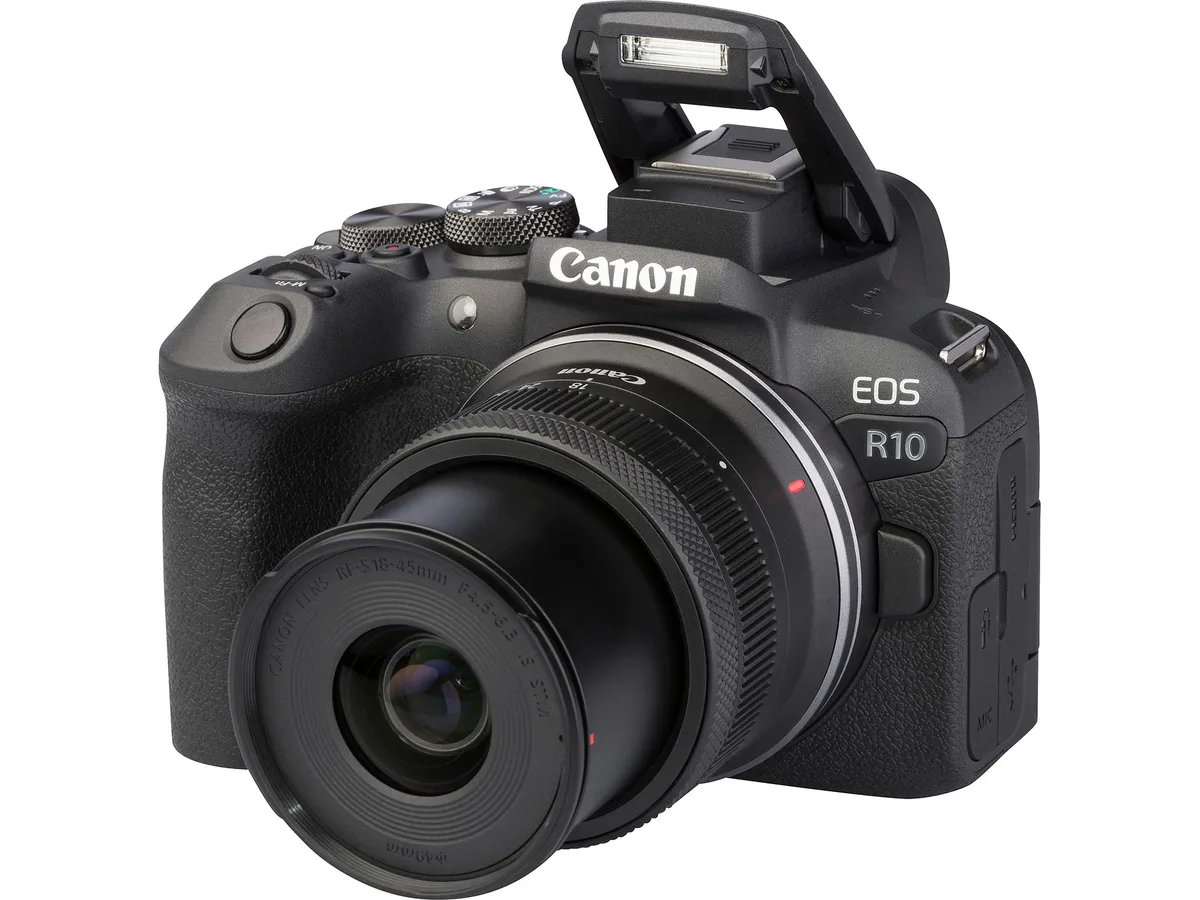
Image source: Web (Bing) / which.co.uk (Web image (fair-use with source credit))
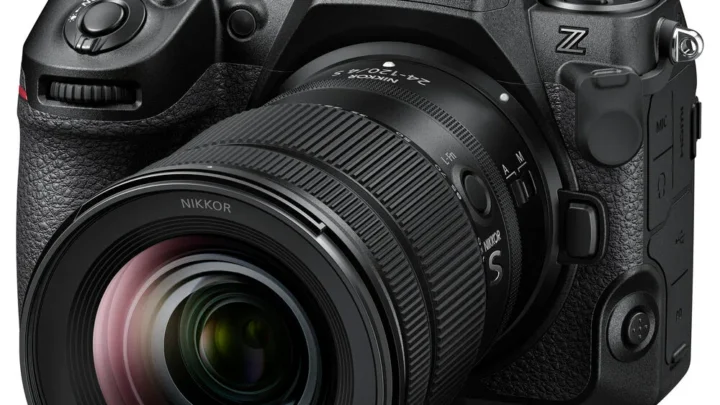
The R10 has a single UHS-II SD card slot. That single slot is the bottleneck for both photos and video. If the card is slow, corrupt, or improperly formatted, the camera will refuse to shoot.
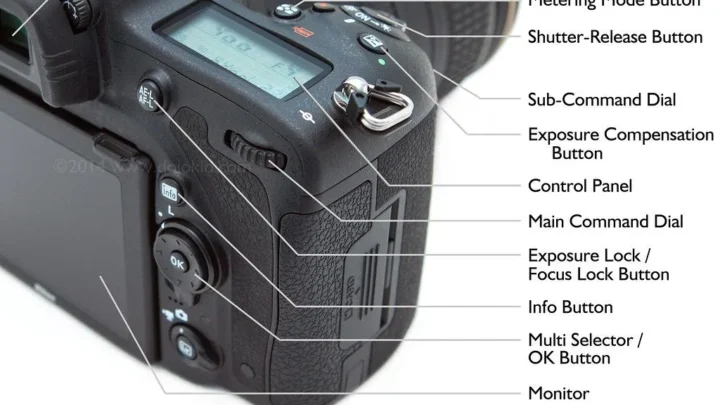
If the shutter will not fire: Press the shutter button halfway. Look for a green AF lock box. If the box is red or absent, the camera cannot achieve focus.
Switch to manual focus and try again. If it fires in manual focus, your AF settings are the issue, not the shutter. Also check if the buffer is full.
The R10 holds about 21 RAW frames in burst mode. Wait a few seconds for the buffer to clear.
If you see Cannot record: This usually means the SD card is too slow for the selected video mode. 4K 30p requires at least a UHS-I U3 card. 4K 60p and high bitrate modes need a V60 or V90 card. Format the card inside the camera using the wrench menu. Do not format it on a computer.
In-camera formatting sets the correct cluster size and file system. The SD card formatting process for trail cameras follows the same logic.
If the card shows an error: Remove the card. Check the lock switch on the side. It should be pushed up to the unlocked position.
Clean the card contacts with a dry cloth. If the error persists, the card may be corrupted. Try a different card.
If the new card works, the old one is dead. SD card corruption issues are some of the most common reasons for troubleshooting across all camera types.
Electronic Shutter Banding and Flash Problems
The R10 has three shutter modes: mechanical, electronic first-curtain (EFCS), and fully electronic. Each behaves differently under artificial light and with flash.
Banding in electronic shutter. If you see horizontal stripes or bands in your photos, you are shooting under LED or fluorescent lights. The electronic shutter scans the sensor row by row. LEDs flicker at frequencies that do not match the scan speed.
Switch to mechanical shutter or EFCS. That eliminates banding because the mechanical curtain exposes the whole sensor at once.
Flash not firing. The R10 hot shoe uses a new multi-function contact system. Older Canon Speedlites (430EX, 580EX, etc.) need the AD-E1 adapter to work reliably. If you use a third-party flash, check whether it specifically supports the R10 hot shoe protocol.
Some third-party flashes work fine on older Canon DSLRs but fail to fire on the R10.
Flash exposure too bright or too dark. If the flash fires but the exposure is off, check your flash sync speed. The R10 syncs at 1/200 second with the mechanical shutter. In electronic shutter mode, sync speed drops to around 1/30 second.
That can cause uneven exposure if you shoot faster than sync speed.
If the hot shoe contacts are dirty, clean them gently with a dry pencil eraser. Rub lightly, then blow away any eraser dust. Do not use liquid cleaner on the hot shoe.
Overheating During 4K Video: What Is Normal and What Is Not
The R10 can overheat when recording 4K video. This is a known characteristic of the small body with the DIGIC X processor. It is not necessarily a defect.
But you need to know the limits.
Normal behavior. The R10 records 4K 30p for about 30 minutes before the temperature warning appears. In warm environments above 30°C, that drops to around 15 minutes. The camera will show a red thermometer icon.
Then it stops recording to protect the sensor.
What triggers overheating faster. Shooting 4K 60p generates more heat than 4K 30p. Using the vari-angle screen closed against the body traps heat. Continuous autofocus during recording adds processor load.
Direct sunlight on the black camera body raises internal temperatures quickly.
How to extend recording time. Open the vari-angle screen away from the body. This allows heat to dissipate. Drop to 4K 30p instead of 60p.
Turn off continuous autofocus if your subject is stationary. Let the camera cool for 10 minutes between long clips.
When to worry. If the camera overheats within five minutes at room temperature, that is not normal. Check for a firmware update from Canon's official support site. Canon has released thermal management improvements for some bodies.
If the problem persists after updating, the thermal paste or sensor connection may need a service center visit.
Common Mistakes That Look Like Bigger Problems Than They Are
Some R10 issues look terrifying but have trivial fixes. Knowing these saves you a service center trip.
Mistake one: the screen goes black randomly. The R10 has an eye sensor near the viewfinder. If your hand or strap passes over it, the camera switches to the EVF and the LCD goes black. Press the DISP button to cycle display modes.
If the screen stays black, the sensor may be blocked. Wipe the sensor window clean.
Mistake two: the camera will not turn on with a freshly charged battery. The LP-E17 battery has a protection circuit. If it is fully drained and then charged, it can take a few minutes to wake up. Insert the battery and wait 30 seconds before pressing the power button.
Mistake three: all photos look blurry. Check your shutter speed. In aperture priority mode, the camera might select a shutter speed below 1/60 second in low light. That is too slow for handheld shooting without image stabilization.
The R10 body has no IBIS, so you rely on lens IS. Switch to shutter priority and set 1/125 second minimum.
Mistake four: the camera makes a clicking noise but does not take a photo. That is the mechanical shutter cocking for the next shot. It is normal. The R10 pre-cocks the shutter when you half-press the shutter button.
It is not a malfunction.
Mistake five: the Wi-Fi button does nothing. The R10 Wi-Fi and Bluetooth only activate when the camera is in playback mode or when you use the Canon Camera Connect app. Press the play button first. Then press the Wi-Fi button.
If it still does nothing, the wireless module may need a full system reset through the wrench menu.
Final Decision Guide: When to Reset, Repair, or Replace
By this point, you have tried the basic fixes. If the problem persists, use this guide to decide the next step.
Do a full factory reset first. Go to the wrench menu (yellow tab). Select Clear all camera settings. This resets every custom setting to default without deleting your photos.
It fixes software glitches that mimic hardware failures. A surprising number of autofocus issues and random error messages disappear after a reset. This is often the last step before you consider a repair.
Update the firmware. Check your current firmware version in the wrench menu (yellow tab, Firmware ver.). Compare it to the latest version on the Canon support site. If your version is older, download the update to a formatted SD card and run it.
Firmware updates fix known bugs and improve compatibility with new SD cards and lenses. This step is critical before you send the camera in. The firmware update process uses the same SD card workflow across many camera types.
When to repair. If the camera still has power issues after cleaning contacts and trying a known-good battery, the internal power board likely needs replacement. If the shutter mechanism makes grinding noises or the sensor shows stuck pixels, those are hardware failures. Canon service centers charge a flat fee for these repairs.
Get a quote before authorizing work.
When to replace. If the repair cost exceeds half the replacement cost, replace the body. As of 2026, a new R10 body costs around $800. Shutter replacement runs about $250.
Sensor replacement runs about $400. At that point, a replacement makes more financial sense.
Frequently Asked Questions
How do I reset my Canon EOS R10 to factory settings?
Go to the wrench menu (yellow tab). Select Clear all camera settings. Confirm the reset.
This does not delete your photos or videos. It only resets shooting settings, menu customizations, and autofocus configurations.
Why does my R10 battery drain so fast?
The LP-E17 battery has limited capacity. Leaving Wi-Fi or Bluetooth active drains it faster. Cold weather below 10°C also reduces performance.
Turn off wireless connections when not in use. Carry a spare battery for long shoots.
Can I use a third-party flash on the R10?
Some third-party flashes work. Others do not. The R10 uses a new multi-function hot shoe.
Flashes designed for older Canon DSLRs may need the AD-E1 adapter. Check the flash manufacturer compatibility list before buying.
How do I fix Lens not attached securely on my R10?
Remove the lens. Clean the gold contact pins with a dry microfiber cloth. Reattach the lens, lining up the red dots.
Twist until you hear a click. If the error persists, try a different RF lens to isolate the problem.
Why is my R10 showing a card error?
The SD card may be locked, corrupt, or too slow. Check the lock switch on the card. Format the card in the camera using the wrench menu.
If the error continues, try a different card rated UHS-I U3 or faster.

Similar Posts