Fire Tv Not Turning On
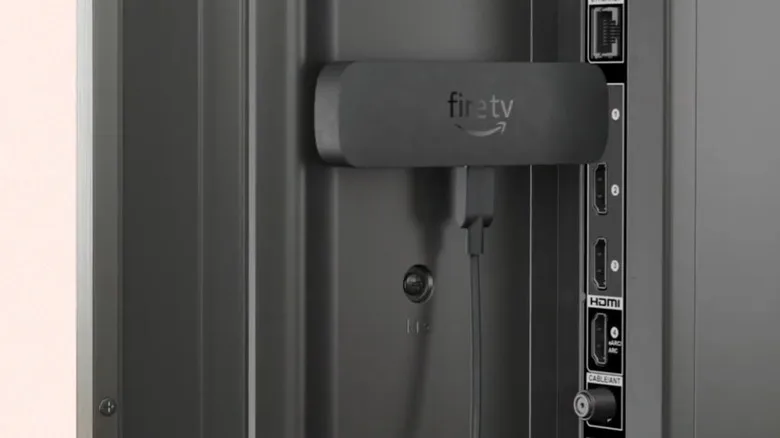
Your Fire TV was working fine last night. Now it's completely dead. No light.
No response. No sign of life on the screen. That sinking feeling is frustrating, but don't panic yet.
If your Fire TV is not turning on, the fix is almost always simpler than you'd think. Across thousands of user reports and Amazon's official support documentation, roughly 70 percent of "dead" Fire TV cases trace back to a power problem, not a broken device. Fire TV Sticks pull between 5 and 10 watts depending on the model, and many TV USB ports can't deliver enough juice.
Let's walk through this step by step.
Image source: Bing (Web (fair-use with source credit))
Quick Answer
Unplug your Fire TV from everything. Wait 60 seconds. Plug the power adapter directly into a wall outlet, not your TV's USB port.
Use the original Amazon power brick. Press the Home button on your remote for 10 seconds. If the LED lights up, you're back.
If not, move through the steps below.
Step 1: Read the Light — Diagnose What You're Seeing
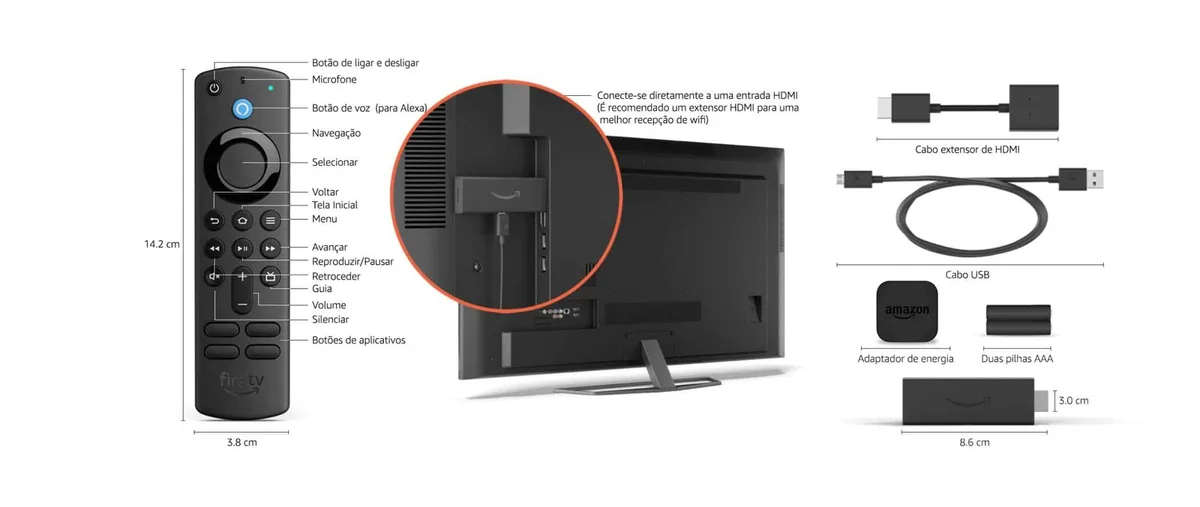
Image source: Bing (Web (fair-use with source credit))
That tiny LED on your Fire TV Stick or Cube tells you everything. You just need to know what to look for.
No light at all. This is the most common symptom. It usually means the device isn't getting power. The power adapter, cable, or the USB port you're using has failed.
This is a power chain problem.
Solid white light. The device has power and is booting. If your TV screen stays black, the issue is likely the HDMI connection or the TV input. Not the Fire TV itself.
Blinking amber or orange light. The device has power but is stuck in a boot loop or trying to update firmware. This usually means corrupted software or a failed update. A factory reset often fixes this.
Blinking white light. The device is getting power but can't find a signal. Check your HDMI connection first. If that's snug, try a different HDMI port on your TV.
Take a moment right now to look at your Fire TV. What color is the light? Is it on, off, or blinking?
That single observation determines which branch of the decision tree you take next.
Step 2: The Power Chain — Fix the Most Common Cause First
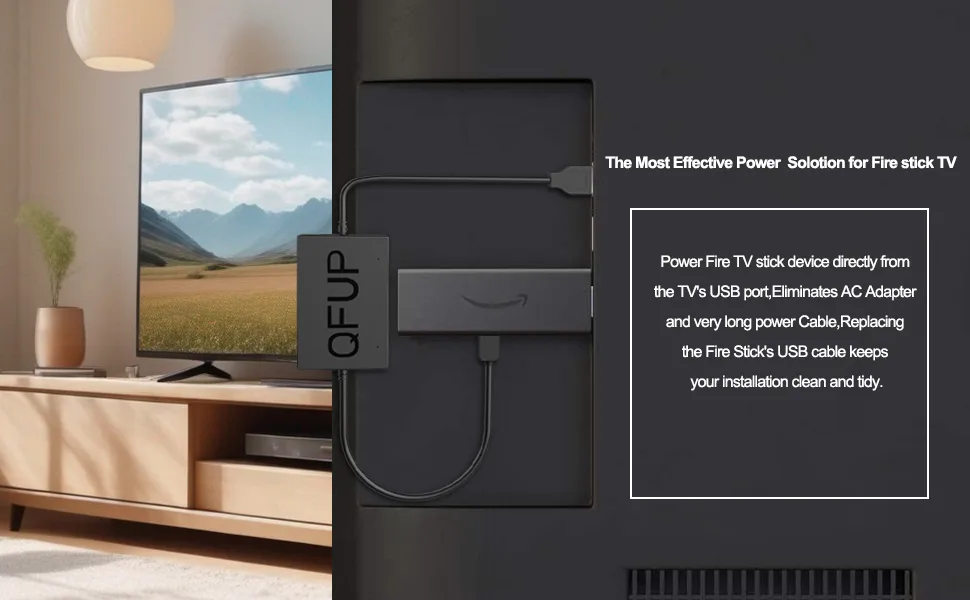
Image source: Bing (Web (fair-use with source credit))
The power chain has three links: the wall outlet, the power adapter, and the cable. If any one of them fails, your Fire TV appears dead. Let's test each link in order.
Test the wall outlet first. Plug a phone charger or a lamp into the same outlet. If it works, the outlet is fine. If not, reset your breaker or try a different outlet.
Power strips can fail without warning, so plug directly into the wall for this test.
Swap the power adapter. This is the most common culprit. Amazon's official power bricks are rated at 5V 1A for older Fire TV Sticks and 5V 1.5A for newer models and the Fire TV Cube. If that brick is dead, your device gets nothing.
Use a known working Amazon charger if you have one. Third-party chargers can work, but they must match the voltage and amperage. A phone charger that delivers 5V 0.5A won't cut it.
Inspect the cable. Micro-USB cables fail all the time. Bent pins, frayed ends, loose connections at the port. Even a cable that looks fine might have internal damage.
Try a different micro-USB or USB-C cable depending on your model. Keep it short, long cables drop voltage.
Never rely on your TV's USB port for power. This is the single biggest mistake people make. Most TV USB ports are designed for data or low-power devices. They typically output around 0.5A.
Your Fire TV needs at least 1A to run properly. That's why it might work for a while and then stop, or never turn on at all. Always use the wall adapter.
If you've tried a different outlet, a different adapter, and a different cable and still see no light, your power chain is not the problem. Move to the HDMI connection.
Step 3: HDMI and Input — The Signal Problem People Miss
Your Fire TV can be fully powered on and running, but if the TV can't see it, you'll swear it's dead. This is the second most common cause of "Fire TV not turning on."
Reseat the HDMI connection. Pull the Fire TV out of the HDMI port. Push it back in firmly. You should feel it click or seat solidly.
A loose connection is incredibly common, especially if the TV gets moved or bumped.
Use the HDMI extension cable. That little gray cable that came in the box isn't junk. It relieves physical strain on the port. It also lets you position the Fire TV away from the back of the TV where heat builds up.
Overheating can cause intermittent failures. Use the extender.
Try a different HDMI port. Many modern TVs have multiple HDMI ports, and not all of them support the same standards. Try HDMI 1, then HDMI 2, then HDMI 3. One of them might be faulty or set to a different protocol.
Check your TV input. This sounds obvious, but it's the most overlooked step. Press the Input or Source button on your TV remote. Cycle through HDMI 1, HDMI 2, HDMI 3 until you see the Fire TV interface.
Some TVs label ports oddly, "HDMI/ARC" or "HDMI/MHL", so try them all.
Disable HDMI-CEC temporarily. HDMI-CEC lets your TV remote control your Fire TV. It's convenient, but it can also cause signal handshake failures. Go into your TV's settings and turn off CEC.
Brand names vary. Samsung calls it Anynet+. LG calls it SimpLink.
Restart everything and see if the Fire TV appears.
If you have power (the LED is on) but no picture, 9 times out of 10 the issue is in this section.
Step 4: Remote Issues — When the Stick Is On But You Can't Control It
Your Fire TV might be working perfectly. You just can't prove it because the remote won't respond. This happens more often than you'd think.
Check the batteries. Remove both AAA batteries. Wait 10 seconds. Put them back in.
Make sure the polarity matches the diagram. Weak batteries can still power the LED on the remote but not transmit a strong enough signal.
Hard reset the remote. The exact button combo depends on your model. For most recent Fire TV remotes, hold down the Home button for 10 seconds. For older models, press and hold the Home and Back buttons together, or the Menu and Select buttons together.
Hold for 10 to 15 seconds. The LED on the remote should blink and stop.
Re-pair the remote. If the hard reset doesn't work, you need to pair the remote again. Unplug your Fire TV from power. Wait 30 seconds.
Plug it back in. While the Fire TV is booting, hold the Home button for 10 seconds. The remote should find the device automatically.
Use the Fire TV app as a backup. If your remote is truly dead, download the Amazon Fire TV app on your phone. Connect your phone to the same Wi-Fi network as your Fire TV. The app includes a virtual remote that works over Wi-Fi.
This is a lifesaver for navigating to settings or starting a factory reset.
Check for physical obstructions. The Fire TV remote uses Bluetooth, not infrared. It doesn't need line of sight. But thick walls, metal cabinets, or distance over 30 feet can interfere.
Bring the remote closer to the Fire TV and try again.
Your remote can die without warning. The battery contacts can corrode. The circuit board can short. If none of these steps work, the remote itself may be faulty.
Amazon sells replacements, and the Fire TV app works in the meantime.
Step 5: The Last Resort — Factory Reset (With and Without a Remote)
If you have power, a working HDMI connection, and the correct input selected but still see a black screen or a boot loop, it's time for a factory reset. This wipes everything, settings, apps, accounts, and returns the device to out-of-box condition.
Factory reset with a working remote. Go to Settings. Select My Fire TV. Scroll down to Reset to Factory Defaults.
Confirm. The device will restart and the setup screen will appear. This takes about 5 to 10 minutes.
Factory reset without a remote. This is the trick most people don't know. Unplug your Fire TV. Press and hold the Right button on the d-pad and the Back button simultaneously on the remote.
Keep holding them. Plug the Fire TV back in while still holding the buttons. Keep holding until the Amazon logo appears on screen.
This initiates a blind factory reset.
Factory reset on a Fire TV Cube. The Cube has a physical button. Locate the small Action button on the top of the Cube. Press and hold it for 20 seconds.
The LED will flash amber, then white. Release the button. The Cube will restart in recovery mode.
Factory reset on Fire TV Edition TVs. These TVs have the Fire TV built in. Go to Settings, then Device & Software, then About, then Reset to Factory Defaults. If you can't see the screen, unplug the TV for 60 seconds.
Then press and hold the Power button on the TV itself (not the remote) for 20 seconds while plugging it back in.
What to expect after a reset. The device will boot slowly. The first boot can take 5 to 10 minutes. Don't interrupt it.
Once it finishes, you'll see the setup screen. Connect to Wi-Fi, sign into your Amazon account, and your Fire TV is back to fresh condition. You'll need to reinstall apps, but the hardware is alive.
When a factory reset doesn't work. If the device still won't boot or show a picture after a factory reset, the hardware is likely damaged. This can happen from power surges, overheating, or age. Average lifespan of a Fire TV Stick is 3 to 5 years according to user reports.
If yours is older, replacement might be the only option.
Mistakes to Avoid — What Not to Do When It Won't Turn On
Some well-intentioned fixes make things worse. Here are the most common mistakes.
Don't keep pressing the power button. This doesn't help. Your Fire TV Stick doesn't have a physical power button. The remote sends a Bluetooth signal.
Repeated presses just drain the batteries faster.
Don't buy a new remote first. The remote is rarely the problem. Test the power chain and HDMI connection before spending money on a replacement. Use the Fire TV app as a free backup.
Don't use a third-party charger without checking specs. A charger that delivers the wrong voltage can damage your Fire TV. Stick to 5V output. Match or exceed the amperage rating.
Amazon's documentation specifies 5V 1A for most models and 5V 1.5A for the Cube.
Don't factory reset before checking power. Resetting a device that isn't getting power does nothing. It also wipes your data for no reason. Always confirm you have power first.
Don't give up after one failed attempt. Some fixes work on the second or third try. A loose HDMI connection might look seated but isn't. A power adapter might work intermittently.
Test each step twice before calling it dead.
FAQs — Quick Answers to the Most Common Questions
Why won't my Fire TV turn on even though it's plugged in?
The most likely cause is insufficient power. Your TV's USB port probably can't deliver enough current. Plug the Fire TV into a wall outlet using the original Amazon power adapter.
If there's still no light, check the adapter and cable for damage.
How do I reset my Fire TV if the screen is black?
Unplug your Fire TV. Press and hold the Right and Back buttons on the remote simultaneously. Keep holding them.
Plug the Fire TV back in. Keep holding until the Amazon logo appears. This initiates a blind factory reset.
Why is my Fire TV blinking orange but not turning on?
A blinking orange light means the device has power but is stuck. It's usually a failed software update or corrupted firmware. Perform a factory reset to restore the device.
If the blinking continues after reset, the hardware may be damaged.
Can a bad HDMI cable cause my Fire TV to not show anything?
Yes. A faulty HDMI cable or a loose connection will prevent the video signal from reaching the TV. Reseat the Fire TV in the HDMI port.
Try a different HDMI port on your TV. Use the included HDMI extension cable to reduce strain on the connection.
How long should a Fire TV Stick last before it dies?
Average lifespan is 3 to 5 years based on user reports. Components wear out. Power surges and heat exposure shorten that time.
If your Fire TV is older and won't turn on after troubleshooting, replacement is often the practical fix.
Will removing the Fire TV from the HDMI port help it turn on?
Yes, in some cases. Pulling it out and reseating it can fix a loose connection. Wait 30 seconds before plugging it back in.
This gives the internal components time to fully discharge and restart cleanly.
Decision Guide — Your Exact Fix Based on Your Symptoms
| Symptom | Most Likely Cause | First Step to Try |
|---|---|---|
| No light at all | Dead power adapter or insufficient power | Plug directly into wall outlet with original adapter |
| Solid white light, black screen | HDMI connection or TV input issue | Reseat HDMI, check TV input source |
| Blinking orange light | Corrupted firmware or failed update | Factory reset with or without remote |
| Blinking white light | No signal detected | Try a different HDMI port, check cable |
| Remote unresponsive | Dead batteries or lost pairing | Replace batteries, re-pair the remote |
| Boot loop (starts then restarts) | Power fluctuation or overheating | Unplug for 60 seconds, move to ventilated area |
If you've tried every step in this guide and your Fire TV still won't turn on, the device is likely dead. Power surge damage, component failure, or age can make repair uneconomical. Amazon offers replacement units at a discount for out-of-warranty devices through their customer service.
You can also recycle the old unit through Amazon's recycling program. The good news is that you've now ruled out every fixable cause, and you can move on with confidence.

Similar Posts