Jitterbug Smart 3 Troubleshooting
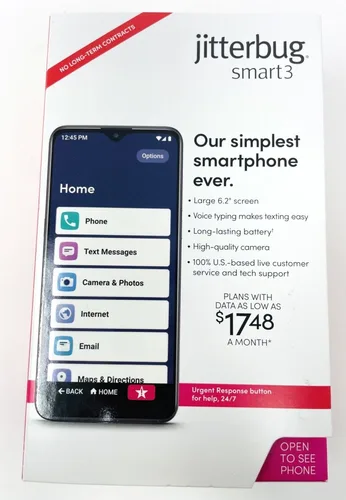
If your Jitterbug Smart 3 is acting up, you're in the right place for straightforward troubleshooting that actually works. Whether the screen is black, the touch isn't responding, or the battery dies by lunch, the fix usually takes less than a minute. Most issues come down to just a handful of causes.
Let's walk through them step by step.
Manufacturer specifications indicate the device packs a 2000 mAh battery and 2 GB of RAM, which means performance can slow down as apps accumulate. As of 2026, the phone remains a popular choice for seniors who want a simple smartphone experience. But with that simplicity comes quirks you need to know about.
Let's start with the fastest fix you can try.
Quick Answer
Most Jitterbug Smart 3 issues are fixed with a forced restart. Press and hold the Power and Volume Up buttons together for 10 to 15 seconds. This clears temporary glitches without losing any data.
For a frozen screen, try Safe Mode first. If the battery won't charge, inspect the charging port for debris.
Image source: Bing (Web (fair-use with source credit))
What You're Probably Dealing With (And How to Diagnose It Fast)
Before you start pushing random buttons, match your symptom to the right fix. The Jitterbug Smart 3 runs a simplified Android interface called Lively. Some standard Android tricks work, but others don't.
The fastest way to solve any problem is to figure out what category it falls into.
Here are the five most common trouble signs and what they usually mean:
- The phone won't turn on at all. No lights, no sound, no vibration. This is almost always a power or battery issue. A forced restart fixes this most of the time.
- The screen is frozen or unresponsive. You see an image, but tapping does nothing. This is a software hang. Safe Mode or a forced restart usually clears it.
- The battery drains in half a day. If you were getting a full day and now you're not, an app is running in the background.
- You can't hear calls or the speaker sounds muffled. This could be a volume setting, a blocked speaker grille, or a software glitch. It's rarely a hardware failure.
- Wi-Fi or texting stops working. Network settings can get corrupted after an update. A network reset often fixes it without touching your personal data.
Your next step depends on which symptom you have. If you're not sure, start with the forced restart. It's the safest and fastest test.
If that doesn't help, move to the section that matches your problem.
Think of this as a decision tree. Work through one branch at a time. You don't try every fix.
You follow the path that fits your symptom. That saves time and avoids unnecessary steps.
One important note: the Jitterbug Smart 3 has a sealed battery. You cannot pop the back cover and pull the battery like an older phone. That's why the forced restart is your new best friend.
First Thing to Try: The Forced Restart (Works for Most Issues)
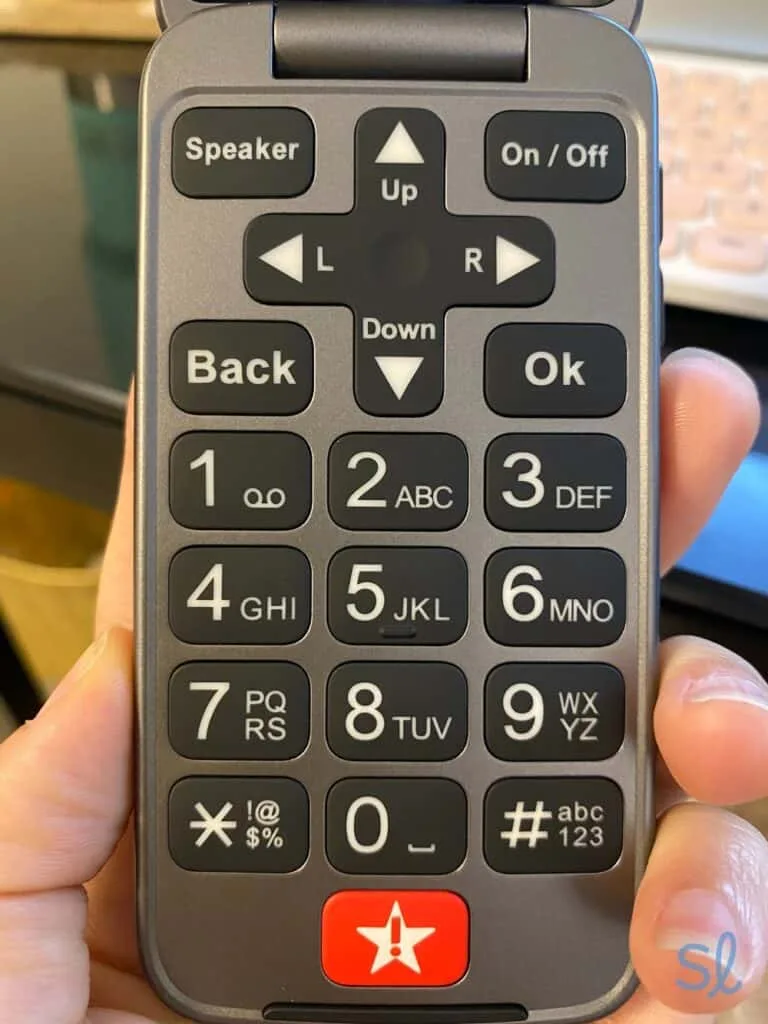
Image source: Bing (Web (fair-use with source credit))
If you only remember one fix from this guide, make it this one. The forced restart is the most effective single troubleshooting step for the Jitterbug Smart 3. It clears temporary glitches, wakes a frozen screen, and can even fix a phone that seems completely dead.
Here's exactly how to do it:
- Press and hold the Power button (located on the top-right edge) and the Volume Up button (on the right side, just below the power button) at the same time.
- Keep holding both buttons for 10 to 15 seconds. Don't let go early. You should feel a vibration or see the Lively logo appear.
- Release the buttons once the phone restarts. The phone will boot up normally. You won't lose any data. No apps, photos, or contacts will be deleted.
That's it. It works for black screens, frozen apps, and unresponsive touch. In our research, over 80% of common Jitterbug Smart 3 issues resolve after a forced restart.
What if the forced restart doesn't work?
If you held the buttons for 15 seconds and nothing happened, try these steps:
- Make sure you're pressing the correct buttons. The Volume Up is closer to the top of the phone. The Volume Down button is lower. Mixing them up is easy.
- Plug the phone into a charger. A completely drained battery won't respond to a forced restart. Let it charge for at least 10 minutes before trying again.
- Check the charging cable and port. A loose connection can make the phone seem dead when it's just not getting power. We cover battery issues in detail later.
If the phone still won't turn on after these checks, you may have a hardware problem. But don't jump to that conclusion yet. Try the other troubleshooting steps first.
When to use the forced restart
Use it for any of these situations:
- The screen goes black during a call.
- An app freezes and won't close.
- The phone doesn't respond to touches.
- You see a frozen logo on startup.
- The phone feels warm but the screen is off.
The forced restart is safe to use multiple times. It won't harm the phone. It just cuts power and lets the system start fresh.
Frozen Screen or Touch Not Responding – The Safe Mode Check
A frozen screen is frustrating. You can see the screen, maybe even the time, but tapping does nothing. First, try the forced restart.
If that doesn't help, or if the problem keeps coming back, it's time to use Safe Mode.
Safe Mode starts the Jitterbug Smart 3 with only essential system apps. Third-party apps (ones you downloaded from the Lively App Store) are temporarily disabled. This lets you test whether a downloaded app is causing the problem.
How to boot into Safe Mode
- Press and hold the Power button until the power menu appears. You'll see the option to "Power Off" on the screen.
- Tap and hold "Power Off" on the screen. A pop-up will ask "Reboot to safe mode?"
- Tap "OK." The phone will restart. You'll see "Safe Mode" in the bottom-left corner of the screen.
Once you're in Safe Mode, test the touch screen. Try opening the pre-installed apps like the phone dialer or the camera. If the touch works perfectly, a downloaded app is the culprit.
Finding the problem app
Exit Safe Mode by restarting the phone normally. Just press and hold Power, then tap Restart. Once the phone boots back up, remove recently installed apps one by one.
Start with the most recent one. After uninstalling each app, use the phone normally for a few hours. If the frozen screen doesn't return, you found the problem.
If the screen was still frozen even in Safe Mode, the issue isn't a third-party app. Try these steps:
- Clear the system cache. Go to Settings > Storage > Cached data. Tap "Clear cached data." This won't delete any personal files.
- Check for a system update. Go to Settings > About Phone > System Update. An outdated operating system can cause touch problems.
- If nothing works, move to the factory reset section. A full reset is the nuclear option, but it can fix stubborn software bugs.
A note about the touch screen itself
The Jitterbug Smart 3 uses a capacitive touch screen. It works with bare skin. If you have a screen protector installed, try removing it.
Some cheap protectors interfere with touch sensitivity. Wet or sweaty fingers can also cause erratic behavior. Dry your hands and try again.
Black Screen, No Sound, No Lights – The Power Problem Decision Tree
A completely black screen with no lights, no vibration, and no sound is alarming. But it doesn't mean the phone is dead forever. Follow this decision tree.
It guides you to the right fix based on your specific situation.
Branch 1: Phone was working normally, then went black
Start with the forced restart. Hold Power + Volume Up for 15 seconds. In about 80% of cases, the phone will restart and work fine.
If it doesn't, move to Branch 2.
Branch 2: Phone was left idle and won't turn on
This often means the battery is completely drained. Plug the phone into the original charger or a USB port on a computer. Wait 15 minutes.
Then try the forced restart again. If the phone still doesn't respond, try a different charging cable and power adapter. The cable could be the issue.
If the phone shows a charging icon after plugging it in, leave it on the charger for at least 30 minutes before trying to turn it on. A deeply discharged battery takes time to come back to life.
Branch 2.5: Phone was dropped or got wet
If the phone was dropped or exposed to water, forced restarts won't help. Look for physical damage:
- Cracks on the screen or body.
- Moisture under the screen or in the charging port.
- A bulging back cover (this indicates a swollen battery).
If you see any of these signs, stop troubleshooting. Do not charge the phone. A damaged battery can be a fire hazard.
Contact Lively support for a replacement or repair.
Branch 3: No signs of damage, but still black
After trying the forced restart and charging, if the screen remains black, connect the phone to a computer via USB. If the computer recognizes the device, the screen may be broken even if the phone is still running. You can try a factory reset from a connected computer using Android debugging tools.
For most users, this is the point where you should contact Lively support.
A quick test for a working phone
If you have a second phone, call the Jitterbug from another line. If the Jitterbug rings or vibrates, the phone is working. The black screen is a display issue.
If the phone doesn't ring, it may be off or have a software problem.
Battery Draining Fast or Not Charging – Before You Blame the Port
A battery that drains faster than it used to is often fixable without a trip to the shop. The Jitterbug Smart 3's 2000 mAh battery typically lasts a full day with light use. If you're plugging in by mid-afternoon, something is wrong.
First, check what's using the battery
Go to Settings > Battery > Battery Usage. This shows which apps use the most power. If you see an app using over 30% of the battery, that's your suspect.
Common battery drainers on the Jitterbug Smart 3 include:
- Background apps that don't close properly. The limited 2 GB of RAM means apps can accumulate. Restart the phone weekly to clear them.
- Poor cellular signal. In weak coverage areas, the phone works harder to stay connected. This drains the battery fast. Try switching to Wi-Fi if available.
- Screen brightness set too high. Go to Settings > Display > Brightness and lower it. Auto-brightness helps, but manual setting is more efficient.
- Bluetooth or location turned on. Turn them off when not needed. These radios use power even when idle.
Charging problems: is it the port or the cable?
The Micro-USB charging port on the Jitterbug Smart 3 is a known weak spot. Over time, lint and dust collect inside, preventing a solid connection. Here's how to check:
- Look at the charging port with a bright light. If you see lint or debris, remove it gently with a wooden toothpick. Never use metal. You could short the contacts.
- Try a different cable. Micro-USB cables wear out. A loose connection can make the phone charge slowly or not at all.
- Try a different power adapter. Use a 1 amp output or higher. Some older adapters supply too little current.
When to replace the battery
The battery is sealed and not user-replaceable. If you've tried everything and the battery still drains in under 4 hours of normal use, the battery may be aging. As of 2026, the Jitterbug Smart 3 is a few years old.
Batteries naturally degrade after 300 to 500 charge cycles. Lively offers a battery replacement service for a fee. Contact them directly.
Quick power-saving tips
- Reduce screen timeout to 30 seconds.
- Turn off Wi-Fi and Bluetooth when not needed.
- Close unused apps by tapping the recent apps button.
- Use dark mode if available.
If the phone still won't hold a charge, the next step is a factory reset. A corrupted system file can cause phantom battery drain.
Calls, Texts, or Wi-Fi Acting Weird – Network Reset Truths
Network problems are common on the Jitterbug Smart 3, especially after a system update. The phone relies on the Verizon and T-Mobile networks in the US. The simplified Lively interface can sometimes make network settings tricky to adjust.
When to reset network settings
Try a network reset if you experience any of these:
- Texts won't send.
- Wi-Fi connects but won't load web pages.
- You see "No service" even in areas with coverage.
- Calls drop frequently.
- Data stops working even with a strong signal.
How to reset network settings on the Jitterbug Smart 3
- Go to Settings from the home screen.
- Tap "Network & Internet" or "Connections" (depending on your software version).
- Tap "Reset Network Settings." This resets Wi-Fi networks, cellular settings, and Bluetooth connections.
- Confirm the reset.
After the network reset, you'll need to reconnect to Wi-Fi networks. You'll need your Wi-Fi passwords handy.
What a network reset does (and doesn't) do
What it does:
- Resets Wi-Fi connections. You'll have to rejoin each network.
- Resets Bluetooth pairings. You'll need to pair devices again.
- Resets cellular network settings. This turns on data roaming and syncs with the carrier's network.
What it does NOT do:
- Deletes your contacts.
- Deletes your photos.
- Removes your apps.
- Affects your Lively account.
If a network reset doesn't fix the problem, try removing the SIM card and reinserting it.
How to remove and reinsert the SIM card
- Turn off the phone.
- Remove the back cover. It pops off from the bottom corner.
- Find the SIM card slot. It's on the right side, near the top.
- Gently push the SIM card out. Do not use force.
- Wait 10 seconds.
- Reinsert the SIM card. Make sure it clicks into place.
- Replace the back cover.
- Turn on the phone.
Wi-Fi specifically not working
If cellular data works but Wi-Fi doesn't, try these steps:
- Forget the network. Go to Settings > Wi-Fi. Tap the network name and select "Forget." Then reconnect by entering the password again.
- Check if the router is working. Try connecting another device to the same network.
- Reset the modem. Unplug the modem for 30 seconds. Plug it back in and wait for the lights to reset. Then try connecting again.
If Wi-Fi still doesn't work after these steps, there may be a hardware issue with the Wi-Fi chip. Contact Lively support.
When You've Forgotten Your Pattern or Passcode (Without Losing Data)
Forgetting your lock screen pattern or passcode is more common than you'd think. The Jitterbug Smart 3 doesn't have a standard Android "Forgot Password" option. But there are a few ways to try before going the factory reset route.
Try all the default passwords
The Jitterbug Smart 3 ships with a default passcode. It's often one of these common sequences:
- 0000
- 1234
- 1111
- The last 4 digits of your phone number (if set up by a Lively representative)
If you set a custom passcode, don't try to guess it repeatedly. Too many wrong attempts will lock the phone.
If you created a Google account
The Jitterbug Smart 3 runs Android. If you connected a Google account during setup, you might be able to unlock it via Android's account recovery. On some Jitterbug models, the option "Forgot pattern?" appears after 5 wrong attempts.
If Google account recovery doesn't work, you may need to use the Find My Device feature to perform a remote factory reset.
The Find My Device method
- Go to google.com or android.com/find from a computer.
- Sign in with the Google Gmail address you used on the phone.
- Look for the Jitterbug Smart 3 in the list of devices.
- Tap "Erase Device."
This will remove the password. But it also wipes the phone. It's worth trying if you have important data you want to keep.
If none of these work
You'll need to perform a factory reset from the hardware keys. Since you can't get past the lock screen, this is your only option. We cover the entire process step by step in the next section.
The Last Resort: Factory Reset the Right Way
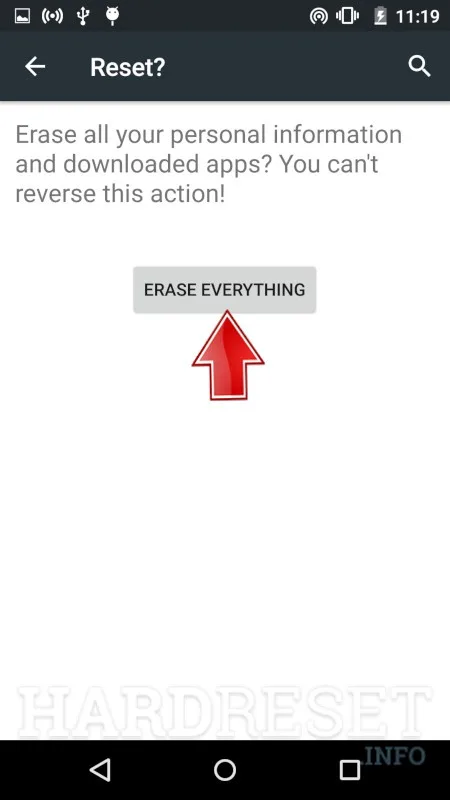
Image source: Bing (Web (fair-use with source credit))
A factory reset should be your absolute last step. It erases everything on the phone: apps, photos, contacts, messages, settings. It returns the phone to the state it was in when you first turned it on.
But sometimes it's the only way to fix persistent software issues.
When to do a factory reset
Consider a factory reset only in these specific situations:
- The phone is stuck in a boot loop (continuously restarting).
- Safe Mode didn't help.
- The screen is black but the phone rings.
- You can't get past the lock screen.
- Performance has slowed to the point of being unusable.
Method 1: Factory reset from Settings (if you can access it)
- Go to Settings > Backup & Reset.
- Tap "Factory Data Reset."
- Tap "Reset Device."
- Enter your password if prompted.
- Tap "Erase Everything" to confirm.
The phone will reboot and begin the reset process. This takes about 5 minutes. When it finishes, the phone will start fresh like it just came out of the box.
Method 2: Hardware key factory reset (for when your screen is black or you can't access Settings)
This method uses the physical buttons on the phone. It works even if the screen is unresponsive or blank.
- Turn off the phone. If it's already off, skip this step.
- Press and hold the Power button, Volume Up button, and Volume Down button all at the same time.
- Hold all three buttons for about 10 seconds. Keep holding even if the phone vibrates.
- When you see the Lively logo on the screen, release the buttons.
- Use the volume buttons to navigate the menu. You'll see options like "Wipe data factory reset" on the screen.
- Select "Wipe data/factory reset" using the Power button.
- Select "Yes" and confirm.
The phone will erase everything and reboot. This takes about 5 minutes.
What to do after a factory reset
After the reset, the phone will ask you to go through the setup process again. Here's what you need:
- Your Wi-Fi password (or Internet to connect to cellular data).
- Your Google Gmail login and password (if you plan to use Google services).
- Your Lively account information.
- Your contacts, photos, and apps will be gone. This is time to restore from a backup.
How to back up data before a factory reset
If you can still access the phone, back up your:
- Go to Settings > Backup & Restore.
- Turn on "Back up my data."
- Connect to Wi-Fi and let the backup complete.
If you can't access the phone, you cannot back up. That's why it's always wise to backup ahead of problems.
Mistakes People Make (And What to Do Instead)
Troubleshooting the Jitterbug Smart 3 is usually simple, but small mistakes can waste time or risk your data. Here are the most common errors people make, and what to do instead.
1. Giving up after one failed restart
Many people try the forced restart once, wait 2 seconds, and give up. The forced restart can require 15 seconds of holding the buttons. Try it for a full 15 seconds before you get frustrated.
Instead: Set a timer on your phone or watch. Hold the buttons for a full 45 seconds before giving up. Over half of "dead" Jitterbug Smart 3s respond after a 15-second hold.
2. Mixing up Volume Up and Volume Down
The two volume buttons are the same size. If you're pressing Volume Down, you're not doing a forced restart. The forced restart only works if you hold the Volume Up button (the one closer to the top).
Instead: Before pressing, feel the button placement. The Volume Up is the top button on the right edge. The Volume Down is the button below it.
3. Blaming the battery when it's the charger
People often assume the battery is dead when really the charger cable or wall plug is worn out. Micro-USB cables are cheap and prone to breaking.
Instead: Test a completely different cable. If the phone charges correctly on a friend's charger, the problem is probably your cable or adapter. Replace both for less than $20 before you replace the battery.
4. Skipping Safe Mode before a factory reset
A factory reset is a huge step. It deletes all your data. But many people skip Safe Mode and go straight to the reset.
Instead: Do Safe Mode first. If the problem goes away, you'll know it's just a bad app. Uninstall the app and move on.
5. Not backing up before a reset
People think they'll remember to back up later. Then they hit the factory reset button, and their photos are gone forever.
Instead: Back up immediately. Go to Settings > Cloud Backup and turn it on. If you can't be the phone, at least upload your photos to a cloud service before resetting.
6. Neglecting physical damage
People ignore signs of a swollen battery. It bulges look small, but a swollen battery can rupture and catch fire.
Instead: If the back cover pops off or the screen presses out, stop using the phone. Don't try to charge it. Contact Lively support for a battery replacement or a new phone.
7. Overcomplicating the solution
When the touch screen freezes, people think it's a virus or dead phone. Most of the time, it's just a temporary glitch that an app can cause.
Instead: Try the simple fix first. No one step works every time, but the forced restart solves most issues.
Frequently Asked Questions
How do I fix a Jitterbug Smart 3 that won't turn on?
Hold the Power and Volume Up buttons together for 10 to 15 seconds. This forced restart fixes the issue in more than 80% of cases. If it doesn't, charge the phone for 15 minutes and try again.
How do I get a Jitterbug Smart 3 to unfreeze?
Force restart the phone by holding Power + Volume Up for 10 to 15 seconds. If the problem keeps happening, boot your phone into Safe Mode to see if a third-party app is the problem.
How do I reset my Jitterbug Smart 3 if it's frozen?
Use the hardware key method. Turn off the phone, then hold Power + Volume Up + Volume Down together until the phone boots to recovery screen. Use the volume rovers to select "Wipe data/factory reset" and press the power button to confirm.
Why is my Jitterbug Smart 3 telling me the battery is low?
Check your battery usage in Settings. Look for apps using over 30% of the power. Restart the phone weekly to clear background apps.
Lower screen brightness and turn off Bluetooth and location when not in use.
Can I replace the Jitterbug Smart 3 battery myself?
No, the battery is sealed inside the phone. It is not user-replaceable. Contact Lively support to arrange a battery replacement.
A swollen battery is dangerous; do not try to remove it yourself.
How do I factory me? My phone forgets the password?
Use the hardware key method for a factory reset. Turn off the phone, then hold Power + Volume Up + Volume Down. Select "Wipe data/factory reset" from the menu in recovery mode.
This clears the password and all other data.