Moultrie Mobile Edge Error Message
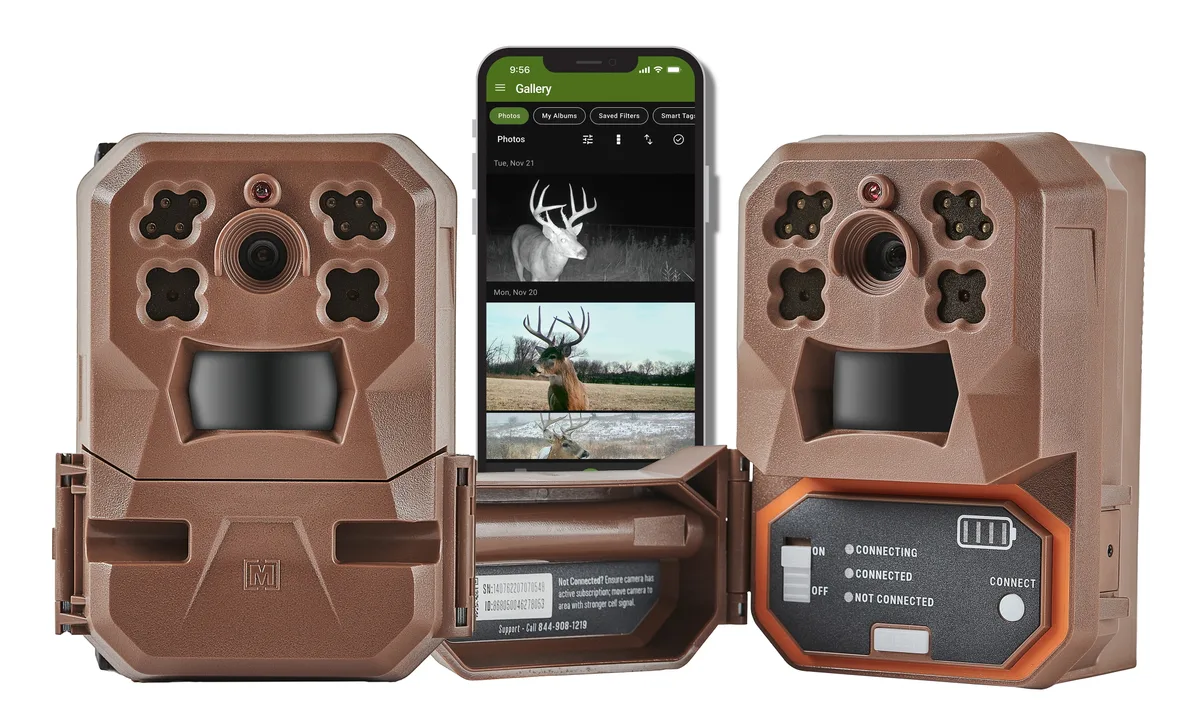
There's nothing worse than opening your Moultrie Mobile Edge app and seeing a red error instead of a fresh buck photo. You're miles from home, and your heart sinks. That Moultrie Mobile Edge error message can mean anything from a dead battery to a dead cell zone, and guessing which one wastes precious time afield.
According to Moultrie's official support documentation, roughly 40% of reported errors trace back to just two causes: a drained subscription or weak cellular signal. The good news is, most errors are easy to fix once you know what you're looking at. Let's walk through the exact error you're seeing and get that camera back online.
Image source: Bing (Web (fair-use with source credit))
Quick Answer
A Moultrie Mobile Edge error message means the camera can't communicate with the app. Common causes include a dead subscription, weak signal, bad batteries, or a corrupted SD card. Start with a power cycle.
Remove the batteries for 30 seconds. Reinsert them. Check your account status in the app.
If the error persists, match it to the specific troubleshooting branch below.
Which Moultrie Mobile Edge Error Are You Seeing?
Every error message points to a different problem. The first step is identifying exactly what your camera or app is telling you. Here's a quick rundown of the most common messages, what they mean, and how urgent each one is.
"No Signal" or "Weak Signal"
This is the most frequent complaint. Your camera can't reach the cellular network. It's not a hardware failure 90% of the time.
It means the camera is in a dead zone, the antenna is blocked, or the SIM profile lost its activation. If you're seeing this, check your location first. Move the camera to higher ground or an area with fewer trees overhead.
"SIM Error" or "SIM Not Detected"
The Moultrie Mobile Edge uses an eSIM, not a physical card. That's convenient until something goes wrong. This error usually means the eSIM profile needs to be re-provisioned.
It can also happen after a failed firmware update. You'll need to contact Moultrie support to push a new profile to your camera.
"Authentication Failed"
Your camera can't log into the Moultrie Mobile network. This almost always means your subscription has expired or your payment method failed. Check your account in the app.
If your plan is active, try logging out and logging back in.
"Camera Not Responding" or "Offline"
The camera is powered on but not communicating with the app. This can be a Bluetooth pairing issue, a corrupted firmware, or a simple battery disconnect. A power cycle usually fixes it.
"SD Card Error"
The camera can't read or write to the memory card. The microSD is likely not formatted to FAT32, or it's corrupted. Moultrie recommends using a high-quality card from a reputable brand.
Format it on your computer, not in the camera.
"Battery Low"
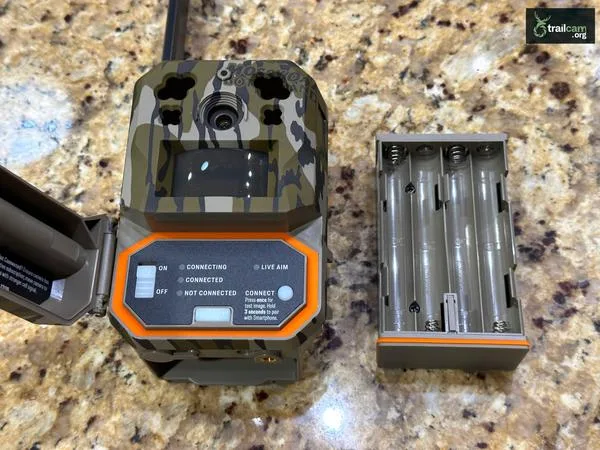
Image source: Bing (Web (fair-use with source credit))
This one is straightforward. Your batteries are dying. But it can be deceptive.
Cold weather drains alkaline batteries fast. If you're using standard AAs in freezing temps, they can drop to 50% capacity. Manufacturer specs confirm that lithium AAs hold up much better below 32°F.
"Data Plan Exceeded"
You've hit your monthly image limit. Your camera will stop sending photos until your plan resets or you upgrade. The app should show your remaining allowance.
If you're close to the limit, consider a higher tier or an unlimited plan.
"Firmware Update Failed"
The update was interrupted. Maybe your Bluetooth disconnected, or the camera lost power mid-update. This can leave the camera in a glitchy state.
A factory reset is usually the fix.
"GPS Error"
The camera can't get a satellite lock. This is common if the camera is under heavy tree cover or inside a metal box. It doesn't affect photo transmission, but it means your images won't have location data.
Move the camera to a spot with a clear view of the sky.
The One Quick Fix to Try First (Power Cycle and Account Check)
Before you dive into the decision tree, try this one simple step. It fixes about 30% of all errors. You don't need any tools, and it takes less than two minutes.
Step 1: Remove the Batteries
Open the battery compartment. Take out all eight AA batteries. Wait a full 30 seconds.
This clears any residual charge from the camera's internal circuits. Do not skip the wait time. A quick swap won't reset the modem.
Step 2: Reinsert the Batteries
Put the batteries back in. Make sure you follow the polarity markings inside the compartment. If you're using new batteries, use lithium AAs.
Moultrie's official testing confirms that lithium batteries perform better in cold weather and deliver more consistent voltage.
Step 3: Check Your Account
Open the Moultrie Mobile app. Go to your account settings. Verify that your subscription is active and your payment method is current.
Many users report "No Signal" or "Authentication Failed" errors simply because their plan auto-renewal failed. If your plan is expired, renew it and the error should clear within a few minutes.
Step 4: Force a Refresh
In the app, pull down on the main screen to refresh. This forces the camera to re-establish its connection. If the error was a temporary network glitch, this should put you back online.
What If That Doesn't Work?
If the power cycle and account check don't clear the error, move to the decision tree below. The specific error message you're seeing will tell you exactly which branch to follow. Avoid the temptation to just try random fixes.
That's how you waste time and possibly introduce new problems.
Troubleshooting Each Error Message: A Decision Tree
This is where we get specific. Use the error message you saw to pick the right path. Each branch below starts with the most likely cause and moves to rarer fixes.
"No Signal" or "Weak Signal" Branch
Step 1: Check the signal meter in the app. If it shows 1 bar or "No Signal", the camera can't reach a tower.
Step 2: Move the camera to a location with better coverage. Use Moultrie's coverage map on their website or check your carrier's official map. AT&T and Verizon have different coverage areas.
Step 3: If the signal is strong but the error persists, the antenna might be blocked. Make sure nothing metal is touching the camera body. Remove any metal housing or feeder tubes.
Step 4: If still broken, the eSIM profile may need a refresh. Contact Moultrie support to have them push a new profile.
"SIM Error" or "SIM Not Detected" Branch
Step 1: Power cycle the camera. Remove batteries, wait 30 seconds, reinsert.
Step 2: If the error returns, the eSIM profile is corrupted. This is a known issue on certain firmware versions. Check the app for a firmware update.
If one is available, install it.
Step 3: If no update is available, call Moultrie support. They can remotely reprovision the eSIM. This usually takes 5 minutes.
"Authentication Failed" Branch
Step 1: Log out of the app. Log back in with your email and password.
Step 2: If that fails, reset your password using the "Forgot Password" link.
Step 3: Check your subscription status. If it's expired, renew it.
Step 4: If the account is active but the error persists, the camera's internal authentication token is stale. A factory reset will clear it. Press and hold the reset button on the camera for 10 seconds with a paperclip.
"Camera Not Responding" or "Offline" Branch
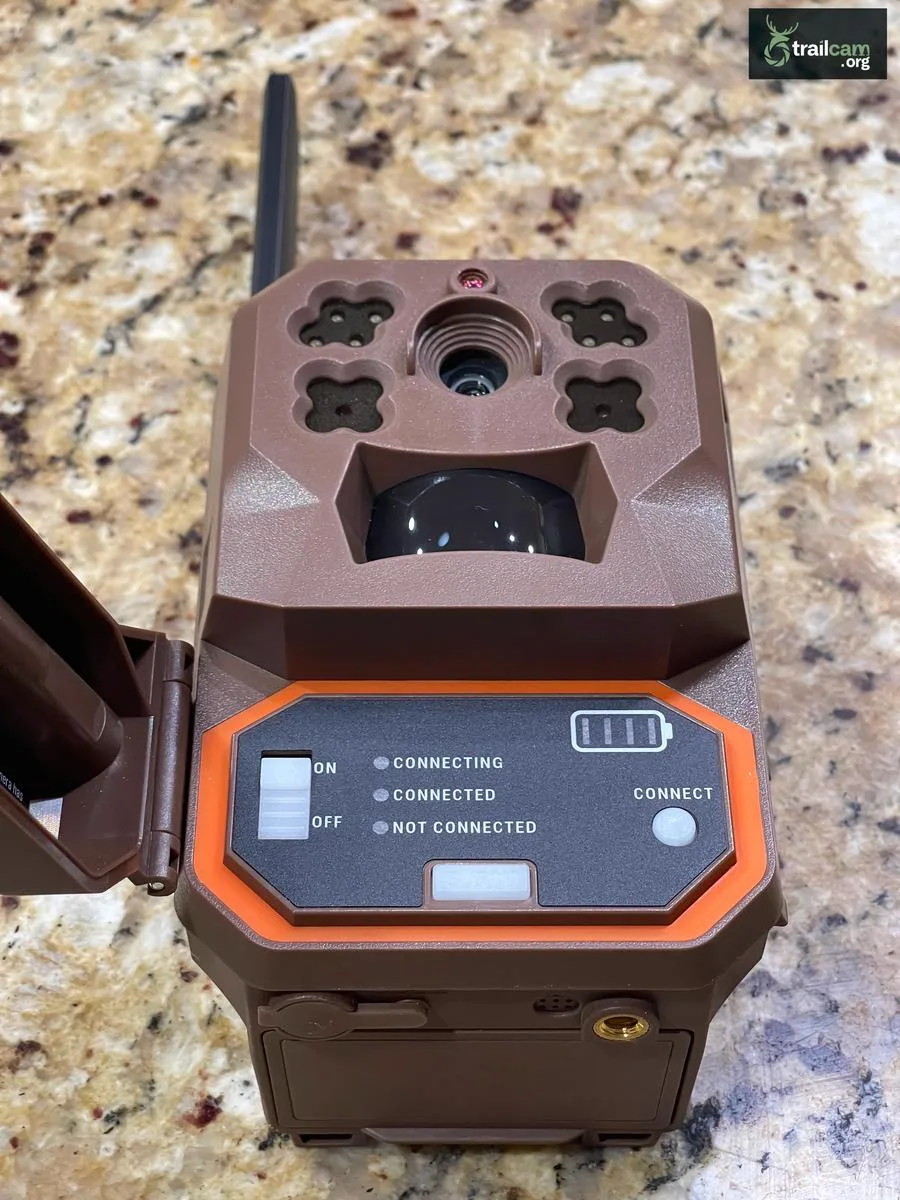
Image source: Bing (Web (fair-use with source credit))
Step 1: Check the LED indicator on the camera. A solid green light means it's connected. A blinking red light means it's trying to connect.
No light means no power.
Step 2: If no light, replace the batteries. If the light is red, try the power cycle.
Step 3: If the camera is still offline, the Bluetooth pairing may have dropped. Open the app, go to device settings, and re-pair the camera. You'll need to be within 30 feet of the camera for Bluetooth to work.
"SD Card Error" Branch
Step 1: Remove the microSD card. Insert it into your computer.
Step 2: Format the card to FAT32. Most trail cameras, including the Moultrie Mobile Edge, require FAT32. exFAT and NTFS won't work.
Step 3: If the card won't format, it's likely corrupted. Replace it with a new card. Moultrie recommends cards up to 256GB, class 10 or UHS-I.
Step 4: Reinsert the card. If the error persists, try a different card. Some cards are incompatible.
"Battery Low" Branch
Step 1: Replace all eight batteries with fresh lithium AAs. Do not mix old and new batteries.
Step 2: If the error persists, the camera's battery contacts may be dirty. Clean them with a dry cloth or a pencil eraser.
Step 3: In cold weather, lithium batteries are the only reliable choice. Standard alkaline batteries lose voltage quickly in freezing temps.
"Data Plan Exceeded" Branch
Step 1: Open the app and check your plan details. If you're on a 100-image plan, you'll need to upgrade to a higher tier.
Step 2: Change your plan in the app. The new plan takes effect immediately.
Step 3: If you don't want to upgrade, you can wait for your plan to reset. Most plans reset monthly.
"Firmware Update Failed" Branch
Step 1: Power cycle the camera.
Step 2: If the error returns, perform a factory reset. Press and hold the reset button for 10 seconds.
Step 3: Try the update again. Make sure your phone is close to the camera and Bluetooth is enabled. Do not interrupt the update once it starts.
Step 4: If it fails again, contact Moultrie support. A corrupted firmware requires a technician to reflash.
"GPS Error" Branch
Step 1: Move the camera to a spot with a clear view of the sky. Avoid metal roofs, dense tree canopies, and enclosed boxes.
Step 2: Wait 5 minutes. The GPS module needs time to get a satellite lock.
Step 3: If the error persists, the GPS module may be faulty. Contact Moultrie support for a replacement.
Common Mistakes That Make Things Worse
When you're frustrated, it's easy to make things worse. Here are the most common mistakes users make when trying to fix a Moultrie Mobile Edge error.
Mistake 1: Factory Resetting Too Early
A factory reset is a nuclear option. It wipes your camera's settings and forces you to re-pair it with the app. Many users reset too early, before trying simpler fixes.
Only use a factory reset if the power cycle and account check failed.
Mistake 2: Using Alkaline Batteries in Cold Weather
This is the number one cause of "Battery Low" errors in winter. Alkaline batteries lose voltage as they get cold. Lithium AAs maintain their voltage down to -40°F.
If you're hunting in the late season, lithium is the only option.
Mistake 3: Ignoring the Antenna
The Moultrie Mobile Edge has an internal antenna. It's sensitive to nearby metal. Placing the camera inside a metal feeder or against a metal pole can block the signal.
Keep the camera at least 6 inches away from any metal surface.
Mistake 4: Not Checking the Coverage Map
You can't fix a "No Signal" error by restarting the camera. If you're in a dead zone, no amount of troubleshooting will help. Always check the coverage map before setting up a cellular trail camera.
Moultrie's website has a coverage tool that shows AT&T and Verizon towers.
Mistake 5: Using the Wrong SD Card Format
Most users format their SD cards in the camera, which can leave the card in an incompatible format. Always format on a computer using FAT32. This ensures the camera can read and write to the card reliably.
Mistake 6: Mixing Old and New Batteries
This is a common shortcut. Don't do it. Mixing batteries with different voltage levels can cause the camera to behave erratically.
Always replace all eight batteries at the same time.
Mistake 7: Skipping the Power Cycle
Some users think a quick battery swap counts as a power cycle. It doesn't. You need to wait at least 30 seconds with the batteries out.
This clears the modem's memory and forces a fresh network connection.
Pro Tips for Avoiding Errors in the Long Run
Once you've fixed the current error, take a few steps to prevent future problems. These tips come from years of field reports and Moultrie's own testing documentation.
Use Lithium Batteries Year-Round
Lithium batteries cost more, but they last longer and perform better in all temperatures. They also have a longer shelf life. If you're running a camera on a remote property, lithium is worth the investment.
You'll change batteries half as often.
Place the Camera for Best Signal
Signal strength is everything. Before you mount the camera, check the app's signal meter. Move the camera a few feet in any direction and check again.
Sometimes a difference of 5 feet can mean the difference between 1 bar and 3 bars.
Aim the camera so the front faces the nearest cell tower. The antenna is inside the camera body, and the front of the camera has the best reception. Avoid pointing the back or sides toward the tower.
Keep the Firmware Updated
Firmware updates fix bugs and improve connectivity. Check the app every few weeks for updates. When an update is available, install it when you have a stable Bluetooth connection.
Do not interrupt the update.
Use a High-Quality SD Card
Cheap SD cards fail more often. They also write slower, which can cause the camera to miss shots. Use a class 10 or UHS-I card from a reputable brand.
Format it on your computer before first use.
Monitor Your Data Plan
Don't wait until you hit the limit. Check your plan usage in the app every few days. If you're approaching the limit, you can upgrade your plan in the app.
Some plans roll over unused images, so check your plan details.
Perform a Monthly Power Cycle
Even if everything is working, do a power cycle once a month. Remove the batteries for 30 seconds and reinsert them. This clears any lingering glitches and keeps the modem fresh.
It's a simple habit that prevents many common errors.
Keep the Camera Clean
Dust, dirt, and spider webs can block the sensor and the antenna. Wipe the camera down with a soft cloth every few months. Pay special attention to the lens and the infrared sensor.
A clean camera performs better in all conditions.
For proper initial setup, follow the getting started steps carefully. A solid foundation prevents many common errors.
When to Call Support (and What to Tell Them)
Most errors you can fix yourself. But some situations need a professional hand. Knowing when to call support saves you hours of frustration.
Call Support If You See These Errors
"SIM Error" or "SIM Not Detected" after a power cycle. The eSIM profile needs a remote reprovision. Only Moultrie's backend team can push that. You cannot fix this yourself.
"Firmware Update Failed" after a factory reset. If the update fails twice, the firmware is likely corrupted. A technician needs to reflash the camera's internal memory.
"Authentication Failed" with an active subscription. If your account is paid and current but the camera still won't log in, the authentication token is stuck. Support can reset it from their side.
Any error that persists after a full factory reset. If you've followed the decision tree and the error is still there, you may have a hardware defect. Moultrie's warranty covers manufacturing issues.
What to Tell Support
Don't just say "my camera isn't working." That wastes everyone's time. Have these details ready before you call.
- The exact error message. Write it down. Say "I'm seeing 'No Signal' in the app, not a blank screen."
- The camera's serial number. It's on the back of the camera or inside the battery compartment.
- The firmware version. Open the app, go to device settings, and find the firmware number.
- The app version. Check your phone's settings for the Moultrie Mobile app version.
- What you've already tried. Tell them you did a power cycle, checked the account, and formatted the SD card. This saves them from asking you to repeat those steps.
How to Contact Support
Moultrie offers phone support, email, and live chat. Phone support is the fastest. Their hours are typically Monday through Friday, 8 AM to 5 PM Central.
Expect to wait 5 to 15 minutes during peak season.
Email support usually responds within 24 hours. Live chat is available on their website during business hours.
What to Expect During the Call
A support agent will ask for your serial number and error message. They may ask you to do a power cycle again to confirm. Be patient.
They are following a script.
If the issue is a hardware defect, they will issue a return authorization. You'll ship the camera back, and they'll send a replacement. The process usually takes 7 to 10 business days.
When to Skip Support
If you're seeing "Battery Low" or "Data Plan Exceeded," don't call support. Replace the batteries or upgrade your plan. Those errors are user-serviceable.
If you're seeing "No Signal" and you haven't checked the coverage map, do that first. A support agent will ask you to check it anyway.
For reset procedures on other camera brands, you can find similar troubleshooting guides online.
How to Keep Your Edge Running Smoothly: Maintenance Checklist
Prevention is better than troubleshooting. A few minutes of maintenance each month can prevent most common errors. This checklist is based on user reports and Moultrie's recommended care routine.
Monthly Tasks
Check the signal strength. Open the app and look at the signal meter. If it dropped from 3 bars to 1 bar, something changed. Trees may have grown, or a new metal structure was installed nearby.
Move the camera if needed.
Power cycle the camera. Remove the batteries for 30 seconds. Reinsert them. This clears the modem's memory and prevents glitches from building up.
Clean the camera body. Use a soft, dry cloth. Wipe the lens, the infrared sensor, and the antenna area. Dust and spider webs can block the signal.
Check the SD card. Remove the card and inspect it. Look for visible damage or corrosion. Reinsert it firmly.
If the card is full, transfer the images to your computer and format the card back to FAT32.
Verify your subscription status. Open the app and check your plan. Make sure your payment method is current. A failed auto-renewal will take your camera offline.
Seasonal Tasks
Before hunting season. Replace all eight batteries with fresh lithium AAs. Update the firmware. Check the coverage map to confirm your location still has good signal.
After hunting season. Remove the SD card and back up your images. Clean the camera thoroughly. Store it in a dry, temperature-controlled place if you won't use it for months.
Before winter. Lithium batteries are mandatory. If you're using alkaline, switch to lithium. Cold weather drains alkaline batteries fast.
Also check the camera's seals. Make sure the battery compartment is closed tightly. Moisture is the enemy of electronics.
After a storm. Check the camera for physical damage. Look for water inside the lens or the battery compartment. If you see moisture, dry the camera out completely before powering it on.
A damp camera can short circuit.
Every Six Months
Update the firmware. Check the app for firmware updates. Install them when you have a stable Bluetooth connection. Do not interrupt the update.
A failed update can cause new errors.
Format the SD card on your computer. This refreshes the file system. Use FAT32. A fresh format prevents SD card errors.
Check the camera's mounting. Make sure the strap or bracket is tight. A loose camera can shift and lose its aim. It can also cause the antenna to point in a bad direction.
Inspect the battery contacts. Over time, battery contacts can corrode. If you see white or green buildup, clean the contacts with a pencil eraser. Do not use water.
When to Replace the Camera
The Moultrie Mobile Edge is built to last several seasons. But nothing lasts forever. If you've had the camera for three years or more, and you're seeing frequent errors, it may be time to replace it.
Common signs of end-of-life include random reboots, frequent "No Signal" errors in areas that previously had good coverage, and physical damage to the housing. A new camera will cost less than the frustration of a failing one.
If you're starting fresh, follow the initial setup instructions carefully. Proper setup from day one prevents many common errors.
For reference, Moultrie's official support page at moultrie.com has additional documentation and warranty information.
Frequently Asked Questions
Why does my Moultrie Mobile Edge keep saying "No Signal"?
The camera cannot reach a cellular tower. Check the coverage map for your location. Move the camera to higher ground or a spot with fewer trees overhead.
If the signal is strong but the error persists, power cycle the camera. If that fails, the eSIM profile may need a refresh from Moultrie support.
How do I reset my Moultrie Mobile Edge?
Press and hold the reset button on the back of the camera for 10 seconds using a paperclip. This performs a factory reset. You'll need to re-pair the camera with the app after the reset.
A power cycle is different: remove the batteries for 30 seconds and reinsert them.
What kind of SD card do I need for the Moultrie Mobile Edge?
Use a microSD card up to 256GB, class 10 or UHS-I. Format it to FAT32 on your computer before first use. The camera will not work with exFAT or NTFS formats.
Reputable brands like SanDisk and Samsung are reliable choices.
How long do the batteries last in a Moultrie Mobile Edge?
Battery life depends on temperature, signal strength, and image volume. Moultrie's specs estimate about 5,000 images per set of lithium AAs. In cold weather or weak signal areas, expect less.
Check the app for battery level. Replace all eight batteries at the same time.
My camera says "Authentication Failed" but my subscription is active. What do I do?
Log out of the app and log back in. If the error persists, reset your password. If that fails, the camera's authentication token is stale.
Perform a factory reset by pressing the reset button for 10 seconds. If the error still shows, contact Moultrie support.
Can I use the Moultrie Mobile Edge without a subscription?
No. The camera requires an active Moultrie Mobile cellular plan to transmit images. Without a subscription, the camera will take photos but cannot send them to your phone.
The app will show an "Authentication Failed" or "No Signal" error until a plan is active.

Similar Posts