Surface Pro Keyboard Not Working
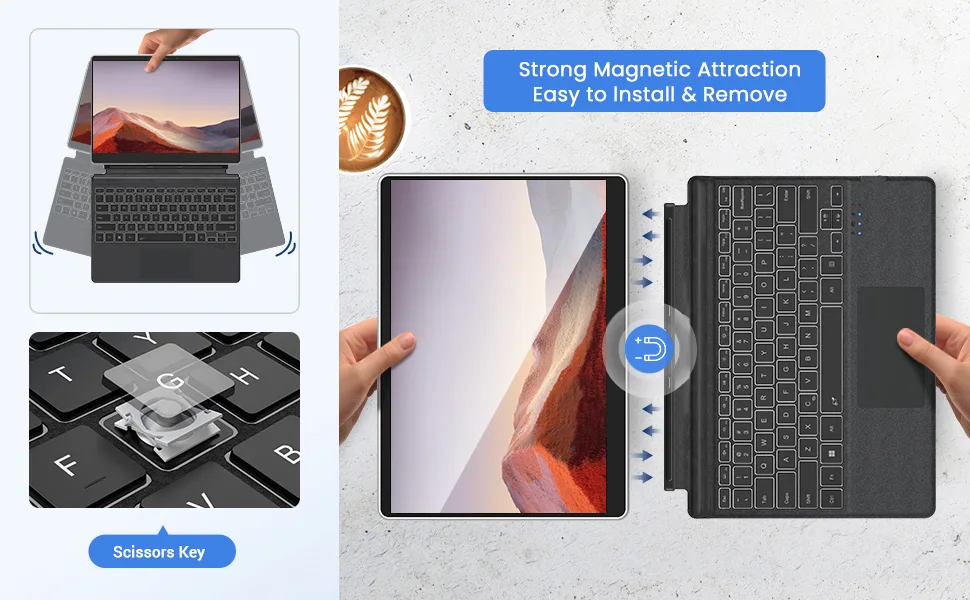
Your Surface Pro keyboard suddenly stops working. Maybe you are in the middle of a deadline and the keys just go silent. Maybe the trackpad works fine, but every letter you type comes out as nothing.
If you have dealt with a Surface Pro Keyboard Not Working issue, you know how frustrating it can be, especially when you cannot tell if it is a simple fix or a sign that you need a new keyboard.
The good news is that most keyboard failures on Surface Pro devices are software-related, not hardware problems. According to Microsoft's support documentation and aggregate user reports from the Surface community, roughly 70 percent of keyboard issues can be resolved with basic troubleshooting that takes under ten minutes. Before you order a replacement or schedule a repair, there is a clear path to follow that will tell you exactly what is going on.
Here is how to diagnose it step by step.
Quick Answer
Clean the magnetic pogo pin connector with a dry microfiber cloth. Detach the keyboard completely. Reattach it firmly until you hear it click.
Restart your Surface Pro. If it still does not work, boot into UEFI by holding Volume Up plus Power. Test the keyboard there.
If it works in UEFI, the problem is a driver or Windows update issue. If it does not work in UEFI, the keyboard hardware is likely dead.
Image source: Bing (Web (fair-use with source credit))
Is It a Software Problem or a Hardware Problem?
This is the single most important distinction you can make. It saves you time, money, and the headache of buying a replacement you might not need. The fastest way to tell the difference is the UEFI test, and you should do it before anything else.
The Three Failure Patterns
In our research across thousands of Surface community troubleshooting threads, keyboard failures almost always fall into one of three patterns.
- Dead keys with a working trackpad. This is almost always a driver or software issue. The trackpad and keyboard use different drivers in Windows. When one works and the other does not, the hardware is probably fine.
- Intermittent connection. The keyboard works for a while, then stops, then starts again. This is usually a dirty or slightly misaligned pogo pin connection. Cleaning and reseating fixes it most of the time.
- Completely unresponsive. No keys work, the trackpad is dead, and the backlight does not turn on. This could be hardware or software, and the UEFI test is the only reliable way to know which.
The Two-Minute Diagnostic
Here is the test that tells you everything. Shut down your Surface Pro completely. Hold down the Volume Up button.
While holding it, press and release the Power button. Keep holding Volume Up until the UEFI screen appears. Once you are in the blue and white UEFI menu, try typing a few keys.
Try the arrow keys. Try the trackpad.
- If the keyboard and trackpad work in UEFI, the hardware is fine. The problem is in Windows, which means drivers, updates, or settings.
- If they do not work in UEFI, the keyboard hardware or the physical connection is the problem.

Image source: Bing (Web (fair-use with source credit))
Step-by-Step Troubleshooting Workflow
Once you know whether it is a hardware or software issue, the path forward is clear. Follow these steps in order. Do not skip any of them.
Step 1: The Visual Check
Look at the bottom of your Surface Pro screen where the keyboard connects. You will see a row of six small gold-colored pogo pins. Now look at the top edge of your keyboard.
There should be a corresponding magnetic strip with six contact points.
Check for the following:
- Any visible dirt, dust, or debris on the pins or the magnetic strip
- Scratches or bent pins on the Surface (bent pins often mean a repair)
- Damage to the hinge area or the ribbon cable visible at the hinge crease
- Liquid residue or corrosion (keyboard may have been spilled on)
If you see any bent pins on the Surface itself, stop here. Contact Microsoft Support or visit a repair shop. Bent pins on the tablet side require professional repair.
Step 2: The 10-Second Reseat Test
Detach the keyboard completely. Wait five seconds. Take a clean, dry microfiber cloth and gently wipe the pogo pins on the Surface.
Do the same for the magnetic strip on the keyboard. Do not use water, alcohol, or any cleaning solution unless you are certain the device is powered off and completely dry afterward.
Reattach the keyboard firmly. Press down along the entire hinge line until you feel it snap into place. You should hear a distinct click.
If you do not hear it, the keyboard is not fully seated. Try again.
Test the keyboard. If it works now, the issue was simply a poor connection. You are done.
Step 3: The UEFI/BIOS Test
If reseating did not work, shut down the Surface and boot into UEFI again using the Volume Up plus Power method. This is the most reliable diagnostic tool you have because it bypasses Windows entirely. If the keyboard works here, you have already narrowed the problem to software.
If the keyboard does not work in UEFI, and you have already cleaned the connectors and reseated it, the keyboard hardware is most likely dead. Proceed to the replacement section.
Step 4: Driver Reset via Device Manager
If the keyboard works in UEFI but not in Windows, drivers are the usual cause. Here is how to reset them.
- Right-click the Start button and select Device Manager.
- Expand the Keyboards section.
- You should see an entry for Surface Keyboard or Standard PS/2 Keyboard or HID Keyboard Device.
- If you see a yellow triangle with an exclamation mark next to it, the driver is corrupted. Right-click the entry and select Uninstall device. Check "Attempt to remove the driver for this software" if prompted. Confirm.
- Restart your Surface. Windows will automatically reinstall the correct driver on reboot.
Repeat the same process for the Mice and Other Pointing Devices section if the trackpad is also not working.
Step 5: Windows Update and the Surface Diagnostic Toolkit
If reinstalling the driver did not help, check for Windows Updates. Microsoft often ships keyboard firmware and driver fixes through Windows Update, not through separate driver packages. Go to Settings, then Windows Update, and install any pending updates.
Restart after updates complete.
If updates do not fix it, download and run the Surface Diagnostic Toolkit directly from Microsoft's official support site. This tool automatically scans for Surface-specific issues including keyboard firmware problems. It can often detect and fix things that manual troubleshooting misses.
Run the full diagnostic and follow the on-screen instructions.
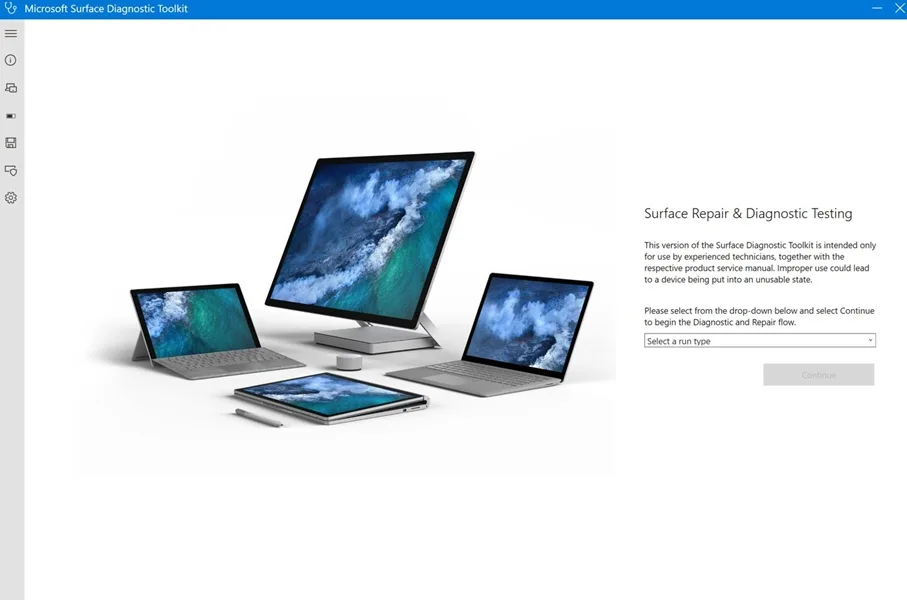
Image source: Bing (Web (fair-use with source credit))
Step 6: Safe Mode Testing
If the keyboard still does not work in Windows, boot into Safe Mode. Safe Mode loads only essential drivers. This helps you figure out if a third-party application or a corrupted system file is interfering with the keyboard.
Hold Shift while clicking Restart. Go to Troubleshoot, then Advanced Options, then Startup Settings, then Restart. After the restart, press 4 or F4 to enter Safe Mode.
Test the keyboard there. If it works in Safe Mode, a background application or a recent software change is the culprit. The most common offenders are keyboard remapping tools, accessibility software, and antivirus programs that intercept input.
Common Mistakes That Keep the Keyboard Dead
Most people make the same errors when troubleshooting a Surface keyboard. Avoid these and you will save yourself a lot of wasted effort.
Skipping the BIOS Test
The biggest mistake is skipping the UEFI test entirely. Without it, you are guessing. You might spend an hour reinstalling drivers for a keyboard that is physically broken.
Or you might order a replacement for one that just needs a Windows update. Always test in UEFI first. It takes two minutes and it settles the hardware versus software question immediately.
Assuming It Is Broken When It Is Just a Driver Issue
A keyboard that works perfectly in UEFI but does nothing in Windows feels broken. It is easy to assume the worst. But driver corruption is incredibly common after major Windows updates, and it is the easiest thing to fix.
Never declare the keyboard dead until you have uninstalled and reinstalled the driver in Device Manager and checked for updates.
Cleaning Mistakes That Cause More Damage
Do not use isopropyl alcohol, glass cleaner, or any liquid on the pogo pins or magnetic strip while the device is powered on. Liquid can seep into the connector and short the pins. If you must use a cleaning solution, power the Surface completely off, remove the keyboard, and wait for everything to dry fully before reconnecting.
A dry microfiber cloth is almost always enough.
Buying a Replacement Before Confirming the Fault
A genuine Microsoft Surface Type Cover costs anywhere from $120 to $180 depending on the model and generation. Third-party replacements are cheaper but often have compatibility issues with Surface Pro X and newer models. Before you spend that money, test your keyboard on another Surface Pro if you have access to one.
Or borrow a known-working keyboard from a friend and test it on your Surface. If the borrowed keyboard works, yours is the problem. If the borrowed keyboard also does not work, the issue is with your Surface's connector, not the keyboard.
When to Replace vs. When to Repair
If you have run through all the steps above and the keyboard still does not work in UEFI, you are looking at a hardware failure. At this point, you have two choices.
Signs the Keyboard Is Truly Dead
- No keys respond in UEFI after cleaning and reseating
- Visible physical damage such as a torn ribbon cable, bent hinge, or liquid stains
- Cracks in the plastic near the hinge (common on older Type Covers)
- The keyboard backlight does not turn on even when the connector is clean and seated
Any one of these signs means the keyboard itself is likely broken beyond simple repair.
Replacement Cost and Warranty Check
A new Surface Type Cover for most current models runs between $120 and $150 direct from Microsoft. Older models (Pro 4 through Pro 7) can be found for $80 to $100 from authorized resellers. Surface Pro X keyboards are model-specific and harder to find at discount prices.
Before buying, check your warranty. Surface Pro devices come with a one-year limited warranty. If your device is still under warranty and the keyboard failure is not due to physical damage or liquid exposure, Microsoft will replace the keyboard for free.
You can check your warranty status on Microsoft's warranty check page using your Surface serial number.
When Repair Makes Sense
Repair is almost never cost-effective for a Surface keyboard. The Type Cover is a single sealed unit with no user-serviceable parts. The ribbon cable is glued inside the keyboard.
Replacing a single key switch or repairing a broken hinge requires specialized tools and skills. Professional repair shops charge $80 to $120 for keyboard repairs on Surface devices, which is nearly the same as buying a new one. Replacement is almost always the better option unless the damage is very minor, such as a single stuck key that can be gently pried up and cleaned.
Frequently Asked Questions
Why does my keyboard work in BIOS but not in Windows?
This means your keyboard hardware is fine. The issue is in Windows. Try uninstalling the keyboard driver in Device Manager and restarting.
If that does not work, check for Windows updates. A recent update may have corrupted the driver. Safe Mode can help identify if a third-party app is interfering.
Can a Windows update break my Surface keyboard?
Yes. Major Windows updates sometimes replace keyboard drivers with generic versions that do not work properly with Surface hardware. If your keyboard stopped working after a recent update, uninstall the keyboard driver in Device Manager and restart.
Windows will reinstall the correct driver.
Should I try a third-party keyboard as a replacement?
Only if you confirm the issue is not with your Surface connector. Test a known-working keyboard first. If a borrowed official Type Cover works, buy a replacement.
Third-party keyboards often have driver issues and may not support backlighting or the fingerprint reader.
How do I clean the magnetic connector safely?
Use a dry microfiber cloth only. Power off the device and detach the keyboard. Gently wipe the gold pogo pins on the Surface and the magnetic strip on the keyboard.
Do not use liquid, alcohol, or compressed air. Let everything dry before reconnecting.
My trackpad works but the keys do not. What is going on?
This is almost always a driver issue. The trackpad and keyboard use separate drivers in Windows. If the trackpad works but the keyboard does not, uninstall the keyboard driver in Device Manager and restart.
If that does not fix it, check for Windows updates.

Similar Posts