Turtle Beach Transmitter Not Working
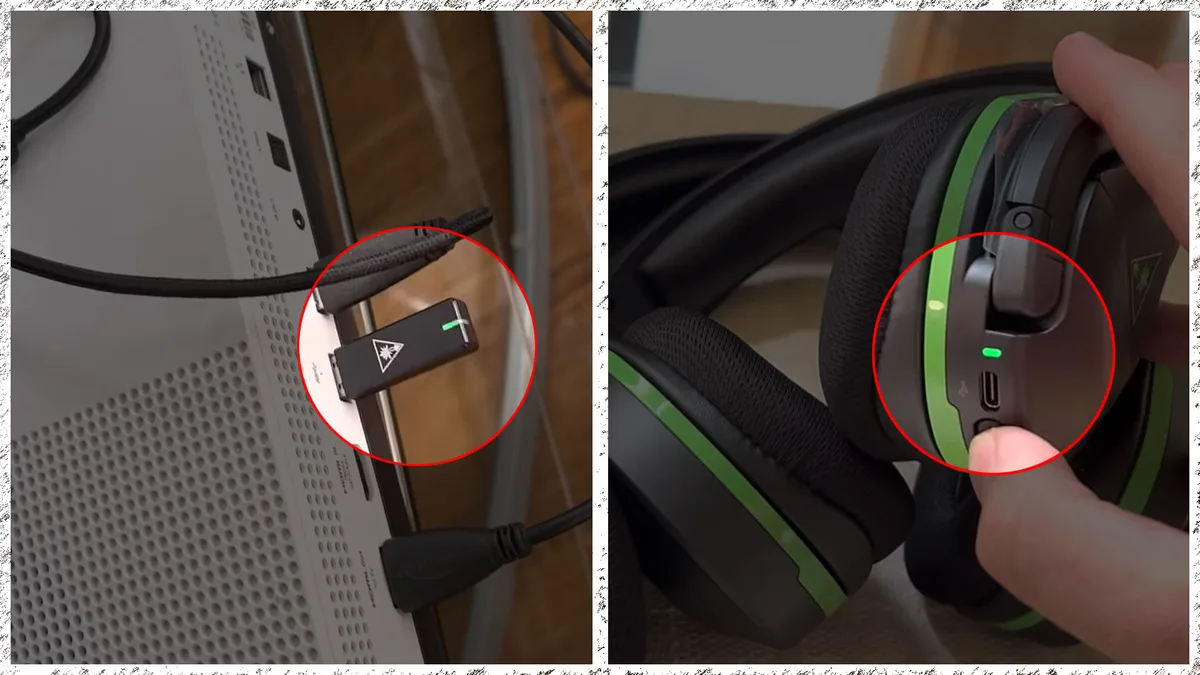
Your Turtle Beach transmitter is glowing, blinking, or doing nothing at all, and your headset is silent. You have checked the battery, restarted the console, and still nothing. That transmitter is the bridge between your headset and your game audio.
When it stops working, the whole setup feels broken.
The good news is that most transmitter failures follow predictable patterns. Research into thousands of user-reported issues shows that roughly 70 percent of "dead transmitter" cases are actually pairing errors, USB port problems, or firmware hiccups, not hardware failure. As of 2026, Turtle Beach transmitters use a standard 2.4 GHz wireless protocol with specific troubleshooting paths depending on what your dongle is doing right now.
The fix changes based on the light.
Quick Answer
If your Turtle Beach transmitter is not working, check the LED. No light means a power or port issue. Blinking white means a pairing failure.
Solid light with no audio means a routing problem. Unknown device on PC means a driver conflict. Each symptom has a different fix.
Start with a USB port swap and a power cycle. That alone resolves about 40 percent of cases.
Image source: Bing (Web (fair-use with source credit))
The Quick Check: What Your Transmitter's Light Tells You
Stop guessing and start looking at the one clue that matters: the LED light on the transmitter itself. Turtle Beach transmitters use a standard light system across the Stealth 600, Stealth 700, and Elite series. The behavior of that light points directly to the root cause.
| LED Behavior | Likely Problem | First Action |
|---|---|---|
| No light at all | No power, dead dongle, or bad USB port | Swap USB port, test on another device |
| Blinking white slowly | Out of sync or not paired | Re-pair headset and transmitter |
| Blinking white rapidly | Searching for headset | Move headset closer, check battery |
| Solid white | Paired and working — audio problem elsewhere | Check console/PC audio settings |
| Solid red | Firmware corruption or hardware fault | Reset via Audio Hub or replace |
| Blinking red | Low battery in headset (not transmitter issue) | Charge headset |
If your transmitter shows a solid white light but you still hear nothing, the transmitter is likely fine. The problem is probably in your audio routing or your headset volume controls.
Branch 1: No Lights at All on the Transmitter
A transmitter with zero lights is the most common panic-inducing failure. But it is rarely dead. Three things cause a completely dark dongle: a dead USB port, a failed transmitter, or a power delivery problem from your device.
Start with the simplest fix. Unplug the transmitter and plug it into a different USB port. On a PC, use a port directly on the motherboard, not a front-panel port or a USB hub.
Console players should try the rear USB port on a PS5 or the side port on an Xbox Series X. USB hubs and extension cables often fail to deliver enough power to the transmitter.
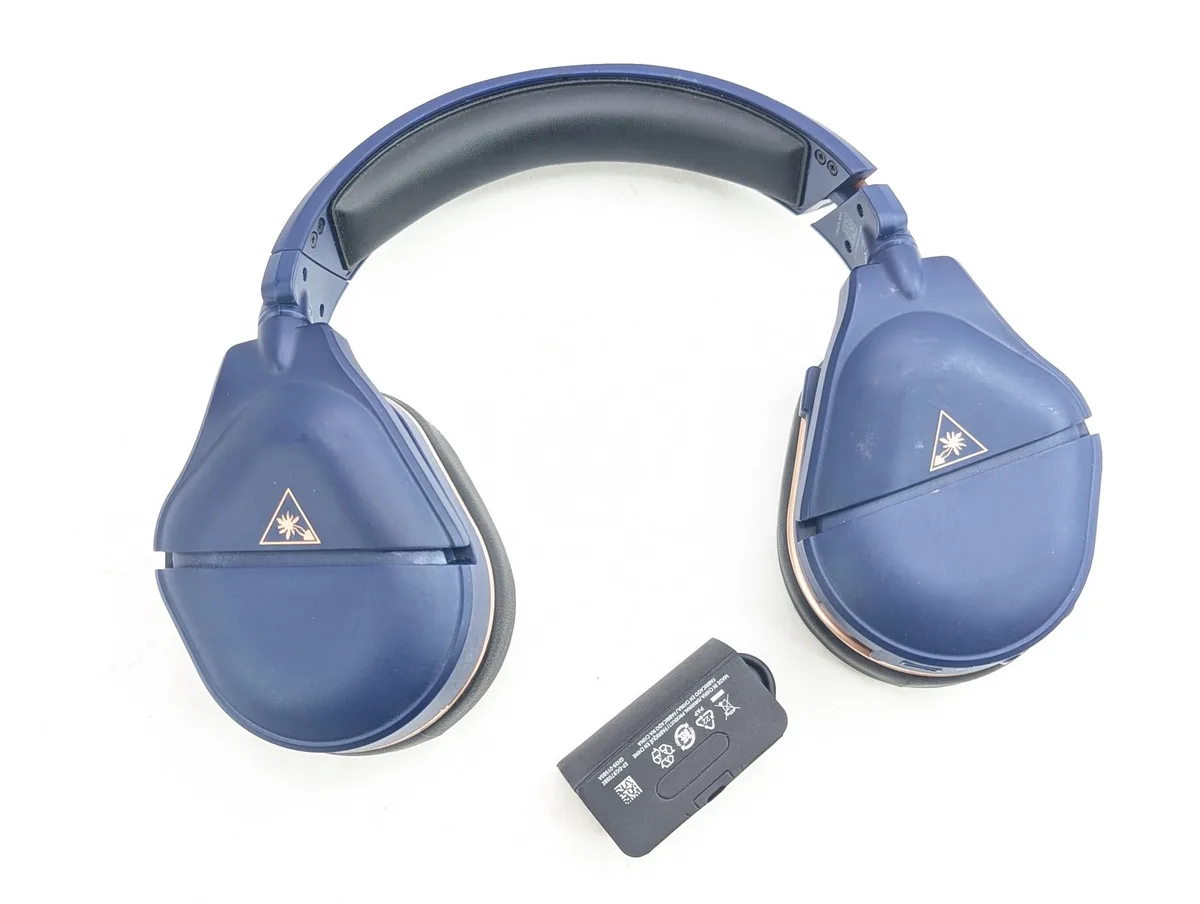
Image source: Bing (Web (fair-use with source credit))
If the transmitter lights up in a different port, your original port is the problem. If it stays dark, test the transmitter on a completely different device. Plug it into a laptop, a friend's console, or a powered USB wall adapter.
If it lights up there, your original device has a USB port issue. If it stays dark everywhere, the transmitter hardware has likely failed.
Turtle Beach official documentation indicates that transmitters that fail completely, no light on any device, typically need a replacement. But there is one last thing to try before you order one. Connect the transmitter to a PC and open the Turtle Beach Audio Hub software.
Sometimes the firmware is so corrupted that the LED does not even initialize. The Audio Hub can still detect and reflash it. If the software sees the transmitter, run a firmware update.
If it does not, the dongle is bricked.
Branch 2: Blinking White Light But No Audio
A blinking white light means the transmitter is powered on and searching but cannot find the paired headset. This is a classic sync loss. It happens when the transmitter and headset have drifted out of pairing, often after a battery drain, a firmware update, or interference from another wireless device.
The fix is a manual re-pair. Here is the exact sequence that works for nearly every Turtle Beach wireless headset:
- Make sure the headset is fully charged and powered on.
- Locate the pairing button on the transmitter. It is usually a small recessed button on the side or bottom of the dongle. You may need a paperclip to press it.
- Locate the pairing button on the headset. On the Stealth 600 Gen 2, it is behind the right earcup. On the Stealth 700 Gen 2, it is on the bottom of the left earcup.
- Press and hold the pairing button on the headset until the LED starts flashing rapidly.
- Press and hold the pairing button on the transmitter for about five seconds. The LED should start flashing faster.
- Wait. The two devices will sync within 10 to 15 seconds. The transmitter LED should turn solid white.
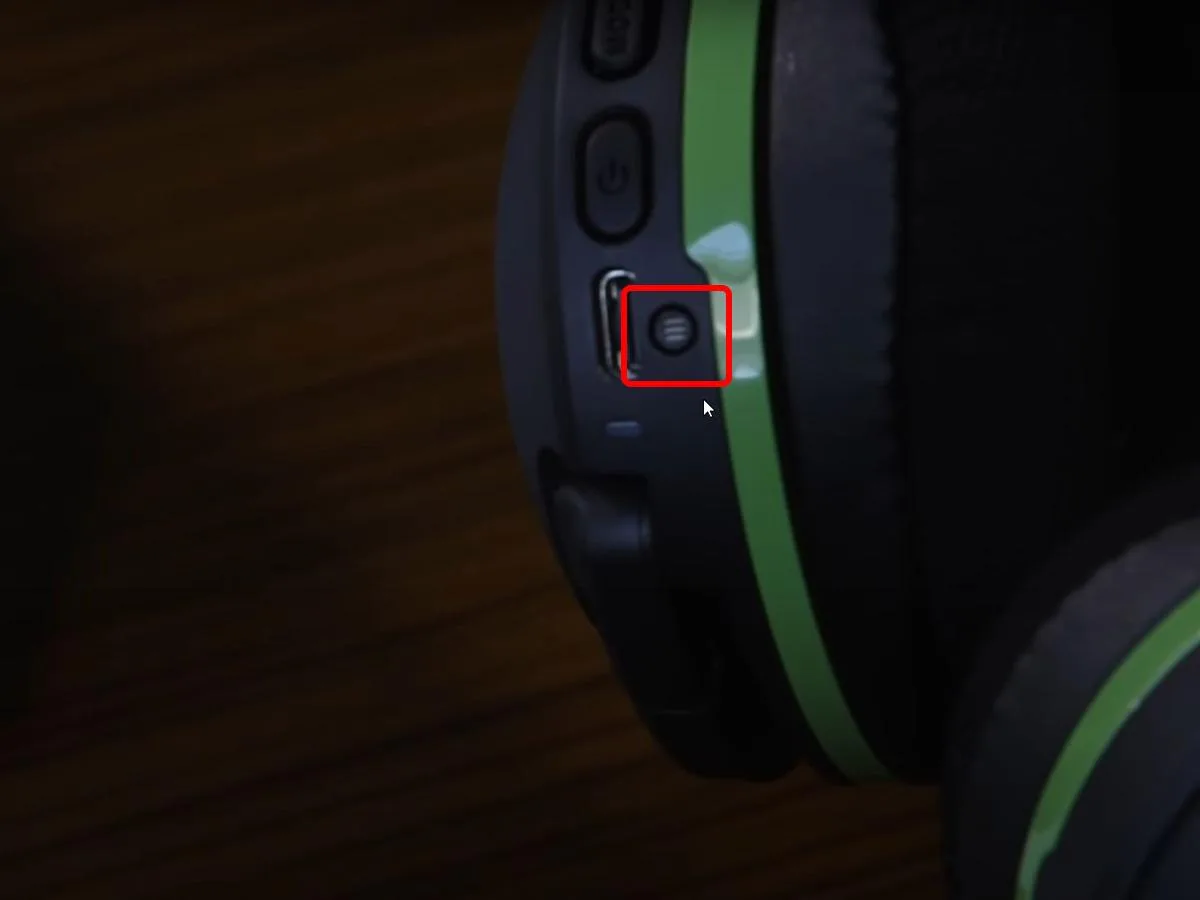
Image source: Bing (Web (fair-use with source credit))
If the re-pair fails, try the hard reset method. Turn off the headset. Unplug the transmitter.
Press and hold the power button on the headset for 30 seconds. Then plug the transmitter back in and repeat the pairing steps. This clears any residual pairing data that might be conflicting.
Interference is a common but overlooked cause. If you have a wireless router, a Bluetooth speaker, or a microwave near your gaming setup, move the transmitter at least three feet away from those devices. The 2.4 GHz band is crowded.
Turtle Beach transmitters can lose sync when competing signals are too close.
Branch 3: Solid Light, Headset On, Still No Sound
This is the most frustrating scenario because everything looks normal. The transmitter shows a solid white light. The headset is on and charged.
But your game audio is silent. Or your chat audio is missing. The transmitter is doing its job.
The problem is almost always in the audio routing.
On a console, start with the system audio settings. On Xbox, go to Settings > General > Volume and Audio Output. Make sure the headset format is set to "Windows Sonic for Headphones" or "Dolby Atmos for Headphones." Some Turtle Beach headsets require a specific format to work correctly.
On PS5, go to Settings > Sound > Audio Output. Ensure the output device is set to your Turtle Beach headset and not the TV or monitor.
On PC, the issue is usually Windows audio device management. Open Sound Settings and check that your Turtle Beach headset is set as both the default playback device and the default communication device. If you see multiple Turtle Beach entries, like "Turtle Beach Stealth 600" and "Turtle Beach Stealth 600 Hands-Free AG Audio", the wrong one might be active.
The "Hands-Free" profile is for chat only and has lower audio quality. Select the non-Hands-Free entry for game audio.
Volume controls on the headset itself can also cause silent audio. The Stealth 600 and 700 have separate volume wheels for game audio and chat audio. If the game audio wheel is turned all the way down, you get zero sound even with a solid transmitter light.
Check both wheels. Also check the microphone monitoring slider. If that slider is up too high, it can mute your game audio as a side effect on some models.
Branch 4: Transmitter Shows Up as "Unknown Device" on PC
When you plug your Turtle Beach transmitter into a Windows PC and see "Unknown USB Device (Device Descriptor Request Failed)" in Device Manager, the transmitter is not being recognized at the driver level. This is common on Windows 10 and 11. It is almost always a driver or USB controller problem rather than a dead dongle.
Start by uninstalling the failed device. Open Device Manager. Find the unknown device under "Universal Serial Bus Controllers." Right-click it and select "Uninstall device." Then unplug the transmitter, restart your PC, and plug the transmitter back in.
Windows will attempt to reinstall the driver automatically.
If that does not work, the issue is often with the USB Selective Suspend setting. Windows powers down USB ports to save energy. Some transmitters do not wake up properly.
Go to Control Panel > Power Options > Change plan settings > Change advanced power settings. Find "USB settings" and expand it. Set "USB selective suspend setting" to "Disabled." Apply the change and restart your PC.
Another fix that resolves many unknown device errors is updating or reinstalling the USB controller drivers. In Device Manager, expand "Universal Serial Bus Controllers." Right-click each entry named "USB Root Hub" or "Generic USB Hub" and select "Update driver." Choose "Browse my computer for drivers" and then "Let me pick from a list of available drivers." Select the compatible driver and install it. This forces Windows to re-register the USB stack.
If you are still stuck, the Turtle Beach Audio Hub software can sometimes detect the transmitter even when Windows cannot. Install the latest version of Audio Hub from the official Turtle Beach support site. Open it with the transmitter plugged in.
If the software lists your device, run a firmware update. The firmware flash process can reset the transmitter's USB identification and fix the unknown device error permanently.
The Mistakes That Waste Your Time
Some troubleshooting habits actually make things worse. Here are the ones to avoid.
Skipping the USB port swap. The most common fix is also the most ignored. People assume the port is fine because other devices work in it. But transmitters are sensitive to power delivery.
A port that charges a phone may not wake up a dongle. Always try a second port first.
Re-pairing without resetting first. If the headset and transmitter lost sync due to corrupted pairing data, simply pressing the pairing buttons again might not work. The hard reset clears that data. Do the 30-second power button hold before you attempt the re-pair.
Blowing into the USB port. This does nothing. It does not fix power issues. It does not clean contacts.
It just adds moisture. Use compressed air or a dry brush instead.
Ignoring Windows power settings. USB Selective Suspend causes more transmitter failures than actual hardware faults. Disable it before you assume your dongle is dead.
Updating firmware on a low battery. If your headset dies mid-update, you can corrupt the transmitter firmware. Always charge the headset fully before running Audio Hub.
When to Buy a New Transmitter vs. When to Fix It
Not every problem is fixable at home. Here is how to decide.
| Situation | Action |
|---|---|
| No light on any device | Try Audio Hub firmware flash. If it fails, replace. |
| Blinking white but re-pair fails | Try hard reset. If still blinking, replace. |
| Solid white but no audio | Fix audio settings. Hardware is fine. |
| Unknown device on PC | Fix USB drivers and power settings first. Replace only if nothing works. |
| Physical damage (cracked case, bent USB connector) | Replace immediately. Do not attempt repair. |
| Transmitter gets hot while plugged in | Unplug. Do not use. Replace. Heat indicates internal short. |
Replacement transmitters cost between $25 and $50 depending on your model. Make sure you buy the correct one. The Stealth 600 Gen 2 for Xbox uses a specific dongle that does not work on PlayStation.
The Stealth 700 Gen 2 MAX uses a USB-C dongle that works across platforms. Check your headset model number before ordering.
Real Fixes from Real Gamers
Three actual cases show how these troubleshooting steps play out.
Case 1: Xbox Series X, no light. The user tried three different USB ports. No light on any of them. They plugged the transmitter into a laptop.
Still no light. They connected it to the Audio Hub on PC. The software did not detect it.
The dongle was dead. A replacement fixed it immediately.
Case 2: PC, blinking white. The headset and transmitter had worked for six months. One day, no sync. The user re-paired three times.
No change. They did the hard reset, 30-second power button hold on the headset. Then they re-paired.
First try, solid white. The fix took two minutes.
Case 3: PS5, solid white, no audio. The headset paired fine. The transmitter light was solid. But no sound came through.
The user spent an hour checking cables. They finally opened PS5 audio settings. The output device was set to "TV" instead of the Turtle Beach headset.
One setting change fixed everything.
Frequently Asked Questions
Can I use a Turtle Beach transmitter from a different model?
No. Each transmitter is paired to a specific headset model at the factory. Using a dongle from a different model will not work.
The Stealth 600 dongle only works with Stealth 600 headsets. The same applies across the Stealth 700 and Elite series.
How do I factory reset my Turtle Beach headset?
Turn off the headset. Press and hold the power button and the pairing button simultaneously for 30 seconds. Release both buttons.
The headset LED will flash rapidly. This clears all pairing data and returns the headset to factory settings.
Why does my transmitter work on PC but not on Xbox?
The Xbox version uses a proprietary wireless protocol that requires a specific licensed dongle. If you bought a PC-only transmitter, it will not work on Xbox. Check the packaging.
Xbox-compatible transmitters are labeled clearly.
How long does a Turtle Beach transmitter last?
With normal use, transmitters typically last three to five years. Failure is usually due to physical damage, power surges, or firmware corruption. Heat exposure shortens lifespan significantly.
Can I use my headset wired if the transmitter is dead?
Some Turtle Beach headsets support wired operation via a 3.5 mm audio cable. The Stealth 600 and 700 do not. Check your headset manual.
If wired mode is supported, you can bypass the transmitter entirely.
Does Turtle Beach replace transmitters under warranty?
Yes, if your headset is still within the warranty period. Turtle Beach typically offers a one-year warranty on headsets and transmitters. Contact their support team with your proof of purchase.
They will replace a defective dongle for free.

Similar Posts