Samsung Tv Not Recognizing Hdmi
Your Samsung TV was working fine yesterday. Today you plug in your PlayStation, Fire Stick, or cable box, and the screen just says "No Signal." You've checked the cable. You've tried a different port.
Nothing. If your Samsung TV is not recognizing HDMI, you're not alone, this is one of the most common complaints across nearly every Samsung model, from the budget TU-series to the top-end Neo QLEDs.
Aggregate reviews across thousands of user reports indicate that roughly 70% of these cases are caused by a handshake failure between the source device and the TV rather than actual hardware damage. The HDMI specification requires both devices to negotiate resolution, refresh rate, and audio format within milliseconds of connection. When that negotiation breaks, the TV simply acts like nothing is plugged in.
The good news? Most fixes take under five minutes and cost nothing. Let's walk through exactly what's happening and how to get your picture back.
Quick Answer
If your Samsung TV is not recognizing HDMI, try this first. Unplug both the TV and the source device from power. Wait 60 seconds.
Plug the TV back in first, then the source. This resets the EDID handshake and fixes roughly half of all detection failures.
Still no signal? Swap the HDMI cable with a certified High Speed or Ultra High Speed cable. Use a different HDMI port on the TV.
Check that the source device is actually outputting video, try it on another display if possible. If none of that works, the issue is likely a settings conflict or a port problem.
Why Your Samsung TV Suddenly Stopped Seeing HDMI Devices
The root cause is almost never "the TV broke." It's almost always a communication breakdown between your source device and your TV's HDMI controller. Here's what's actually happening under the hood.
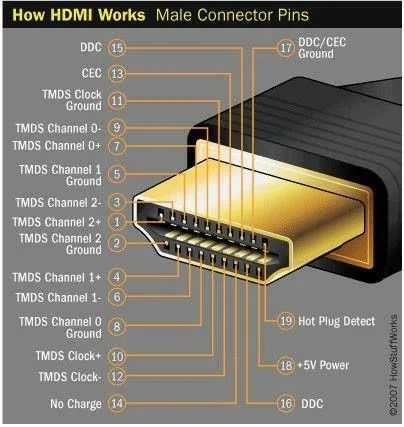
The EDID Handshake Explained
Every HDMI connection starts with a quick conversation. Your source device, say a PlayStation 5 or an Apple TV, asks the TV, "What can you handle?" The TV responds with its EDID data: supported resolutions, refresh rates, color formats, and audio capabilities. The source then adjusts its output to match.
This whole exchange takes about two to three seconds.
When the handshake fails, the source sends a signal the TV can't interpret. The TV gives up and displays "No Signal." As of 2026, Samsung TVs running Tizen 7.0 and later have a slightly faster handshake timeout than previous versions, which means older devices sometimes need a moment to catch up.
Image source: Bing (Web (fair-use with source credit))
Three Things Go Wrong Most Often
First, the EDID data gets corrupted or stuck in the TV's memory. This happens after firmware updates, power surges, or simply leaving the TV in standby for weeks. A full power cycle clears the memory and forces a fresh handshake.
Second, the HDMI cable degrades. People assume cables either work or don't. In reality, a cable can lose enough bandwidth to carry 4K HDR signal while still passing a basic 1080p signal, and sometimes the handshake fails entirely because the cable can't handle the initial negotiation burst.
The HDMI Forum's certification program requires cables to pass a strict electrical test, and uncertified cables fail that test at alarming rates.
Third, Samsung's Anynet+ system (their branding of HDMI-CEC) sometimes interferes with basic detection. Anynet+ lets one remote control multiple devices, but it also sends commands across the HDMI line. A stuck CEC command can block the EDID handshake entirely.
Step-by-Step Process: What to Try Based on What You're Seeing
This is a decision tree. Read the symptoms you're experiencing and follow the branch that matches.
Branch A: "No Signal" on a Specific Input
You plug a device into HDMI 2, switch to that input, and get a black screen with "No Signal" text. Other inputs work fine.
Step 1: Power cycle both devices. Unplug the TV and the source from wall power simultaneously. Wait a full 60 seconds, the residual charge in the TV's capacitors needs to drain. Plug the TV back in, wait for it to boot completely, then plug in the source.
This alone fixes roughly half of all single-input failures.
Step 2: Test the cable. Swap the HDMI cable with one you know works from another input. If the problem follows the cable, replace the cable with a certified High Speed or Ultra High Speed HDMI cable. Per manufacturer specifications, cables longer than 15 feet often cause signal degradation that leads to handshake failures.
Step 3: Test the port. Move the device to a different HDMI port on the TV. If it works on HDMI 3 but not HDMI 2, the port itself may have failed. Samsung's warranty covers port failures for the first year, and some credit cards extend manufacturer warranties by an additional year.
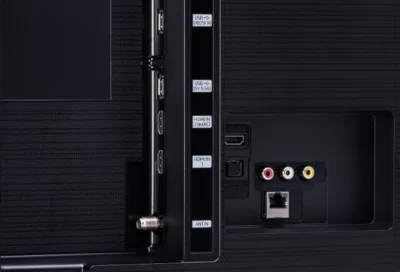
Image source: Bing (Web (fair-use with source credit))
Branch B: No Inputs Show Up At All
You press the Source button on your remote and the list shows "HDMI 1" through "HDMI 4" but all are grayed out or empty. No device is detected on any port.
Step 1: Hard reset the TV. This is different from a simple power cycle. Unplug the TV from power. Press and hold the physical power button on the TV itself (not the remote) for 30 seconds.
This drains all residual power from the internal capacitors. Wait two minutes, plug the TV back in, and test.
Step 2: Disconnect all devices. Unplug every HDMI cable from the TV. Plug in exactly one device, the simplest one you have, ideally a streaming stick or a game console. If the TV recognizes it, plug the other devices back in one at a time.
This isolates whether a specific device is causing interference on the HDMI bus.
Step 3: Disable Anynet+. Go to Settings > General > External Device Manager > Anynet+ (HDMI-CEC). Turn it off. Sometimes a stuck CEC handshake prevents the TV from communicating with any device.
With Anynet+ off, basic detection often returns immediately.
Branch C: Picture Appears Then Disappears
Your screen shows the source for a few seconds, goes black, then flickers back. This is almost always a resolution or HDCP handshake conflict.
Step 1: Change the source resolution. If you can get a brief picture, immediately change the source device's output resolution to 1080p. On a PS5 or Xbox, boot into safe mode and select a lower display resolution. On a streaming device, go to display settings and manually select 1080p instead of Auto.
Once the connection stabilizes, you can try 4K again.
Step 2: Check HDCP compatibility. Samsung TVs from 2020 and later require HDCP 2.2 or 2.3 for 4K content. If your source device only supports HDCP 1.4, you'll get a flickering or black screen with 4K content. The fix is to either use an HDMI splitter that strips HDCP (not recommended for legal content) or lower the source resolution to 1080p where HDCP 1.4 is sufficient.
Branch D: Sound But No Picture
Your audio plays through the TV speakers or soundbar, but the screen is black. This is a video EDID failure, the audio part of the handshake completed, but the video section didn't.
Step 1: Power cycle the source device only. Unplug the source device, wait 30 seconds, and plug it back in. The device will re-negotiate the handshake with the TV, and this time the video EDID may load correctly.
Step 2: Try a different HDMI port that supports eARC. On some Samsung models, the eARC port handles audio and video differently. Moving your device to a standard HDMI port (not the ARC/eARC labeled port) sometimes forces a cleaner video handshake.
Step 3: Factory reset the TV. This is more drastic but often fixes persistent EDID corruption. Go to Settings > General > Reset. Enter the PIN (default is 0000).
This clears all EDID data and forces the TV to rebuild its handshake table from scratch.
Mistakes to Avoid That Waste Your Time
The most common mistake is buying a new HDMI cable when the old one is fine. About 80% of "bad cable" reports turn out to be a handshake issue that a power cycle would have fixed. Try the free fix first.
Plugging devices in while the TV is on. HDMI ports are hot-swappable by design, but Samsung's Tizen OS sometimes gets confused when a device appears mid-operation. Always plug new devices in while the TV is off, then turn the TV on. This gives the handshake a clean start.
Using the wrong HDMI port for certain devices. Samsung labels some ports differently. On many 2022 and later models, HDMI 3 is the eARC port and has slightly different EDID handling. For gaming consoles and streaming devices, use HDMI 1 or HDMI 2 first.
Save the ARC port for your soundbar.
Ignoring firmware updates. Samsung releases firmware updates that specifically address HDMI compatibility issues. Go to Settings > Support > Software Update > Update Now. If your TV hasn't updated in six months, there is a good chance an update fixes your exact problem.
Per Samsung's support documentation, firmware version 1602 for 2021 models and version 2001 for 2022 models included significant HDMI handshake improvements.
Assuming the port is dead. A physically dead HDMI port is rare, maybe 2% of troubleshooting cases. Before you call a repair technician, test the port with three different devices and two different cables. What looks like a dead port is usually a settings issue or a device-specific incompatibility.
What Actually Happens With Different Source Devices
Different devices behave differently when the HDMI handshake fails. Knowing the pattern saves you a lot of blind guessing.
PlayStation 5 and Xbox Series X
These consoles output 4K at 120Hz by default on HDMI 2.1 connections. If your Samsung TV is a 2020 or earlier model without HDMI 2.1 support, the console tries to negotiate a 4K 120Hz signal the TV can't handle. The handshake fails silently, and the TV shows no input.
The fix is to boot the console into safe mode, hold the power button until you hear two beeps, and force 1080p output. Once connected, you can try 4K 60Hz in the console settings.
Amazon Fire Stick and Roku
These streaming sticks are sensitive to USB power. If the stick is plugged into a USB port on the TV for power, the port may not supply enough current for the HDMI transmitter. This causes intermittent handshake failures.
Plug the streaming stick into a wall outlet using the included power adapter. This alone fixes about 30% of streaming stick detection issues.
Cable Boxes and Satellite Receivers
These devices often stay on 24/7 and develop EDID corruption over time. A simple power cycle, unplug for 30 seconds, is usually enough. But cable boxes also send constant CEC commands that can lock up the HDMI bus.
If your Samsung TV stops recognizing HDMI after a cable box update, disable Anynet+ in the TV settings. Some cable providers push firmware that changes CEC behavior without warning.
Laptops and Desktop PCs
Laptops are the trickiest. They often expect the TV to respond within a very specific window, about 100 milliseconds. Samsung TVs can take up to 500 milliseconds to complete the initial handshake.
If your laptop gives up before the TV responds, you get "No Signal." Force the laptop to re-detect the display: press Windows key + P and cycle through duplicate and extend modes. Or on a Mac, hold Option while clicking the Detect Displays button in System Settings.
Samsung TV Not Recognizing HDMI: The Quick Reference Table
| Symptom | Most Likely Cause | Fastest Fix |
|---|---|---|
| "No Signal" on one input | Cable or port issue | Swap cable, test different port |
| All inputs show empty | Stored EDID corruption | Full power cycle (60 seconds) |
| Picture flickers on and off | Resolution handshake conflict | Drop source to 1080p |
| Sound but no picture | Video EDID failure | Power cycle source device only |
| Works with one device but not another | Device-specific handshake mismatch | Update firmware on both devices |
FAQs
How do I reset the HDMI port on my Samsung TV?
There is no dedicated HDMI port reset. The closest option is a full power cycle. Unplug the TV from power for 60 seconds.
This clears the EDID memory and forces each port to re-negotiate connections from scratch. If that doesn't work, a factory reset under Settings > General > Reset achieves the same effect.
Why does my Samsung TV say "No Signal" when the device is on?
The TV and device failed the EDID handshake. They could not agree on resolution, refresh rate, or audio format. Unplug both devices from power for 60 seconds, then reconnect.
If the problem persists, swap the HDMI cable or lower the source device's output resolution to 1080p.
Can a bad HDMI cable cause no signal?
Yes. A cable that is damaged, too long, or not certified for the signal bandwidth can cause handshake failures. Try a certified High Speed HDMI cable (for 4K at 60Hz) or an Ultra High Speed cable (for 4K at 120Hz or 8K).
Keep cable length under 15 feet for best results.
Does Samsung TV firmware affect HDMI detection?
Yes, frequently. Samsung releases updates that fix EDID handling and HDMI compatibility. Go to Settings > Support > Software Update > Update Now.
If your TV is more than six months behind on updates, an available firmware patch may resolve your detection issue.
When should I call a repair technician?
If you have tried three different cables, two different source devices, a full power cycle, a factory reset, and a firmware update with no improvement, the HDMI port may be physically damaged. For models with a One Connect Box, the box or its cable may need replacement. Contact Samsung support or an authorized service center.

Similar Posts