Why Is Elgato HD60 X Not Capturing Video: Fixes Guide

Elgato HD60 X usually stops capturing video because of HDMI, USB, software, or signal settings issues.
If you have ever plugged in an Elgato HD60 X and seen a black screen, no signal, or a frozen preview, you are not alone. I have seen this exact problem come up in capture setups more times than I can count, and the good news is that most causes are simple once you know where to look. In this guide, I’ll walk you through the most common reasons the Elgato HD60 X is not capturing video and show you how to fix them step by step.
Why the Elgato HD60 X Is Not Capturing Video
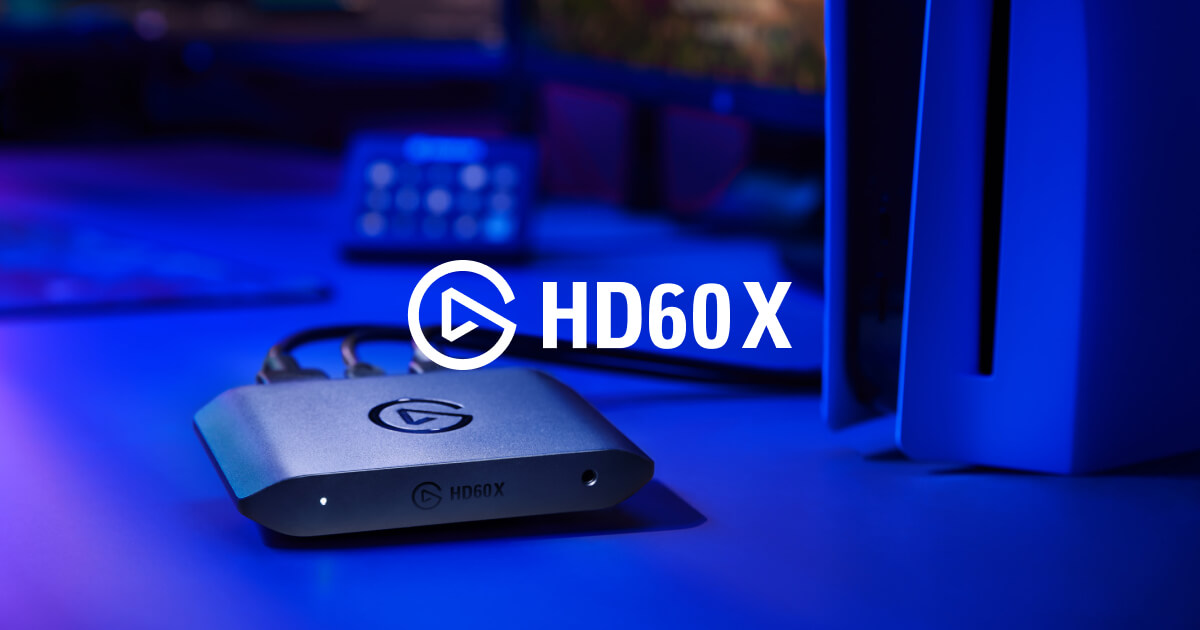
The Elgato HD60 X is a 4K60 capture device built for smooth gameplay recording and live streaming. It works by passing video from your console or PC through HDMI, then sending that signal to your computer over USB 3.0.
When it is not capturing video, the problem usually sits in one of four places:
• The HDMI signal is not reaching the capture card correctly
• The USB connection is too weak or unstable
• The software is not detecting the device
• The input or output settings do not match the source device
In my experience, most users assume the capture card is broken when it is often just a cable, port, or format mismatch. Think of the HD60 X like a relay runner. If one runner drops the baton, the whole race stops.

The Most Common Reasons the HD60 X Fails to Capture Video
A black screen or missing video feed usually comes from a small handful of causes. Some are hardware related, while others come from system settings or software conflicts.
1. HDMI cable problems
A damaged, loose, or low-quality HDMI cable can stop the signal before it reaches the HD60 X. Even if the cable works for a TV, it may still fail under capture conditions because capture cards are more sensitive to signal quality.
Try swapping both HDMI cables if your setup uses two. Use certified High Speed or Ultra High Speed HDMI cables for better reliability.
2. Wrong HDMI port or bad input chain
The HD60 X has an HDMI input and output, and mixing them up is an easy mistake. If the console is connected to the output port by accident, the card will not receive video.
Also check the full chain:
• Console or PC HDMI out to HD60 X HDMI in
• HD60 X HDMI out to monitor or TV
• HD60 X USB-C to computer
A simple port swap has fixed many “dead” capture card reports I have seen over the years.
3. USB connection is not strong enough
The HD60 X needs a solid USB 3.0 connection. If you plug it into a USB 2.0 port, a weak hub, or a front panel port with poor power delivery, the software may fail to show video.
For best results:
• Connect the HD60 X directly to a rear USB 3.0 port
• Avoid USB hubs when possible
• Use the included cable or a high-quality USB-C cable
• Try another USB port if the image is missing
A weak USB path can make the device appear connected while still failing to pass video properly.
4. Capture software is not configured correctly
Elgato software, OBS Studio, Streamlabs, and other apps must be told to use the correct video source. If the wrong device is selected, the preview stays black even though the card is working.
Check for:
• The HD60 X selected as the active video source
• Correct resolution and frame rate
• Video format compatibility in the app
• Fresh device recognition after reconnecting the card
I once spent nearly 20 minutes chasing a “hardware issue” only to find the wrong source was selected in OBS. That kind of mistake happens more often than people admit.
5. HDCP is enabled on the source device
HDCP is copy protection used by many consoles and streaming apps. If it is enabled, the HD60 X may show a black screen or fail to capture protected content.
This often happens when:
• A PlayStation is trying to show streaming apps
• A console menu or app is protected by HDCP
• A device keeps HDCP turned on during capture
For gameplay capture, disable HDCP on the console if needed. Just remember that some protected video apps will still not capture by design.
6. Resolution or refresh rate mismatch
The HD60 X supports a wide range of formats, but the source device and software still need compatible settings. If your console or PC is sending an unsupported refresh rate or display mode, the capture preview may fail.
Common trouble settings include:
• 1440p or 4K output modes not matched properly
• Variable refresh rate conflicts
• HDR settings causing preview issues
• High frame rate modes that need specific software support
Sometimes the image returns as soon as you lower the source to 1080p60 for testing. That is one of the fastest ways to isolate the problem.
7. Driver or firmware issues
Outdated software can cause the HD60 X not to capture video even when everything else looks fine. Firmware updates often fix compatibility issues, and drivers help Windows recognize the device properly.
If the card worked before and suddenly stopped, check for:
• Elgato software updates
• Firmware updates for the HD60 X
• Windows updates
• Conflicts after a recent system update
This is especially important if the device used to work and now only shows a blank preview.
8. Conflicts with other apps
Sometimes another app grabs the capture device before OBS or the Elgato software can use it. Video chat tools, recording tools, browser extensions, and even some GPU utilities can interfere.
Close anything that may be using:
• Camera or video input
• Display capture resources
• HDMI or audio devices linked to the capture card
A clean restart with only one capture app open often fixes the issue faster than deeper troubleshooting.
How to Fix Elgato HD60 X Not Capturing Video
Here is the troubleshooting flow I recommend, starting with the easiest checks first.
Step 1: Recheck all cable connections
Unplug everything and reconnect it in the right order.
• Console or source device to HD60 X HDMI in
• HD60 X HDMI out to monitor or TV
• HD60 X USB-C to computer
• Power on the source after reconnecting
Look for loose ends, bent connectors, or cables that feel too warm or worn.
Step 2: Test with another HDMI cable
If the screen is black, swap the HDMI cable first. This is one of the fastest ways to rule out a bad signal path.
Use a known-good cable from a working setup if possible. If the image comes back, the cable was the culprit.
Step 3: Plug the HD60 X into a rear USB 3.0 port
Do not rely on a random USB port just because it fits. USB speed and stability matter a lot here.
If you are on a desktop, use a motherboard USB 3.0 port on the back panel. If you are on a laptop, use the fastest direct port available.
Step 4: Restart the capture software and the computer
Close OBS, Game Capture, or Streamlabs completely. Then unplug the HD60 X, reboot the computer, and reconnect the card.
This clears out device lockups and stale detection errors. I have seen this simple reset solve “no video” problems surprisingly often.
Step 5: Check the source device video settings
Set your console or PC to a safe output mode first.
Try these basic settings:
• 1080p
• 60 Hz
• HDR off for testing
• VRR off for testing
• HDCP off if you are capturing gameplay
Once it works, you can raise settings one by one to find the limit.
Step 6: Update software and firmware
Open the Elgato software and check for updates. Also update OBS Studio or any other capture app you use.
If the issue started after a Windows update or a console update, compatibility may be the reason. Updating both the software and firmware can restore normal capture.
Step 7: Test the card on another computer
If possible, connect the HD60 X to a different PC. This helps you tell the difference between a card problem and a computer problem.
If the card works elsewhere, the original machine likely has a software or USB issue. If it fails on two systems, the hardware may need attention.
Step 8: Remove conflicting software
Temporarily close:
• Discord camera features
• Streaming apps
• Webcam tools
• GPU overlays
• Any app that might claim the device
Then reopen only one capture program and test again.

Device and Software Settings That Matter Most
A lot of people focus on the capture card itself, but the source device settings are just as important. A mismatch here can make the Elgato HD60 X not capturing video even when the hardware is fine.
On PlayStation
Check for:
• HDCP turned off for gameplay capture
• Output resolution set to a supported value
• HDR turned off for troubleshooting
• 120 Hz or VRR disabled during testing
On Xbox
Check for:
• Resolution set to 1080p or a supported 4K mode
• Refresh rate set correctly
• Allow HDR disabled if preview fails
• Allow variable refresh rate disabled during testing
On Nintendo Switch
The Switch is usually simpler, but problems can still happen if the dock, HDMI cable, or USB connection is unstable. Make sure the console is fully seated in the dock and the HDMI signal is clean.
On PC
PC capture can be the trickiest because of graphics settings. Check:
• Primary display output
• GPU output routing
• Duplicate or extend display mode
• Refresh rate and HDR compatibility
If you are capturing a gaming PC, remember that the signal path depends on the graphics card output. A simple mismatch between display mode and capture mode can cause a blank screen.
When the Elgato HD60 X Works on TV but Not in Software
This situation is common and confusing. If passthrough works on your monitor or TV but the software shows no video, the HD60 X is probably receiving the signal correctly.
That points to one of these issues:
• Wrong source selected in software
• USB communication problem
• Software permission or driver issue
• Resolution or format not supported by the app
In plain words, the capture card is acting like a bridge that carries traffic to your display, but the computer is not reading the other lane. That usually means the fix is on the software side, not the HDMI side.
How to Tell If the HD60 X Is Broken
Before you assume the card is dead, test the basics first. Many “broken” cards turn out to be healthy once the setup is corrected.
Signs the card may actually be failing:
• It is not detected on multiple computers
• It does not pass passthrough video with known-good cables
• Firmware update tools cannot find it
• The device disconnects randomly across ports and systems
If you see these symptoms after testing with fresh cables and a different computer, then hardware failure becomes more likely. At that point, support or replacement is the right next step.
Best Practices to Prevent Capture Problems
A good setup saves time later. I learned this the hard way after one late-night stream where a loose HDMI cable cost me half an hour and a lot of stress.
To avoid future issues:
• Use short, high-quality HDMI cables
• Keep the HD60 X connected directly to the computer
• Update firmware and software regularly
• Save known-good source settings for your console or PC
• Test your setup before recording or going live
A capture card is like a small studio in a box. Treat the cables and settings with care, and it usually behaves itself.
Frequently Asked Questions of Why Is Elgato HD60 X Not Capturing Video?
Why is my Elgato HD60 X showing a black screen?
A black screen usually means the HDMI signal is blocked, unsupported, or not being read by the software. The most common causes are HDCP, a bad cable, wrong input selection, or a resolution mismatch.
Why does the HD60 X passthrough work but capture is blank?
If passthrough works, the video signal is reaching the card. The issue is usually in the software, USB connection, or source configuration rather than the HDMI path.
Does the Elgato HD60 X need USB 3.0?
Yes, it needs a reliable USB 3.0 connection for proper capture. A USB 2.0 port or unstable hub can cause no video, stuttering, or device detection problems.
Can HDCP stop the HD60 X from capturing video?
Yes, HDCP can block capture from protected content and lead to a black screen. For gameplay capture, turning HDCP off on the console often resolves the issue.
Why is the HD60 X not working in OBS?
OBS may be using the wrong source, the wrong format, or a conflicting app may be controlling the device. Re-adding the source, checking video settings, and closing other apps often fixes it.
Should I update firmware if the HD60 X is not capturing?
Yes, firmware updates can fix compatibility and detection problems. If the card suddenly stopped working after a system change, updating software and firmware is one of the best first steps.
Conclusion
When the Elgato HD60 X is not capturing video, the cause is usually easier to fix than it first appears. In most cases, the problem comes down to HDMI cables, USB speed, HDCP, source settings, or software detection.
The best approach is to troubleshoot in a simple order: check cables, confirm the correct ports, test USB 3.0, review console or PC output settings, and update the software. If you stay methodical, you can usually get the HD60 X working again without guesswork.
If you are still stuck, go back to the basics and test one change at a time. Small fixes often solve big capture problems, and the more you understand your setup, the easier it gets to keep it running smoothly.

Similar Posts