Why Is Tp-Link Deco Xe75 WiFi Mesh System Offline: Fixes
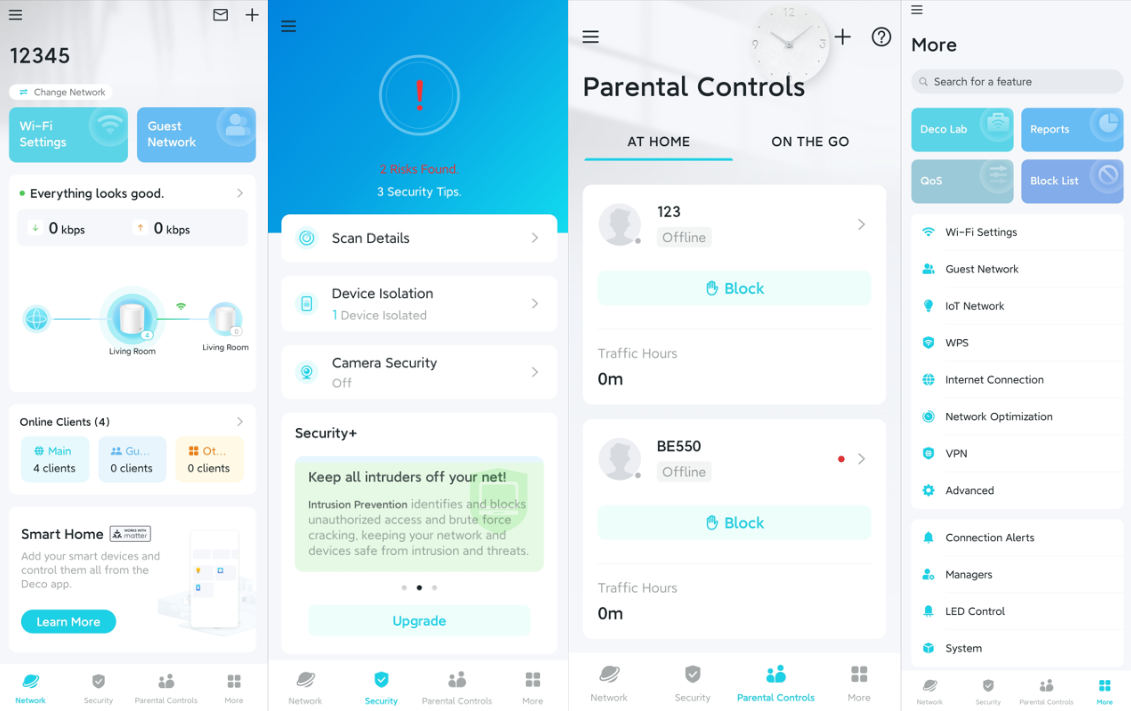
TP-Link Deco XE75 is usually offline because of power, ISP, firmware, or mesh sync issues.
If your TP-Link Deco XE75 WiFi mesh system keeps going offline, you are not alone. I have seen this happen often with mesh systems, and the pattern is usually simple: the main unit loses internet, the nodes stop syncing, or the app shows an offline status even when part of the network is still alive. The good news is that the cause is usually fixable once you know where to look.

What “Offline” Really Means on the TP-Link Deco XE75
When people say the TP-Link Deco XE75 is offline, they may mean a few different things. Sometimes the whole mesh system loses internet access. Other times, the Deco app cannot reach the main unit even though WiFi is still broadcasting. In a few cases, only one satellite node drops while the rest of the network works fine.
That difference matters because each problem points to a different fix. A power issue is not handled the same way as a firmware bug or a modem failure. I have learned that many “offline” reports are really connection chain problems, not mesh system failures. Once you break the chain into modem, router, main Deco, and satellite nodes, the issue becomes much easier to solve.
Common Reasons the TP-Link Deco XE75 Goes Offline
The TP-Link Deco XE75 WiFi mesh system is a strong WiFi 6E mesh setup, but like any network gear, it depends on stable power, clean firmware, and a healthy internet source. If one part fails, the whole system can look offline.
1. The modem or ISP connection is down
This is the most common reason. If your internet service is out, the Deco app may show the system as offline even though the mesh is working locally. The main unit cannot pass internet to your devices if the modem has no live connection.
A quick test helps here. Check whether your modem lights look normal and see if another device connected to the modem has internet. If not, the problem is likely upstream from the Deco XE75.
2. The main Deco unit lost power or rebooted
Mesh networks start with the main unit. If that unit loses power, the entire system may appear offline, even if the satellite nodes still have lights on. A loose adapter, bad outlet, or power strip issue can cause this.
I once saw a Deco system fail for hours because the power brick had come slightly loose behind a desk. It looked like a network problem at first, but it was just a tiny power issue hiding in plain sight. Always check the physical layer before changing settings.
3. Firmware bugs or failed updates
The TP-Link Deco XE75 uses firmware to manage network performance, band steering, node sync, and security. If an update fails or the firmware is outdated, the system can become unstable. Some users notice random drops, app disconnects, or nodes that vanish from the mesh.
Firmware problems are especially common after a recent update or a power loss during update installation. Keeping the system updated helps, but a bad update can also need a reset and fresh setup.
4. Weak backhaul signal between mesh nodes
The Deco XE75 can use wireless backhaul or Ethernet backhaul. If the wireless link between nodes is weak, the satellite unit may go offline from the mesh, or it may stay on but perform badly. Thick walls, floors, metal shelves, and big appliances can all weaken the signal.
This is one reason mesh systems can feel mysterious. They do not just need WiFi coverage for your devices. They also need a strong hidden link between the Decos themselves.
5. Wrong placement of the nodes
Placement has a huge effect on stability. If a node is too far from the main unit, too close to interference, or tucked into a corner, it can lose sync. The TP-Link Deco XE75 WiFi mesh system works best when nodes are placed with enough signal to “see” each other clearly.
In my experience, people often place the second node too far away because they want maximum coverage. That usually backfires. A weaker but stable mesh link is better than a distant node that keeps dropping.
6. App sync or cloud account issues
Sometimes the network is fine, but the Deco app shows offline because the app cannot sync with the cloud account or the local device. This can happen after a phone update, app cache issue, or account sign-in problem. It can also happen when remote management is interrupted.
If devices still have internet, the issue may be with app control rather than the network itself. That is why it helps to test both the app view and the actual WiFi connection.
7. Conflict with modem router settings
If your ISP modem also works as a router, it may conflict with the Deco XE75. Double NAT, DHCP conflicts, or old router settings can make the system unstable. In some setups, the modem/router combo needs bridge mode so the Deco can manage the network cleanly.
This is a common hidden cause. The mesh may appear to go offline, but the deeper issue is that two devices are trying to control the same network job.
How to Troubleshoot the TP-Link Deco XE75 WiFi Mesh System Offline
The fastest way to fix the TP-Link Deco XE75 WiFi mesh system offline problem is to troubleshoot from the outside in. Start with the internet source, then the main unit, then the nodes, then the app.
Step 1: Check the modem and internet service
Begin with the modem. Look at the status lights and confirm whether your internet provider is having an outage. If your modem has no internet signal, the Deco system cannot fix that on its own.
Try this:
- Unplug the modem for 30 seconds
- Plug it back in and wait for full sync
- Check if the internet light returns to normal
- Test internet directly from a device, if possible
If the modem is down, contact the ISP.
Step 2: Restart the Deco system in the right order
A proper restart can fix many temporary sync issues. Turn off the modem first, then the main Deco, then any satellite nodes. Power the modem back on and wait until it fully reconnects before turning the Deco units back on.
This order matters because the Deco XE75 needs a stable WAN handoff from the modem. Rushing the process can leave the mesh stuck in a confused state.
Step 3: Check power and cables
Make sure every adapter is firmly plugged in. Inspect the Ethernet cable between the modem and the main Deco unit. If you use Ethernet backhaul, check every cable between nodes too.
Look for these signs:
- Loose power plugs
- Damaged Ethernet cables
- Faulty surge protectors
- Warm or failing power adapters
A tiny cable problem can cause a big offline issue.
Step 4: Move the nodes closer for testing
If one node is offline, bring it closer to the main Deco temporarily. If it reconnects, the problem is likely distance or interference. Then move it back step by step until you find a stable spot.
Good mesh placement usually means:
- Open central location
- Away from thick walls
- Away from microwaves and large metal objects
- Not hidden inside cabinets
This is one of the simplest fixes, and it often works.
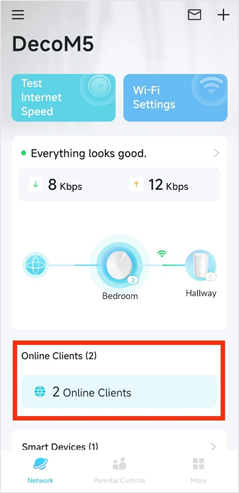
Step 5: Check the Deco app for node status
Open the Deco app and review the network map. See whether the main Deco is online and whether one specific node is disconnected. The app may also show weak signal or setup errors.
If the app itself seems frozen, log out and back in. Sometimes clearing the app cache or reinstalling the app can refresh the connection view.
Step 6: Update firmware
If the network is online enough to access the app, check for firmware updates. Updates often include bug fixes, stability improvements, and better mesh handling. TP-Link regularly refines system behavior through firmware changes.
I always recommend updating after the system is stable, not during a flaky connection. If the network is already struggling, a failed update can make things worse.
Step 7: Reset only when needed
Factory reset should be a last resort, not the first move. It can fix deep software problems, but it also erases your setup. If the system keeps going offline after basic troubleshooting, a reset may be the cleanest solution.
Before resetting, write down:
- ISP login details, if needed
- Network name
- WiFi password
- Node placement plan
A reset is like wiping a whiteboard clean. It helps, but you want to be ready to write everything back neatly.
Best Practices to Keep the TP-Link Deco XE75 Stable
The best way to avoid future offline problems is to make the TP-Link Deco XE75 WiFi mesh system easy to live with. A mesh network works best when it is given space, steady power, and clean settings.
Use these habits:
- Place the main Deco near the modem in a well-ventilated spot
- Keep satellite nodes in open areas with strong signal overlap
- Use Ethernet backhaul if your home supports it
- Avoid mixing old router settings with Deco mesh control
- Keep firmware updated
- Use a good surge protector or UPS for the modem and main Deco
- Restart the network only when needed, not constantly
A small amount of care goes a long way. Mesh systems are like a team of runners passing a baton. If one runner stumbles, the whole relay slows down.
When the Issue Is Not the Deco XE75
Sometimes the TP-Link Deco XE75 WiFi mesh system offline message is really a symptom of a bigger home network problem. The mesh may be doing its job, but another part of the setup is failing.
Common outside issues include:
- ISP outage
- Modem failure
- Bad coax or fiber line
- Damaged Ethernet cable
- Power fluctuations
- Overloaded smart home network
If other internet devices in the home are also failing, the Deco is probably not the root cause. Checking the full chain saves time and prevents unnecessary resets.
Real-World Lessons From Troubleshooting Mesh Networks
One lesson I have learned from working with mesh systems is that most people focus on the app first and the hardware second. That is backwards. The app is just the window. The real problem is usually power, placement, or the internet source.
Another lesson is that “offline” does not always mean broken. Sometimes the mesh is healthy but the app lost contact. Other times, one satellite node is weak while the rest of the home is fine. I have seen users replace gear they did not need to replace simply because they skipped the simple checks.
If you are patient and systematic, you will solve most Deco XE75 issues without panic. That mindset alone saves a lot of frustration.
Frequently Asked Questions of Why Is TP-Link Deco XE75 WiFi Mesh System Offline?
Why does my TP-Link Deco XE75 show offline in the app but WiFi still works?
This often means the app lost contact with the Deco cloud or local control channel, not that the network is fully down. Your devices may still connect normally even while the app status looks wrong.
Can a bad firmware update make the Deco XE75 go offline?
Yes, a failed or buggy firmware update can cause drops, sync problems, or app disconnects. If the issue started right after an update, firmware is one of the first things to investigate.
Why is only one Deco node offline?
That usually points to a weak mesh link, bad placement, or a cable issue if you use Ethernet backhaul. Moving the node closer to the main unit is a good first test.
Does the Deco XE75 need a modem to stay online?
Yes, it needs a working modem or upstream internet source to provide internet access. The mesh can still create a local network, but without the modem connection, it will not give you internet.
Should I factory reset my Deco XE75 if it keeps going offline?
Only after checking power, cables, modem status, placement, and firmware. A reset can help with stubborn software problems, but it should be your last major step because it erases your settings.
Conclusion
The TP-Link Deco XE75 WiFi mesh system offline issue usually comes down to a few practical causes: modem trouble, power loss, poor node placement, firmware problems, or app sync issues. Once you test the network step by step, the problem becomes much easier to isolate and fix.
If your Deco XE75 keeps dropping, start simple, stay calm, and work through the connection chain from modem to main unit to each node. That approach is often faster than guessing. Try the troubleshooting steps above, and if the issue returns, consider improving placement, updating firmware, or checking with your ISP for line problems.

Similar Posts