Garmin Dash Cam Mini 3 WiFi Problems
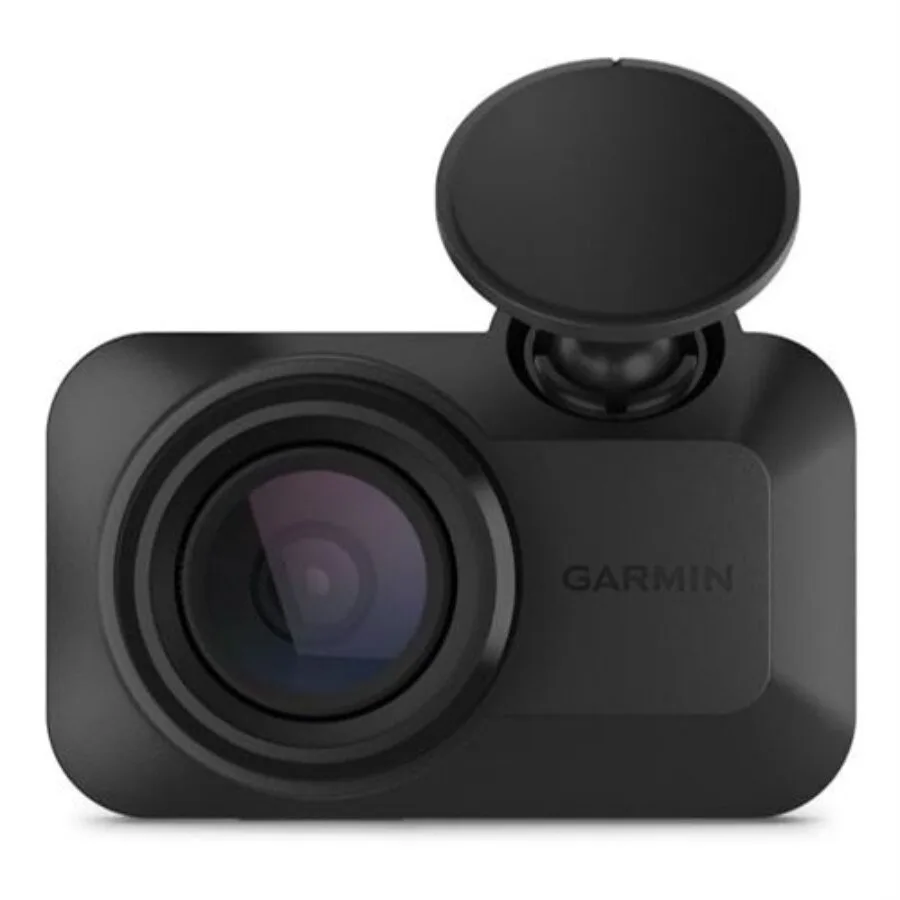
If you're dealing with Garmin Dash Cam Mini 3 WiFi problems, you're not alone. This tiny camera records great, but its wireless connection can be a headache. Owners report dropped connections, failed pairing, and cameras that won't show up in the app.
Most of these issues have straightforward fixes.
The Mini 3 relies on a 2.4 GHz WiFi hotspot with no 5 GHz support. Many modern phones default to 5 GHz, causing confusion. Understanding this limitation is the first step to reliable operation.
Let's walk through what's actually happening when your Mini 3's WiFi acts up.
Quick Answer
Most Garmin Dash Cam Mini 3 WiFi problems stem from the camera's 2.4 GHz only WiFi. Phones on 5 GHz won't see it. Fix it by disabling 5 GHz on your phone, resetting the camera, or updating the Garmin Drive app.
Power cycling both devices clears most connection issues. Garmin's official support documentation covers the full troubleshooting process.
Image source: Web (Bing) / car.eliteaifinds.com (Web image (fair-use with source credit))
Why Your Mini 3 WiFi Is Acting Up
The Mini 3's WiFi module only broadcasts on the 2.4 GHz band. This is a deliberate choice for range and stability, but it creates problems with modern phones. Many smartphones try to connect to 5 GHz networks first.
If your phone is on a 5 GHz home network, it may not see the camera's 2.4 GHz hotspot at all.
Another common cause is power. The Mini 3 has no internal battery. It runs entirely on vehicle power.
If the car is in accessory mode or the battery is low, the camera may turn off its WiFi to save power. This is a protection feature, not a defect.
The Garmin Drive app also plays a role. Outdated versions can have bugs that prevent proper pairing. As of 2026, the latest app version resolves many earlier WiFi issues.
Keeping the app updated is essential.
Finally, the SD card can interfere. A slow or incompatible card can cause the camera to freeze. This drops the WiFi connection.
The Mini 3 requires a Class 10 or UHS-I microSD card.
The Quick Fixes That Solve 80% of Issues
Before diving into complex troubleshooting, try these simple fixes. They resolve the majority of connection problems.
First, reboot both devices. Unplug the camera for 30 seconds, then plug it back in. On your phone, toggle WiFi off and on.
Then reopen the Garmin Drive app. This clears temporary glitches.
Second, forget the camera network on your phone. Go to your phone's WiFi settings, find the camera's network, and tap "Forget". Then start the pairing process fresh from the app.
Third, update the Garmin Drive app. Check your app store for updates. The latest version as of 2026 includes important fixes for connection stability.
Fourth, check your phone's WiFi settings. If your phone supports "WiFi 6" or "5 GHz preferred", disable that option temporarily. The camera only works on 2.4 GHz.
Fifth, move your phone closer to the camera. The Mini 3's WiFi range is about 10 to 15 feet. Being too far away can cause connection drops.
For official guidance, Garmin's support site has detailed troubleshooting steps. Check their documentation for your specific issue. The WiFi pairing problems covered in our Google Nest Cam guide follow a similar troubleshooting pattern.
How the Mini 3's WiFi Actually Works (and Why It's So Picky)
The Mini 3 creates its own WiFi hotspot. It does not connect to your home or office network. The camera broadcasts a direct signal that your phone joins.
This is called a peer-to-peer connection.
This hotspot only runs on the 2.4 GHz frequency. Garmin chose this because 2.4 GHz travels further and penetrates car windows better than 5 GHz. The trade-off is that it's slower and more prone to interference.
When you open the Garmin Drive app, it scans for the camera's hotspot. If found, the app establishes a connection. You can then see a live view, change settings, or download footage.
The connection is local only, so you need to be within about 15 feet.
The camera turns off its WiFi when not in use to save power. It only activates the hotspot when you enter pairing mode or when the app requests a connection. This behavior can confuse users who expect the camera to always be visible.
The camera also has a security feature. If the car battery voltage drops below a certain level, the camera shuts off its WiFi. This prevents draining the battery.
It is common in parking mode or after the car has been off for a while.
Your Decision Tree: Find the Right Fix for Your Symptom
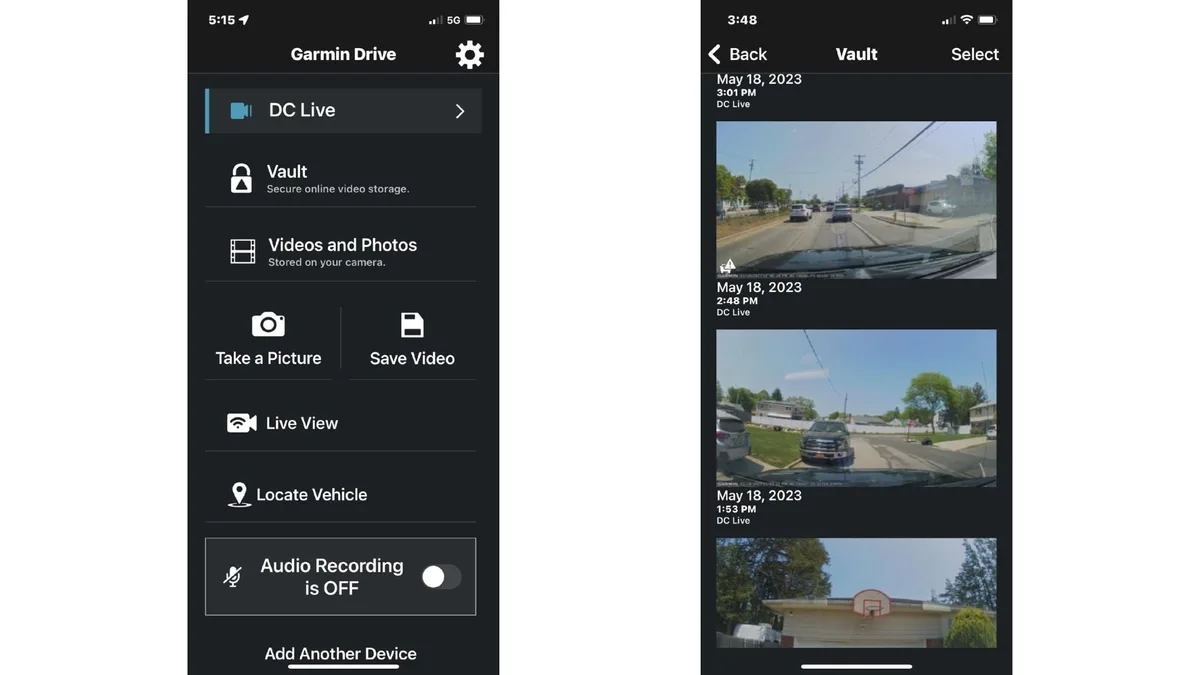
Image source: Bing (Web (fair-use with source credit))
Here's a simple decision tree based on your specific symptom. Find your situation and follow the steps.
Symptom: Camera hotspot not showing up in phone's WiFi list
If your phone can't see the camera's network at all, try this. Make sure the camera is powered on. Press the camera's button to enter pairing mode.
On your phone, turn off mobile data, then scan for WiFi networks. If still not visible, reset the camera using the pinhole reset button.
Symptom: Phone connects to camera's WiFi but app says "No Camera Found"
If your phone joins the hotspot but the app can't see the camera, try this. Close the app completely and reopen it. On your phone, forget the camera network and reconnect.
Check that the app has permission to access local network devices. Reinstall the Garmin Drive app if the issue persists.
Symptom: Connection drops after a few seconds
If the connection works briefly and then cuts out, try this. Move your phone closer to the camera. Remove any metal objects between them.
Check if your phone has a smart network switch feature that jumps to mobile data. Disable it temporarily. Test with a different phone to isolate the problem.
Symptom: Very slow video transfer
If files transfer at a crawl, try this. Transfer smaller clips instead of one large file. Format the SD card in the camera.
Ensure the SD card is a high-speed Class 10 or UHS-I card. The Mini 3's 2.4 GHz limitation makes transfers slower by design.
Mistakes That Make WiFi Problems Worse
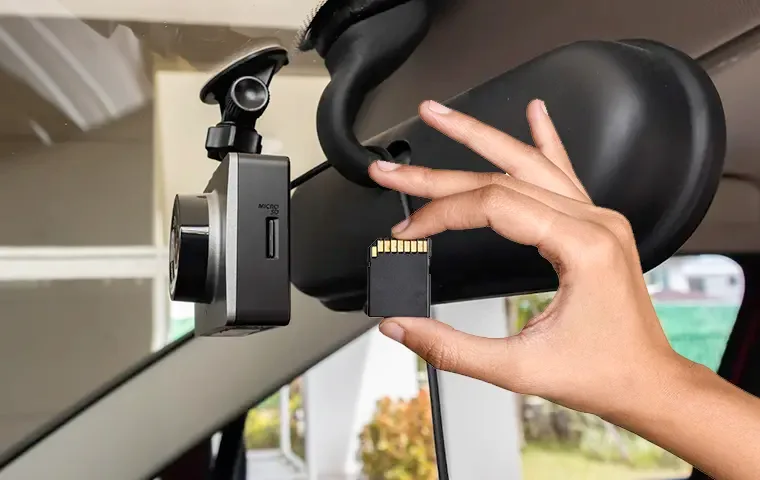
Image source: Bing (Web (fair-use with source credit))
Many users unknowingly make these errors that worsen WiFi issues. Avoid them to save time and frustration.
Using the wrong SD card
The Mini 3 is picky about SD cards. Using a slow or incompatible card can cause the camera to freeze. This drops the WiFi connection.
Always use a Class 10 or UHS-I microSD card. Format the card in the camera, not on a computer. The SD card compatibility issues covered in our Reolink troubleshooting guide follow similar patterns.
Leaving the camera in parking mode
Parking mode disables WiFi to save power. If you're trying to connect while the camera is in parking mode, it won't work. Switch to normal driving mode or power cycle the camera.
Connecting to the camera's WiFi while the car is off
The camera runs on vehicle power. If the car is off, the camera may enter a low-power state that turns off its WiFi. Start the car or plug the camera into a powered USB port.
Using a phone with WiFi 6 or 5 GHz priority
Some phones aggressively prefer 5 GHz networks. This can block the camera's 2.4 GHz hotspot. Disable WiFi 6 mode or 5 GHz preferred in your phone's WiFi settings.
Not updating the app or firmware
Outdated software can have bugs that cause connection issues. Check for updates to the Garmin Drive app and the camera's firmware. The latest versions resolve many known problems.
The Mini 3's WiFi is particularly sensitive to software versions.
When the WiFi Is a Lost Cause (and What to Do About It)
If you've worked through every step in the decision tree and the WiFi still won't cooperate, the problem may be hardware. The Mini 3's WiFi module is a physical component. It can fail due to heat, vibration, or a manufacturing defect.
The clearest sign of hardware failure is a camera that never broadcasts any WiFi signal. This happens even after a factory reset. If your camera does this, the module is likely dead.
Aggregate user reviews indicate this is rare but not unheard of. Garmin's official support documentation covers the warranty process. The Mini 3 comes with a one-year limited warranty.
If you're within that window, request a replacement through Garmin's support page.
If you're out of warranty, you still have options. You can use the camera without WiFi by removing the microSD card and reading it on a computer. This is less convenient but works perfectly for accessing footage.
For some users, the WiFi issue is a dealbreaker. In that case, consider replacing the camera entirely. The Mini 3 is relatively affordable.
A new unit may be more cost-effective than repairs.
If you decide to keep the camera, use it as a standard recording device. The WiFi is not required for basic operation. The camera records continuously to the SD card.
You just lose live view and remote file access. The connection troubleshooting steps in our Eufy Indoor Cam guide offer additional strategies for persistent issues.
Frequently Asked Questions
How do I reset the WiFi on my Garmin Mini 3?
Press and hold the camera's button for 10 seconds until the LED flashes red. This resets the WiFi module. Then open the Garmin Drive app and re-pair the camera from scratch.
This clears stored connection data.
Why does my Garmin Mini 3 keep disconnecting from WiFi?
Distance and interference are the most common causes. Move your phone closer to the camera. Remove metal objects between them.
Ensure your phone is not switching to 5 GHz or mobile data. The intermittent connection issues covered in our Wyze Cam Outdoor guide follow similar patterns.
Can I use the Mini 3 without WiFi?
Yes. Remove the microSD card and insert it into a computer. You can view and transfer footage directly.
The camera records normally without WiFi. You just lose live view, settings changes, and remote file access.
How do I update the firmware on my Mini 3?
Open the Garmin Drive app. Go to Settings and check for updates. Alternatively, download the firmware file from Garmin's website.
Copy it to the microSD card and insert it into the camera. The camera updates on next power-on.
What SD card is best for the Mini 3?
Use a Class 10 or UHS-I microSD card. Garmin recommends cards up to 512 GB. Avoid slow or generic cards.
A high-speed card from SanDisk or Samsung works well.
Does the Mini 3 work with iPhone and Android?
Yes. The Garmin Drive app works on both iOS and Android. However, some Android phones have WiFi settings that interfere with the 2.4 GHz hotspot.
The app is available on the App Store and Google Play.

Similar Posts