GoPro HERO13 Black Best Settings
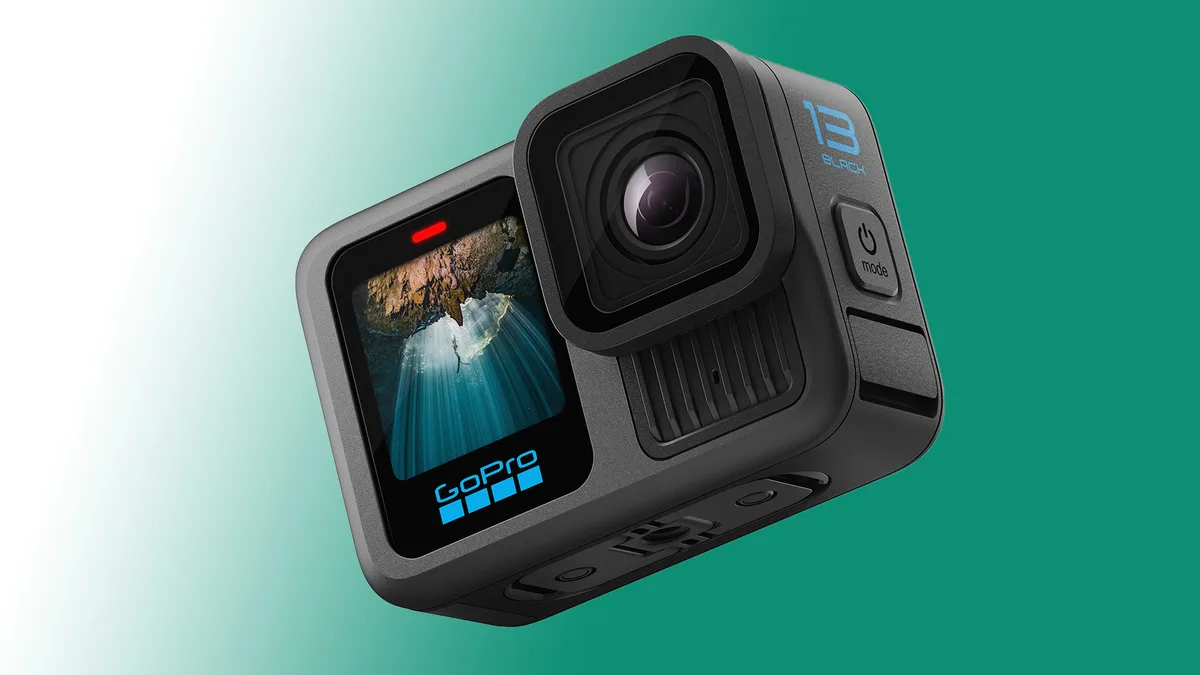
If you’ve just unboxed a GoPro HERO13 Black, you’re probably wondering what settings to use. The truth is, the GoPro HERO13 Black best settings change depending on what you’re filming. A single preset won’t work for mountain biking, vlogging, and low-light sunsets.
Manufacturer specs confirm the HERO13 Black can shoot 5.3K at 60 frames per second with 10-bit color. That mode looks incredible, but it drains the battery fast and can overheat in still air. As of 2026, the camera supports HDR video, HyperSmooth 6.0, and an 8:7 sensor that gives you more vertical room for cropping.
Let’s walk through which settings work best for your specific shooting situation.
Quick Answer
The best settings depend on your activity. For action sports, use 5.3K30 with Wide FOV and HyperSmooth On. For vlogging, choose 4K30 with Linear plus Horizon Lock.
For slow motion, select 4K120. For low light, switch to 4K30 with ISO limited to 800. Always use a V30 or faster microSD card.
Image source: Web (Bing) / cined.com (Web image (fair-use with source credit))
Why “One Size Fits All” Settings Don’t Work for the HERO13 Black
The HERO13 Black is a powerful camera, but it’s not a set-and-forget device. Every mode comes with trade-offs. Shooting at 5.3K60 gives you sharp footage, but it heats up the camera after about 20 minutes of recording in still air.
Using HyperSmooth Boost stabilizes the shot, but it crops in significantly. Turning on HDR helps with high-contrast scenes, but it can cause ghosting with fast movement.
If you’re filming a mountain bike run, you want stable, wide footage with a fast shutter speed to freeze motion. If you’re recording a walking tour, you want horizon-leveled footage with longer battery life. The same preset won’t serve both.
The 8:7 sensor offers a taller frame than a typical 16:9 sensor. That’s great for cropping to vertical or square formats for social media. But it also means you need to choose your field of view and resolution carefully.
Wide FOV uses the full sensor width. Linear crops the edges to remove distortion.
Our research shows that users who stick to one preset for everything end up with footage that’s either too shaky, too dark, or too compressed. The camera has the hardware to handle almost any scenario. You just need to match the settings to the moment.
The key is understanding the core settings first. Once you know what each control does, you can build presets that fit your exact needs.
The Core Settings You Need to Understand First
Before you dive into presets, you need to grasp a few basic settings. These are the building blocks of every video mode on the HERO13 Black.
Resolution and Frame Rate
Resolution is the number of pixels in each frame. The HERO13 Black can shoot up to 5.3K (5568 x 4872) in the 8:7 aspect ratio. Frame rate is how many frames per second the camera captures.
Higher frame rates produce smoother slow motion but require more light and storage.
| Resolution | Max Frame Rate | Best Use Case |
|---|---|---|
| 5.3K | 60 fps | High-quality action, cinematic B-roll |
| 4K | 120 fps | Slow motion, general use |
| 2.7K | 240 fps | Extreme slow motion |
Field of View
The field of view determines how much of the scene is visible. SuperView is the widest, with a fisheye look. Wide is slightly less distorted.
Linear removes distortion for a more natural look. Linear plus Horizon Lock keeps the horizon level even when the camera tilts.
HyperSmooth Stabilization
HyperSmooth 6.0 offers four levels: Off, On, Boost, and High. On works well for most situations. Boost adds extra stabilization but crops the frame by about 20 percent.
High crops even more.
Protune
Protune is the manual mode that gives you control over ISO, shutter speed, white balance, sharpness, and color profile. It’s essential for getting the best quality in challenging lighting.
10-Bit Color and HDR
The HERO13 Black can record in 10-bit color. That provides smoother gradients and more flexibility in editing. HDR mode combines multiple exposures for better dynamic range but can cause ghosting with moving subjects.
If you want to keep your camera’s firmware current, check the official GoPro support page for the latest version. Outdated firmware can cause stability issues and missed features.
What Are You Shooting? A Simple Decision Tree
Now that you know the basics, let’s match settings to your activity. Answer the questions below to find your recommended preset.
Are you shooting fast action or slow movement?
- Fast action, like sports, biking, or skiing, go to the Action branch.
- Slow movement, like walking, vlogging, or time-lapse, go to the Vlog or Travel branch.
What’s the lighting like?
- Bright daylight means use a lower ISO (100 to 400) and a faster shutter.
- Low light, like sunset, indoors, or night, means limit ISO to 800 or less and use a slower shutter.
Do you need slow motion?
- Yes, choose a high frame rate like 4K120 or 2.7K240.
- No, stick with 30 or 60 fps to save battery and storage.
Do you want maximum stability?
- Yes, use HyperSmooth On or Boost, but expect a crop.
- No, turn stabilization off to keep the full sensor view.
Here’s a quick decision table:
| Your Situation | Recommended Resolution | Frame Rate | FOV | Stabilization |
|---|---|---|---|---|
| Action sports, sunny | 5.3K or 4K | 30 fps | Wide | On |
| Slow motion, bright | 4K | 120 fps | Linear | On |
| Vlogging, indoor | 4K | 30 fps | Linear + Horizon Lock | On |
| Low light, evening | 4K | 30 fps | Linear | On, ISO 800 |
| Hyperlapse, walking | 4K | 30 fps (TimeWarp) | Linear | On |
The decision tree is straightforward once you know your lighting and motion. Match the branch to your activity and you’ll get solid results.
The Presets: Action, Vlog, Slow Mo, Low Light, and More
The HERO13 Black lets you save custom presets so you can switch modes quickly. Here are the five presets most users need.
Action Preset
Use this for biking, running, skiing, or any fast-paced outdoor activity. Choose 5.3K30, Wide FOV, HyperSmooth On. Set ISO to 100 to 400.
Use a shutter speed of 1/1000s or faster if it’s bright. This combination gives you sharp, stable footage without overheating.
Vlog Preset
For talking head videos, walking tours, or indoor recording, use 4K30, Linear plus Horizon Lock, HyperSmooth On. Set ISO to 100 to 800. The Horizon Lock keeps the horizon level even if you tilt the camera.
Linear FOV removes the fisheye look for a more natural appearance.
Slow Motion Preset
When you need dramatic slow motion, use 4K120 or 2.7K240. Set FOV to Linear, HyperSmooth On. Use a shutter speed of 1/240s for 120 fps or 1/480s for 240 fps.
This ensures natural motion blur. Note that 2.7K240 has a lower resolution, so it’s best for clips you’ll slow down a lot.
Low Light Preset
For sunsets, indoor events, or nighttime scenes, use 4K30, Linear FOV, HyperSmooth On. Set ISO to 100 to 800. Use a shutter speed of 1/60s.
Avoid 5.3K or high frame rates, as they need more light and will produce noisy footage. HDR mode can help with dynamic range but may cause ghosting.
TimeWarp Preset
For hyperlapses, use 4K30 with TimeWarp mode. Set the speed to 5x or 10x depending on how fast you’re moving. Use Linear FOV and HyperSmooth On.
This preset creates smooth, speeded-up footage that looks professional.
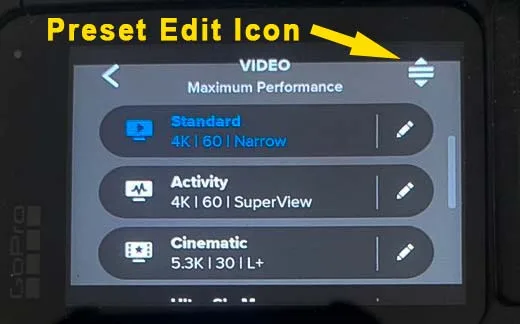
Image source: Bing (Web (fair-use with source credit))
Aggregate user feedback suggests that most people only need three or four presets. The HERO13 Black can store up to 10 custom presets. Add a dedicated underwater preset or a night-sky preset if you shoot those often.
Manual Mode: When and How to Use Protune
Protune is the manual control suite that unlocks the camera’s full potential. You should use it when you want precise control over exposure, color, and sharpness. It’s essential for cinematic work, challenging lighting, or when you plan to color grade in post.
Turning On Protune
In the video settings, scroll to Protune and set it to On. This unlocks the following options:
- ISO Limit: Set the maximum ISO the camera will use. For bright scenes, use 100 to 400. For low light, use 800. Avoid going above 1600 unless you’re in very dark conditions, as noise becomes visible.
- Shutter Speed: Set a fixed shutter speed or leave it on Auto. The 180-degree rule says shutter speed should be about twice the frame rate. For 30 fps, use 1/60s. For 60 fps, use 1/120s.
- White Balance: Set to Auto for most situations. For consistent color across clips, use a fixed value like 5500K for daylight or 3200K for indoor tungsten.
- Sharpness: Medium is a good balance. High can look artificial. Low is best if you plan to sharpen in editing.
- Color Profile: GoPro Color is punchy and ready to use. Flat gives you more flexibility for grading. 10-bit, available in certain modes, provides the most headroom for color correction.
When to Use Protune
Use Protune when you’re shooting in mixed lighting, when you want a specific look, or when you’re editing professionally. For everyday clips, the auto modes work well.
A Quick Protune Setup for Cinematic Footage
- Resolution: 5.3K24 or 4K24
- Frame Rate: 24 fps
- FOV: Wide or Linear
- HyperSmooth: On
- ISO: 100 to 400
- Shutter: 1/50s for 24 fps
- White Balance: 5500K
- Sharpness: Medium
- Color: Flat or 10-bit
This setup gives you a film-like look with natural motion blur. Edit in post to adjust exposure and color. The 10-bit profile preserves details in highlights and shadows.
Aggregate feedback from experienced users shows that Protune is worth learning, but it’s not necessary for most casual shooting. Start with the presets and experiment with one or two Protune settings at a time.
Common Mistakes That Ruin Your Footage
Even with the right presets, small errors can wreck your clips. Here are the most common mistakes and how to avoid them.
Using the Wrong Frame Rate for the Lighting
High frame rates like 4K120 need lots of light. If you shoot slow motion indoors or at dusk, the footage will look dark and noisy. Our research shows that many users set 120 fps and wonder why the image is grainy.
Stick to 30 fps in low light and save 120 fps for bright outdoor scenes.
Leaving HyperSmooth on Boost When You Don’t Need It
Boost mode crops the frame by about 20 percent. That means you lose a lot of the scene. If you’re walking slowly or using a tripod, turn stabilization to On or Off.
Reserve Boost for rough terrain like mountain biking or running.
Forgetting to Set the Correct White Balance
Auto white balance works well in consistent lighting. But it can shift during a clip if the light changes. For a walk from indoors to outdoors, the color temperature may jump.
Fix this by setting a fixed white balance like 5500K for daylight. This keeps color consistent across the whole clip.
Not Formatting the SD Card in the Camera
Using a card that’s been formatted elsewhere can cause errors or slow write speeds. Always format your microSD card inside the HERO13 Black before a shoot. This clears old file structures and ensures the camera writes data correctly.
Use a UHS-I V30 or V60 card for best results.
Ignoring the Overheating Warning
The camera can overheat in 5.3K60 mode, especially in still air or direct sunlight. If you see a temperature warning, stop recording and let the camera cool down. Switching to 4K30 or 5.3K30 reduces heat buildup.
You can also use a small external fan for indoor shoots.
Pro Tips: ND Filters, Battery Life, and Storage Hacks
Once you’ve mastered the basics, these advanced tips will take your footage to the next level.
Why You Need ND Filters
ND filters reduce the light entering the lens. They let you use a slower shutter speed in bright conditions. This creates natural motion blur, which makes video look more cinematic.
Without an ND filter, your shutter speed might be 1/2000s on a sunny day. That produces sharp, jagged motion that looks like a slideshow.
The HERO13 Black does not include an ND filter in the box. You need to buy a third-party filter kit that fits the camera’s lens mount. Common strengths are ND8, ND16, and ND32.
ND8 works for overcast days. ND16 is good for partly cloudy. ND32 works for full sun.
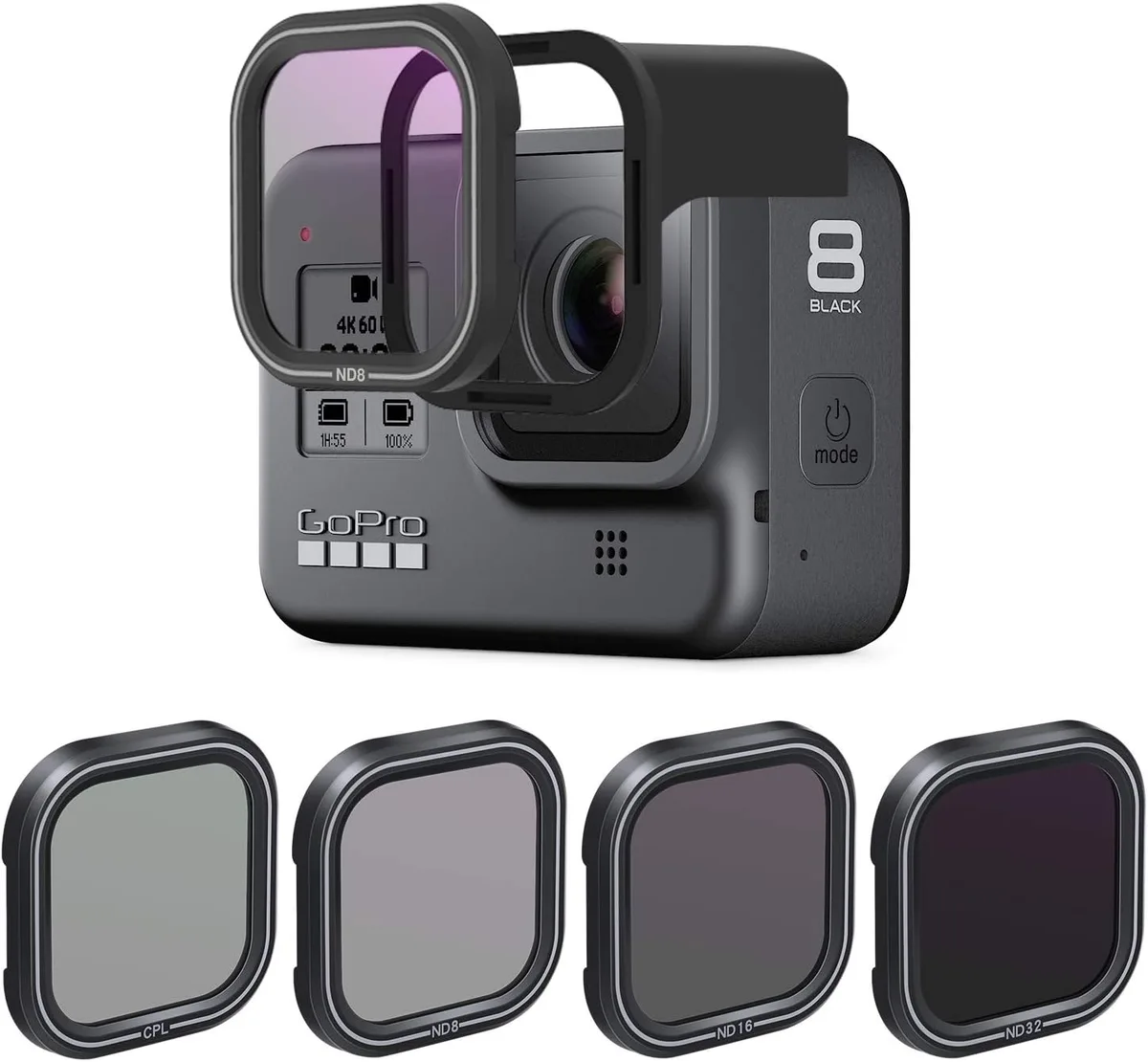
Image source: Bing (Web (fair-use with source credit))
To use an ND filter, set your frame rate to 30 fps, then set your shutter speed to 1/60s. Adjust the filter strength until the exposure looks correct. The camera’s exposure meter on the screen helps you dial it in.
Getting the Most From the Enduro Battery
The Enduro battery performs better in cold weather than older GoPro batteries. But it still drains faster in sub-zero temperatures. Keep the battery warm in an inside pocket before you start shooting.
Only insert it when you’re ready to record.
Turn off Wi-Fi and Bluetooth when you don’t need them. They drain power even when idle. Also, reduce the screen brightness in the settings.
The touchscreen is a major power draw.
Managing Storage Efficiently
The HERO13 Black generates large files. At 5.3K60, a 64GB card holds about 30 minutes of footage. Always carry at least two spare cards for a full day of shooting.
Use UHS-I V30 or faster cards. Slower cards can cause recording to stop unexpectedly.
Aggregate user feedback shows that many people forget to offload footage after each shoot. Set a habit of transferring clips to a hard drive or cloud storage at the end of each day. This keeps your cards ready for the next session.
Frequently Asked Questions
What is the best resolution for the GoPro HERO13 Black?
The best resolution depends on your activity. For action sports, use 5.3K30. For vlogging, use 4K30.
For slow motion, use 4K120. The 5.3K mode gives the most detail but uses more storage and battery. 4K is a good balance for most users.
Should I use HDR mode all the time?
No. HDR mode helps with high-contrast scenes like a bright sky and dark foreground. But it can cause ghosting with fast movement.
Use HDR for static shots or slow pans. Turn it off for action sports and fast-moving subjects.
How do I prevent the camera from overheating?
Switch to 4K30 or 5.3K30 instead of 5.3K60. Record in shorter clips. Keep the camera out of direct sunlight when not recording.
Use a small USB fan for indoor shoots. The camera will show a warning before it shuts down.
What microSD card should I use?
Use a UHS-I V30 or V60 card. Brands like SanDisk, Samsung, and Lexar that meet the V30 standard work well. Avoid cards that are slower than V30.
They can cause recording errors or dropped frames. Format the card inside the camera before each use.
Can I use the HERO13 Black for live streaming?
Yes. The camera supports live streaming via the Quik app. You can stream at 1080p or 720p.
Use a stable Wi-Fi connection or a wired USB-C connection for best results. The camera can also be used as a webcam with the right cable.
Do I need a housing for underwater use?
The HERO13 Black is waterproof to 10 meters without a housing. For deeper dives, use the official GoPro housing rated to 60 meters. The housing also protects the camera from sand and impact during extreme activities.
Final Verdict: Your Quick Reference Card
Here’s a quick summary of the settings for each scenario. Save this as a cheat sheet for your next shoot.
| Scenario | Resolution | Frame Rate | FOV | Stabilization | ISO | Shutter |
|---|---|---|---|---|---|---|
| Mountain biking, sunny | 5.3K | 30 | Wide | On | 100-400 | 1/1000s |
| Vlogging, indoor | 4K | 30 | Linear + Horizon Lock | On | 100-800 | Auto |
| Slow motion, bright | 4K | 120 | Linear | On | 100-400 | 1/240s |
| Low light, evening | 4K | 30 | Linear | On | 100-800 | 1/60s |
| TimeWarp, walking | 4K | 30 | Linear | On | 100-400 | Auto |
| Cinematic B-roll | 5.3K | 24 | Wide | On | 100-400 | 1/50s |
The HERO13 Black is a versatile camera. It can handle almost any situation if you match the settings to the moment. Start with the presets above.
Experiment with Protune as you get more comfortable. And always carry spare batteries and cards.
Built-in settings like Horizon Lock and 10-bit color give you professional results without complicated gear. The camera’s 8:7 sensor also gives you flexibility for cropping to different formats. That’s a big advantage if you post to both YouTube and Instagram.

Similar Posts