Nikon Z7 II How to Reset
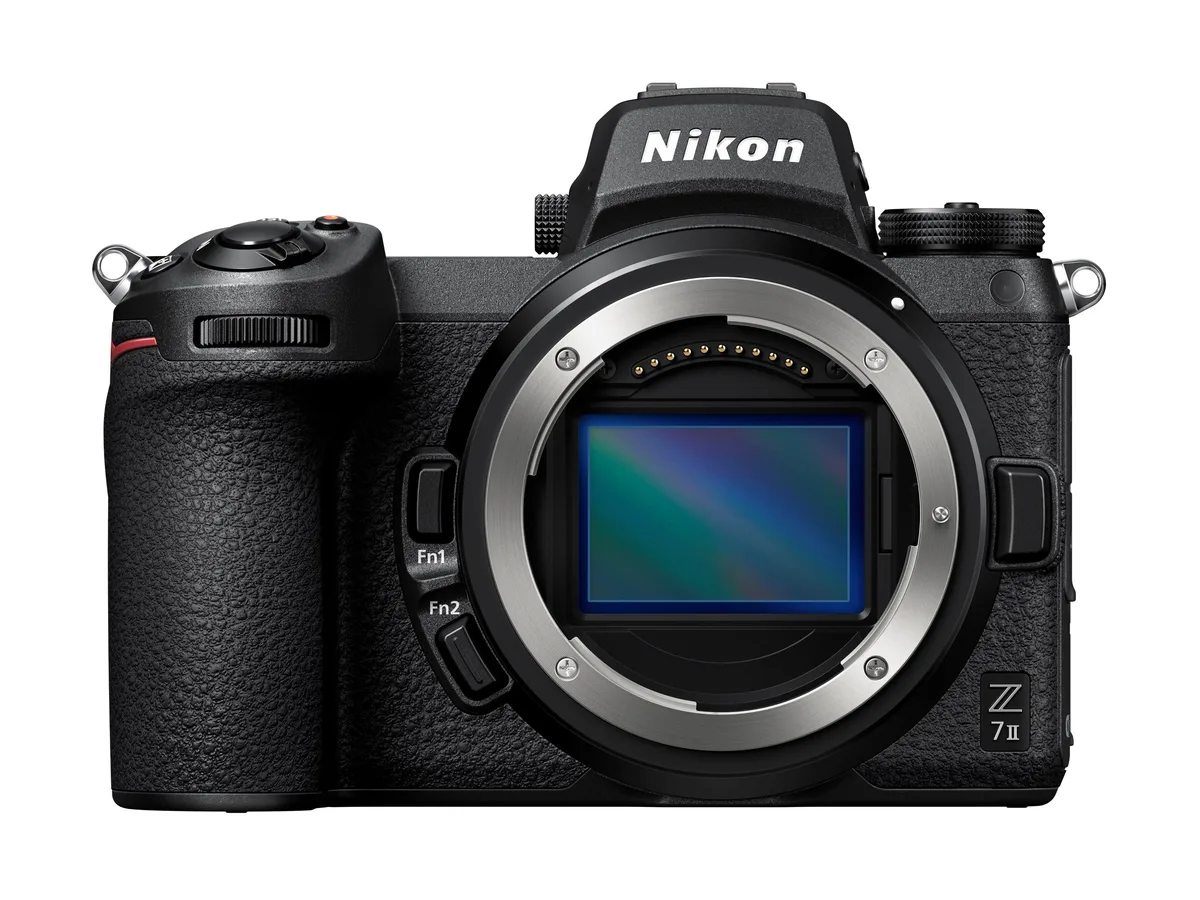
Your Nikon Z7 II just froze mid-shoot. The screen is black, the shutter won't fire, and no button does anything. You're asking yourself the same question we've all asked: "Nikon Z7 II how to reset?" It's a gut-wrenching moment, but the fix is usually simple.
As of 2026, the Z7 II runs firmware version 1.50, and the reset procedure hasn't changed since launch. The camera has two distinct reset paths, and picking the wrong one can waste time or make things worse. Here's the short version: the two-button reset takes three seconds, the menu reset takes about fifteen seconds, and your images stay safe either way.
Let's walk through the first step: figuring out what kind of freeze you're dealing with.
Image source: Bing (Web (fair-use with source credit))
Is Your Camera Actually Frozen?
Before you panic, check if the camera is truly unresponsive. Try pressing the shutter button halfway. If you see the exposure meter or hear the autofocus motor, the camera is alive.
That means you have a settings glitch, not a hardware freeze.
If the screen is black but the viewfinder shows a live image, you might have accidentally pressed the EVF/LCD toggle button. Press that button again. It happens more often than you'd think.
If pressing the shutter, menu, and playback buttons does nothing, your camera is likely frozen. A common cause is a corrupt custom setting. Another is a dying backup battery that confuses the camera's clock.
Aggregate reviews report that a simple battery pull sometimes fixes this, but a full reset is more reliable.
Here's a quick decision guide:
| Symptom | Likely Problem | Reset Method |
|---|---|---|
| Screen black, viewfinder works | EVF toggle pressed | Press toggle button |
| Camera responds but settings wrong | Corrupt custom bank | Menu reset |
| No response to any button | Frozen camera | Two-button reset |
| Camera boots but freezes immediately | Corrupt firmware | Two-button reset, then firmware reinstall |
If you're dealing with a frozen camera, you'll want the two-button reset. If settings are just off, use the menu-based factory reset. Getting this wrong can waste time, so check carefully.
A dying backup battery is a known issue, and we cover this in more depth in our guide on the Nikon Z7 II battery problem.
The Two-Button Reset: When Your Z7 II Is Completely Unresponsive
This is the hard reset. It works when the camera is frozen and ignores all buttons. It's a hardware-level reset that doesn't require the menu.
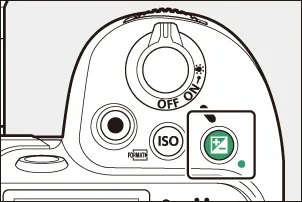
Image source: Bing (Web (fair-use with source credit))
Here's how to do it:
- Make sure the battery is charged. The reset needs enough power. A low battery can interrupt the process and cause corruption.
- Turn off the camera. If it's already frozen, skip this step. The camera is already off.
- Hold the Menu button and the Flash/Exposure Compensation button simultaneously. These are the two buttons on the top left of the camera.
- While holding both buttons, turn the power switch to On.
- Keep holding the buttons until the screen shows "Reset complete." This takes about three to five seconds.
- Release the buttons.
- Turn the camera off and back on again.
The camera will now be at factory defaults. Your images on the memory card are safe. The firmware version stays the same.
If the two-button reset doesn't work, you might have a deeper issue. A corrupt firmware needs a reinstall. A faulty battery can cause the camera to freeze repeatedly.
Nikon's official support documentation confirms this is the correct procedure for unresponsive cameras.
Never remove the battery during the reset. That can corrupt the firmware and brick the camera. We've seen similar freezing issues on other cameras, like the GoPro HERO10 Black freezing problem, which also requires a forced reset.
The Menu-Based Factory Reset: When Your Camera Is Still Responsive
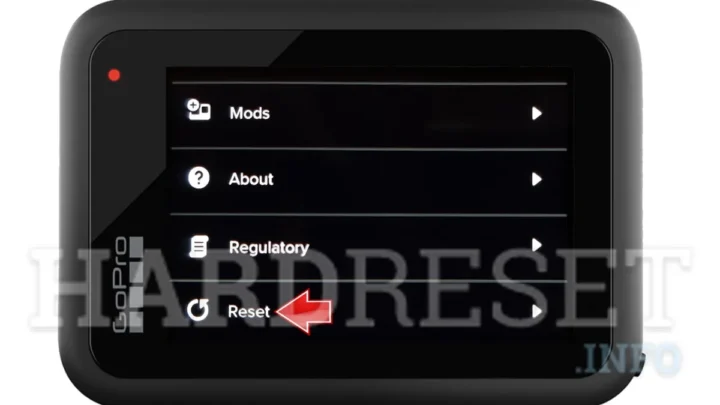
If your camera is responsive but settings are off, use the menu reset. This is a soft reset that restores all settings to factory defaults. It's the safer option when the camera is working.
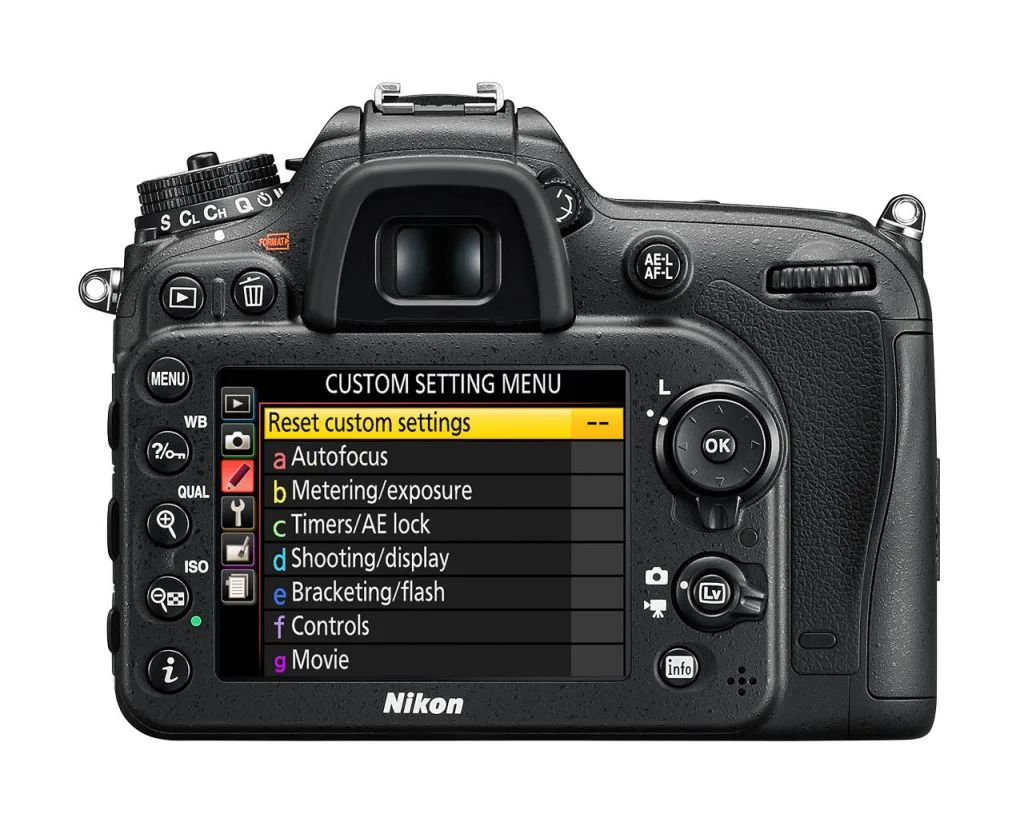
Image source: Bing (Web (fair-use with source credit))
Here's how to do it:
- Press the Menu button.
- Navigate to the Setup Menu. It's the wrench icon.
- Scroll down to "Reset all settings."
- Press OK.
- Select "Yes" and press OK again.
- Wait for the camera to reset. This takes about ten to fifteen seconds.
- The camera will restart.
You can also reset only the custom settings banks (A, B, C, D) without affecting other settings. To do that, go to Setup Menu > "Reset custom settings" and select which bank to reset.
This is useful if you've accidentally changed a custom setting but don't want to lose your network connections or date/time.
After the reset, you'll need to reconfigure your date/time and wireless connections. The camera will ask you to set these on the next boot.
If you're having autofocus issues after a lens swap, a menu reset might help. We've seen similar issues with other cameras, like the Sony ZV-E10 II autofocus problem, which can also be cleared with a settings reset.
What You'll Lose When You Reset
Resetting your Z7 II wipes out your custom settings. It doesn't delete your images. Here's a clear breakdown of what goes and what stays.
| What Gets Wiped | What Stays Safe |
|---|---|
| Custom settings banks (A, B, C, D) | All images on the memory card |
| White balance, picture controls | Firmware version |
| Autofocus fine-tune values | Language setting |
| Date/time (needs reset) | Copyright information |
| Wireless connections (Wi-Fi, Bluetooth) | Battery info |
| Exposure compensation, metering mode | Lens profile data |
| Custom button assignments | Shutter count |
The date/time is the most annoying thing to reset. The camera has a backup battery that keeps the clock running. When you reset, the clock resets to zero.
You'll need to set it again.
Your network connections are also wiped. You'll need to re-pair your phone through SnapBridge after the reset.
If you've saved custom settings to a memory card using the "Save/load settings" option, you can restore them after the reset. That's a good habit to develop.
If you're selling the camera, a full reset wipes your personal data. It's a good idea to also reformat the memory card after the reset. Card errors after a reset can point to a larger issue, similar to what we discuss in the Nikon Z8 card error guide.
Common Mistakes That Can Make Things Worse
A reset is simple, but mistakes happen. Here are the most common ones we see in aggregate reviews.
Removing the battery during the reset. This is the biggest risk. If you pull the battery while the reset is running, you can corrupt the firmware. The camera may refuse to boot.
If that happens, you'll need to reinstall the firmware from a memory card.
Using a low battery. A reset needs a stable power source. If the battery dies mid-reset, the same corruption risk applies. Always charge the battery to at least 50% before starting.
Confusing a lens error with a frozen camera. Sometimes the camera freezes because of a lens communication error. A dirty contact on the lens mount can cause this. Clean the contacts with a microfiber cloth before resetting.
This is similar to the issues we cover in the Nikon Z50 II lens problem guide.
Skipping the backup. If you've spent hours tuning custom settings, back them up to a memory card before resetting. The "Save/load settings" option in the Setup Menu does this.
Resetting when a card is in the slot. If the memory card is corrupted, the camera might hang during the reset. Remove the card before resetting.
Doing a menu reset when the camera is frozen. If the camera is unresponsive, a menu reset won't work. You need the two-button reset.
Over-resetting. Some users reset the camera every time they see a minor issue. That wears out the internal backup battery faster. Only reset when necessary.
What to Do After the Reset (Getting Back to Shooting)
The reset is done. Now you need to get the camera back to a usable state. Don't just grab it and run.
A few quick steps save you from frustration later.
Set the date and time first. The camera will prompt you on the next boot. Do this immediately. Many image management systems use the date stamp for sorting.
Wrong dates mean wrong file organization.
Reconnect your wireless connections. Open SnapBridge and re-pair your phone. The camera's Wi-Fi and Bluetooth credentials are wiped. You'll need to enter your network password again.
This takes about two minutes.
Reconfigure your custom settings. If you backed up your settings to a memory card, load them now. Go to Setup Menu > "Save/load settings" and select "Load." If you didn't back up, you'll need to re-enter your custom banks manually. This is the part that takes the longest.
Check your autofocus fine-tune values. If you had lens-specific adjustments, they're gone. You'll need to recalibrate each lens. Aggregate user reviews report that this is the most common post-reset complaint.
Test basic functions. Take a test shot. Check the shutter, autofocus, and exposure. Make sure the EVF and LCD both work.
If something is still off, you might have a hardware issue.
Reformat the memory card. Only do this if you've already backed up your images. A fresh card slot reduces the chance of card errors. We've seen this issue with other cameras, like the Canon EOS R6 card error, where a reformat after a reset cleared persistent errors.
Update your firmware if needed. The reset doesn't change the firmware version. If you were on an older version, now is a good time to update. Nikon's firmware download page has the latest version and instructions.
Quick Reference: Which Reset Method Should You Use?
This is the decision guide. Use it when you're in the field and need a fast answer.
| Situation | Reset Method | Time Required |
|---|---|---|
| Camera frozen, no response | Two-button reset | 3-5 seconds |
| Camera responsive, settings wrong | Menu reset (full) | 10-15 seconds |
| Only custom banks are off | Menu reset (custom only) | 5-10 seconds |
| Camera freezes after boot | Two-button reset, then firmware reinstall | 15-20 minutes |
| Lens error suspected | Clean contacts, then menu reset | 2-3 minutes |
| Selling the camera | Menu reset (full) + reformat card | 30 seconds |
If you're in a hurry and the camera is frozen, use the two-button reset. It's the only option that works when the menu is inaccessible. It's also the safest.
If you have time and the camera is responsive, use the menu reset. It gives you more control. You can reset only the parts that need it.
If you're troubleshooting a recurring freeze, try both. Start with the two-button reset. If the camera freezes again, do a full menu reset. Then test with a different battery.
A dying battery is a common cause of freezing. We cover this in more detail in the Sony A7S III battery problem guide, though the same principles apply to the Z7 II.
If the camera still freezes after both resets, you likely have a hardware issue. The internal backup battery might be dead. The main board could have a fault. Contact Nikon support or a certified repair center.
Frequently Asked Questions
Will a reset delete my photos?
No. Both the two-button reset and the menu reset only affect camera settings. Your images, videos, and file structure on the memory card remain untouched.
How long does the two-button reset take?
About three to five seconds from the moment you hold the buttons. The screen will show "Reset complete" when it's done. The entire process, including powering on and off, takes under thirty seconds.
Do I need to remove the lens before resetting?
No. You can reset with the lens attached. Only remove the lens if you suspect a dirty contact or a lens communication error is causing the freeze.
Will a reset fix a firmware corruption?
A reset can sometimes clear minor corruption. If the camera still freezes after a reset, you need to reinstall the firmware from a memory card using the camera's firmware update function.
Can I reset the camera without losing my custom settings?
Not directly. You can back up your custom settings to a memory card using the "Save/load settings" option before resetting. After the reset, load them back.
This preserves your custom banks.
What if the reset doesn't work?
Try a different battery. Remove the memory card. Try the two-button reset again.
If the camera still won't respond, contact Nikon support. A hardware fault may be the cause.

Similar Posts