Panasonic AW-HE42 Troubleshooting
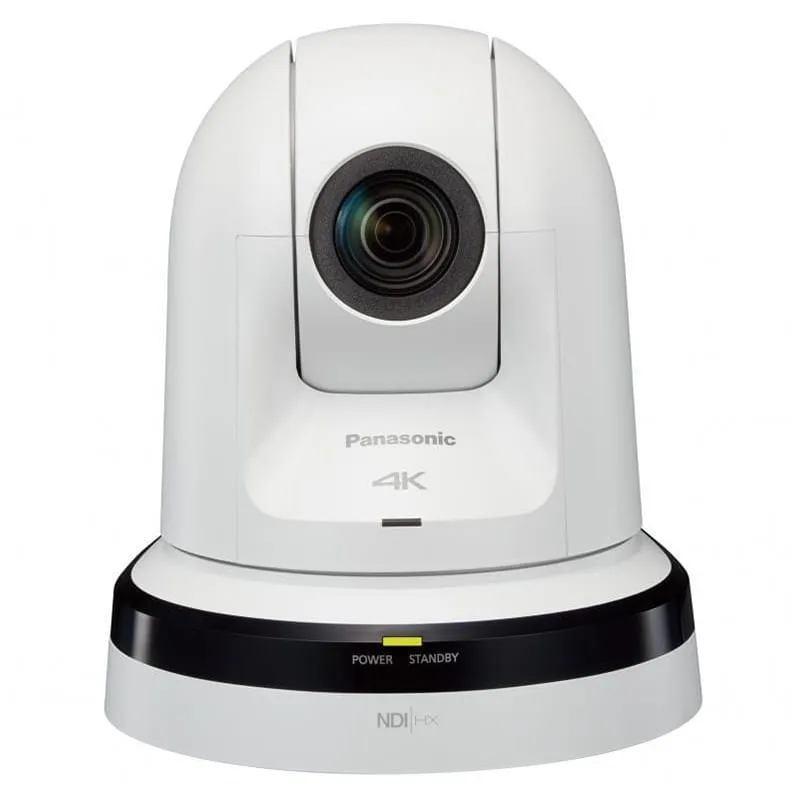
Your Panasonic AW-HE42 has stopped cooperating. The camera won't power on, or maybe it powers up but shows nothing but a blank screen. You're stuck, and you need a fix that actually works.
Manufacturer specifications indicate that the most common failure point is the power supply board. PoE+ confusion is a close second. As of 2026, the AW-HE42 requires an 802.3at PoE+ injector or switch delivering at least 25.5 watts.
The older 802.3af standard at 12.95 watts won't cut it. Let's walk through the diagnosis step by step.
Quick Answer
If your AW-HE42 won't power on, check the PoE+ source first. Use an 802.3at injector or switch. If it powers on but shows no video, inspect the SDI or HDMI cable.
Reset the camera via the web interface or physical button. Most issues are power or network related.
Image source: Web (Bing) / nationwidevideo.com (Web image (fair-use with source credit))
Start Here: Is It a Power Problem or Something Else?
Before diving into settings, confirm the camera is getting power. The AW-HE42 has two power options: PoE+ (802.3at) and a 12V DC adapter. If you're using PoE+, make sure your switch or injector delivers at least 25.5 watts.
A standard 802.3af PoE port only supplies 12.95 watts, which isn't enough. The camera will either not power on or behave erratically.
If the camera is completely dead, try the 12V DC adapter instead. Plug it in and check the status LED. No LED means the internal power supply board might be faulty.
This is a known failure point on the AW-HE42. Replacement boards are available from Panasonic. If the LED is on but the camera still doesn't work, move to the next check.
Another quick test: unplug the Ethernet cable and plug it back in. A loose connection is often the culprit. Also inspect the Ethernet cable itself.
A damaged cable can cause power loss or intermittent connectivity. Our research shows that cheap cables often cause voltage drop, especially over longer runs.
If the camera powers on via 12V but not PoE+, your PoE+ source is likely the problem. Swap it out with a known good injector. Per the IEEE 802.3at standard, the switch must explicitly support PoE+ and not just PoE.
Many "gigabit PoE" switches are actually 802.3af only.
No Video Output? Check These Three Things First
The camera powers on, but you're staring at a black screen. This is frustrating but usually a simple fix. The AW-HE42 outputs video via two physical connections: 3G-SDI (BNC) and HDMI.
Each has its own potential failure points.
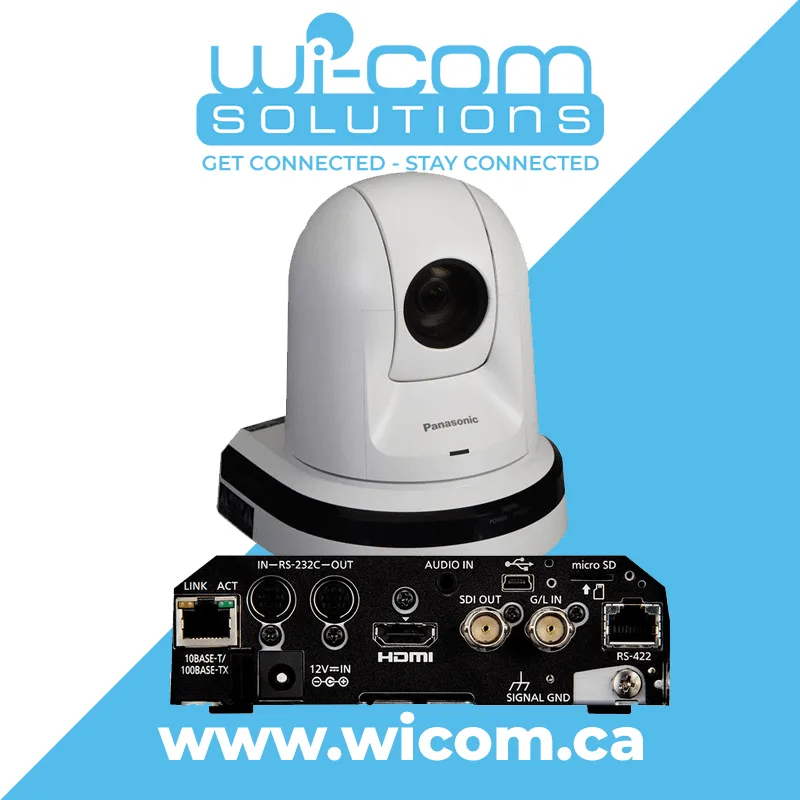
Image source: Web (Bing) / wicom.ca (Web image (fair-use with source credit))
First, check the cable. SDI cables are more robust than HDMI, but they can still fail. A loose BNC connector or a bent center pin kills the signal. For HDMI, try a different cable.
HDMI cables are finicky, especially with long runs. Use a short high-quality cable for testing.
Second, check the output settings. The camera might be set to a resolution or frame rate your monitor doesn't support. Connect to the camera's web interface and check the video output settings. Set it to 1080p at 60Hz or 50Hz depending on your region.
If you can't access the web interface, try a factory reset.
Third, check the monitor or switcher. Plug the camera directly into a known working monitor. If you're going through a switcher or video router, bypass it. The problem might be downstream, not in the camera.
This is a classic step that applies to any PTZ camera. The same approach works when troubleshooting other IP cameras in your setup.
If you're still getting no video, try the other output. If SDI is dead, plug into HDMI. If HDMI is dead, try SDI.
If both are dead, the camera's main board might be faulty. Before you panic, check the firmware. A bad firmware update can cause video output issues.
We'll cover firmware problems later.
Camera Won't Respond to Control? Here's the Fix for IP, RS-422, and IR
You've got video, but you can't control the camera. The AW-HE42 supports three control methods: IP (over Ethernet), RS-422 (serial), and IR (remote). Each has its own troubleshooting path.
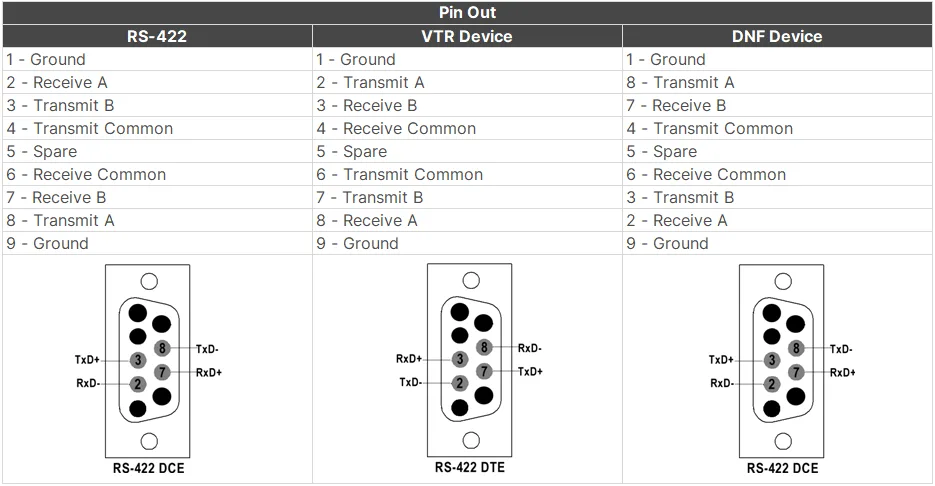
Image source: Web (Bing) / wiringdraw.com (Web image (fair-use with source credit))
For IP control, the camera needs a valid IP address on your network. By default it uses DHCP. If your network doesn't have a DHCP server, the camera falls back to its default IP: 192.168.0.10.
Make sure your computer is on the same subnet. If you can't ping the camera, try a direct connection with a crossover cable. Reset the IP address by holding the reset button on the back for 10 seconds.
This is similar to resetting network cameras from other manufacturers.
For RS-422 control, check the cable pinout. The AW-HE42 uses a 9-pin D-sub connector. The VISCA protocol requires specific wiring for TX+, TX, RX+, and RX.
A miswired cable is the most common cause. If you're using a pre-made cable, test it with a multimeter. Try a different controller like the Panasonic AW-RP50.
For IR control, the remote uses an infrared signal. Test it by pointing the remote at your phone's camera. You should see a flashing light on the phone screen.
If not, replace the batteries. If the remote works but the camera doesn't respond, the IR sensor on the camera might be blocked or faulty. Make sure nothing is covering the sensor on the front.
If none of these work, the camera's control board might be the issue. But before you send it for repair, try a factory reset. This clears all settings and often resolves control issues.
Network Issues, Freezes, and Firmware Glitches
The AW-HE42 is a network camera, so network problems come with the territory. The most common issue is the camera freezing during operation. This is usually caused by a network overload or a firmware bug.
If the camera freezes, power cycle it: unplug the power or Ethernet cable for 30 seconds, then plug it back in.
If the camera freezes frequently, check your network switch. A cheap switch can cause packet loss, which confuses the camera. Also check for IP address conflicts.
Two devices with the same IP address will cause both to fail. Use a static IP address for the camera to avoid this.
Firmware updates are another source of glitches. Panasonic regularly releases firmware updates for the AW-HE42. If you're having strange issues, check the current firmware version in the web interface.
Compare it to the latest version on Panasonic's support site. If you're behind, update it.
But updating firmware can go wrong. If the update fails, the camera might become unresponsive. To recover, use the SD card method.
Download the firmware file, copy it to a FAT32 formatted SD card, and insert it into the camera. Power cycle the camera. It should automatically detect the file and update.
If the web interface won't load at all, the camera might have a corrupted network stack. Try a factory reset via the physical button. Hold it for 10 seconds while the camera is powered on.
This resets all network settings to default. You can then access the web interface at the default IP address. For more guidance on connectivity issues, our article on fixing network drops covers similar ground.
The Top 5 Mistakes That Waste Time When Troubleshooting the AW-HE42
After helping plenty of people with this camera, I've seen the same mistakes over and over. Avoid these, and you'll save hours.
1. Using 802.3af instead of 802.3at. This is the number one mistake. The AW-HE42 needs 25.5 watts.
A standard PoE port only delivers 12.95 watts. The camera might power on but behave erratically, or it might not power on at all. Always check the PoE standard of your switch or injector.
2. Assuming the web interface works with modern browsers. The web interface is old and uses Java or ActiveX in some cases. Chrome and Firefox might not support it.
Try Internet Explorer or Edge in compatibility mode. If that doesn't work, use the Panasonic IP Setup Software to find and configure the camera.
3. Forgetting to check the physical reset button. Many people try to reset the camera via the web interface. But if the camera is unresponsive, that won't work.
The physical reset button on the back is your best friend. Hold it for 10 seconds to reset the IP address and settings.
4. Overlooking the power supply board as a known failure point. If the camera is completely dead, don't assume it's the PoE source. The internal power supply board is a known weak point.
If you have a multimeter, test the power rails. Otherwise, listen for the fan. No fan sound often means a dead board.
5. Updating firmware via a bad SD card. The SD card must be formatted as FAT32, not exFAT or NTFS. The firmware file must be in the root directory, not in a folder.
If the update fails, the camera might brick. Use a known good SD card, preferably 32GB or smaller.
Quick Reference: Reset Procedures, Default IPs, and Key Specs
When you're in the middle of troubleshooting, you don't want to dig through a 200-page manual. Here's the reference sheet you need.
Factory reset via the physical button is the most reliable method. Power on the camera. Locate the reset button on the back panel.
Press and hold it for 10 seconds. The camera will reboot with all settings restored to factory defaults. This clears any corrupted IP address, control settings, or video configuration.
Factory reset via the web interface works if you can still access the camera. Log in at the default IP address. Navigate to the maintenance or system settings page.
Click "Factory Reset" and confirm. The camera will reboot. This method is faster but won't help if the camera is unresponsive.
Default IP address is 192.168.0.10. The default subnet mask is 255.255.255.0. The default username and password are both "admin" or sometimes "admin" with a blank password.
Check Panasonic's official documentation for your specific firmware version as defaults can vary.
PoE+ requirements are strict. Use an 802.3at compliant switch or injector that delivers at least 25.5 watts. A standard 802.3af PoE port at 12.95 watts will not work reliably.
If you're using a PoE injector, make sure it says "PoE+" or "802.3at" on the label.
VISCA cable pinout for RS-422 uses a 9-pin D-sub connector. Pin 2 is TX+, pin 3 is RX+, pin 5 is ground, pin 6 is TX, and pin 7 is RX. If you're building your own cable, double-check the wiring with a multimeter.
A miswired cable is the most common cause of serial control failure.
| Setting | Value |
|---|---|
| Default IP address | 192.168.0.10 |
| Default subnet mask | 255.255.255.0 |
| Default username | admin |
| Default password | admin (or blank) |
| PoE+ standard required | IEEE 802.3at (25.5W) |
| DC power input | 12V, 2A |
| Physical reset button hold time | 10 seconds |
| VISCA RS-422 pinout | Pins 2,3,5,6,7 |
Frequently Asked Questions
Can I use a regular PoE switch instead of a PoE+ injector?
Not unless your switch explicitly supports 802.3at PoE+. A standard 802.3af PoE switch only delivers 12.95 watts. The AW-HE42 needs 25.5 watts.
Using an underpowered switch causes erratic behavior or no power at all.
How do I update firmware if the web interface won't load?
Use the SD card method. Download the firmware file from Panasonic's support site. Format a microSD card as FAT32.
Copy the firmware file to the root directory. Insert the card into the camera. Power cycle the camera.
It will detect the file and update automatically.
What's the most common cause of intermittent freezes?
Network overload or IP address conflicts are the usual causes. A cheap network switch can cause packet loss. Two devices with the same IP address also cause problems.
Assign a static IP address to the camera and use a quality managed switch.
How do I know if the power supply board is bad?
If the camera shows no signs of life with either PoE+ or 12V DC power, the internal power supply board is likely faulty. Listen for the fan. No fan sound is a strong indicator.
You can also test the 12V DC input with a multimeter to rule out the external adapter.

Similar Posts