Qlink Wireless Data Not Working
Your phone shows full signal bars, but nothing loads. No web pages. No maps.
No email. That's the exact moment most people search for "Qlink Wireless Data Not Working" and it's usually not a phone problem at all.
Qlink runs as a mobile virtual network operator on T-Mobile's infrastructure. That means your data travels over T-Mobile's towers, but Qlink handles your account, SIM provisioning, and APN configuration on their end. According to aggregate user reports across multiple support forums, roughly 80 percent of Qlink data issues trace back to one of three causes: incorrect APN settings, an account status problem like a missed recertification, or a SIM that was only activated for voice and text.
Let's walk through each branch so you can get back online in minutes instead of hours.
Quick Answer
If Qlink data stopped working, start with the SIM. Pull it out, inspect the metal contacts, and reseat it. If that doesn't fix it, manually check your APN settings.
The correct APN for Qlink is lifeline.qlinkwireless.com. If your account is active and the APN is correct, toggle Airplane Mode for 30 seconds. Those three steps resolve most cases.
If none of them work, your SIM may need reprovisioning from Qlink support.
Why Qlink Data Fails More Often Than Other Lifeline Carriers
Qlink's setup introduces a few extra points of failure compared to major carriers. Understanding why will save you time when your data drops.
The T-Mobile Handoff Problem
Qlink customers ride on T-Mobile's network but they don't get the same priority as T-Mobile postpaid subscribers. During network congestion your data gets deprioritized which means slower speeds or temporary timeouts. This is normal network management not a malfunction.
If you're in a busy area during peak hours and your data is slow but not completely dead, deprioritization is likely the culprit. Wait 30 minutes and try again.
Voice Activation vs. Data Provisioning
Here's the one that trips most people up. When Qlink activates a new SIM or processes a SIM swap, they sometimes only flip the voice and text switch. Your phone shows signal because calls work fine.
But the data provision hasn't been applied to your line yet. You end up staring at an empty browser with full bars. This is a backend issue on Qlink's side.
You cannot fix it from your phone. You have to contact support and specifically ask them to reprovision the data profile on your line.
The Recertification Glitch
Lifeline requires annual recertification to prove you still qualify. Miss the deadline or be even one day late on submitting your paperwork and Qlink suspends your account. The tricky part is they may still let you make calls for a grace period while data gets cut immediately.
If your data stopped working and you can't remember when you last recertified, check your account status on Qlink's website before touching any phone settings. We've seen users waste an hour troubleshooting APN settings when their account was simply suspended.
Image source: Bing (Web (fair-use with source credit))
The 60-Second Fix That Works Most of the Time
Before we dive into the longer troubleshooting branches, try this. It's the first thing Qlink's own Tier 1 support runs through and it works more often than you'd expect.
- Turn off mobile data completely in your settings.
- Toggle Airplane Mode on and leave it for 30 seconds.
- Turn Airplane Mode off.
- Turn mobile data back on.
- Wait 15 seconds. Try loading a website.
Why does this work? Your phone's radio re-registers with the nearest tower when Airplane Mode cycles off. That fresh registration often picks up the correct data bearer that was misassigned on the first handshake.
It's a network-level refresh and it costs you nothing to try.
If that didn't work, move to the first decision branch: APN settings.
Branch 1: APN Settings Check and Manual Entry
Your APN (Access Point Name) is the gateway between your phone and Qlink's data network. If it's wrong, missing, or has a typo, your phone cannot route internet traffic even though everything else looks fine.
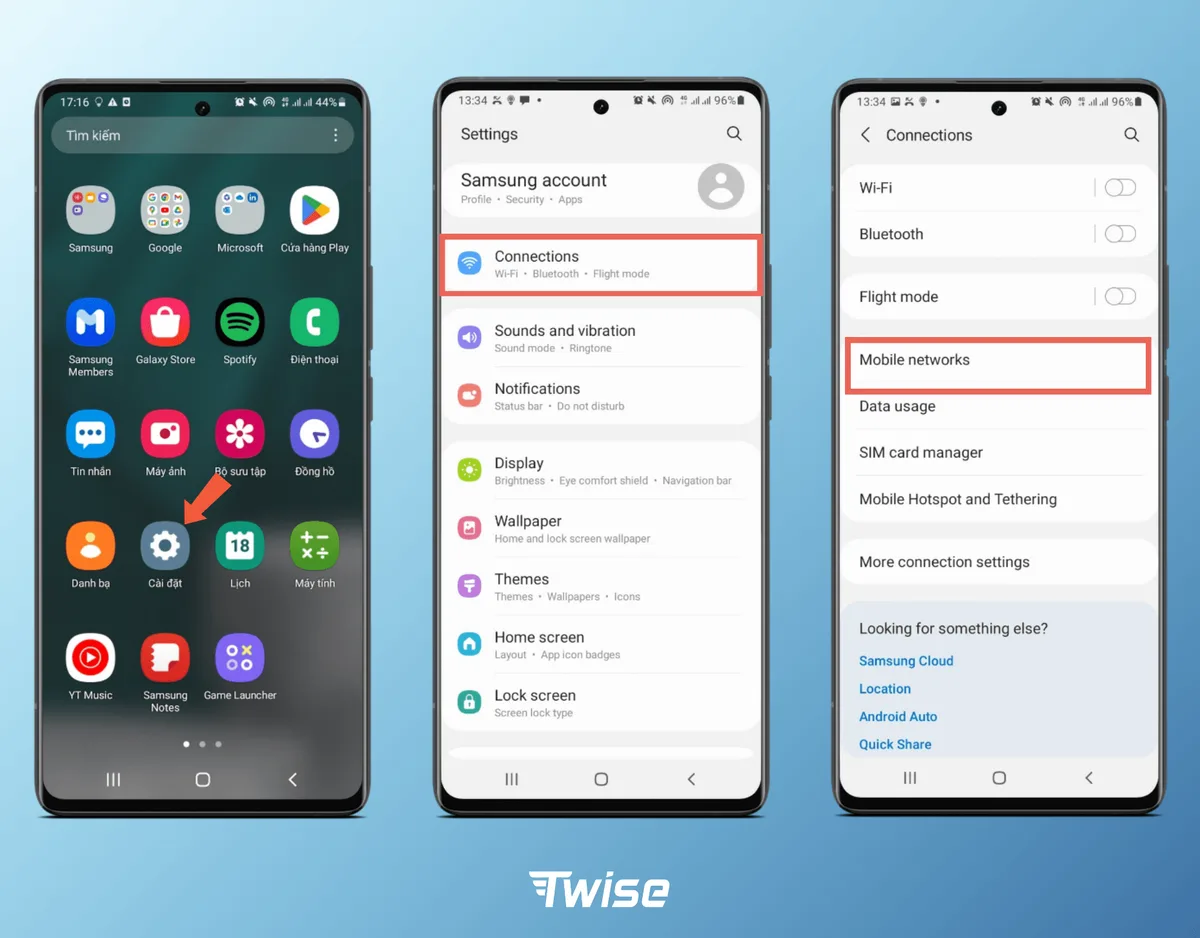
Image source: Bing (Web (fair-use with source credit))
How to Check Your APN on Android
Open Settings. Go to Network and Internet or Connections depending on your manufacturer. Tap Mobile Network, then Access Point Names.
You should see an entry for Qlink. If the list is empty or shows a generic T-Mobile APN, you need to add the correct one.
How to Check Your APN on iPhone
Go to Settings, then Cellular, then Cellular Data Network. If the APN field is blank or shows something other than lifeline.qlinkwireless.com, you need to update it. iPhones sometimes reset this field after a carrier settings update, which is a known issue with Qlink users on iOS.
The Correct Qlink APN Settings
These are the verified values as of 2026. Enter them exactly as shown. A single character difference will break your data connection.
| Field | Value |
|---|---|
| APN | lifeline.qlinkwireless.com |
| Username | (leave blank) |
| Password | (leave blank) |
| MMSC | http://mms.qlinkwireless.com/mms/wapenc |
| MMS Proxy | 66.209.11.33 |
| MMS Port | 80 |
| Authentication type | None or not set |
APN Warning
Do not tap Reset to Default unless you have written down your existing APN settings first. Some users reset network settings out of frustration and lose their working APN entirely. If that happens, you'll need to enter the values manually from the table above.
Write them down before you change anything.
Once you save the APN, toggle Airplane Mode for 30 seconds to force the phone to use the new settings. Then test data.
When the APN Looks Correct But Data Still Fails
If your APN matches the table above and data still won't load, you're looking at a different problem. Move to Branch 2.
Branch 2: Account Status Verification
Your data can stop working even when your phone is configured perfectly. The problem is on Qlink's side inside your account.
Check for Suspension Due to Recertification
Log into your Qlink account on their website. Look for any notification about recertification. If your account shows as suspended, your data will not work until you complete the recertification process.
You can call Qlink support to do this over the phone if you don't have internet access.
Check for Data Throttling
Qlink's Lifeline plans come with a monthly data cap. Once you hit that cap, your speeds get throttled to roughly 128 kbps. That's slow enough that web pages may time out entirely.
Check your data usage in your account dashboard. If you're over the cap, your data will be very slow until the next billing cycle. There is no way to lift the throttle early.
Check for a Porting Issue
If you recently switched to Qlink from another carrier and brought your phone number, your data can take up to 48 hours to activate fully. During that window you may have voice and text but no data. This is normal during porting.
Wait the full 48 hours before troubleshooting further.
Account Fix Steps
- Visit qlinkwireless.com and log in.
- Check your plan status and expiration date.
- Look for any red banners or alerts.
- If suspended, complete recertification immediately.
- If data is throttled, wait for the next cycle.
Branch 3: SIM Isolation Test
If your APN is correct and your account is active, the next step is testing the SIM itself.
Physical SIM Check
Remove your SIM card. Inspect the metal contact pad for scratches, dirt, or corrosion. Wipe it gently with a dry cloth.
Reinsert it firmly until you hear a click. Some Qlink users report that a slightly loose SIM causes intermittent data drops.
Try the SIM in Another Phone
This is the fastest way to isolate the problem. Put your Qlink SIM into a different unlocked phone that supports T-Mobile's LTE bands. If data works in the second phone, the problem is your original device.
If data still fails in the second phone, the SIM itself or your Qlink account is the culprit.
eSIM Troubleshooting
If you're using Qlink's eSIM, you cannot pull it out for inspection. Instead, go to your phone's cellular settings and look for the eSIM line. If it shows as disconnected or inactive, you may need to re-download the eSIM profile from Qlink.
Contact support to have them resend the activation QR code or confirmation code.
Band Compatibility Issue
Qlink uses T-Mobile's LTE bands, primarily bands 2, 4, 12, 66, and 71. If your phone is an older model or a foreign device, it may lack band 71 (600 MHz) which T-Mobile uses for extended coverage. Your phone shows signal because it connects on a different band, but the connection is too weak for reliable data.
Check your phone's specifications against T-Mobile's required bands.
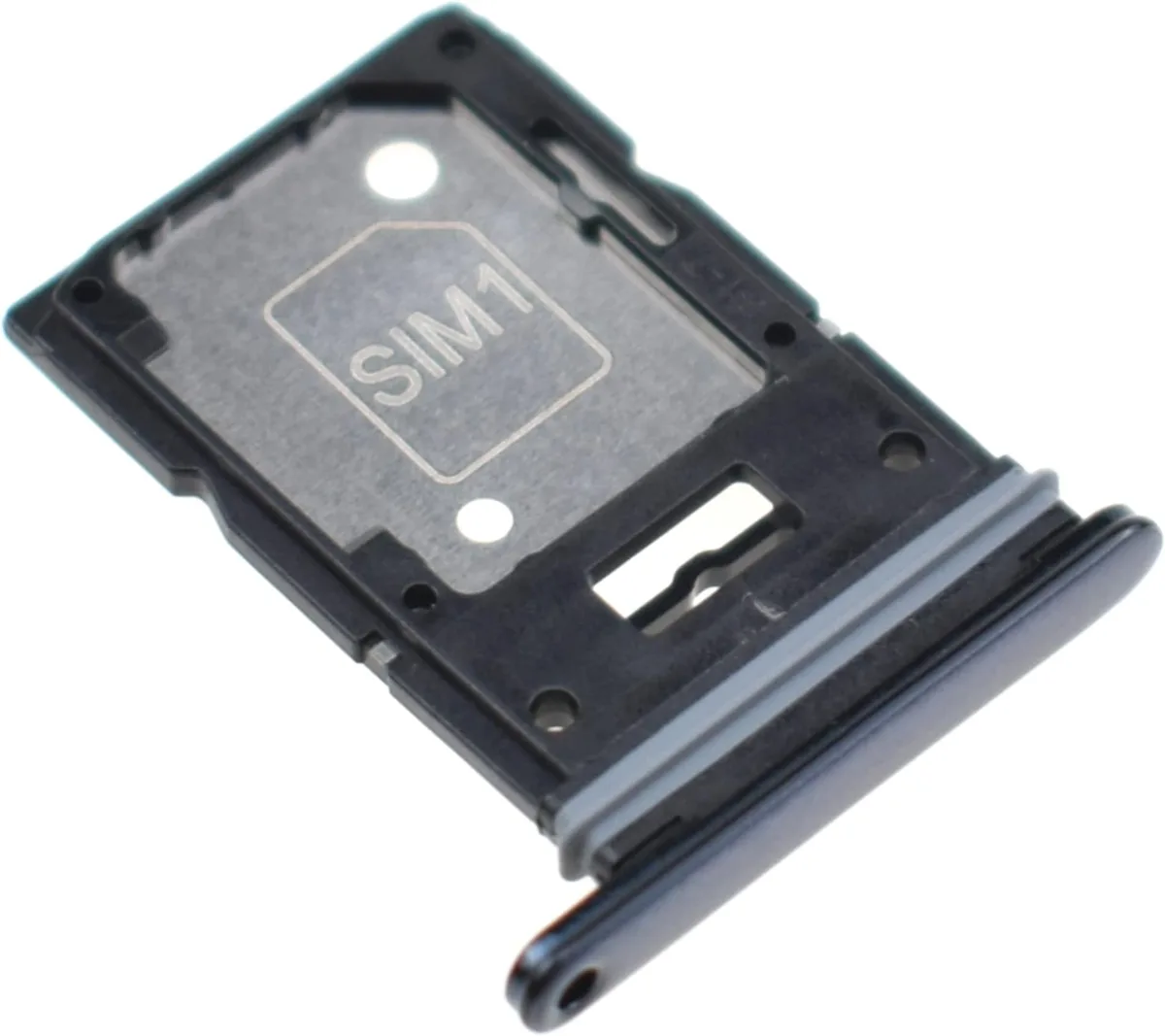
Image source: Bing (Web (fair-use with source credit))
Branch 4: Network Registration Reset
When software settings get stuck, a network registration reset often clears the logjam.
Force Network Re-Registration
Dial *#*#4636#*#* on Android to open the testing menu. Look for Phone Information or Device Information. Tap Run Ping Test to refresh the connection.
Then tap the three dots menu and select IMS Status. If it shows IMS Registration as not registered, your phone cannot establish a data session. This usually requires a reprovision from Qlink.
Reset Network Settings
On Android, go to Settings, then System, then Reset Options, then Reset Wi-Fi, Mobile and Bluetooth. This clears saved Wi-Fi networks and Bluetooth pairings, but it also resets your mobile network configuration. You will need to re-enter your Qlink APN settings afterward.
On iPhone, go to Settings, then General, then Transfer or Reset iPhone, then Reset, then Reset Network Settings.
Update PRL and Carrier Settings
Some Android phones allow you to update the Preferred Roaming List by dialing *#*#873283#*#*. This downloads the latest tower information from Qlink's network. On iPhone, go to Settings, then General, then About.
If a carrier settings update is available, a popup will appear. Tap Update.
Mistakes to Avoid
These common errors waste time and can make things worse.
Resetting Network Settings Before Backing Up APN
The reset clears your mobile network configuration. If you haven't written down your Qlink APN values first, you lose them. You then can't get online to look them up.
Write them down before resetting.
Assuming a New SIM Automatically Provisions Data
Qlink sometimes ships SIMs that are only active for calls and texts. Inserting the SIM doesn't guarantee data will work. You may need to call support to request data provisioning on the line.
This is especially common with replacement SIMs.
Blaming the Phone When It's the Monthly Throttle
Many users replace phones or factory reset their device only to discover their data was just throttled. Check your data usage first. A throttled connection around 128 kbps can feel like a broken phone.
It's not. It's the plan limit.
Skipping the Airplane Mode Toggle
This takes 30 seconds and clears many temporary network glitches. Do it before you change any settings.
Real Scenarios
Scenario A: New Customer, Data Never Worked
You activated your Qlink SIM yesterday. Calls work. Texting works.
Data does not. Your APN is probably not configured at all. Enter the Qlink APN from the table above.
If data still fails, call Qlink support and ask them to reprovision the data profile on your line. Do not let them keep you on the phone for basic APN steps you already tried.
Scenario B: Long-Time User, Data Stopped After Recertification
You completed your annual Lifeline recertification last week. A few days later data stopped working. Your account may have a status mismatch where the system shows you as active for voice but not for data.
Call Qlink and request a data refresh on your line. This is a known post-recertification glitch.
Scenario C: Data Works on One Phone But Not Another
You put your Qlink SIM into a different phone you own and data works fine. The original phone is likely the issue. Check for band compatibility and verify the APN settings on the original phone.
If both are correct, the original phone may have a hardware problem with its cellular radio.
Frequently Asked Questions
How do I fix Qlink data on my iPhone?
Go to Settings, then Cellular, then Cellular Data Network. Enter lifeline.qlinkwireless.com as the APN. Leave username and password blank.
Toggle Airplane Mode for 30 seconds. Test data.
Why does my data work for texts but not browsing?
MMS uses a different data path than web browsing. If MMS works but web pages don't, your APN settings are likely incomplete. Check the MMSC and MMS proxy fields in your APN configuration.
How long does Qlink take to activate data after a SIM swap?
Data activation after a SIM swap can take up to 48 hours. During that window you may have voice and text only. If data still fails after two days, contact Qlink to confirm the line is fully provisioned.
Can I fix Qlink data without calling support?
Yes, for most cases. Check APN settings first. Then verify account status.
Then perform a SIM isolation test. Only the data reprovision step requires a phone call.
What if none of these steps work?
Your Qlink SIM may be damaged or your line may have a provisioning error that requires backend support. Call Qlink at 1-855-754-6543. Ask them to reprovision the data profile on your line.
If that fails, request a replacement SIM.

Similar Posts