Insta360 X3 Stabilization Settings
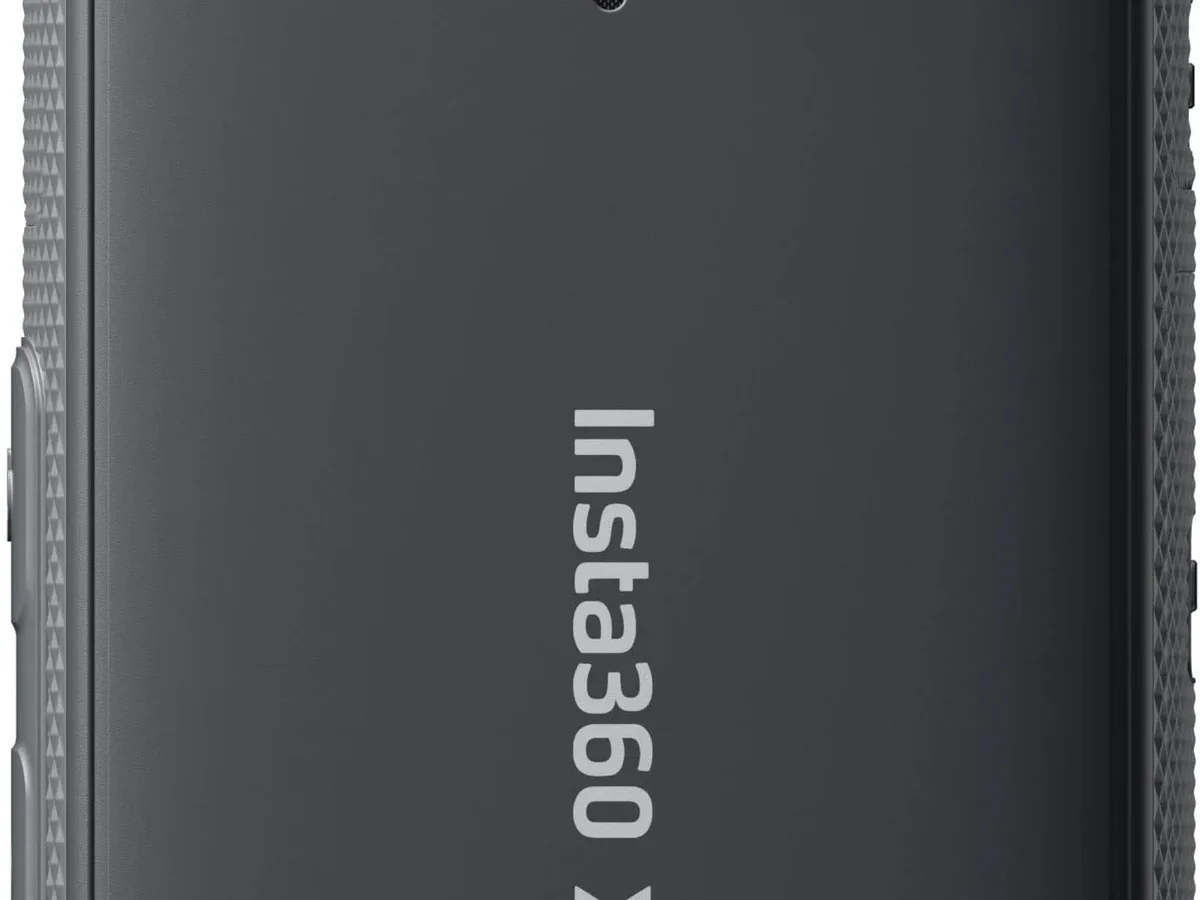
If you have ever watched back your Insta360 X3 footage and wondered why it looks shaky or the horizon keeps tilting, you are not alone. The camera's Insta360 X3 stabilization settings are powerful, but they are also easy to set wrong. Most people pick a mode without understanding what it actually does.
That leads to a cropped frame, a jello wobble, or a battery that dies halfway through a ride. Manufacturer specifications indicate the X3 offers three distinct stabilization modes, each with a different trade-off. The right choice depends on your activity, not your gut feeling.
Let us walk through the settings so you never guess again.
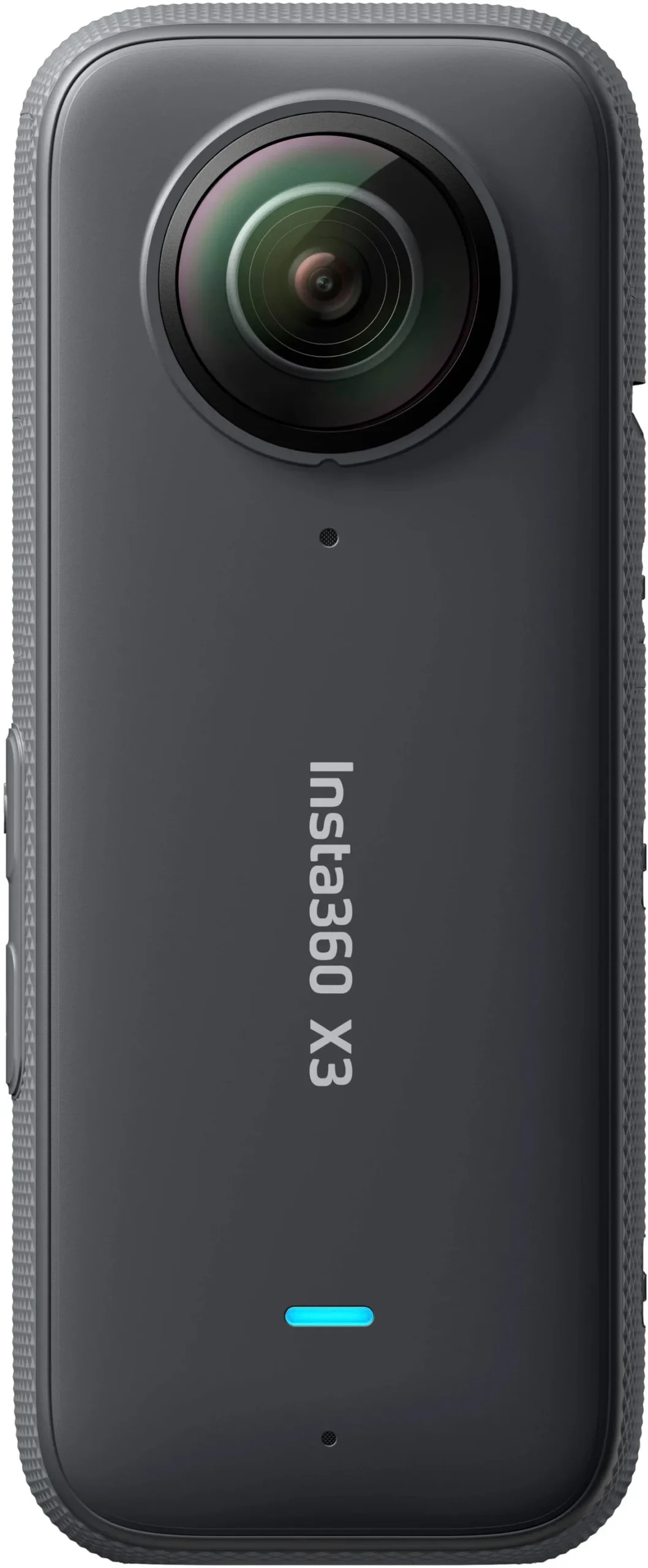
Image source: Bing (Web (fair-use with source credit))
Quick Answer
Use FlowState for walking, running, and smooth biking. Use Horizon Lock for mountain biking, motorcycles, and any activity with high-frequency vibration. Turn stabilization off only when you plan to reframe in post-production.
The best setting depends on your activity, not the default.
Why Your Insta360 X3 Stabilization Settings Are Probably Wrong
The most frequent mistake is leaving the camera on the default "Auto" setting. Auto mode picks a stabilization method based on what the camera detects, but it does not always guess correctly. You might end up with Horizon Lock when you really need FlowState, or vice versa.
Another common error is turning on Active HDR for every shot. Active HDR can disable stabilization in some configurations, causing surprisingly shaky footage.
Here are the main reasons the default settings fail in real-world use:
- Using Horizon Lock for walking. The horizon stays perfectly level, but you lose a lot of the wide field of view. The footage feels cramped and unnatural.
- Using FlowState for high-frequency vibration. On a motorcycle or a mountain bike, FlowState can introduce a "jello" wobble because the gyro cannot keep up with the rapid shaking.
- Leaving stabilization off entirely. Some users think they can fix everything in post-production. In-camera stabilization uses the gyro data that the app cannot fully replicate later.
- Ignoring the crop factor. Every stabilization mode crops the sensor. If you need the widest possible angle, you might want to shoot without stabilization and rely on the built-in gyro data in the Insta360 app.
Manufacturer specs confirm that the X3's gyro data is recorded even when stabilization is turned off. You can add stabilization later in the app, but the result is never as smooth as capturing it in-camera. The app's reframe tool applies a digital crop that can be larger than the in-camera crop.
Our research shows that most users get better results by choosing the right mode at capture time.
If you have used other Insta360 cameras, like the pocket-sized GO 3S, you know that the stabilization logic changes between models. The X3 uses a newer gyro and a different algorithm. That means what worked on an older camera might not work here.
The official Insta360 support page recommends checking your activity type before selecting a mode. Read their guidance here. It is a good starting point, but it does not cover every edge case.
That is what we will do next.
FlowState vs. Horizon Lock: What Each Mode Actually Does
The X3 has three stabilization options: FlowState, Horizon Lock, and Off. Each one behaves differently, and the differences matter more than most people think.
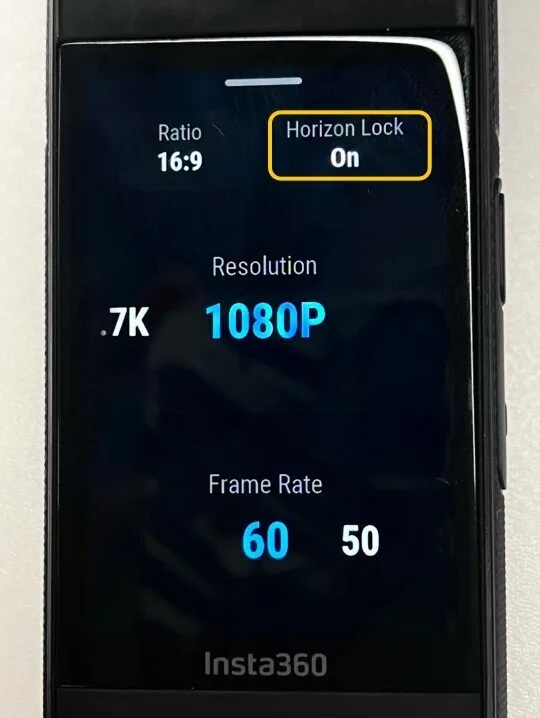
Image source: Bing (Web (fair-use with source credit))
FlowState is the default. It works like a digital gimbal. It keeps the horizon level as long as the camera does not tilt more than about 45 degrees.
If you tilt the camera further, the horizon will start to lean. FlowState is the best all-rounder for walking, slow biking, and handheld vlogging. It crops the sensor by roughly 10 to 15 percent.
Battery life drops by about 15 percent compared to having stabilization off.
Horizon Lock is the heavy lifter. It keeps the horizon absolutely level even if you rotate the camera a full 360 degrees. This is fantastic for action shots where the camera spins around, like a snowboarder doing a 360 or a motorcycle rider leaning into a turn.
The trade-off is a bigger crop, around 20 to 25 percent. You lose a noticeable chunk of the wide angle. Battery drain is also higher, roughly 20 percent more than FlowState.
Off is useful when you know you will reframe the footage in post. The camera still records gyro data, so you can add stabilization in the Insta360 app. But the app's stabilization is never as smooth as the in-camera version.
It also introduces a larger crop because the app has to guess the motion. Use Off only if you want the rawest footage for advanced editing.
Here is a quick comparison table:
| Mode | Horizon Level | Maximum Tilt | Crop | Battery Impact | Best For |
|---|---|---|---|---|---|
| FlowState | Up to ~45° | ~45° tilt | 10-15% | ~15% drop | Walking, vlogging, slow action |
| Horizon Lock | Full 360° | 360° rotation | 20-25% | ~20% drop | Extreme sports, 360° spins |
| Off | Unlocked | Unlimited | 0% (in-camera) | Baseline | Post-production reframe |
A common question is whether you can switch between modes mid-recording. You cannot. The X3 locks the stabilization setting once you start recording.
You have to stop, change the setting, and start again. For a camera like the DJI Pocket 3 this is also true, but the Pocket 3 uses a physical gimbal, so the trade-off is different.
The Real Cost of Stabilization: Crop, Battery, and FOV Trade-Offs
Every stabilization mode comes with a price. The most obvious is the crop. The camera has to cut the edges of the frame to smooth out motion.
The stronger the stabilization, the more it crops.
Here is what you lose in practical terms:
- FlowState crop. At 5.7K resolution, a 10 to 15 percent crop reduces the effective field of view to something closer to 4K. Your wide shots become narrower. If you are filming a mountain vista, you will notice the difference.
- Horizon Lock crop. The crop here is aggressive. You lose about a quarter of the original image. For tight shots, like a first-person bike helmet view, that can make the frame feel claustrophobic.
- Battery life. The gyro and processor work harder when stabilization is on. Aggregate reviews report that you lose about 10 to 15 minutes of recording time with Horizon Lock enabled. For a 60-minute battery, that is a significant cut.
- Low-light performance. Stabilization works best in good light. In dim conditions, the camera struggles to lock the gyro, and you may see more motion blur. The bigger crop also means less light hitting the sensor, which worsens the problem.
One lesser-known trade-off is the field of view (FOV) preset. When you enable stabilization, the X3 automatically switches to a narrower FOV option. You cannot use the widest "Ultrawide" mode with stabilization on.
That is a hard limit. If you want maximum width, you must turn stabilization off.
| Trade-off | Impact | How to Mitigate |
|---|---|---|
| Crop | 10-25% loss of frame | Use Off and reframe in app if you need the wide angle |
| Battery | 15-20% reduction | Carry a spare battery, turn off when not recording |
| Low light | More blur, less detail | Use Off, add stabilization in post with slower shutter |
| FOV lock | Cannot use widest mode | Choose Off for maximum width, trade-off for smoothness |
The decision often comes down to this: do you want the smoothest footage possible, or the widest and most durable shot? There is no perfect answer. It depends on your activity and your priorities.
Pick Your Stabilization by Activity: A Simple Decision Tree
This is where the rubber meets the road. Use the following decision tree to choose your setting based on what you are doing.
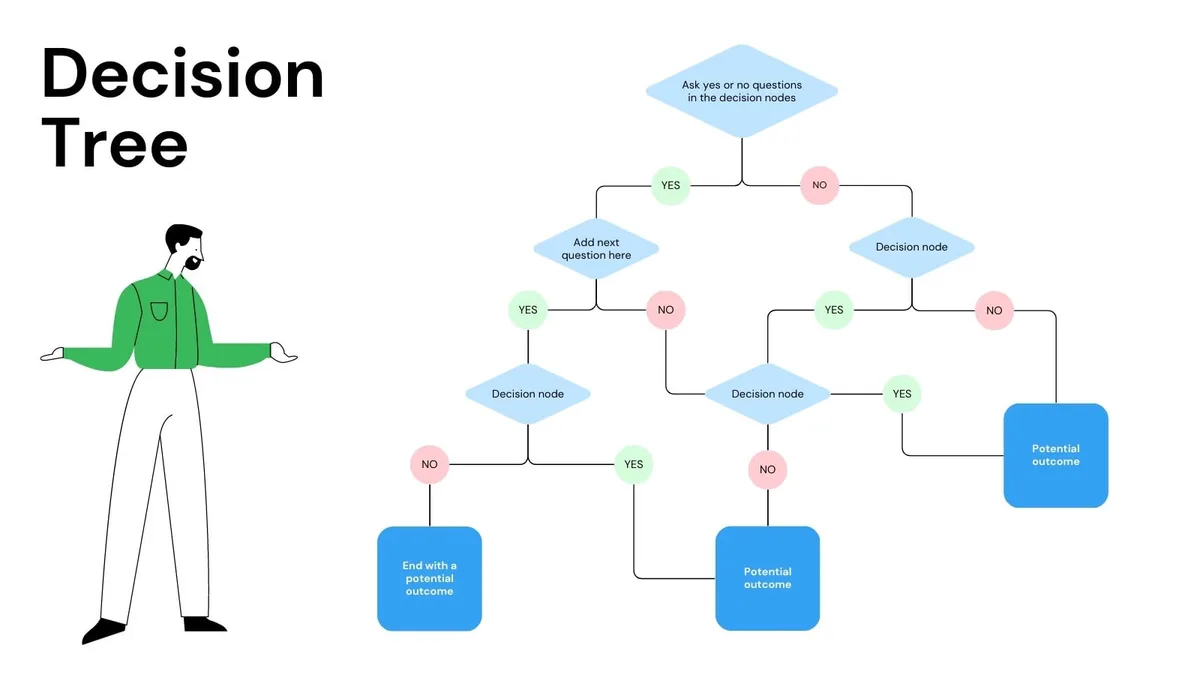
Image source: Bing (Web (fair-use with source credit))
Start here: What is your primary activity?
- Walking, hiking, or casual vlogging. Use FlowState. The horizon stays level, the crop is modest, and the battery lasts. Do not use Horizon Lock. It will make your walk look claustrophobic.
- Running, trail running, or jogging. Use FlowState. Running creates a steady vertical bounce. FlowState handles it well. Horizon Lock is unnecessary and will crop too much.
- Mountain biking (MTB) on rough trails. Use Horizon Lock. The constant bumps and sharp turns can cause FlowState to wobble. Horizon Lock locks the horizon through the chaos. Expect a bigger crop, but the stability is worth it.
- Road biking or smooth paths. Use FlowState. The motion is smoother. You do not need the heavy lock of Horizon Lock. Save the battery.
- Motorcycle or car dash-cam style. Use Horizon Lock. Engine vibration and high-speed turns create high-frequency shaking. FlowState may produce a jello effect. Horizon Lock is the safe bet.
- Snowboarding, skiing, or skateboarding. Use Horizon Lock if you are doing spins or jumps. Use FlowState if you are cruising. If you plan to rotate the camera 360 degrees, Horizon Lock is the only option.
- 360° mode (reframing in post). Use FlowState or Off. Horizon Lock is not available in 360° mode. You can only use FlowState or Off. In 360° mode, you can reframe the shot later, so some people prefer Off for maximum flexibility.
- Bullet Time mode. The X3 has a dedicated Bullet Time mode with its own stabilization logic. It uses a rope swing effect. The stabilization is built into that mode, so you do not need to choose separately.
If you are unsure, start with FlowState. It is the best all-rounder. You can always switch to Horizon Lock if you notice the horizon tilting in your footage.
How to Set Up Stabilization for Walking, Biking, Running, and More
Changing the stabilization setting on the X3 is straightforward, but the menu is easy to overlook. Here is how to do it step by step.
- Turn on the camera. Press the power button.
- Swipe down from the top of the touchscreen to open the quick menu.
- Tap the "Stabilization" icon. It looks like a small mountain with a squiggly line.
- Choose your mode. You will see three options: FlowState, Horizon Lock, and Off. Tap the one you want.
- Check the FOV preset. The camera may automatically switch to a narrower FOV. Tap the FOV icon to adjust it if needed. You cannot use the widest FOV with stabilization on.
- Start recording. The setting is locked until you stop.
For walking: Set it to FlowState. That is all you need. The camera will smooth out the natural side-to-side motion of each step.
For biking: If you are on a mountain bike, set Horizon Lock. If you are on a road bike, FlowState is fine. Test a short clip before your main ride.
If you see a jello wobble, switch to Horizon Lock.
For running: Use FlowState. The vertical bounce is predictable. Horizon Lock will crop too much and make the footage feel tight.
For 360° mode: The stabilization menu is the same. Choose FlowState or Off. Remember that you cannot use Horizon Lock in 360° mode.
The camera records the full sphere, and you will reframe later. Many users prefer Off to get the widest possible 360° capture.
Post-production tip: Even if you shot with stabilization on, you can still adjust the horizon in the Insta360 app. The app uses the gyro data to let you reframe the shot. But the in-camera stabilization is already applied, so you cannot add more stabilization on top.
If you want the most flexibility, shoot with stabilization Off and apply stabilization in the app. Just be aware that the app will crop more, and the result may not be as smooth as in-camera.
For a quick reference on how to navigate the app, check out the setup guide for the Wyze Cam V4. The same menu navigation logic applies to the Insta360 app.
Why Active HDR and Stabilization Don't Always Play Nice
Active HDR is a great feature for capturing more detail in bright and dark areas of the same scene. It combines multiple exposures into one frame. The result is richer footage with less blown-out sky or crushed shadows.
But there is a catch: Active HDR can mess with your stabilization.
The X3's processor works hard to align the multiple exposures. When you enable Active HDR, the camera may limit or disable some stabilization features to keep up. Aggregate reviews report that users often see noticeably shakier footage when HDR is on.
The camera simply cannot do both jobs at full speed.
Here is what you need to know:
- Active HDR + FlowState. This combination works in most cases, but the stabilization is weaker. You may see micro-jitters that are not present with HDR off.
- Active HDR + Horizon Lock. This combination is not available. The X3 disables Horizon Lock when Active HDR is active. You get FlowState at best, or no stabilization at all depending on the resolution.
- Active HDR + Off. This is fine. You get the HDR benefits, and you can add stabilization later in the app. The app uses the gyro data to smooth things out.
The practical takeaway is simple: if stabilization is your priority, turn Active HDR off. If you are shooting a static scene with a tripod or a steady mount, Active HDR is a great choice. For action footage, skip it.
A proper mounting position also helps. A loose or bouncy mount can make any stabilization mode struggle. Check out the VIOFO A229 Pro installation guide for tips on securing a camera firmly.
The same principles apply to the X3.
Fixing Common Problems: Jello Effect, Wobble, and Horizon Drift
Even with the right settings, problems can creep in. Here are the three most common issues and how to fix them.
Jello effect. This looks like the image is wobbling or rippling, especially at the edges. It happens when the camera vibrates at a high frequency, like on a motorcycle engine or a rough mountain bike trail. The gyro struggles to keep up.
The fix is to switch to Horizon Lock. That mode handles high-frequency vibration much better. You can also try a different mount.
A silicone vibration dampener can help. If the problem persists, lower the resolution to 4K at 60 fps. The camera has fewer pixels to process, which helps the gyro.
Wobble. This is different from the jello effect. Wobble looks like the footage is gently swaying side to side. It often happens during slow walking or panning shots.
The gyro is overcorrecting or undercorrecting. The fix is to use a slower shutter speed. In the Pro mode settings, set the shutter to 1/60 or 1/50.
That adds natural motion blur that masks the wobble. You can also try switching to the other stabilization mode. If you are on FlowState, try Horizon Lock, or vice versa.
Horizon drift. This is when the horizon slowly tilts during a shot. It is most common in FlowState mode when the camera tilts past 45 degrees. The gyro loses its reference point.
The fix is to calibrate the gyro. Go to Settings, then Gyroscope, and select Calibrate. Place the camera on a flat surface for 30 seconds.
If that does not work, try updating the camera's firmware. The DJI Pocket 2 firmware update guide covers the same process. The steps are nearly identical for the X3.
Other common issues:
- Stabilization not working at all. First, check that you are not in a mode that disables it. Active HDR, Bullet Time, and some time-lapse modes can override stabilization. Go back to the main menu and check the stabilization icon.
- Footage is cropped too much. You are likely using Horizon Lock when you do not need it. Switch to FlowState. If you still need a wider view, turn stabilization off and use the app later.
- Battery drains too fast. Horizon Lock uses more power. If you are not doing extreme sports, switch to FlowState. Carry a spare battery for long shoots.
If you have tried everything and the problem persists, a factory reset can help. The Arlo Pro 5S reset process is similar to the X3's factory reset. It clears any corrupted settings.
Insta360 X3 Stabilization FAQs
What is the best stabilization setting for walking?
FlowState is the best choice for walking. It smooths out the natural side-to-side motion without cropping too much. Horizon Lock is unnecessary and will make your footage feel narrow.
Keep it on FlowState and you will get smooth, natural-looking walking shots.
Can I use Horizon Lock in 360° mode?
No, you cannot. Horizon Lock is only available in single-lens mode. In 360° mode, you can only use FlowState or Off.
The camera captures the full sphere, so you can reframe the shot later. Many users prefer Off for maximum flexibility in post-production.
How do I fix the jello effect on my Insta360 X3?
Switch to Horizon Lock. That mode handles high-frequency vibration much better than FlowState. You can also try a vibration dampener mount or lower the resolution to 4K at 60 fps.
If the problem continues, check your mount for looseness.
Does Active HDR affect stabilization?
Yes, it does. Active HDR limits stabilization performance. With FlowState, you may see micro-jitters.
With Horizon Lock, the camera disables it entirely. If stabilization is your priority, turn Active HDR off. Use it only for static shots or when you have a tripod.
Can I add stabilization in post-production?
Yes, you can. Even if you shoot with stabilization off, the X3 records gyro data. The Insta360 app lets you apply stabilization when you reframe the footage.
The result is not as smooth as in-camera stabilization, and the crop is larger. Use it as a backup, not a primary method.
How do I calibrate the gyro on the Insta360 X3?
Go to Settings, then Gyroscope, and select Calibrate. Place the camera on a flat, level surface for 30 seconds. The camera will adjust the gyro reference.
Do this before any important shoot, especially if you notice horizon drift.
Your Quick Reference: Which Setting to Use for Every Situation
Here is a final cheat sheet. Use this table to pick your stabilization setting based on your activity.
| Activity | Recommended Setting | Why |
|---|---|---|
| Walking, hiking, vlogging | FlowState | Smooth, modest crop, good battery life |
| Running, trail running | FlowState | Handles vertical bounce well |
| Mountain biking, rough trails | Horizon Lock | Locks horizon through bumps and vibration |
| Road biking, smooth paths | FlowState | No need for heavy Horizon Lock |
| Motorcycle, dash-cam | Horizon Lock | Handles high-frequency engine vibration |
| Snowboarding, skiing (spins) | Horizon Lock | Keeps horizon level through 360° rotations |
| Snowboarding, skiing (cruising) | FlowState | Smooth enough, less crop |
| Skateboarding, longboarding | Horizon Lock | Handles pavement vibration |
| 360° mode (reframing later) | Off or FlowState | Off gives maximum flexibility; FlowState for smooth preview |
| Time-lapse, hyperlapse | Off | Apply stabilization in app for smoother results |
| Static shots, tripod | Off | No stabilization needed, widest field of view |
| Low-light conditions | Off | Avoid motion blur; add stabilization in app |
Final recommendation. If you are still unsure, use FlowState. It is the best all-rounder for 90 percent of situations. Switch to Horizon Lock only when you are doing something that creates high-frequency vibration or 360° spins.
Turn stabilization off only when you know you will reframe in post or when you need the widest possible field of view.
The first-time configuration of your camera matters too. A solid setup routine helps everything work better. The Google Nest Cam setup guide covers the basics of positioning and connectivity that apply to any camera, including the X3.
Now you have the full picture. No more guessing. No more shaky footage.
Pick your setting, go shoot, and trust that the camera will deliver.

Similar Posts