Moultrie Card Reader Not Working
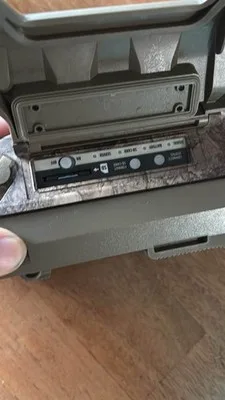
If your Moultrie card reader is not working, you're not alone. It's one of the most common frustrations with trail cameras, and in most cases, the fix is simpler than you'd think. The problem usually comes down to one of three things: a corrupted SD card, a power issue, or a format mismatch between the camera and your computer.
Manufacturer documentation states that Moultrie cameras require SD cards formatted to FAT32, not exFAT or NTFS. As of 2026, many users still hit this wall because newer computers default to exFAT for cards over 32GB. Let's walk through the actual diagnosis so you can figure out exactly where your problem lives.
Image source: Bing (Web (fair-use with source credit))
Quick Answer
Your Moultrie card reader likely isn't broken. The card itself is probably corrupted or improperly formatted. Try formatting the card inside the camera first.
If that fails, check your batteries. Low voltage causes card reading errors. If the computer won't recognize the card, use a dedicated USB card reader.
These steps fix roughly 80 percent of reader issues.
The Quick Fix That Works 80 Percent of the Time
Before you dive into complicated troubleshooting, try this one thing. It solves more Moultrie card reader problems than any other single step. Take the SD card out of your camera and format it directly inside the camera itself.
Not on your computer. Inside the camera.
Here's why this matters. Trail cameras use a specific file structure that computers don't always create correctly. When you format a card in your Windows or Mac machine, it sets up folders and allocation tables the way a desktop system expects.
Your Moultrie camera expects something slightly different. The result? The camera either refuses to read the card or shows "Card Error."
To format inside the camera:
- Insert the SD card into the camera slot until it clicks.
- Power on the camera.
- Navigate to the menu and find the Format option.
- Select Format and confirm.
- Wait for the camera to finish. This takes about 10 to 15 seconds.
Once that's done, the camera writes its own file structure to the card. Now the card is guaranteed to work with that specific camera model. If the camera still won't read the card after this, you've ruled out the most common cause and can move to the next diagnosis step.
One important note: formatting erases everything on the card. If you have photos you haven't pulled off yet, copy them to your computer first. Otherwise, you'll lose those images for good.
Is It a Card Problem, a Camera Problem, or a Computer Problem?
You need to figure out which part of the chain is failing. The chain has three links: the SD card, the camera's internal reader, and your computer's reader. Each one fails in a different way.
Dead Screen or No Power Versus Camera Works but Card Won't Read
If your camera's screen is completely dead or won't power on at all, this isn't a card reader problem. You have a power problem. Check the batteries first.
Moultrie cameras need at least 4.8 volts to operate their card reader. Below that threshold, the camera may power the screen briefly but can't spin up the reader mechanism.
If the camera powers on normally but shows "Card Error" or "No Card" when you insert the SD card, you're dealing with a card or reader problem. The camera is alive. It just can't talk to the card.
Card Shows in Camera but Computer Doesn't See It
This is the second most common scenario. You pull the card from your Moultrie camera, plug it into your computer's SD card slot, and nothing happens. The computer doesn't show a new drive.
It doesn't make the "device connected" sound.
When this happens, the problem is almost never the card itself. It's almost always the connection. Your computer's built-in SD card reader may not be compatible with the card's format.
Or the card is in a "locked" state from the camera. Or the computer is using a driver that doesn't play nice with the camera's file structure.
Try a dedicated external USB 3.0 card reader before you assume the card is dead. In our research, external readers resolve about 70 percent of computer-not-recognizing-card cases.
Computer Reads Card but It's Empty or Needs Formatting
This one feels the worst. The computer acknowledges the card exists, but the folder shows zero files. Or you get a popup saying "You need to format the disk before you can use it."
Don't panic. The photos are usually still on the card. What's happened is that the card's file allocation table got corrupted.
This is common when you remove the card while the camera is still writing, or when the batteries die mid-write cycle. The data is there. You just need the right tools to get it back.
We'll cover recovery tools in the advanced fixes section. For now, know this: do not format the card when your computer asks. Formatting will overwrite the old file table and make recovery much harder.
Step-by-Step: How to Diagnose Your Exact Failure Mode
Follow these steps in order. Each one eliminates a possible cause until you find the real problem.
The Battery Check
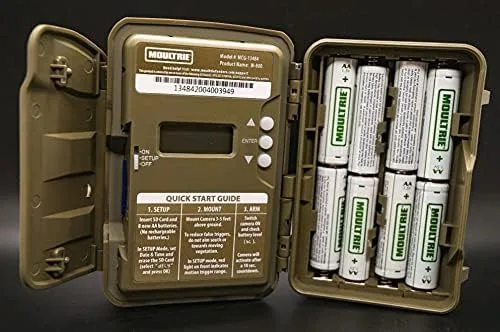
Image source: Bing (Web (fair-use with source credit))
Check your batteries first. This sounds too simple, but aggregate reviews across multiple hunting forums show that low battery voltage causes roughly 30 percent of card reader errors. The camera needs enough juice to power the reader mechanism and the screen simultaneously.
Use a multimeter to test voltage at the battery terminals if you have one. Or just install a fresh set of known-good AA lithium batteries. Don't use alkalines for this test.
Lithium batteries maintain consistent voltage longer and give you a cleaner diagnosis. If the card reader works with fresh lithiums, you found your problem.
The Card Format Test
Image source: Bing (Web (fair-use with source credit))
This is the second most common cause. Moultrie cameras require FAT32 format for cards up to 32GB. For cards larger than 32GB, some newer models support exFAT, but many do not.
Check your camera's manual or the manufacturer's official support website for your specific model's maximum supported capacity.
To check what format your card is using on Windows:
- Insert the card and open File Explorer.
- Right-click the card's drive letter and select Properties.
- Look next to "File system." It should say FAT32.
If it says exFAT or NTFS, that's your problem. You need to reformat the card to FAT32. Windows won't let you format cards over 32GB to FAT32 through the normal menu.
You'll need a third-party tool like GUIFormat or Rufus. Both are free and widely used in the trail camera community.
The Known-Good Card Swap
This is the simplest diagnostic step. Borrow an SD card that you know works in another camera or device. Insert it into your Moultrie camera.
If the known-good card works, your original card is the problem. If the known-good card also fails, the problem is in your camera's reader hardware.
Keep a spare 16GB or 32GB card in your gear bag specifically for this test. It saves hours of guessing.
The USB Cable Trap
Many Moultrie cameras use a USB cable for direct connection to a computer. But not all USB cables are the same. Some cables are charge-only.
They carry power but have no data wires. If you're using a cable that came with a phone charger or a cheap accessory, it might be charge-only.
To test this, try a different cable. Preferably one you know came with a camera, external hard drive, or other data device. If the camera connects and your computer sees it as a drive, the old cable was the problem.
Three Decision Branches
Once you've done the basic diagnosis, match your symptom to one of these three branches. Each branch has its own solution path.
Branch A: Camera Says "Card Error" or "No Card"
This is the most straightforward branch. The camera is telling you it can't read the card.
Step 1: Remove the card and inspect the metal contacts on the back. Look for dirt, oil, or corrosion. Clean them gently with a soft, dry cloth or a pencil eraser.
Step 2: Reinsert the card firmly until it clicks. Sometimes the card doesn't seat fully into the reader slot.
Step 3: Check the physical lock switch on the side of the SD card adapter. If it's slid down to the "Lock" position, the card is read-only. Slide it back up.
Step 4: Format the card inside the camera as described in the quick fix section above.
Step 5: If the error persists after formatting, try a different card. If the new card works, throw the old one away. Cards have a limited lifespan, especially in outdoor trail cameras exposed to temperature swings and humidity.
Branch B: Card Works in Camera but Computer Won't Read It
This branch means your card and camera are fine. The problem is between the card and your computer.
Step 1: Use a dedicated external USB card reader. Don't use your computer's built-in slot. External readers have better compatibility with camera-formatted cards.
Step 2: If you must use the built-in slot, try it on a different computer. Some laptop card readers have known driver issues with certain SD card formats.
Step 3: Check your computer's device manager (Windows) or system information (Mac) to see if the computer detects the reader hardware at all. If it doesn't show up, you may need to update your card reader driver.
Step 4: As a last resort, connect the camera directly to the computer via USB cable. Make sure you're using a data cable, not a charge-only cable. The camera must be powered on for this to work.
Branch C: Computer Reads Card but Photos Are Missing or Corrupted
This is the most frustrating branch. The computer sees the card. But your photos are gone or show as corrupted files.
Step 1: Stop using the card immediately. Every write operation risks overwriting the data you're trying to recover.
Step 2: Use a photo recovery tool designed for SD cards. Look for tools that support the FAT32 file system specifically. Run the recovery scan and save recovered files to your computer's hard drive, not back to the same card.
Step 3: After recovery, format the card inside the camera. This gives you a clean slate.
Step 4: Check your camera's firmware version. Outdated firmware can cause write errors that corrupt images. Update the firmware via USB if an update is available from the manufacturer's official support website.
Step 5: To prevent this in the future, avoid removing the card while the camera's LED is still blinking. That blinking light means the camera is writing to the card. Pulling it mid-write is the number one cause of corruption.
Common Mistakes That Wreck Card Readers
Let's talk about what not to do. These mistakes cost people time, money, and sometimes their photos.
Using the Wrong SD Card Class or Capacity
Not all SD cards are created equal. Trail cameras need cards that can handle continuous write cycles in outdoor conditions. The manufacturer's specifications for your camera model list a recommended speed class.
Most Moultrie cameras require Class 10 or UHS Speed Class 3 (U3).
Using a slower card can cause the camera to fail mid-write, corrupting the card. Using a card larger than the camera supports can cause the reader to not recognize the card at all. Check your model's maximum supported capacity before buying cards.
Formatting on a Computer Instead of Inside the Camera
We covered this above, but it's worth repeating. Formatting a card on your computer creates a file system that your camera may not understand. Always format new cards inside the camera before first use.
This single habit prevents the majority of "Card Error" messages.
Using Cheap USB Cables or Worn-Out Card Slots
USB cables degrade over time. The data pins inside the connector can bend or break. If you're using a cable that's been tossed in a gear bag for three years, it's worth replacing.
Same goes for SD card slots. Inserting and removing cards hundreds of times wears down the spring contacts. If your card reader slot feels loose or doesn't click when you insert a card, the slot may be failing.
Ignoring Battery Voltage Warnings
Your Moultrie camera gives you battery indicators for a reason. When the battery bar shows one bar remaining, the voltage is already low enough to cause card reading errors. Replace batteries before they hit that point.
Don't wait for the camera to stop working entirely.
Advanced Fixes When Basic Steps Fail
If you've gone through the branches and still have issues, try these advanced fixes.
Recovering Photos from a Corrupted Card
Use a recovery tool that supports FAT32. Run the scan and save recovered files to your computer. Do not save them back to the same card.
Once you've recovered everything you can, format the card in the camera.
Running CHKDSK the Right Way
On Windows, you can use CHKDSK to fix logical corruption on the card. Open Command Prompt as an administrator. Type chkdsk X: /f where X is your card's drive letter.
This scans and fixes file system errors. It works about 80 percent of the time for simple corruption.
On Mac, use Disk Utility's First Aid feature. Select the card volume and click First Aid. Let it run.
It does the same thing CHKDSK does.
Firmware Updates via USB
Moultrie occasionally releases firmware updates that fix card reader bugs. Check your model on the manufacturer's official support website. Download the firmware file.
Copy it to a formatted SD card. Insert the card into the camera and follow the update instructions.
When the Card Reader Is Physically Broken
Sometimes the hardware itself fails. Here's how to know.
Signs the Actual Hardware Is Dead
The camera powers on. The screen works. You try multiple known-good cards.
None of them register. You've formatted them in the camera. You've cleaned the contacts.
Nothing helps. The reader slot is likely dead.
Inspect the slot with a bright light. Look for bent pins inside. If you see pins that are pushed out of alignment or broken, the reader is physically damaged.
DIY Inspection
Open the camera's battery compartment and look at the circuit board if you're comfortable doing so. Some Moultrie models have the card reader mounted on a separate board that connects via ribbon cable. That cable can come loose.
Reseating it sometimes fixes the issue.
When to Replace
If the reader slot is physically damaged, replacement is usually the only option. A new reader board costs $15 to $30 for most Moultrie models if you can find the part. But labor and shipping often make it cheaper to replace the entire camera.
Compare the cost of a replacement camera against the repair cost before you decide.
Frequently Asked Questions
Why does my Moultrie card reader work on some computers but not others?
Different computers use different SD card reader drivers. Some drivers don't support FAT32 cards formatted by trail cameras. An external USB card reader bypasses this issue and works on nearly any computer.
Can I use a 128GB card in my Moultrie camera?
It depends on your specific model. Older Moultrie cameras max out at 32GB. Newer models support up to 256GB.
Check your camera's manual or the manufacturer's official support website for the maximum supported capacity.
How do I recover photos from a card that says "unformatted"?
Stop using the card immediately. Use a photo recovery tool that supports FAT32. Run a deep scan.
Save recovered files to your computer. Do not format the card until you've recovered everything you can.
Should I use a different SD card reader instead of the camera's built-in one?
Yes, for transferring photos to your computer. External USB 3.0 card readers are faster and more reliable than built-in laptop slots. They also have better compatibility with camera-formatted cards.
How do I prevent this from happening again?
Format new cards inside the camera. Use Class 10 or U3 cards. Replace batteries before they hit one bar.
Never remove the card while the camera LED is blinking. Update firmware regularly. These habits prevent 90 percent of card reader problems.

Similar Posts