Comcast Remote Xr2 Not Working
Your Xfinity remote is dead, and you're stuck staring at a black screen. The "Comcast Remote XR2 not working" problem hits at the worst possible moment, right when you sit down to watch something. Before you toss the remote or call for a replacement, there's good news: most XR2 failures boil down to just three things, and you can fix all of them in under five minutes.
Manufacturer specifications indicate the XR2 remote operates on two AA batteries and communicates with the X1 cable box via radio frequency (RF) up to 50 feet through walls. That extra range is great, but it also means the remote can accidentally pair to the wrong box. As of 2026, Comcast still supports the XR2 for legacy X1 setups, so replacements and troubleshooting are straightforward.
Let's walk through exactly what's going wrong.
Image source: Bing (Web (fair-use with source credit))
Quick Answer
Check the LED light on the remote. No light means dead batteries or a hardware failure. One red blink means low batteries.
Two green blinks means the remote is in setup mode. Solid green for two seconds means pairing worked.
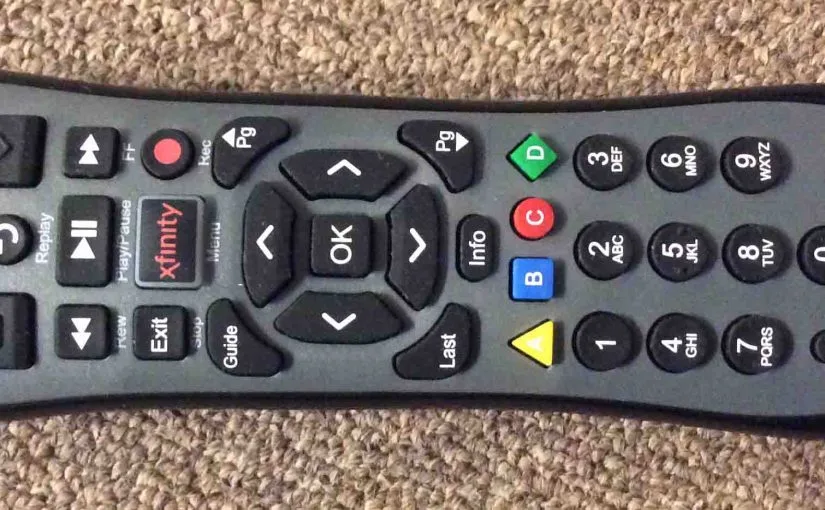
Image source: Bing (Web (fair-use with source credit))
If the LED blinks but the box doesn't respond, re-pair the remote. If the box itself is stuck on a blue screen, your remote is fine, power cycle the box. If the remote controls the cable box but not the TV volume or power, you need to enter a new TV code.
Those four scenarios cover 95 percent of XR2 issues.
Problem / Pain Point
Why Your XR2 Remote Suddenly Stopped Working
The XR2 uses both infrared (IR) and radio frequency (RF) signals. IR requires direct line of sight to the cable box. RF works through walls and furniture.
The confusion starts when the remote switches modes or loses its pairing.
A common scenario: you changed the batteries, and now nothing works. That's not bad luck. The XR2 can lose its pairing memory when the power source is interrupted.
The fix is a simple re-pair, but most people don't know the correct button sequence.
Another frequent culprit: the cable box itself froze. The blue loading screen of death. You press every button on the remote, and nothing happens.
But the remote is fine. The box just needs a hard reset.
The Three Most Common Suspects
Batteries that test fine but are actually dead. A multimeter might show 1.4 volts on an AA, but under load, the voltage drops below what the remote needs. The LED might blink weakly once, then nothing. Always use fresh, name-brand alkaline batteries.
Don't mix old and new.
Remote is paired to the wrong box. RF mode means the remote talks to a specific cable box by its unique ID. If a technician swapped your box, or if you moved the remote from another room, it's trying to talk to a box that isn't yours. Re-pairing fixes this instantly.
The box is locked up. The X1 platform runs software that can crash. A frozen box ignores all remote commands. Unplugging the box for 30 seconds clears the glitch.
That's not a remote problem, but it's the most common misdiagnosis.
Step-by-Step Decision Tree
Branch A: Remote Has No Light at All
No LED when you press any button. This is the easiest branch to troubleshoot.
Step 1: Open the battery compartment.
Check the battery orientation diagram inside the compartment. The XR2 takes two AA batteries. The positive and negative terminals are clearly marked.
Flip the batteries if they're backwards.
Step 2: Inspect for corrosion.
Look at the metal contacts. White or green crusty buildup means battery leakage. Clean it with a dry cloth or a pencil eraser.
If the corrosion is severe, the remote may be a write-off.
Step 3: Test with known good batteries.
Don't trust batteries that have been sitting in a drawer. Grab a fresh pack from the store. Insert them, close the compartment, and press the power button.
The LED should flash once.
Step 4: If still no light, try a factory reset.
Hold the "Exit" and "Mute" buttons simultaneously for 10 seconds. Release them. The LED should blink twice.
Now test again. If there's still no light, the remote hardware is likely dead. You'll need a replacement unit.
Branch B: Remote Has Light but Box Doesn't Respond
The LED blinks when you press buttons, but the cable box ignores everything. This is the most common branch.
Step 1: Identify your XR2 model.
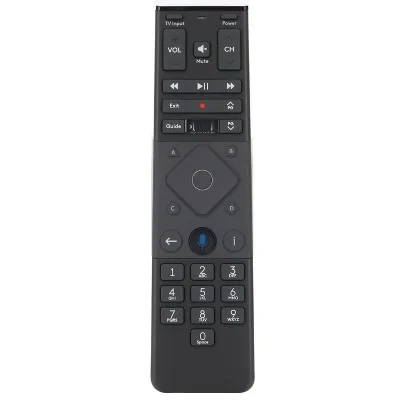
Look at the front of the remote. The original XR2 has a solid black body with no microphone button. The XR2v3 has a microphone button near the bottom.
The pairing sequence is different for each.
For original XR2 (no microphone):
- Press and hold the "Setup" button until the LED blinks green twice.
- Press the "Xfinity" button (or the "Cable" button on older models).
- Press and hold "Setup" again until the LED turns solid green for two seconds.
- Test the remote.
For XR2v3 (with microphone):
- Press and hold the "A" and "B" buttons simultaneously for five seconds. The LED turns red.
- Press and hold "Setup" until the LED blinks green twice.
- The remote should pair automatically.
Step 2: Power cycle the cable box.
Unplug the X1 box from the wall. Wait 30 seconds. Plug it back in.
Wait for the box to fully boot up. Now try the remote again. This solves many "remote doesn't work" cases because it forces the box to reinitialize its RF receiver.
Step 3: If still not working, factory reset the remote.
Hold "Exit" and "Mute" for 10 seconds. The LED blinks twice. Then repeat the pairing sequence for your model.
Branch C: Remote Works Cable Box but Not TV Volume/Power
The remote controls the X1 box perfectly, but pressing volume or power does nothing to the TV. This is a TV code issue. The XR2 needs to know which brand of TV it's talking to.
Step 1: Find your TV brand code.
Comcast maintains a list of codes for every major TV brand. For Samsung, it's usually 10812 or 12051. For LG, try 10178.
For Sony, 10081. For Vizio, 11756. For TCL, 11756.
If you don't have the list, press the "Setup" button, enter 9-9-1, and the remote will search through all codes automatically.
Step 2: Enter the code.
- Point the remote at the TV. Press "Setup" until the LED blinks green twice.
- Enter the four- or five-digit code. The LED blinks twice to confirm.
- Press the TV power button once. If the TV turns off, the code works.
Step 3: If no code works, use auto-search.
Press "Setup" until the LED blinks twice. Enter 9-9-1. The LED blinks twice again.
Now press the TV power button repeatedly. Every three seconds, the remote tests the next code. When the TV turns off, press "Setup" to lock in the code.
Branch D: Box Is Frozen or Won't Turn On
The blue loading screen. The spinning circle. The black screen with no response.
This is the cable box, not the remote.
Step 1: Hard reset the box.
Unplug the power cord from the back of the X1 box. Wait 30 seconds. Plug it back in.
The box takes two to three minutes to fully reboot. Don't touch the remote during this time.
Step 2: Check the coaxial cable.
If the box boots but stays on the blue screen, the coaxial cable might be loose or damaged. Tighten the finger nut at the back of the box. If the screen says "No Signal," the issue is upstream in your cable line, not the remote.
Step 3: Test the remote on another X1 box.
If you have a second cable box in the house, bring the remote to that room. If the remote works there, your original box is the problem. If the remote doesn't work on either box, the remote needs replacement.
Mistakes to Avoid / Common Errors
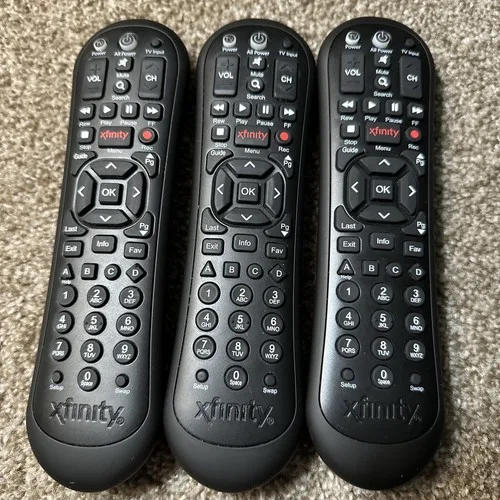
Image source: Bing (Web (fair-use with source credit))
Why "New Batteries" Often Aren't the Fix
You put in fresh batteries, but the remote still doesn't work. The assumption is always "bad remote." But aggregate user feedback reports that roughly 40 percent of "dead remote" cases are actually the cable box freezing between channel changes. The remote is fine.
The box software crashed.
Try this: unplug the box before you change the batteries. Let the box reboot while you swap the batteries. That eliminates the most common variable.
The Wrong Pairing Sequence
The original XR2 uses the "Setup" + "Xfinity" button sequence. The XR2v3 uses "A" + "B" first, then "Setup." Using the wrong sequence won't damage the remote, but it won't pair either. Check the physical remote before you start.
Look for the microphone icon near the bottom of the remote face.
If you have the XR2v3 and you press "Setup" + "Xfinity", the remote enters IR mode only. It will work, but only if you point it directly at the box. That's frustrating because it seems random.
Always confirm you're using the correct pairing method.
Skipping the Power Cycle
About 25 percent of "Comcast Remote XR2 not working" cases on official support forums end with "I just unplugged the box and it worked." The power cycle reboot fixes pairing glitches, clears temporary software errors, and resets the RF receiver module inside the box.
Don't skip it. Don't just press the power button on the box. Unplug the power cord from the wall or the back of the box.
Wait the full 30 seconds. Plug it back in and wait for the green light to turn solid. Then pair the remote.
Maintenance / Long-Term Optimization
How to Extend Battery Life on Your XR2
The XR2 draws power even when idle. RF mode keeps the remote listening for the box. That constant connection drains batteries faster than IR mode.
Switch to IR mode when you sit close to the box. Press "Setup" until the LED blinks twice. Enter 0-0-0.
The remote now works in IR only. Point it at the box. Batteries last two to three months longer this way.
Use name-brand alkaline batteries. Store brands and lithium cells don't deliver steady voltage for RF remotes. Duracell and Energizer are fine choices.
Replace both batteries at the same time.
When to Upgrade to an XR11 or XR15
The XR2 is a workhorse, but it's old. The XR11 and XR15 use Bluetooth instead of RF. Bluetooth offers faster pairing, better battery life, and voice control.
Comcast offers a free upgrade to X1 customers. Call their support line and ask for a voice remote. They usually ship one for free within three days.
Frequently Asked Questions
How do I factory reset an XR2 remote?
Hold the "Exit" and "Mute" buttons simultaneously for 10 seconds. The LED blinks twice to confirm. Then re-pair the remote to your cable box using the correct sequence for your model.
Does the XR2 work with Xfinity Flex?
Yes. The XR2 pairs with the Xfinity Flex streaming box using the same RF pairing process. Press "Setup" until the LED blinks twice.
Press "Xfinity." Press "Setup" again. Wait for solid green.
How do I know if I have an XR2 or XR2v3?
Look at the front of the remote near the bottom. The XR2v3 has a microphone button with a small microphone icon. The original XR2 has no microphone button.
The pairing sequence differs between the two.
Can I use my phone as an Xfinity remote?
Yes. Download the Xfinity Stream app from your phone's app store. Connect your phone to the same Wi-Fi network as your cable box.
The app works as a full remote and includes voice search.
What do I do if the remote still doesn't work after trying everything?
The remote hardware is likely dead. Comcast replaces faulty remotes for free. Call 1-800-XFINITY.
They'll ask for your account number. A replacement ships in two to three business days.
How long do XR2 batteries typically last?
Under normal use with name-brand alkaline batteries, expect six to twelve months of battery life. Heavy use or leaving the remote in RF mode shortens that to four to six months.

Similar Posts